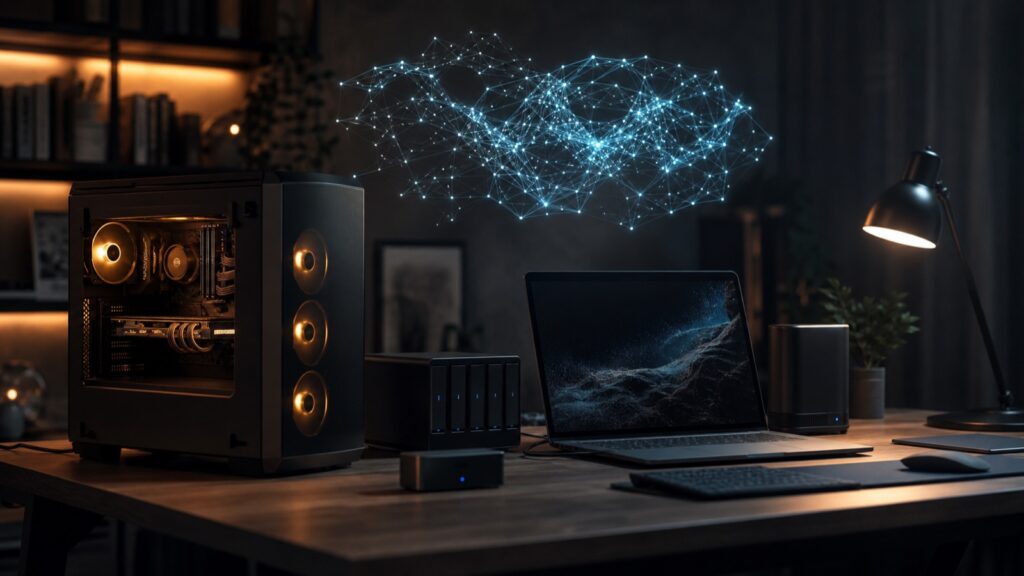
Local AI models are no longer a curiosity reserved for researchers with spare GPUs. In 2026, a normal laptop can run small local language models, a gaming PC can run very capable chat and coding models, a Mac with enough unified memory can be a surprisingly strong private AI workstation, and a serious GPU box can serve models to a whole team.
Buying details checked October 22, 2026: Llama buying profile: The community license and acceptable-use terms include restrictions and large-user conditions. No model-download fee does not mean unrestricted open-source rights. Ollama buying profile: RAM, CPU/GPU and model licenses limit practical use. Choosing a cloud model sends requests off-device; local installation alone is not a privacy audit. Open WebUI buying profile: Current licensing includes branding conditions for larger deployments. Authentication, updates, network exposure and connector privacy require configuration. The original article keeps its existing dates and evidence scope; the linked profiles describe their own demonstrations.
Buying details checked October 22, 2026: DiffusionBee buying profile: The current site requires macOS 13.1 or newer and recommends Apple silicon. Intel Macs can be slow; Windows is on a waitlist. The original article keeps its existing dates and evidence scope; the linked profiles describe their own demonstrations.
The appeal is obvious: more privacy, predictable marginal cost, offline access, lower dependency on cloud vendors, better control over data, and the ability to learn how modern AI systems actually work. Local AI can help with coding, document analysis, writing, creator workflows, transcription, agents, embeddings, and image generation.
The honest caveat matters just as much. Local AI is powerful, but it is not automatically better than frontier cloud models. The best hosted systems still win many hard reasoning, multimodal, tool-use, and long-context tasks. Local models also bring maintenance work: drivers, storage, updates, security, licensing, benchmarks, and the delightful ritual of asking why your GPU is idle while your fans sound busy.
This guide is built as a practical pillar resource for Kingy.ai readers who want to run AI locally without getting lost in hype. It explains the stack, the hardware, the model formats, the setup paths, the evaluation process, the security issues, and the buying decisions.
Image note: AI-generated editorial image: local AI models can run on personal hardware, from laptops to GPU workstations and home servers.
- Quick Answer: Should You Run AI Locally?
- What Local AI Actually Means
- The Local AI Stack Explained
- Hardware Planning: Start With the Use Case
- Hardware Components Explained
- Rough Model Size vs Memory Planning
- Hardware Tiers for Local AI
- How to Choose the Right Local AI Model
- Types of Local AI Models
- Model Formats Explained
- Quantization Explained
- Best Local AI Tools and Runtimes
- Beginner Path 1: LM Studio Setup
- Beginner Path 2: Ollama Setup
- Private ChatGPT-Style Setup: Ollama + Open WebUI
- Advanced Path: llama.cpp
- Developer/API Path: vLLM
- Apple Silicon Local AI Path
- Local Image Generation Path
- Local Transcription Path
- Testing Your Local AI Setup
- Benchmarking Without Fooling Yourself
- Real-World Local AI Workflows
- Local RAG: Chat With Your Documents
- Local AI Agents
- Fine-Tuning, LoRA, and Personalization
- Privacy, Security, and Licensing
- Troubleshooting
- Best Local AI Setups by Persona
- Local AI Buying Guide
- Model Recommendation Tables
- Maintenance Plan
- FAQ
- Sources
For the hardware side of this workflow, the AI Hardware hub connects model planning to memory guidance, platform comparisons and tested systems.
Commercial relationship for this article: None. This is based on Curtis Pyke’s direct confirmation on October 7, 2026.
Quick Answer: Should You Run AI Locally?
Founder OS next step: Before buying hardware or moving workloads, compare the tradeoffs with the free Local vs Cloud Advisor, estimate the operating economics in the Inference Cost Calculator, and model usage assumptions in the Token Cost Calculator.
Run AI locally if you value privacy, offline availability, experimentation, predictable usage costs, or control over models and workflows. Do not start locally if your main need is the absolute strongest reasoning model with no setup, no maintenance, and no hardware decisions.
| User | Should you run local AI? | Recommended starting path |
|---|---|---|
| Beginner user | Yes, if curious and patient. | Install LM Studio or Ollama; start with a 7B-9B instruct model. |
| Creator | Usually yes. | Local transcription with Whisper or whisper.cpp, then local summarization and outlines. |
| Developer | Yes. | Ollama for quick local APIs; llama.cpp for GGUF control; vLLM for serving when throughput matters. |
| Privacy-focused business user | Yes, with policy work. | Open WebUI + Ollama on a controlled machine; audit logs, backups, and permissions. |
| Homelab user | Definitely. | Dockerized Open WebUI, model storage, reverse proxy only if secured, and scheduled backups. |
| Researcher | Yes, but evaluate carefully. | Hugging Face Transformers, vLLM, lm-evaluation-harness, repeatable prompt packs. |
| Small team | Maybe. | Start with one internal pilot and measure real workflows before buying multi-GPU hardware. |
| Power user | Yes. | Mix LM Studio, Ollama, llama.cpp, MLX on Mac, ComfyUI, and local RAG. |
What Local AI Actually Means
Cloud AI sends prompts to a provider-hosted model. Local AI runs inference on your own device, such as a laptop, desktop, workstation, or home server. Self-hosted AI usually means you run the model on infrastructure you control, which may still be a rented cloud GPU. Hybrid AI combines local models for private or routine tasks with cloud models for harder work.
Open-source means the source code is available under an open-source license. Open-weight means the model weights are available, but the license may include restrictions. Always read the model card and license before commercial use, redistribution, fine-tuning, or embedding a model into a product.
Model weights are the learned parameters. Inference is running the model to generate outputs. A runtime is the software that loads and executes the model. Quantization stores model weights at lower precision to reduce memory use. A context window is the amount of prompt plus conversation the model can consider. RAG, or retrieval-augmented generation, retrieves relevant documents and inserts them into the prompt. Fine-tuning changes model behavior by training on additional data.
The Local AI Stack Explained

Think of local AI as a stack. The model is only one layer.
1. Hardware
CPU, RAM, GPU, VRAM, unified memory, storage, thermals, networking, and power.
2. Operating system
Windows, macOS, Linux, or a containerized server environment.
3. Drivers and acceleration
CUDA, Metal, ROCm, Vulkan, CPU backends, and runtime-specific acceleration.
4. Runtime
Ollama, LM Studio, llama.cpp, vLLM, MLX, Transformers, ComfyUI, whisper.cpp, or another engine.
5. Model format
GGUF, safetensors, PyTorch checkpoints, AWQ, GPTQ, EXL2, MLX, or ONNX.
6. Interface and API
Desktop chat UI, web UI, local OpenAI-compatible server, CLI, or application API.
7. Workflows
Chat, coding, RAG, transcription, image generation, agents, batch jobs, or team serving.
8. Testing and maintenance
Benchmarks, privacy tests, update checks, driver checks, backups, and regression prompts.
Hardware Planning: Start With the Use Case

The worst way to buy local AI hardware is to begin with a model leaderboard and then reverse-engineer your life around it. Start with the work.
Chat can be useful on modest hardware with 7B-9B quantized models. Coding benefits from stronger models, better quantization, and enough context for source files. Document Q&A needs embeddings, storage, good parsing, and enough memory for your answer model. Image generation cares heavily about VRAM and workflow complexity. Transcription can run well on CPU or GPU depending on speed needs. Local agents need not just a model, but safe tool boundaries. Multi-user serving needs throughput, monitoring, and access control. Fine-tuning is a separate hardware category and should not be assumed just because inference works.
Hardware Components Explained
CPU: CPU-only local AI is realistic for small models, embeddings, transcription, and slow experimentation. It is not ideal for high-throughput chat, large context, or image generation.
System RAM: RAM matters when the model does not fit fully in VRAM, when you run CPU inference, when you use large context windows, or when your RAG pipeline processes many documents.
GPU and VRAM: VRAM is often the limiting factor for local LLMs. If the model, KV cache, and runtime overhead fit in VRAM, responses can be much faster. If they spill to system RAM or CPU, speed usually drops.
NVIDIA: NVIDIA is usually the easiest path for many AI workloads because CUDA is widely supported across PyTorch, vLLM, ComfyUI, and common research tooling. Check current CUDA and driver compatibility in the NVIDIA CUDA documentation.
AMD: AMD can make sense, especially on Linux, but support varies by GPU, operating system, ROCm version, and tool. Check the current AMD ROCm documentation and support matrix before buying hardware for a specific workload.
Apple Silicon: Macs use unified memory shared by CPU and GPU. This can be excellent for local LLMs, especially through apps that use Metal or MLX. CUDA instructions do not apply to Macs.
Storage: Model files are large. Keep fast SSD space available for model downloads, RAG indexes, checkpoints, image-generation models, and backups. A NAS is useful for storing models and documents, but network storage is not a magic substitute for fast local memory.
Cooling and power: Long inference runs, image batches, and multi-user serving can sustain load. A quiet laptop test is different from an overnight batch job.
Networking: If you expose a local AI server on your LAN or over the internet, treat it as production infrastructure. Authentication, HTTPS, firewall rules, and backups are not optional.
Rough Model Size vs Memory Planning
Use this table as a cautious planning guide, not a promise. Actual requirements depend on architecture, quantization, context length, KV cache, batch size, offloading, runtime, and settings.
| Model size | Common quantized memory range | Typical use case | Beginner-friendly? | Notes |
|---|---|---|---|---|
| 1B-3B | Roughly 1-4 GB | Fast assistants, classification, simple tools, edge devices | Yes | Good for experimentation, but can be weak on reasoning and coding. |
| 7B-9B | Roughly 4-8 GB | Beginner chat, writing, summarization, light coding | Yes | Often the best first local LLM size. |
| 12B-14B | Roughly 7-12 GB | Better chat, coding, document tasks | Usually | Needs more memory but can feel much stronger than 7B. |
| 20B-34B | Roughly 12-24+ GB | Power-user chat, coding, analysis | Maybe | Good GPU or high-memory Mac recommended. |
| 70B | Roughly 35-60+ GB | High-quality local chat and reasoning | No | Can run quantized, but context and speed require planning. |
| 100B+ | Roughly 60 GB to multi-GPU territory | Research, specialized serving, high-end local labs | No | Often better served on rented GPUs unless heavily used. |
Hardware Tiers for Local AI
| Tier | Who it is for | Does well | Struggles with | Recommended tools | Upgrade advice |
|---|---|---|---|---|---|
| Existing laptop | Beginners and travelers | Small local chat, transcription, simple embeddings | Large models, image generation, long context | LM Studio, Ollama | Start here before buying anything. |
| Budget Windows/Linux PC | Tinkerers | 7B-14B chat if RAM/GPU allow | 70B models and heavy serving | Ollama, LM Studio, llama.cpp | Prioritize RAM, SSD, and a supported GPU. |
| Apple Silicon Mac | Creators, developers, privacy users | Quiet local chat, MLX, transcription, writing | CUDA-only workflows | LM Studio, Ollama, MLX-LM | Buy enough unified memory up front. |
| NVIDIA gaming PC | Power users | Chat, coding, ComfyUI, many Python tools | Multi-user serving at scale | Ollama, llama.cpp, ComfyUI, Transformers | VRAM is the key spec. |
| Creator/developer workstation | Daily AI users | RAG, coding, image workflows, local APIs | Enterprise-scale serving | Open WebUI, vLLM, ComfyUI | Plan cooling, storage, and backups. |
| Mini PC or NAS | Homelab users | Storage, light CPU inference, RAG services | Large LLMs without GPU | Open WebUI, Ollama, Docker | Use as a support node, not always the model host. |
| Homelab server | Advanced users | Always-on services, RAG, LAN APIs | Noise, heat, maintenance | Docker, Open WebUI, vLLM | Secure it like a server. |
| Multi-GPU workstation | Researchers and teams | Large models, serving, experiments | Cost and complexity | vLLM, Transformers, eval harness | Buy only for measured workloads. |
| Cloud GPU fallback | Bursty users | Fine-tuning, huge models, occasional heavy work | Privacy and ongoing rental cost | vLLM, Transformers | Rent before buying high-end hardware. |
How to Choose the Right Local AI Model
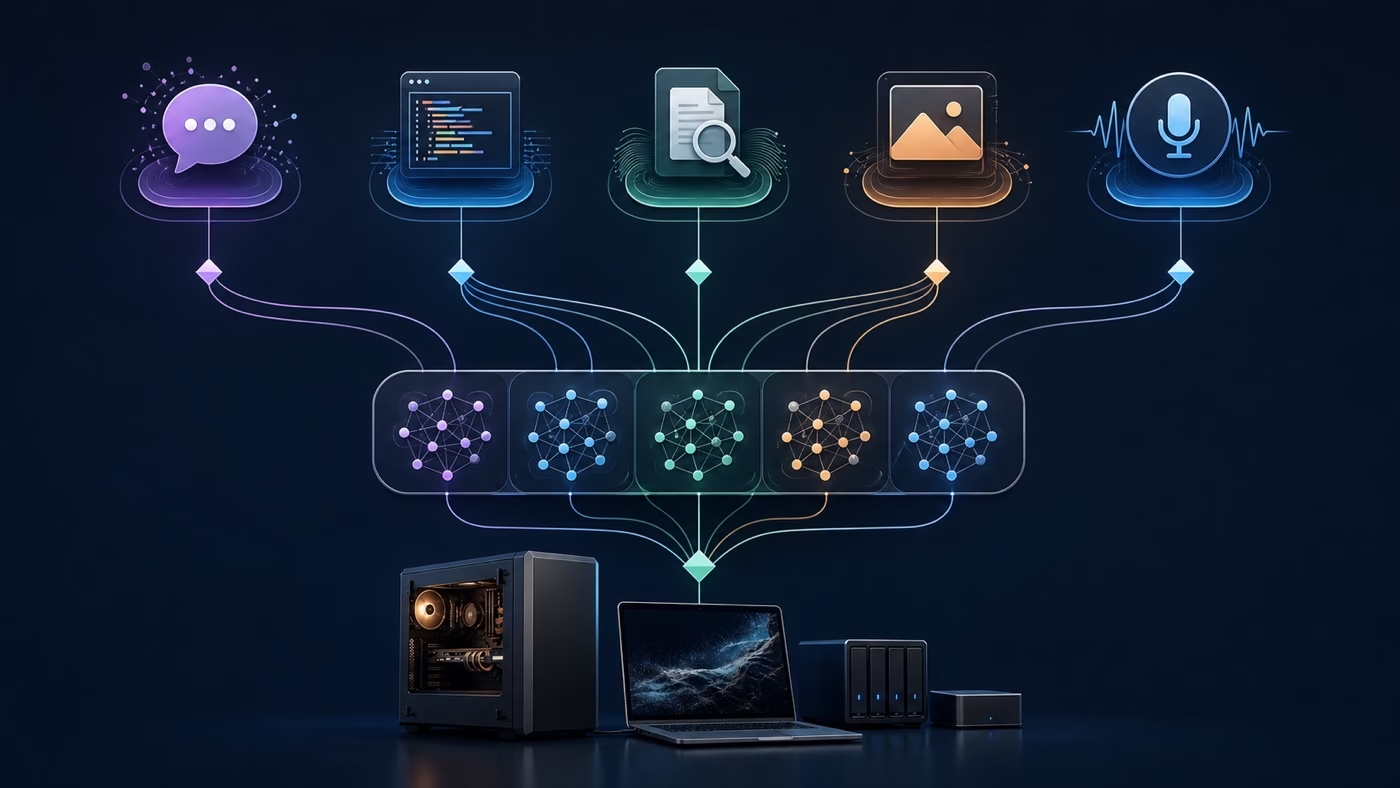
Choose a model by task first, not by vibes. Ask:
- Does the task need chat, coding, reasoning, JSON, tool use, vision, embeddings, image generation, speech, or reranking?
- Does the license allow your intended use?
- Does the model fit your hardware at the context length you need?
- Is the format compatible with your runtime?
- Is there a good model card with training, license, usage, and limitation details?
- Is there recent community usage, quantization availability, and documentation?
- Have you tested it on your real prompts?
For commercial work, make the license check explicit. Track model name, source, license, commercial use status, redistribution restrictions, fine-tuning rules, date checked, and source link.
Types of Local AI Models
Base models predict text but are not necessarily instruction-following assistants. Instruct/chat models are tuned to follow prompts and conversations. Reasoning models are tuned for harder multi-step problems and may be slower. Coding models are optimized for code generation, completion, explanation, and debugging. Embedding models convert text into vectors for search and RAG. Vision-language models can analyze images. Image generation models create images from prompts or workflows. Speech-to-text models transcribe audio. Text-to-speech models generate spoken audio. Reranking models improve search result ordering before generation.
Model Formats Explained
GGUF is common in llama.cpp-based local inference and is heavily used by LM Studio and many Ollama workflows. safetensors is a safer tensor storage format widely used on Hugging Face. PyTorch checkpoints are common in training and research. AWQ, GPTQ, and EXL2 are quantized formats used by specific serving and inference stacks. MLX is important for Apple Silicon workflows. ONNX is used for portable inference in some production stacks.
| User | Download this first | Why |
|---|---|---|
| Beginner using LM Studio | GGUF | LM Studio is built around easy local model discovery and loading. |
| Beginner using Ollama | Ollama library model or Modelfile | Ollama abstracts model management and exposes a local API. |
| Mac power user | MLX or GGUF | MLX can be excellent on Apple Silicon; GGUF remains broadly supported. |
| Python developer | safetensors / Transformers format | Best fit for Hugging Face Transformers and research tooling. |
| Production API user | Runtime-specific format | vLLM, TensorRT-LLM, SGLang, or Transformers may have different requirements. |
| llama.cpp user | GGUF | Native ecosystem format. |
| ComfyUI/image user | Checkpoint, safetensors, LoRA files | Image-generation workflows use different model artifacts than LLM chat. |
Quantization Explained

Quantization stores model weights with fewer bits. It reduces memory use and often increases speed, but it can reduce quality, especially on tasks that need exact reasoning, coding, math, or long-context consistency.
FP16/BF16 is close to full precision for many inference workflows and needs much more memory. INT8/Q8 is a high-quality quantized option when memory allows. Q6 and Q5 are middle-ground choices. Q4 is often the common starting point because it can make larger models practical on consumer hardware. Q3/Q2 can fit models into tight memory, but quality loss can become obvious.
A useful rule: start with Q4 for exploration, move to Q5 or Q6 when quality matters, use Q8 or FP16/BF16 when memory is plentiful, and be skeptical of very low quants for coding or reasoning. Also remember that context length consumes memory through the KV cache. A model that loads at short context may fail or slow down when you raise context dramatically.
Best Local AI Tools and Runtimes

| Tool | Best for | Difficulty | Operating systems | Model formats | API support | Who should use it | Official link |
|---|---|---|---|---|---|---|---|
| Ollama | Simple local model management and API | Easy | macOS, Windows, Linux | Ollama library / Modelfile workflows | Native API plus OpenAI-compatible paths | Beginners and developers | Docs |
| LM Studio | Desktop local chat and model discovery | Easy | macOS, Windows, Linux | GGUF-focused | Local server | Beginners and power users | Docs |
| llama.cpp | GGUF inference, benchmarks, low-level control | Medium | macOS, Windows, Linux | GGUF | llama-server | Advanced users | GitHub |
| Open WebUI | Private ChatGPT-style web UI | Medium | Docker, Python/uv, desktop, and platform-specific setups | Backend-dependent | Connects to Ollama/OpenAI-compatible backends and more | Homelab and teams | Docs |
| MLX / MLX-LM | Apple Silicon inference and fine-tuning experiments | Medium | macOS | MLX | Project-dependent | Mac power users | GitHub |
| vLLM | High-throughput serving | Advanced | Linux/server-oriented; supported accelerators vary by release | Transformers-compatible and runtime-specific | OpenAI-compatible serving | Developers and teams | Docs |
| Hugging Face Transformers | Research and Python workflows | Advanced | Cross-platform | safetensors/PyTorch and more | Code-level | Researchers and developers | Docs |
| ComfyUI | Node-based local image generation | Medium | Windows, macOS, Linux | Image checkpoints, safetensors, LoRA | Workflow/API options | Creators | GitHub |
| whisper.cpp | Fast local transcription | Medium | Cross-platform | Whisper-derived GGML/GGUF formats | CLI/server options vary | Creators and privacy users | GitHub |
Beginner Path 1: LM Studio Setup (tested on a Mac)
What you need: a Mac with Apple Silicon (M1 or newer) on macOS 14 or later. Intel Macs are not supported. LM Studio recommends 16 GB of memory or more; with 8 GB, stick to small models and short context (LM Studio system requirements). Plan for about 1.3 GB for the installed app and 2.5 GB for the model used here. Not sure what your Mac can run? Try the Kingy Local AI checker first.
Step 1: Install or update LM Studio
Download the Mac version from lmstudio.ai/download. On test day the Apple Silicon installer was version 0.4.28 and 573 MB; it took 83 seconds to download on our connection. Open the downloaded file and drag LM Studio into Applications. The app is signed and notarized by its maker, Element Labs.
What went wrong: our Mac already had version 0.4.26. Its in-app Update available button downloaded the update in about 4 minutes, but Restart to apply update reopened the old 0.4.26. LM Studio’s 0.4.28 release notes list exactly this Mac bug as fixed in build 2. The bug sits in the older version’s updater, so updating from inside an older version can still fail. Fix: quit LM Studio, download the installer from the website and replace the app in Applications. That worked first time.
On the first launch after replacing the app, macOS asked whether LM Studio may accept incoming network connections, and LM Studio showed a blank white window until that question was answered. If the window stays blank, look for that pop-up; if you can’t see it, check behind other windows. We clicked Allow.
Step 2: Find and download a first model
Click Model Search in the left sidebar. Type the model name in the search box at the top left. A loose search such as qwen3 4b showed LM Studio’s staff picks first (Qwen3 VL 4B, Qwen3 4B Thinking, Qwen3 4B 2507). Typing the exact name lmstudio-community/Qwen3-4B-GGUF found the one we wanted. The download options showed Qwen3 4B, Q4_K_M, 2.50 GB with a green Full GPU Offload Possible label, meaning LM Studio expects the whole model to run on the Mac’s graphics chip.
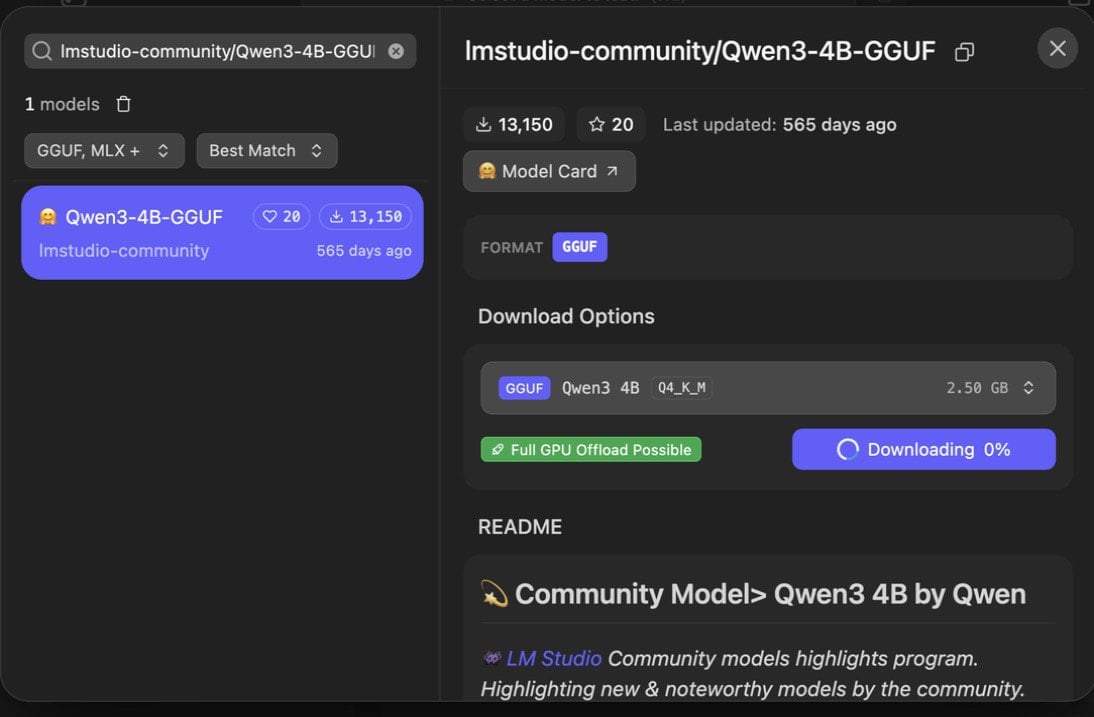
What went wrong: Model Search opens with a staff-pick model already selected on the right, and its Download button is live. During our test a second, much bigger model (Qwen3.8 27B in MLX format, 16 GB) began downloading that we had not meant to choose. It filled our model drive before we cancelled it from the Downloads list (the Downloads button at the top right of the window). Before you click Download, check that the name at the top of the right-hand panel is the model you want. The Downloads list shows each download in progress, with buttons to pause or cancel it.
Our 2.50 GB download took about 36 minutes (roughly 1.2 MB a second), but the unwanted 16 GB download was running at the same time, so that is slower than normal. Model files are much bigger than the app, so allow time for them. LM Studio’s model list later showed the same file as 2.33 GB; that is the same size counted in a different unit (GiB rather than GB), not a different file.
Tip: click Library in the left sidebar to see My Models. The folder your models are saved in is shown at the bottom of that page, with the space they use. Our Mac was set to save them on an external drive, so check that the drive in that path has room before downloading anything large.
Step 3: Load the model and chat
Click Chat, then Select a model to load at the top of the window (or press ⌘L), and pick Qwen3 4B. With Manually choose model load parameters switched on, LM Studio shows the settings before loading. Its defaults for this model on our Mac were:
| Setting | Default shown | What it means |
|---|---|---|
| Estimated memory | 2.80 GB (all on the GPU) | LM Studio’s own estimate, marked Beta |
| Context length | 8,192 tokens (model supports 32,768) | How much text the model can see at once. More uses more memory |
| GPU offload | 36 (the maximum) | The whole model runs on the Mac’s graphics chip |
| CPU thread pool | 10 | Left as it was |
We clicked Load Model without changing anything. It was ready in under 6 seconds. We asked: “In three short bullet points, explain what a GGUF file is to someone new to local AI.” The reply arrived at 58 tokens a second (95 tokens, first token after 0.11 seconds), shown under the answer. The answer was sensible but called Llama 2 a typical example, which is out of date. Small models like this one make factual slips, so check anything important.
Qwen3 can “think” before it answers. In our chat window the Think button was off, so replies came straight back.
Step 4: Turn on the local server (for apps and coding tools)
Many apps can use LM Studio instead of a paid online AI service. Click Model Server in the left sidebar and switch Status to Running. (LM Studio’s own docs describe the same switch as Start server.) Our first click only changed the panel layout; the second turned it on. It then showed Reachable at: http://127.0.0.1:1234 and the model’s name for apps, qwen3-4b.
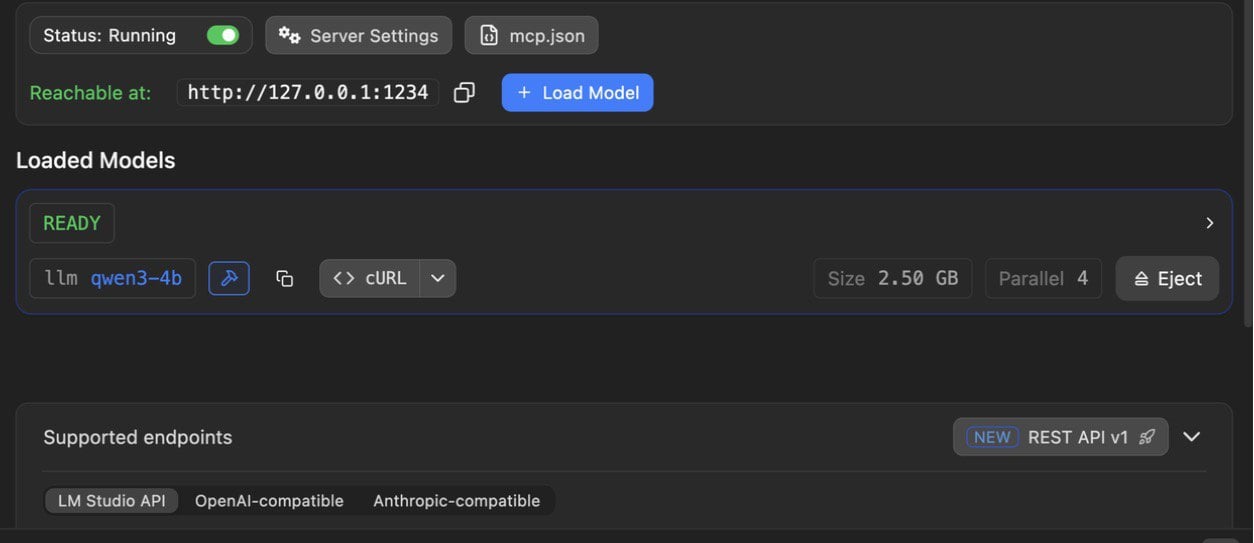
To check it works, open Terminal and run:
curl http://localhost:1234/v1/modelsThat listed qwen3-4b. A one-line chat request to http://localhost:1234/v1/chat/completions came back in 0.24 seconds. These are OpenAI-style addresses, so tools that let you change the OpenAI “base URL” can point at http://localhost:1234/v1 (LM Studio server docs).
Three problems we hit through the server, and the fixes
- “request (12013 tokens) exceeds the available context size (8192 tokens), try increasing it”. We sent a prompt longer than the default 8,192-token context. Fix: reload the model with a bigger context length: drag the Context Length slider when loading, or in Terminal run
lms unload qwen3-4bthenlms load qwen3-4b --context-length 16384. The reload took 1.5 seconds and the same 12,013-token prompt was then accepted with no error and processed in 23 seconds (we had capped the reply length, so it stopped while still thinking). Longer contexts use more memory. Our context-length fix page covers this error in more detail. - An empty reply with no error. A request with a very short limit (5 tokens) through the server returned a blank answer. Qwen3 was still in its hidden thinking stage when it hit the limit, because thinking was on by default through the server even though it was off in the chat window. Fix: allow more tokens. With a 400-token limit the same request returned a full reply after 83 tokens of thinking. See our empty-response fix.
- A wrong model name did not fail. With one chat model loaded, a request naming
qwen3instead ofqwen3-4bwas answered by the loaded model anyway. That is handy, but it could hide a typo later (we did not test with two chat models loaded). Use the exact name shown under Model Server, and see the model-identifier fix if you get a model_not_found error.
When you are done: click Eject next to the model to free its memory, and switch the server off if you do not need it. Downloaded models stay on your drive and are listed under Library (My Models); remove ones you no longer use to get the space back. For other LM Studio, Ollama or llama.cpp errors, search the AI Fix Finder.
LM Studio model or context error?
Open the free browser-local model-load debugger, choose LM Studio and paste the complete error JSON. The check runs in your tab without uploading the log.
- LM Studio model not found: check the exact loaded model identifier.
- LM Studio HTTP 500 with an inner context-size error: check the effective context allocation while preserving the full input.
Verified October 17, 2026 using LM Studio 0.4.26+4 with its installed Metal engine and Qwen3-4B Q4_K_M on one Mac. These repairs provide no memory-fit guarantee for your setup.
Beginner Path 2: Ollama Setup (tested on a Mac)
Ollama or LM Studio? Ollama is a small app that mostly runs in the background and is driven from Terminal or from other apps. LM Studio is a full window with menus. Both run similar open model files, but each keeps its own downloads. If you have never opened Terminal, start with LM Studio above.
What you need: macOS 14 (Sonoma) or newer. On Apple M-series chips Ollama uses both the processor and the graphics chip; on Intel Macs it runs on the processor only (Ollama macOS docs). The installed app took about 700 MB and the model 2.5 GB. Models are saved in ~/.ollama/models in your home folder. Not sure what your Mac can run? Try the Kingy Local AI checker first.
Step 1: Install Ollama
Go to ollama.com/download/mac. The page leads with a Terminal install command; for the normal app, click Download manually. We fetched that app file (Ollama.dmg) directly. On test day it was version 0.40.16, a 230 MB file. Our connection was busy with other downloads, so it took 11 minutes. Open the file and drag Ollama into Applications, then open it from there. The app is signed and notarized for macOS.
Ours stayed in the menu bar at the top of the screen rather than opening a big window. Ollama’s docs say that on first start it asks permission to add the ollama command to Terminal, and our app log shows that request. (Our Mac had the same version installed earlier that evening, so this was a reinstall, and we can’t say exactly which prompts a brand-new user sees.) Our app log also shows it registering to start when you log in. To check it worked, open Terminal and type:
ollama --versionOurs replied ollama version is 0.40.16.
Step 2: Download a first model
ollama pull qwen3:4bThis downloads Qwen3 4B (2.5 GB) from Ollama’s model library. The part after the colon is the size or variant, so names matter: qwen3:4b is a 2.5 GB model, while plain qwen3 means a different, 8B model of 5.2 GB. ollama run also downloads a model if you don’t have it yet, so a typo in a model name can start a download you did not plan (Ollama quickstart).
What went wrong: our download got stuck at 66% (1.6 of 2.5 GB) for about 12 minutes. The progress line kept showing a speed while nothing arrived. Ollama’s log said a part had “stalled; retrying” and suggested pressing Ctrl-C and running ollama pull again. Fix: we pressed Ctrl-C and ran the same command again. It carried on from where it stopped instead of starting over, and finished with success. The whole download took about 52 minutes on our busy connection, including the stall. When it is done, ollama list shows the model.
Step 3: Chat with the model
ollama run qwen3:4bThis opens a chat in Terminal. Type a message and press Return; type /bye to leave. We asked the same question as in the LM Studio test as a one-off command, with --verbose to see timings:
ollama run qwen3:4b --verbose "In three short bullet points, explain what a GGUF file is to someone new to local AI."- Qwen3 thinks before it answers, and Ollama shows that as Thinking… then …done thinking before the answer. Thinking was on by default.
- The model loaded in 2.5 seconds. The whole reply took 14.4 seconds, because 863 tokens were produced, most of them thinking. Speed was 73 tokens a second. The final answer was sensible.
ollama psshowed the model using 3.2 GB, running 100% on the graphics chip, with a context of 4,096 tokens.
What went wrong: turning thinking off did not work cleanly. With ollama run qwen3:4b --think=false, or /set nothink inside the chat, the model still wrote out its reasoning, now mixed into the answer and ending with a stray </think> tag. In that rambling it also made up a false meaning for “GGUF”. The likely reason: qwen3:4b is the same file as qwen3:4b-thinking in Ollama’s library, a thinking-only model. Our advice: leave thinking on with this model, so the reasoning stays labelled and separate. For a version without thinking, Ollama lists qwen3:4b-instruct; we did not test it.
Models stay in memory for 5 minutes after the last message, then unload on their own. To free the memory straight away, run ollama stop qwen3:4b (Ollama FAQ).
Step 4: The trap: a small default context that cuts long text without telling you
Ollama picks its default context from how much graphics memory it detects (Ollama context docs). On our 24 GB Mac, its log said it saw 17.8 GiB, which is under its 24 GiB line, so it used a 4,096-token default. That is half of LM Studio’s default for the same model on the same Mac.
We then sent a 6,026-token prompt through Ollama’s local API. There was no error. The model went ahead using only 2,050 of the 6,026 tokens (it cut the text to about half of the 4,096-token context), and the only sign was a “truncating input prompt” warning in Ollama’s server log (~/.ollama/logs/server.log). If you paste a long document and the answer ignores part of it, this is a likely cause.
Fix: raise the context:
- Inside an
ollama runchat, type/set parameter num_ctx 8192. Ollama repliedSet parameter 'num_ctx' to '8192'andollama psthen showed 8,192 (memory use rose to 3.9 GB). This lasts for that chat only, and we did not re-send the long prompt this way. - From an app or script, add
"options": {"num_ctx": 16384}to the request. Our same 6,026-token prompt was then read in full with no warning; the model reloaded in 1.4 seconds and used 5.1 GB. (The small model’s answer to that odd test prompt was still poor: it just repeated the text.) - Ollama’s docs also describe a context slider in the Ollama app and an
OLLAMA_CONTEXT_LENGTHsetting. We did not test those.
More context needs more memory, so raise it only as far as you need. If a request fails with “exceeds the available context size” instead, see our Ollama context fix.
Step 5: Use Ollama from other apps
While Ollama is open, it serves the model at http://localhost:11434. We checked three ways:
curl http://localhost:11434/api/tagslisted our models.- Ollama’s own chat address,
/api/chat, answered in 0.62 seconds. We had asked it not to think, so, as in Terminal, the reasoning and a stray</think>tag came back inside the answer. - The OpenAI-style address,
http://localhost:11434/v1/chat/completions, returned a clean answer with the thinking kept in a separate field (Ollama OpenAI compatibility). Tools that let you change the OpenAI “base URL” can usehttp://localhost:11434/v1.
Through the API, a wrong model name gives a clear error: asking for qwen3 returned model 'qwen3' not found. In Terminal it is different: ollama run with a name you don’t have starts downloading that model instead (we did not run it, to avoid an unplanned 5.2 GB download). Use the exact name from ollama list, including the part after the colon. Our model-tag fix covers this error.
When you are done: ollama rm qwen3:4b removes the model to give back its 2.5 GB (we kept ours, so we did not run this step). For other Ollama, LM Studio or llama.cpp errors, search the AI Fix Finder.
Ollama model or context error?
Open the free browser-local model-load debugger, choose Ollama and paste the complete error JSON. The check runs in your tab without uploading the log.
- Ollama model not found: check the exact local name and tag.
- Ollama request exceeds the available context size: check the effective context allocation while preserving the full input.
Verified October 17, 2026 using Ollama 0.40.5 on CPU and Qwen3-4B Q4_K_M on one Mac. These repairs provide no memory-fit guarantee for your setup.
Private ChatGPT-Style Setup: Ollama + Open WebUI (tested on a Mac)
Open WebUI gives the models in Ollama a chat window that looks much like ChatGPT. It runs in your web browser at an address on your own Mac (localhost), and your chats are stored on your Mac. First get Ollama and a model working, as in the section above.
Step 1: Start Open WebUI
Open WebUI’s quick start offers several ways to install it, including Docker and Python. We used its one-line command for the free uv Python tool (install uv first if you don’t have it; our Mac already did). In Terminal:
DATA_DIR=~/.open-webui uvx --python 3.12 open-webui@latest serveDATA_DIR tells it to keep your chats and settings in a folder called .open-webui in your home folder. The first start downloads everything it needs, about 240 Python packages. On our Mac it took about 5 minutes before the page would open, and it used about 4 GB of disk, more than we expected. Most of that sits in the uv tool’s download cache, not in .open-webui. It also downloaded a small helper model from Hugging Face on first start (it uses it for searching documents you upload), so the very first start needs the internet.
Two things to know about that command:
- Open WebUI only runs while that Terminal window keeps running. Closing it (or pressing Ctrl-C) stops it; run the same command again to start it. Because the command asks for
open-webui@latest, a later start may download a newer version, which is an update, so back up~/.open-webuifirst. To keep the version fixed, ask for it by number. We restarted withopen-webui@0.13.3in place ofopen-webui@latest: the page was back in 24 seconds, nothing was downloaded again, and we were still signed in. - It saves a secret key file called
.webui_secret_keyin whatever folder Terminal was in when you ran the command. Start it from the same folder each time (otherwise it makes a new key, which signs you out), and don’t share that file.
Step 2: Create your admin login
Open http://localhost:8080 in your browser. The first screen asks you to create an admin account with a name, email and password. That account only exists in Open WebUI’s own database on your Mac; per Open WebUI’s docs, sign-up switches itself off once the admin exists. Pick a password you will remember.
Step 3: Chat with your Ollama model
We did not have to connect anything: Open WebUI found Ollama on its own and picked qwen3:4b as the model. We asked the same GGUF question as in the LM Studio and Ollama tests. The model’s thinking showed as a folded Thinking… line, then Thought for 23 seconds, then a clean three-bullet answer with the reasoning tucked away. That is tidier than Ollama in Terminal.
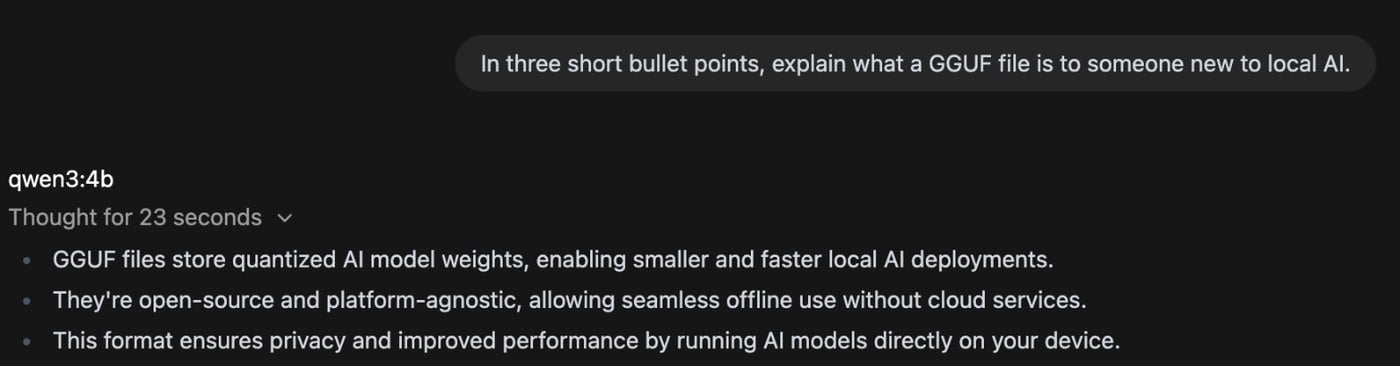
What surprised us: the answer took 55 seconds in all (1,135 tokens, most of them thinking), and the screen stayed blank at first. Ollama’s log showed that Open WebUI also sent three extra requests to the same model in the background, for jobs such as the three suggested follow-up questions that appeared under the answer. Open WebUI’s task models page explains that these background jobs (chat titles, tags, follow-up suggestions and more) use the chat model by default, and that on a slow local model this can make the whole interface feel sluggish.
Step 4: Fix the hidden long prompt and the wait (tested)
When we went back on November 16 to find out why it was slow, we found a bigger problem. Our question was 17 words, but Open WebUI sent Ollama a prompt of 5,642 tokens. Ollama’s log said truncating input prompt limit=2050 prompt=5642 and quietly cut it down. Our first chat was cut the same way. It is the long-text trap from the Ollama section above, set off by a one-line question.
The extra text comes from Open WebUI’s built-in tools. In version 0.13.3, twelve of them were switched on for our model by default (memory, notes, calendar, code interpreter and others). Open WebUI’s essentials page explains that the built-in tools use its default “native” tool calling, and its Ollama guide says that with native tool calling the tool descriptions are added to the prompt, and that a context that is too small cuts the prompt without telling you.
We then asked the same question again with different settings, three times for the main ones. All settings are in the admin area: click your name, then Admin Panel > Settings. In version 0.13.3 this opens one settings window; the admin pages are in its Admin group in the left column (Models under AI, Interface under System). The changes built on each other.
- Defaults: the prompt was cut from 5,642 to 2,050 tokens and the answer took 40 seconds. Three background requests ran alongside it (one of them ahead of it); the last finished about 3 minutes after we pressed Enter.
- Longer context: in Models, open the model, then Advanced Params > num_ctx (Ollama). We set 8192 and clicked Save & Update. Nothing was cut any more. Answers took 38 to 48 seconds over three tries. Ollama used 3.8 GB, against 3.2 GB in our first test at 4,096. Watch out: when you switch this setting from Default to Custom, it fills in 2048, which is smaller than the 4,096 Ollama gave our Mac. Type your own number. Open WebUI’s Ollama guide suggests another way we did not test: set the context in Ollama itself and leave this setting alone.
- Built-in tools off as well: on the same model page, under Capabilities, we switched off Builtin Tools. The prompt dropped to 30 tokens. Answers took 8.6, 29 and 26 seconds. The 8.6 was luck: in the other two tries, Ollama was still busy with a background job when the question arrived, and the answer waited 15 to 16 seconds for it.
- Background jobs off as well: in Interface, we switched off Title Generation, Follow Up Generation, Tags Generation and Retrieval Query Generation, then clicked Save. The answer took 12.3 seconds and was the only request: nothing waited in front of it or ran after it. We ran this once. You lose suggested follow-up questions and tags, and Open WebUI stops trying to name chats (with it on, our chats were named after the question in most tries anyway).
What the numbers say: Ollama answers one request at a time here, so in six of our seven tries with background jobs on, the answer queued behind one of them for about 15 to 23 seconds. That wait was the biggest delay we could avoid. The built-in tools cost less time than we first thought, about 9 to 10 seconds to read the long prompt when Ollama had not kept a copy from an earlier chat, but they are what trips the silent cutting at Ollama’s default context.
What we recommend for a small model on a Mac like ours: switch off the four background jobs above, and switch off Builtin Tools for that model. If you keep the tools, set num_ctx to 8192 or more so nothing is cut. Either way, long pasted text still needs a larger context, as in the Ollama section above. With the tools off, the model should no longer be able to use them (saving memories, running code and so on); we did not test that. We also did not test Open WebUI’s experimental Tool Search setting, which its description says keeps large tool lists out of the prompt, or pointing background jobs at a separate small model.
One more thing: after another app added a model to Ollama, new chats in Open WebUI started on that model instead of ours. Check the model name at the top of a new chat.
When you are done: press Ctrl-C in the Terminal window to stop Open WebUI. Your chats stay in ~/.open-webui for next time. Open WebUI’s docs say uv cache clean removes the downloaded parts; note that it clears the cache for every tool you run with uv. We did not test backups, document uploads, updates or removal.
Advanced Path: llama.cpp
llama.cpp is one of the most important local AI projects because it made efficient local inference and the GGUF ecosystem widely accessible. It supports CPU inference and multiple acceleration paths depending on platform and build options.
A typical workflow is: get a compatible GGUF model, build or download llama.cpp for your platform, run a simple CLI test, then use server mode if you need a local endpoint. Because build flags and server commands change over time, use the official README and examples as the source of truth rather than copying stale commands from random posts.
Use llama.cpp when you want control over GGUF models, quantization experiments, benchmarking, or a lightweight local server. Use a higher-level app when you want a polished desktop experience.
Developer/API Path: vLLM
vLLM is a serving runtime designed for throughput and efficient model serving. It is most useful when you need an API for apps, batch jobs, or multiple users. It is usually overkill for a single beginner chatting on a laptop.
Use vLLM when you have compatible hardware confirmed in the current installation docs, a server-style environment, monitoring, authentication, and a real need for throughput. Treat it like infrastructure: log requests safely, protect the endpoint, pin model versions, monitor accelerator memory, and retest after updates.
Apple Silicon Local AI Path
Apple Silicon is attractive because unified memory can let larger quantized models run without a separate VRAM pool. LM Studio and Ollama are beginner-friendly on Mac, while MLX-LM is useful for Mac-focused developers.
| Unified memory | Realistic starting point | Notes |
|---|---|---|
| 8 GB | Small 1B-3B models, light tasks | Keep expectations modest. |
| 16 GB | 7B-9B quantized models | Good beginner tier. |
| 24-32 GB | 7B-14B and some larger quantized models | Comfortable for power users. |
| 64 GB | Large quantized models and heavier RAG | Strong local AI workstation tier. |
| 96-128 GB+ | Very large models, larger context, experiments | Still test speed and quality before assuming cloud replacement. |
Thermals matter. A MacBook can run local AI, but sustained load can reduce speed or comfort. A desktop Mac with enough memory may be better for long sessions.
Local Image Generation Path: ComfyUI (tested on a Mac)
Local image generation is not “local ChatGPT with pictures”. It uses different models and much more memory. ComfyUI is a free tool for it: you build a picture recipe from connected boxes (“nodes”) for the model, the prompt, the image size and so on. The easiest way in on a Mac is the Comfy Desktop app, which installs everything for you.
What you need: a Mac with Apple Silicon (M1 or newer) on macOS 13 or later, ComfyUI’s Mac docs recommend at least 4.85 GB of free space per installation (the installer itself asked for about 1.7 GB). Image models come on top of that. On our Mac the app took about 455 MB, ComfyUI itself about 3 GB, and the model 6.9 GB.
Step 1: Install Comfy Desktop
Download it from comfy.org/download. On test day the Mac file was “Comfy Desktop 1.1.9”, 196 MB, which took 75 seconds to download. Open it, drag Comfy Desktop into Applications and open it from there. The app is signed and notarized for macOS.
The first screen asks How do you want to run Comfy? with two choices: Cloud (ComfyUI’s online service, marked “Try free”) and Local (your own Mac). For this guide, pick Local. At the bottom, tick I agree to the EULA and Terms of Service, then click Continue. Two other boxes were already ticked for us: sharing anonymous usage data and opting in to beta features. We unticked both; that is your choice.
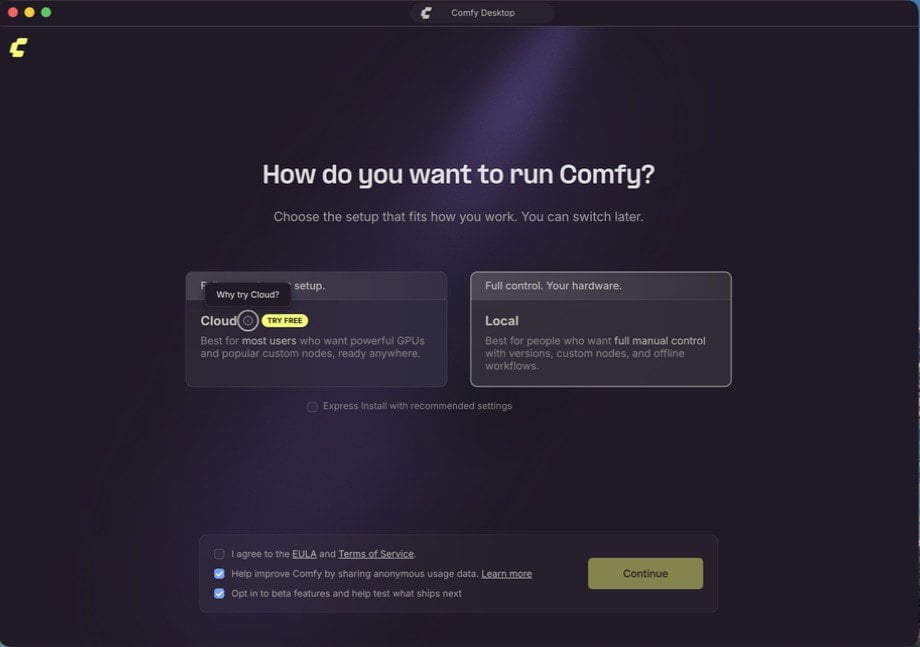
The next screen, Create a New Instance, picked sensible defaults: the Stable release, ComfyUI 0.45.4, and Apple Silicon (MPS) as the hardware, with a 773 MB download and about 1.7 GB of space needed. It installs into a folder called ComfyUI-Installs in your home folder.
Step 2: Skip the giant starter workflows
The trap: the next screen, Choose a starter workflow, offers ready-made workflows whose models “download during setup”. The one marked Recommended on the Video tab was a MiniMax H3 text-to-video workflow of about 53 GB. On the Image tab the recommended one was about 21 GB, and the others were 18 GB, 25 GB, or needed paid credits. Those are far too big for a first test on most Macs. We clicked Skip & Install, which installs ComfyUI without any model. If you do want MiniMax H3 later, our MiniMax H3 ComfyUI guide covers its hardware needs.
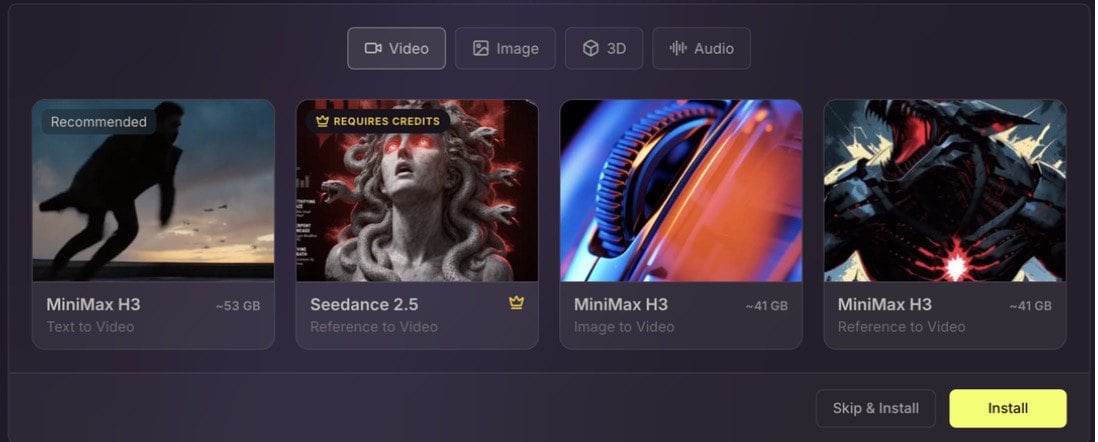
The install took about 8 to 9 minutes. When ComfyUI opened, macOS showed a pop-up that we did not record, and we clicked Allow. If you see a question about accepting incoming network connections, Allow lets ComfyUI run normally on your Mac.
Step 3: Open a basic template and get its model
ComfyUI opens on a Templates gallery. Click Image on the left and type sd in the search box to find the Stable Diffusion XL templates. We opened SDXL1.0: Text to Image (Simple). Opening a template downloads nothing; instead a message said sd_xl_base_1.0.safetensors is missing. Click View details: a side panel lists the missing file (shown as 6.46 GB there; it is 6.94 GB counted in decimal GB) with a Download button. ComfyUI saved it into ComfyUI-Shared/models/checkpoints in your home folder. Our download took about 19 minutes.
The model, Stable Diffusion XL base 1.0 from Stability AI, is free under the CreativeML Open RAIL++-M licence, which allows commercial use but bans some kinds of use. Read the licence of any model before you use its pictures commercially; some image models are non-commercial only.
What went wrong: after the download finished, the panel still said the model was missing, and its refresh arrow did not help. Fix: click an empty part of the canvas and press R, ComfyUI’s refresh shortcut. The warning went away.
Step 4: Make your first picture
The template comes with a prompt already filled in. Click Run at the top right of the canvas. ComfyUI loads the model, works through 25 steps and shows the picture in the Save Image box on the right. It also saves it as a PNG in ComfyUI-Shared/output.
- First picture: 107 seconds, including loading the model. The 25 steps took 82 seconds, about 3.3 seconds each, for a 1024 × 1024 image.
- Second picture: 116 seconds; the 25 steps took 83 seconds. Our Mac was very short of memory because of other jobs, which likely added time. We did not test on a quiet Mac.
- Memory: ComfyUI’s log showed it loading about 5.1 GB for the image model, 1.6 GB for the part that reads the prompt, and 0.17 GB for the part that turns the result into a picture. Those are what it loaded, not a total memory requirement.
The prompt asked for a marble statue “in a pure white empty void”. We got a well-made statue, but in a white classical room with arched windows and even radiators. SDXL did not follow that part of the prompt for us; try changing the wording, or click Run again (the template picks a new random seed each time, so every run gives a different picture).

To make your own picture, click the green Positive Prompt box and type what you want, and use the Negative Prompt box for things to avoid. The Empty Latent box sets the image size.
When you are done
Quit Comfy Desktop to free its memory. ComfyUI’s docs say an uninstall leaves your installs in ~/ComfyUI-Installs and models in ~/ComfyUI-Shared on disk, so delete those folders yourself if you want the space back. ComfyUI-Shared also holds your saved pictures, so copy them out first. The docs also list app data left in ~/Library/Application Support/Comfy Desktop and ~/Library/Logs/Comfy Desktop. We did not uninstall. For text models, use LM Studio or Ollama above.
Local Transcription Path
Local transcription is one of the most practical local AI use cases. OpenAI Whisper and whisper.cpp are common starting points. CPU transcription can be good enough for occasional use; GPU acceleration helps when processing many files.
Kingy.ai creator workflow: transcribe a video locally, summarize the transcript locally, extract product features, generate YouTube chapters, draft an article outline, and use a stronger cloud model only if the local model fails the quality bar or the content is not sensitive.
Testing Your Local AI Setup

A local AI setup is not “working” just because the first prompt returned text. Test it.
- Basic install test: can the runtime load the model and answer a short prompt?
- GPU detection test: does the runtime actually use the intended accelerator?
- Speed test: record time to first token and tokens per second.
- Quality test: run representative writing, coding, reasoning, and summarization prompts.
- Long-context test: increase context and watch memory and accuracy.
- JSON test: require valid JSON and parse it.
- RAG/citation test: ask questions whose answers require retrieved documents and verify citations.
- Privacy/offline test: disconnect the network when appropriate and verify the workflow still works.
- Regression test: rerun the same prompt pack after model, driver, or runtime updates.
Track time to first token, prompt processing speed, generation speed, VRAM use, RAM use, CPU/GPU utilization, stability, and output quality.
Benchmarking Without Fooling Yourself
Public leaderboards are useful, but they are not your workflow. Quantized models can behave differently from published benchmark configurations. Hardware changes speed. Prompt templates affect quality. Long context can degrade reliability. RAG quality depends on extraction, chunking, embeddings, retrieval, and citations.
Use public benchmarks to shortlist models, then run your own prompt pack. The local data folder for this guide includes a reusable benchmark prompt pack covering general reasoning, coding, summarization, JSON extraction, long-context recall, RAG citations, hallucination traps, speed tests, instruction following, and privacy/offline checks.
Real-World Local AI Workflows
| Workflow | Local pieces | Why local helps |
|---|---|---|
| Personal assistant | Ollama or LM Studio, local notes | Fast private drafts and planning. |
| Research assistant | RAG, embeddings, citations | Private source analysis with repeatable checks. |
| Coding assistant | Coding model, editor integration, local repo | Code stays on your machine when policy requires it. |
| Private business document assistant | Open WebUI, RAG, access controls | Documents can remain inside the business boundary. |
| YouTube creator workflow | Whisper, summarizer, outline model | Transcripts and drafts can be processed offline. |
| Local writing assistant | Chat model and style prompts | Unlimited draft iteration without per-call anxiety. |
| Local API for apps | Ollama/vLLM/llama.cpp server | Predictable internal endpoint for prototypes. |
| Local RAG with documents | Parser, embeddings, vector DB, reranker, LLM | Answers from private documents. |
| Local agent experiments | Model, tools, sandbox folder, logs | Safer learning environment for tool use. |
Local RAG: Chat With Your Documents
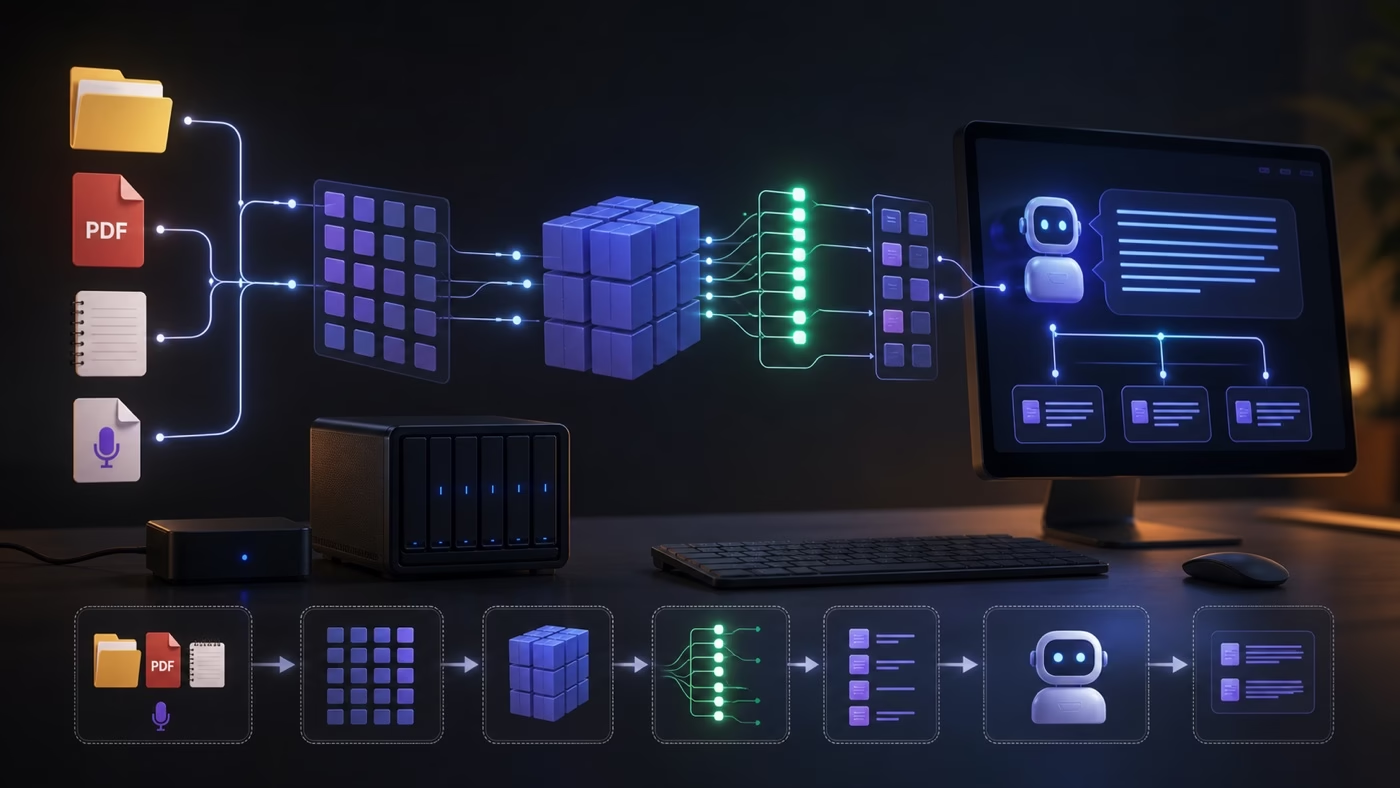
RAG retrieves relevant information before generation. It is different from fine-tuning. Fine-tuning changes model behavior; RAG supplies context at answer time.
A local RAG pipeline usually includes document ingestion, text extraction, chunking, embeddings, vector storage, retrieval, reranking, prompt assembly, answer generation, citations, and evaluation.
Common failure modes: bad PDF extraction, bad chunking, missing metadata, no citations, outdated documents, context overflow, hallucinated citations, and conflicting sources. If your RAG assistant is wrong, do not only blame the model. Inspect the retrieved chunks.
Local AI Agents
Local agents combine a model with tools: file access, browser access, shell access, APIs, or MCP-style tool interfaces. They are exciting, but small local models can struggle with long-horizon plans, error recovery, and tool reliability.
Local does not mean harmless. A local agent with filesystem access can still delete files, leak secrets, or make bad changes very quickly.
Fine-Tuning, LoRA, and Personalization
Fine-tuning can be useful when you need a model to learn a style, format, domain, or behavior that prompting and RAG cannot reliably deliver. But it is frequently overused.
Full fine-tuning updates many model weights and is expensive. LoRA trains smaller adapters. QLoRA reduces memory needs by training with quantization-aware methods. Adapters can be easier to manage than full model copies.
The practical rule: try a better prompt, better model, better quant, better RAG, and better evals before fine-tuning. If you do fine-tune, document datasets, licenses, evaluation prompts, overfitting risks, and redistribution restrictions.
Privacy, Security, and Licensing

Privacy is one reason to run AI locally, but privacy is an outcome, not a setting. Review telemetry, local logs, chat history storage, model storage, document storage, app permissions, Docker image trust, fake model uploads, model supply-chain risk, user accounts, backups, encryption, and internet exposure.
| Checklist item | What to verify |
|---|---|
| Model name | Exact model and version, not just family name. |
| Source | Official repo, verified organization, or trusted mirror. |
| License | Model card and license file. |
| Commercial use | Allowed, restricted, or unclear. |
| Redistribution | Whether you can ship weights or derivatives. |
| Fine-tuning | Whether training derivatives is allowed and under what terms. |
| Restrictions | Acceptable-use limits, attribution, geographic or scale restrictions. |
| Date checked | Record a date such as June 28, 2026. |
Troubleshooting

| Symptom | Likely cause | Fix |
|---|---|---|
| Model is too slow | Model too large, CPU fallback, context too high | Use smaller model, lower context, better quant, or GPU acceleration. |
| Out of memory | Model + KV cache exceeds memory | Lower quant, smaller model, shorter context, close other apps. |
| GPU is not detected | Driver/runtime mismatch | Check CUDA/Metal/ROCm support and runtime docs. |
| Model will not load | Wrong format or insufficient memory | Use compatible format and smaller file. |
| App crashes | Driver, memory, or unstable build | Update carefully, reduce load, check logs. |
| Bad answers | Weak model, bad prompt, base model, low quant | Use instruct model, better prompt, higher quant, or stronger model. |
| Invalid JSON | Model not constrained enough | Use schema examples, lower temperature, retry validation. |
| RAG ignores documents | Retrieval failure | Inspect chunks, embeddings, top-k, reranking, and prompt assembly. |
| Open WebUI cannot connect to Ollama | Host/container networking issue | Confirm Ollama URL, Docker network, firewall, and service status. |
| Docker cannot see GPU | Container runtime missing GPU support | Install supported NVIDIA/ROCm container stack and verify with docs. |
| Storage is full | Too many model files | Delete unused models and move archives to secondary storage. |
| Context length causes crashes | KV cache too large | Lower context or use smaller model/quant. |
| Mac gets hot | Sustained inference load | Reduce batch/context, improve airflow, or use desktop hardware. |
| Windows driver issues | GPU driver/runtime mismatch | Update drivers and confirm runtime support. |
| Linux permission issues | User/group/device access | Check Docker, GPU devices, and file permissions. |
Best Local AI Setups by Persona
| Persona | Hardware | Tools | Model size | First workflow | Avoid |
|---|---|---|---|---|---|
| Curious beginner | Existing laptop | LM Studio or Ollama | 7B-9B if memory allows | Private chat and summarization | Buying a GPU before testing. |
| Privacy professional | Laptop or workstation | Open WebUI + Ollama | 7B-14B | Document Q&A pilot | Internet exposure without security. |
| YouTube creator | Mac or GPU PC | Whisper/whisper.cpp, Ollama | 7B-14B | Transcript to chapters to article outline | Uploading sensitive raw audio unnecessarily. |
| Developer | NVIDIA PC or Mac | Ollama, llama.cpp, vLLM | 7B-34B | Local coding helper API | Assuming all code models are equal. |
| Small business team | Controlled workstation/server | Open WebUI, RAG stack | 14B-70B depending on budget | Private policy/document assistant | Skipping user permissions. |
| Homelab user | Server plus GPU if possible | Docker, Open WebUI | 7B-34B | LAN assistant | Public exposure without hardening. |
| AI power user | High-memory Mac or GPU workstation | Mixed stack | 14B-70B | Model comparison harness | Changing models without notes. |
| Budget PC user | Used desktop with RAM/SSD | Ollama, LM Studio | 7B-14B | Q4 chat and coding tests | Tiny VRAM GPU purchases with poor support. |
Local AI Buying Guide
What matters most: VRAM or unified memory, system RAM, SSD storage, driver support, thermals, and the actual workflows you will run weekly. What matters less than people think: chasing the largest parameter count, buying before measuring, or assuming one benchmark predicts your workflow.
The cheapest way to start is your existing computer plus LM Studio or Ollama. The best Mac setup is the Mac with enough unified memory for the models you will actually run. The best Windows/Linux setup for many AI workloads is a supported NVIDIA GPU with enough VRAM. The best creator setup balances transcription, image workflows, storage, and a good display. The best developer setup includes repeatable local APIs and evals. The best small-team setup includes access controls and backups. Rent cloud GPUs when you only need large hardware occasionally.
No live prices are included here because hardware pricing changes quickly. When this article is refreshed, record a last-checked date for any price claim.
Implementation Playbooks
The easiest way to make local AI useful is to pick one workflow, write down the pass/fail test, and improve that workflow before adding another tool. Local AI fails when it becomes a pile of models with no measurement. It succeeds when it becomes a dependable system for repeated work.
Playbook 1: Private Document Assistant
Start with a small document set: policies, meeting notes, contracts, research PDFs, or product documentation. Put copies in a test folder. Do not start with every file in the company. Extract text, inspect the extraction quality, chunk the documents, generate embeddings, and test retrieval before adding a chat interface.
The pass/fail test should be concrete. Ask ten questions whose answers are present in the documents. Require citations. Mark each answer correct, incomplete, unsupported, or hallucinated. If retrieval fails, fix chunking and metadata before changing the model. If retrieval succeeds but the answer is bad, test a stronger answer model or a better prompt. If citations are missing, make citation output part of the required format and reject answers that do not cite sources.
For business use, decide where chat history is stored, who can upload documents, who can delete indexes, and whether documents should be encrypted at rest. A local RAG assistant can still leak confidential information internally if every user can query every file.
Playbook 2: Local Coding Assistant
For coding, do not judge a model by one impressive function. Build a repeatable test from your own work: explain a file, write a unit test, refactor a small function, find a bug, generate a schema migration, and summarize a pull request. Run the same tasks across two or three models and record speed, correctness, and how often the model invents APIs.
Local coding models are especially sensitive to context. A model may do well on a small snippet and fail when you paste a whole repository. Prefer targeted context: the relevant file, neighboring types, error messages, tests, and the exact task. If the model needs tool access, start read-only and keep it inside a branch or disposable worktree.
Use local AI for code explanation, test scaffolding, migration drafts, and repetitive edits. Keep human review for security-sensitive changes, production database work, auth logic, billing, and anything that can destroy user data. Local does not make a mistaken code change safer; it only changes where the computation happens.
Playbook 3: Creator Research and Video Repurposing
Creators get one of the cleanest returns from local AI because audio, transcripts, notes, and rough drafts can be sensitive before publication. A strong workflow is: download or record the source, transcribe locally, clean the transcript, summarize it, extract names and claims, build chapters, draft a description, and produce an article outline.
The quality bar is not just “the transcript exists.” Check speaker names, product names, timestamps, numbers, and technical terms. Whisper-style transcription can be excellent, but it can still miss names, acronyms, and overlapping speakers. Keep the raw transcript, edited transcript, summary, and final article outline as separate artifacts so you can debug the workflow later.
For YouTube workflows, local AI pairs well with cloud AI rather than replacing it. Use local tools for private preprocessing and fast drafts. Escalate to a stronger cloud model only for high-value synthesis, final polish, or tasks where the local model repeatedly misses nuance.
Playbook 4: Local API for Internal Apps
A local API can power prototypes, automations, dashboards, and internal tools. Start with one endpoint and one model. Define expected latency, maximum prompt size, allowed users, logging policy, and fallback behavior. If the API supports an OpenAI-compatible shape, document which parts are actually compatible; not every local server implements every hosted API feature.
For reliability, pin the model version, runtime version, and quant. A silent model swap can break JSON output, tool calling, latency, or answer quality. Store prompts in version control. Add health checks that verify the server is reachable and that a tiny known prompt returns a valid response. For JSON workflows, parse the response and fail closed when the output is invalid.
When more than one user depends on the API, add basic operations discipline: request limits, logs without sensitive prompt dumps, GPU utilization monitoring, disk monitoring, and a rollback plan. If a local model becomes business-critical, it deserves the same care as any internal service.
Playbook 5: Homelab AI Server
A homelab server is perfect for learning local AI operations. It is also a place where people accidentally publish private tools to the internet. Keep the first version LAN-only. Use strong passwords, update Docker images deliberately, back up volumes, and avoid running unknown containers with broad host permissions.
Separate storage from compute where possible. A NAS can store model archives, documents, and backups, while the GPU machine handles inference. Keep notes on which models are installed, where they came from, how large they are, and whether they are still used. Model storage fills drives quietly.
If you eventually expose a service outside your home network, use HTTPS, authentication, firewall rules, and a reverse proxy you understand. Do not expose raw model APIs without a reason. A public local AI endpoint can become a data leak, a compute abuse target, or both.
Common Mistakes to Avoid
Mistake 1: buying hardware before testing. Run a small model on what you already own. You will learn which workflows matter, which tools you like, and whether local AI solves a real problem for you.
Mistake 2: treating parameter count as quality. Larger models often help, but architecture, training, quantization, prompt format, context use, and task fit matter. A smaller coding model can beat a larger general chat model on code. A better embedding model can improve RAG more than a larger answer model.
Mistake 3: ignoring context costs. Long context sounds like free intelligence, but it consumes memory and can degrade quality. Use retrieval, summaries, and targeted context instead of dumping everything into the prompt.
Mistake 4: using base models as assistants. Base models are not necessarily tuned for instruction following. If the output feels strange, confirm that you downloaded a chat or instruct variant and that your runtime is using the right prompt template.
Mistake 5: assuming local means licensed for anything. A model can be downloadable and still restrict commercial use, redistribution, or derivative works. Keep license checks in your workflow, not in your memory.
Mistake 6: skipping evaluation. If you cannot measure whether the model helped, you cannot maintain the setup. Save prompt packs, outputs, versions, and notes. This is especially important when you change quants, runtimes, context length, or hardware.
Mistake 7: exposing services too early. A local AI web UI with document upload is a sensitive application. Keep it private until access control, backups, network boundaries, and update processes are in place.
Mistake 8: confusing RAG with fine-tuning. If the model needs fresh facts from documents, use RAG. If the model needs a consistent style or format that prompts cannot achieve, consider fine-tuning. If you are not sure, start with RAG and evaluation.
Mistake 9: downloading random model files without provenance. Prefer official organizations, trusted mirrors, and model cards with clear details. Be careful with executable installers, custom code, and Docker images. Treat model supply chain as part of security.
Mistake 10: never cleaning up. Local AI experiments leave behind huge model files, duplicate quants, old indexes, logs, and stale containers. Schedule cleanup. Keep what you use and archive notes about what you tested.
How to Refresh This Guide Over Time
This article is designed to be updated. Local AI changes too quickly for a static “best models” list to stay trustworthy. The right refresh process is boring, repeatable, and evidence-driven.
For tools, check the official docs first. Confirm install commands, supported operating systems, local API behavior, model formats, and breaking changes. If a command changed, update the article and the benchmark notes together.
For models, check the official model card and license. Record the provider, family, parameter count, model type, context claims, license, commercial-use status, formats, known limitations, and last-checked date. If a model is only available through community quantization, link both the official source and the quant source where appropriate.
For hardware, prefer official specs and vendor documentation. Do not include prices unless the date checked is visible. For buying recommendations, separate facts from planning guidance. “This GPU has 16 GB of VRAM” is a spec. “This is enough for your workflow” is a recommendation that depends on model, quant, context, runtime, and expectations.
For images, keep original prompts and filenames. Do not use copyrighted logos or visuals that imply endorsement by model providers or hardware companies. Alt text should describe the visual and the article topic, not stuff keywords.
For SEO, refresh internal links as Kingy.ai publishes more local AI cluster content. Good future companion articles include a dedicated Ollama tutorial, LM Studio tutorial, ComfyUI guide, local RAG setup guide, local AI hardware buying guide, and a monthly local model recommendations update.
Local AI Glossary
Acceleration: using a GPU, neural engine, or optimized backend instead of plain CPU execution. Acceleration is why two machines with similar RAM can feel completely different.
Batch size: how many requests or tokens a runtime processes together. Higher batching can improve throughput for servers but may increase memory use.
Chat template: the format used to wrap user, assistant, system, and tool messages for a model. The wrong template can make a good model behave badly.
Checkpoint: a saved model file or set of files. In image generation, checkpoint often means the main image model. In LLM workflows, it can refer to model weights before conversion or quantization.
Embedding: a vector representation of text or images. Embeddings power semantic search, deduplication, clustering, and RAG retrieval.
Inference engine: the runtime that actually loads the model and produces outputs. Ollama, llama.cpp, vLLM, MLX, Transformers, ComfyUI, and whisper.cpp are all parts of different inference ecosystems.
KV cache: memory used to store attention keys and values while the model processes context. Longer context windows use more KV cache, which is why memory can disappear quickly.
LoRA: a lightweight adapter trained to modify behavior without copying an entire model. LoRAs are common in image generation and model personalization.
OpenAI-compatible API: a local endpoint that mimics part of the OpenAI API shape. Compatibility is useful, but always check which features your local server actually supports.
Prompt processing speed: how quickly the model reads the input context. It is separate from generation speed, which measures output tokens per second.
Reranker: a model that reorders retrieved chunks before answer generation. Reranking can materially improve RAG quality when initial vector search returns noisy results.
Temperature: a sampling setting that affects randomness. Lower temperature is usually better for extraction and JSON; higher temperature can help brainstorming.
Tool calling: a pattern where a model requests structured actions, such as searching files or calling APIs. Local tool calling needs validation because smaller models can produce malformed or unsafe calls.
VRAM: memory on a discrete GPU. For many local AI users, VRAM is the hard ceiling that determines which model and context length can run quickly.
Workflow fit: the practical match between a model, runtime, prompt, hardware, and recurring job. Workflow fit is the final test that matters. A model that scores well publicly but fails your citations, JSON schema, latency target, or license requirement is not the right local model for that job.
Model Recommendation Tables
These are recommended starting points, not universal “best” claims. Always verify the current model card, license, context length, and runtime compatibility before use. Last checked: June 28, 2026.
| Category | Starting models/families to evaluate | Why evaluate them | Common runtime | License caution |
|---|---|---|---|---|
| Beginner local chat | Qwen3/Qwen3.5, Llama 3.3/4, Gemma 3/4, Ministral/Mistral Small, Phi-4 | Broad current ecosystem coverage across small and medium local sizes | Ollama, LM Studio, llama.cpp | Check each model card and runtime package. |
| Coding | Qwen Coder, Devstral, DeepSeek Coder/R1 distills, Phi-4 reasoning/coding-adjacent variants | Coding-specific data and prompting behavior | Ollama, LM Studio, vLLM, Transformers | Commercial terms vary. |
| Reasoning | DeepSeek-R1/R1 distills, Qwen reasoning models, Phi-4 reasoning, Magistral, Llama-family reasoning tunes | Stronger multi-step behavior for some tasks | Ollama, vLLM, Transformers | Distilled models can inherit restrictions. |
| Embeddings | BGE, E5, Nomic Embed, Qwen embedding models, sentence-transformers/EmbeddingGemma-style models | RAG quality depends heavily on embeddings | Transformers, local embedding servers | Check model card. |
| Vision | Qwen-VL, Llama vision, Gemma vision variants, Pixtral | Image understanding on local workflows | Transformers, LM Studio/Ollama where supported | Check image-data and license terms. |
| Image generation | Stable Diffusion / SDXL, FLUX variants, Qwen-Image-style models, community checkpoints | Strong local creative workflows | ComfyUI, Diffusers | License differs by checkpoint and LoRA. |
| Speech/transcription | Whisper and whisper.cpp model variants | Mature local transcription path | Whisper, whisper.cpp | Check repository license and model terms. |
Maintenance Plan
Local AI changes constantly. Treat this guide as a living asset.
- Weekly: check broken links, major tool releases, and security notes.
- Monthly: refresh model tables, install commands, and hardware guidance.
- Quarterly: rerun install paths, update screenshots/images if needed, and review buying guide assumptions.
- Model refresh process: verify model card, license, formats, context, runtime, quant availability, and real prompt tests.
- Hardware refresh process: verify official specs, VRAM/unified memory, driver support, thermals, and price date if pricing is mentioned.
- Changelog: record every meaningful update.
FAQ
Can I run AI models locally?
Yes. Small local models can run on normal laptops, while larger models need more RAM, VRAM, or unified memory.
How much VRAM do I need for local AI?
For a good beginner experience, 8-12 GB of VRAM can run many quantized 7B-14B workflows. Larger models and longer context need more.
What is the easiest way to run a local LLM?
LM Studio is often easiest for desktop users. Ollama is often easiest for developers who want a local API.
Is Ollama better than LM Studio?
Neither is universally better. Ollama is excellent for CLI/API workflows; LM Studio is excellent for desktop discovery and chat.
Can local AI work offline?
Yes, if the model and runtime are already installed and the app does not require online services for the task.
Is local AI private?
It can be more private, but only if logs, storage, telemetry, app permissions, and network exposure are controlled.
Can I use local AI for coding?
Yes. Use a coding-tuned model and test it on your actual codebase before trusting it.
Can I run local AI on a Mac?
Yes. Apple Silicon Macs can be strong local AI machines when they have enough unified memory.
Can I run local AI on a NAS?
Usually only for light CPU inference or storage. A NAS is useful in the stack but often limited as the model host.
What is GGUF?
GGUF is a common model file format in the llama.cpp ecosystem and is widely used by local LLM tools.
What is quantization?
Quantization reduces model precision to save memory and often improve speed, with possible quality tradeoffs.
What is the best local AI model?
The best model depends on your task, hardware, license needs, context length, and tests. Use model tables as starting points.
Can local AI replace ChatGPT?
Sometimes for routine or private workflows. Not always for frontier reasoning, multimodal tasks, or high-reliability cloud workflows.
Can I use local models commercially?
Only if the model license allows it. Check the model card and license every time.
Do local models need the internet?
Not for inference after setup, but downloads, updates, and some app features may need internet.
What is RAG?
Retrieval-augmented generation retrieves relevant documents and adds them to the prompt before the model answers.
Should I fine-tune a local model?
Usually not first. Improve prompts, model choice, quantization, RAG, and evaluation before fine-tuning.
How do I test a local model?
Use repeatable prompts for speed, quality, JSON, coding, long context, RAG citations, and privacy/offline behavior.
Why is my local model slow?
Common causes include CPU fallback, too-large model, high context, insufficient memory, or weak acceleration support.
Sources
Official and trusted sources checked for this edition:
- Ollama docs
- Ollama API docs
- Ollama OpenAI compatibility docs (checked November 15, 2026)
- Ollama context length docs (checked November 15, 2026)
- Ollama Modelfile docs
- Ollama Qwen3 library page
- Ollama Llama 4 library page
- Ollama Gemma model library
- LM Studio docs
- LM Studio local server docs
- LM Studio download page (checked November 15, 2026)
- LM Studio system requirements (checked November 15, 2026)
- LM Studio 0.4.28 release notes (checked November 15, 2026)
- LM Studio local server docs (current) (checked November 15, 2026)
- Qwen3-4B GGUF files from lmstudio-community (checked November 15, 2026)
- Ollama download page for Mac (checked November 15, 2026)
- Ollama macOS docs (checked November 15, 2026)
- Ollama quickstart (checked November 15, 2026)
- Ollama FAQ (checked November 15, 2026)
- Ollama Qwen3 model tags (checked November 15, 2026)
- llama.cpp GitHub
- Open WebUI docs
- Open WebUI quick start (checked November 15, 2026)
- Open WebUI task models (checked November 16, 2026)
- Open WebUI on PyPI (checked November 16, 2026)
- vLLM docs
- vLLM installation docs
- Hugging Face Transformers docs
- Hugging Face GGUF docs
- Hugging Face model API
- MLX LM GitHub
- AMD ROCm docs
- NVIDIA CUDA docs
- Apple Mac technical specifications
- ComfyUI GitHub
- Comfy Desktop download page (checked November 15, 2026)
- ComfyUI Desktop for macOS docs (checked November 15, 2026)
- Stable Diffusion XL base 1.0 model card and licence (checked November 15, 2026)
- OpenAI Whisper GitHub
- whisper.cpp GitHub
- EleutherAI LM Evaluation Harness
- Meta Llama downloads
- Meta Llama models on Hugging Face
- Qwen models on Hugging Face
- DeepSeek AI on Hugging Face
- Mistral AI models on Hugging Face
- Google Gemma on Hugging Face
- Microsoft Phi on Hugging Face
Revision log: November 15, 2026: replaced the untested LM Studio steps with a hands-on Kingy AI test on macOS 26.3 and LM Studio 0.4.28 (update bug and fix, download and load times, default load settings, speed, local server check, and three server errors with fixes), added a dated scope note to the October 7 review box, and added five sources. Other sections unchanged.
November 15, 2026 (later): replaced the untested Ollama steps with a hands-on Kingy AI test on macOS 26.3 and Ollama 0.40.16 (install, stalled download and fix, thinking on and off, the 4,096-token default context that silently cut a long prompt and the fix, local API and OpenAI-style address checks), updated the scope note in the October 7 review box, dated two existing Ollama source lines, and added five sources. Other sections unchanged.
November 15, 2026 (night): replaced the short untested image-generation overview with a hands-on Kingy AI test of Comfy Desktop 1.1.9 (ComfyUI 0.45.4) and Stable Diffusion XL on macOS 26.3 (install choices, the oversized starter workflows, the model download and refresh fix, first-picture timings and memory), updated the scope note in the October 7 review box, and added three sources. Other sections unchanged.
November 16, 2026: replaced the untested Open WebUI checklist with a hands-on Kingy AI test of Open WebUI 0.13.3 with Ollama 0.40.16 on macOS 26.3 (uv install, first-start time and disk use, local admin login, chatting with qwen3:4b, background model requests), kept the security warning, updated the scope note in the October 7 review box, dated one source line and added two sources. Other sections unchanged.
November 16, 2026 (later): retested Open WebUI 0.13.3 on the same Mac and added Step 4: the built-in tools made a 17-word question into a 5,642-token prompt that Ollama silently cut at its default context, the fixes (built-in tools off, a larger num_ctx, background jobs off) with timings from repeated runs, the pinned-version restart, and a note on the default model. Correction: the earlier version blamed the slow answer only on background jobs and did not notice that its prompt had also been cut; if you followed it, see Step 4. Other sections unchanged.