
TL;DR
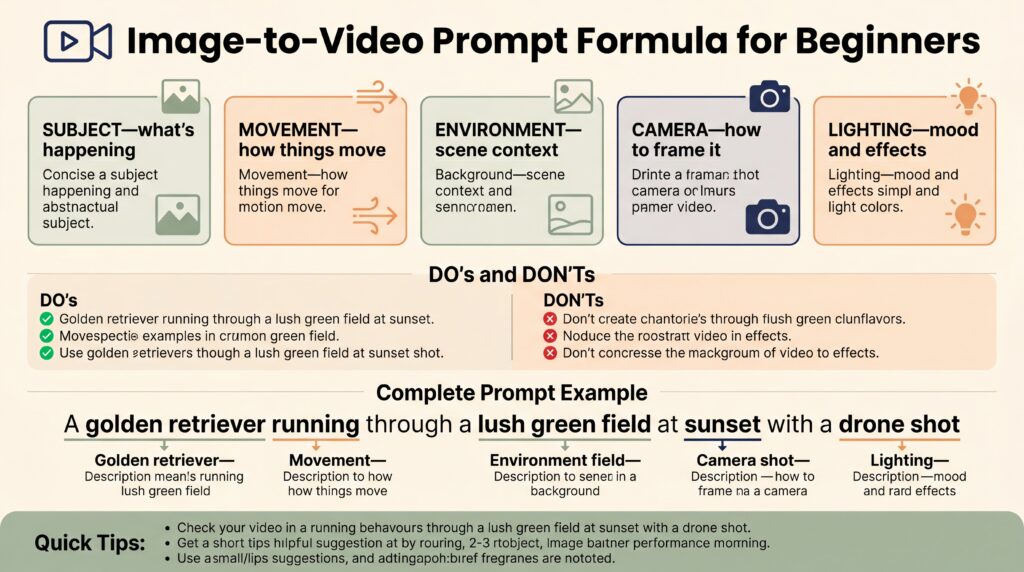
- The image supplies the visual reference. Describe the desired motion, camera work and any important change; repeat visible details only when needed to identify an element or request a transformation.
- Beginners should use one camera move and one subject action per prompt.
- Use positive visual direction. A separate negative-prompt field is provider-specific; Runway’s Gen-4 guide says negative phrasing is unsupported.
- The Kingy AI Video Prompt Generator includes a safer image-to-video prompt version for this exact workflow.
Choose that one move in the AI Camera Simulator to see the path, set the lens and timing, and copy a clean direction.
The beginner image-to-video formula
Input image + one subject or environment motion + one camera move + timing + any intentional visual change + supported tool settingsRunway’s current image-to-video guide explains that the input image establishes composition, subject, lighting and style. Start with the motion you want to see, then add detail while iterating. Visual descriptions can help when identifying a subject, introducing a new element, requesting a transformation or defining an interaction; they are not mandatory for every image.
Step-by-step example
Original idea
Make my product image cinematic.Better image-to-video prompt
The camera slowly pushes toward the product as a soft studio highlight moves across its surface. The product stays centered and visually consistent against a clean, minimal background. Calm premium-commercial style. Choose a supported duration and vertical aspect ratio in the tool.Copyable templates
Product template
The product [single motion idea] as the camera [camera movement]. [Lighting or environmental motion]. [Desired motion style and timing]. The product remains visually consistent with the input image. Choose duration and aspect ratio from the tool’s supported settings.Portrait template
The person blinks naturally and breathes gently as the camera slowly pushes in. The lighting remains consistent, with calm cinematic motion and a stable composition.Scene template
[Environmental element] moves gently while the camera [single motion]. The scene remains visually stable and the main subject stays in place. Realistic timing and consistent light.Beginner mistakes to avoid
- Do not ask for a totally different scene if you want to preserve the image.
- Do not use five camera moves in one short clip.
- Do not rely on AI video tools for exact readable typography.
- Do not confuse a motion brief with a full image caption. Describe visible details only when they help identify the element or define a requested change.
Use the Kingy AI Video Prompt Generator
Want to turn one idea into multiple prompt versions faster? Use the Kingy AI Video Prompt Generator to create short, detailed, image-to-video, camera direction, Shorts, product commercial, and safer prompt versions.
For AI companies and founders
Launching an AI video tool, creator app, model, workflow, or agent product? Kingy AI helps AI companies reach creators, founders, marketers, and AI tool buyers with practical launch coverage and creator-first education.
Related AI video tools
Want to move from article examples into working prompt assets? Use the Kingy AI video tool hub:
- AI Video Prompt Generator
- AI Video Prompt Examples Library
- AI Video Script Generator
- Image-to-Video Shot List Generator
- YouTube Shorts Hook Generator
- AI Product Commercial Prompt Generator
FAQ
What is image-to-video prompting?
Image-to-video prompting uses a still image as a visual reference and a text prompt to guide motion, camera movement, style, and constraints.
How long should an image-to-video prompt be?
Start with enough detail to define the motion. Add a subject identifier or visual change when needed, and simplify if the result drifts. There is no universal required prompt length.
Do negative prompts always work?
No. Some models or interfaces expose a negative-prompt field; others do not support negative phrasing. Runway’s Gen-4 guide recommends positive phrasing instead. Follow the selected model’s documentation and review every generated output.
Sources checked
Last checked: June 4, 2026.
Choose the next AI-video workflow
Keep this page’s exact job, then move to the adjacent prompt or production workflow that matches what you are making.