CREATOR WORKFLOWS · CANVA CRAFT · IMAGE EDITING
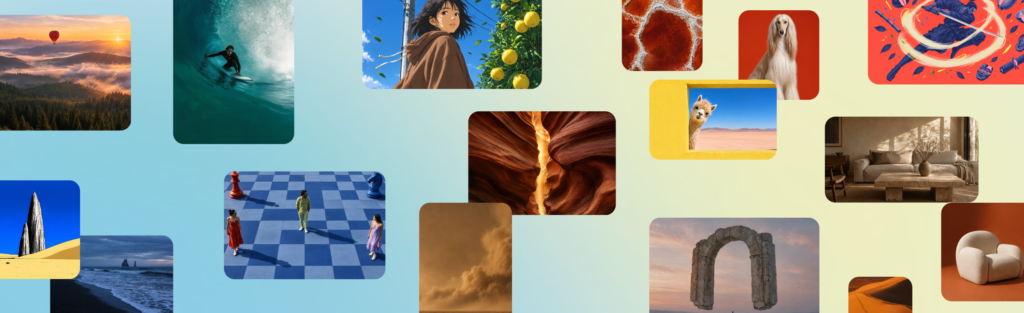
Featured image: Canva’s official Craft launch artwork. It does not show Kingy test outputs.
An AI thumbnail can look finished and still be painful to finish. Change three words, move the product, or ask a colleague to update the offer, and you discover whether you have a reusable design or a picture you need to regenerate.
That is the useful question behind Canva Craft’s arrival: how quickly can you turn the image you like into an asset you can revise? For YouTubers, small businesses and marketing teams, that can matter more than a beautiful first generation.
The quick answer
There is no demonstrated winner yet for this exact thumbnail workflow. The useful shortlist is Craft → Canva editing, ChatGPT → Canva editing, and a simpler hybrid: generate the visual, then add the important text yourself.
If your deliverable must survive repeated headline changes, put editable text and a clean revision process near the top of your requirements. If you mostly need a striking scene, judge the image first—but still time the correction you are most likely to make.
Our recommendation is to test the change request before committing to a production workflow. A thumbnail that takes thirty seconds to generate and ten minutes to repair may be less useful than one that starts more slowly and stays easy to revise. Those times illustrate the tradeoff; they are not results from either product.
What is Canva Craft?
Canva announced Craft on October 22, 2026 as its first foundation image model built and trained from scratch by Canva Research. Canva describes a two-stage process: plan composition and typography, then render the image. Its launch specification is up to 2K output and more than 30 aspect ratios. Craft is available globally to Canva users through Dream Lab. Source: Canva’s launch announcement.
Canva Research separately describes Magic Layers as a learned image-decomposition system that reconstructs design elements and editable text. That distinction matters: creating pixels and reconstructing an editable document are different jobs. Source: Introducing Canva Research.
The practical opportunity is to reduce the distance between an attractive draft and a working design. Whether Craft actually shortens that distance for your work needs to be measured on your briefs.
What is available now—and what is still upcoming?
| Route or feature | Status at this check | What to do with that information |
|---|---|---|
| Craft in Dream Lab | Launched globally | Start in the Canva interface; record the model label and settings you see. |
| Image-generation API | Preview | Suitable for controlled development and evaluation; read its release restrictions. |
| Craft through Canva MCP | Coming soon in the Craft announcement | Do not treat an existing Canva connection as proof that it can invoke Craft. |
| Craft-fast / Craft-ultrafast | Upcoming | Do not use their promised economics as today’s measured Craft cost. |
| Craft-specific plan quotas and per-image price | Not established by the sources checked | Inspect the allowance and any charge shown in your account. |
The launch page contains broad API/MCP wording, but its specific MCP paragraph says “Coming Soon.” We use that narrower status for Craft access. Source: Craft availability and roadmap. The image API reference explicitly marks the endpoint as preview and says public apps using preview APIs cannot pass review for general availability.
“Editable” can describe three very different things
| What you have | What you can change | A useful proof |
|---|---|---|
| A flattened image | The file as a whole: place, crop or resize it | Click the headline. Does the entire picture become selected? |
| A generative edit | Request a revised image using language or an editing tool | Compare before and after for changes outside the requested area. |
| A structured design | Independently edit a text box or move a recovered object | Type a new headline, then drag the object without moving the whole image. |
Importing a PNG into a design does not, by itself, demonstrate the third outcome. Neither does asking an image model to replace a word. Both can be useful, but they answer different questions.
Canva’s image-to-design API documents this boundary explicitly: placing an image as one flat asset is separate from running Magic Layers to convert it into editable design elements. The conversion is itself a preview API and consumes AI allowance. Source: image-to-design import documentation.
For a creator, “I can edit it” should mean something concrete: the headline remains readable after a copy change; the object can move; the exposed background looks acceptable; and the exported file still looks right.
Canva Craft vs ChatGPT: compare the complete workflow
Craft is a named image model. ChatGPT is an application with image-generation and editing capabilities. Comparing those names alone leaves the actual image route unspecified. Record the ChatGPT surface and any displayed model information; if the image model is not exposed, label it unknown. Do not infer it from the text model selected for the conversation.
OpenAI’s ChatGPT guidance supports natural-language image creation and edits using reference images. Its API documentation also acknowledges remaining limitations in text clarity, precise placement and consistency. Neither establishes how ChatGPT will perform on the three briefs in this guide. Sources: ChatGPT image guidance; OpenAI image API limitations.
Crucially, Magic Layers is not exclusive to Craft images. Canva documents a route from images made in ChatGPT into editable Canva designs. That makes the interesting comparison Craft plus Magic Layers versus ChatGPT plus Magic Layers, alongside a normal Canva assembly workflow. Source: Canva’s AI-assistant integration announcement.
| Workflow to evaluate | Why include it? | What would justify choosing it? |
|---|---|---|
| Craft → Magic Layers → finish in Canva | Tests Canva’s new generation route and its conversion step together | Correct copy, useful layers and a shorter complete revision cycle |
| ChatGPT → Magic Layers → finish in Canva | Keeps the final editor the same while changing image generation | A stronger starting image or better adherence without extra cleanup |
| Either generator → add native text and separate assets | Provides a practical baseline for deadline work | Predictable copy updates and less reconstruction effort |
These are selection criteria, not observed advantages. A combined workflow may be the best choice even if one generator produces the more attractive first draft.
How to try Craft and check the result
- Open Dream Lab. Canva links to it from the Craft announcement. Before generating, record the model label, aspect ratio, quality options and any allowance notice visible to you.
- Start with a real deliverable. Choose a thumbnail, poster or promotion you actually need. Write the exact copy separately so you have a proofing reference.
- Specify the hierarchy. Say what the viewer should notice first, where the subject belongs and which region needs clear space.
- Save the untouched output. Keep the original prompt and every candidate. Inspect the actual dimensions rather than assuming the requested export size was delivered.
- Make the expected revision. Change the headline or move the hero object. Include conversion, repair and export time in your assessment.
A useful general prompting pattern is: purpose, main subject, composition, exact copy, visual treatment, constraints. Replace vague requests such as “make it epic” with visible choices: a strong subject silhouette, a quiet text area, one accent color and a clear reading order.
How to use Magic Layers—and verify that it worked
Canva’s help instructions describe opening a design, uploading/selecting the image, choosing Edit → Magic Layers, waiting for processing, then selecting individual layers. Its current interface help specifies single-page PNG/JPG files and a longest edge no greater than 5,000 pixels. It says graphic designs and stylized visuals work best; photorealistic imagery may separate less cleanly. Source: Canva Help.
Use a duplicate of the design for the check. Change “AI IN A BOX” to “LOCAL AI WINS.” Then move the computer visibly to the left. Finally, reopen and export the result.
Look for these common repair needs: duplicated lettering, a leftover shadow from the old headline, a hole where an object used to be, clipped edges and text that has changed size enough to break the layout. These are inspection targets, not failures we observed in Craft.
If the conversion does not recover the right element, use a manual fallback. Place a clean text box over a repaired background, or replace the recovered object with an original asset you control. Count that work in the time to a usable result.
Three matching briefs you can copy
These are original test prompts, not examples of outputs already generated. Use the exact same brief in both products. The brands and offers below are fictional evaluation material.
1. YouTube thumbnail: one message, one subject
Create a 16:9 YouTube thumbnail for a video about a compact computer running AI. Put a generic adult presenter wearing an orange hoodie on the right, looking intrigued. Put one black compact computer on the left. Use a dark navy studio background, cyan rim lighting and strong separation between subjects. Place the exact headline "AI IN A BOX" in the upper-left area in very large yellow lettering. Keep all letters fully visible and leave a clear margin around the headline. The computer must remain recognizable at small size. No other text, logos or watermarks.
Pass conditions: the headline is exact; the two subjects occupy the specified sides; the lettering clears the edges; the computer reads as the intended subject; and the visual still communicates at a suggested 320 × 180 preview size. That preview size is our test choice, not an upload requirement.
2. Text-heavy poster: exact information and hierarchy
Create a 4:5 poster for a fictional community workshop. Use a cream background, black typography and one cobalt-blue illustration of a desk lamp. Render only this exact copy: "CREATE & LEARN"; "AI Design Workshop"; "Saturday, November 7"; "10 AM–12 PM"; "Harbour Studio"; "Free entry". Put the main headline at the top, workshop title beneath it, date and time together in the middle, and location plus entry information at the bottom. The lamp belongs on the lower right and must not overlap text. Use generous spacing and readable typography. Do not add any other words.
Pass conditions: all six strings are exact; title/date/location are easy to find; lines do not collide; the lamp stays clear of copy; and the bottom information remains readable in a reduced preview.
3. Product promotion: a controlled layout and revision
Create a square promotional graphic for a fictional portable speaker called "ORBIT MINI". Show one matte-white cylindrical speaker with a teal fabric band on the right, on a clean warm-gray surface. Put the exact copy "ORBIT MINI" at upper left, "BIG SOUND. SMALL SPACE." below it, and "FROM CA$99" in a small teal badge at lower left. Use soft studio light and generous empty space around the text. Keep the speaker fully inside the frame. Include exactly one speaker, no people, no additional logos and no other text.
Pass conditions: all three strings are exact; the speaker stays on the right and fully visible; the requested materials/colors are present; the badge remains subordinate to the headline; and the copy reads in a reduced preview.
For an actual product campaign, use approved product photography as a separate asset. The fictional speaker tests composition and copy; it does not demonstrate fidelity to a real product. A reference-image comparison should be a separate round using the identical authorized file in both routes.
A fair test: spelling, layout and time to a usable output
Begin with one paired run of each brief: six cases in total. For a more stable result, repeat each case three times. Alternate which product goes first, use fresh sessions and keep the first image pass separate from the finished design. A small sample remains an exploratory comparison, not a universal ranking.
- Set the rules before generating. Permit an initial submission and at most two generation/edit submissions per case. If a submission produces multiple candidates, retain and count them all; select with the same rule in both routes.
- Start the clock at submission. Include waiting, inspection, retries, transfer, conversion, manual repair and export. Log interruptions such as a network failure separately.
- Use the same revision tasks. Thumbnail: change the headline to “LOCAL AI WINS” and move the computer left by roughly one-tenth of the canvas width. Poster: change the location to “Riverside Studio” and move the lamp left. Promotion: change “FROM CA$99” to “FROM CA$89” and move the speaker left.
- Allow ten minutes per case. If it cannot meet every required acceptance condition within the limit, record “no usable output within cap.” Do not hide failed attempts.
- Review the exported file. Check copy against the brief, inspect full size and reduced size, and reopen the editable design. Prefer reviewers who do not know which generator supplied each candidate.
| Measure | Scoring rule, declared before the run |
|---|---|
| Spelling / copy, 0–5 | 5 × exact required strings ÷ total required strings. Preserve required case, punctuation, symbols and numbers; ignore automatic line wrapping. Record invented extra words separately. Any wrong required copy or extra copy prevents a usable-output pass. |
| Layout, 0–5 | One point for each of the five brief-specific pass conditions above. The copy condition is deliberately also a usability gate. |
| Editability, 0–5 | One point each: live text for the requested copy change; correct revised copy; independently movable target object; acceptable background after the move; acceptable reopened design and final export. |
| Speed, 0–5 | Usable export within 2 minutes = 5; within 4 = 4; within 6 = 3; within 8 = 2; within 10 = 1. No usable result within 10 minutes = 0. Also report actual seconds. |
The maximum is 20 points, but an attractive total does not override a failed acceptance condition. Report the pass/fail outcome next to the score. Preserve separate first-pass and final-copy results so manual repair does not disappear into a flattering final number.
| Result field | Craft route | ChatGPT route |
|---|---|---|
| Three briefs generated and reviewed | Not run | Not run |
| Spelling, layout, editability, speed | Not measured | Not measured |
| Time / retries / credits per usable asset | Not measured | Not measured |
Record the date, account plan, UI or API route, displayed model identity, settings, prompts, all candidates, edit steps and exported dimensions. If you repeat the runs, report medians and the number of successful cases alongside the range. Do not compare a vendor’s leaderboard score with your own small workflow score.
Pricing and AI credits: what you can safely budget
Canva’s allowance help currently lists estimates of up to 20 Standard or Premium uses for Free/Pro Lite; up to 200 Premium or 20 Ultra uses for Pro/Teams/Nonprofits; and up to 400 Premium or 40 Ultra uses for Business/Enterprise. It identifies Magic Layers as Premium. These are shared, task-dependent estimates—not verified Craft image quotas or a guarantee that each action costs one credit. Source: Canva AI usage help.
We have not verified a Craft-specific cash price per generated image. Nor have we established the exact number of Craft images available on each plan. Global availability does not mean unlimited use. Avoid importing older Dream Lab allowances or a generic subscription price into a new-model cost claim.
For your own test, capture the account’s allowance display before and after each action. Keep generation and conversion separate. Record the currency, billing interval, taxes and any top-up offer if you are comparing actual checkout costs.
A useful budget has two independent measures: credits consumed per accepted asset, including unsuccessful attempts, and minutes spent per accepted asset. Convert credits to cash only if you have a verified rate for the allowance or top-up you actually used. Allocating a monthly subscription across assets is an estimate, not a published per-image tariff.
For developers: make sure you are actually testing Craft
The image API recommends automatic model selection when the model parameter is omitted. For a Craft-specific evaluation, explicitly set craft_v1_2k; the documentation says a pinned model request fails rather than falling back. It lists six API aspect ratios, including landscape for 16:9 and portrait_4_5 for 4:5. Source: image-generation request reference.
The following is a request-body illustration, not an executed test. It assumes you already have the required user authorization and capability. Use a new idempotency key for each intended new image.
{
  "prompt": "Paste the unchanged evaluation brief here.",
  "model": "craft_v1_2k",
  "aspect_ratio": "landscape",
  "idempotency_key": "a-new-unique-key-for-this-request",
  "asset_upload": { "type": "upload" }
}
Treat the API’s narrower ratio list as the contract for that route. Do not assume every option advertised for the product is exposed by the endpoint. Likewise, keep the image-generation job and the image-to-design conversion job separate in timing and cost logs.
The conversion reference says starting the conversion consumes allowance, while polling its result does not. It is intended for flat, non-photographic graphics. That is another reason to test a poster separately from a photo-heavy thumbnail. Source: conversion workflow documentation.
The production workflow we would start with
For a deadline-sensitive YouTube thumbnail, start by making the background and visual idea. Add the exact headline as native text and place the real presenter or product as a separate asset. Save the editable master before exporting. This is our workflow recommendation, not a measured finding about Craft.
For posters, protect the information layer: event title, date, time, venue and price. Give those elements clear hierarchy and proof them outside the image-generation process. Let generation handle the illustration or mood when reconstructing a complete poster costs more effort than assembling it.
For product promotions, keep a clean approved product image available. Check that the offer, currency, actual product appearance and any required disclosure survive every revision. Use an AI visual as a concept draft until those details are verified.
Use the all-in-one generation-and-conversion route when it saves work on a distinctive composition. Use native assembly when repeated copy changes and asset replacement dominate the job. The best route is the one that remains manageable after the first approval email comes back.
Commercial use and client material
Canva’s AI Product Terms permit lawful use of outputs subject to their terms, place responsibility for input permissions and output review on the user, and make exceptions for incorporated licensed content. They also prohibit removing provenance tags and misrepresenting AI output as human-generated. Privacy settings govern whether inputs may be used to improve AI services. These terms do not amount to an automatic clearance of a particular campaign. Source: Canva AI Product Terms, effective June 26, 2026.
For a real job, obtain permission for reference photos and client assets, verify product claims, inspect the finished visual and follow the applicable account and content licenses. Keep fictional test offers out of live advertisements.
Questions creators are asking
Does Craft automatically give me a layered Canva file?
Do not assume so. The documented image-to-design conversion is a separate operation. Verify live text and independently selectable elements in the resulting design before calling the deliverable layered.
Can a ChatGPT image use the same editing workflow?
Canva documents Magic Layers access from ChatGPT. The final quality still needs checking on the image you generated; the integration is not evidence that every object will separate perfectly.
Is Craft free or unlimited?
Its availability announcement is broader than a verified quota. Check your account’s current allowance and any charge notice; this guide does not establish unlimited Craft usage.
Should I replace my current thumbnail workflow today?
Run one actual brief through it, including the revision. Keep your existing workflow until the new route meets your spelling, layout, control and turnaround requirements.
The Kingy verdict
Craft is worth evaluating because the job extends beyond making a convincing image. Creators need to finish, revise and reuse that image. The decisive demonstration is simple: change the headline, move the object, inspect the background and export.
We would not declare Craft or ChatGPT the winner without that paired evidence. Start with the three briefs above, count every attempt and keep the generation step separate from conversion. Choose the workflow that gets your actual asset through its next revision with the least verified cost and effort.
For broader context, read Kingy’s AI image-generator comparison. Its dated rankings are a separate evidence set; this launch guide does not insert Craft into that table or imply the new tests have been completed.
Sources and scope
First-party sources checked October 22, 2026. Launch specifications are vendor statements; our prompts, acceptance rules and production advice are editorial recommendations. No Canva or OpenAI benchmark has been reproduced for this article.
- Canva: Introducing Canva Craft — launch, architecture, Dream Lab availability and roadmap.
- Canva: Introducing Canva Research — image decomposition and editable text.
- Canva: Create image generation job — preview status, model selection, ratios and allowance.
- Canva: Create image-to-design import job — separate Magic Layers conversion.
- Canva Help: Magic Layers — interface steps and limitations.
- Canva: Magic Layers in AI assistants — the ChatGPT-to-Canva route.
- Canva Help: Understanding your AI usage — general allowance framework.
- OpenAI: Image generation in ChatGPT — application workflow.
- OpenAI: Image generation API guide — remaining generation limitations.
- Canva: AI Product Terms — commercial use, inputs and provenance.
The Kingy Brief
Get The Kingy Brief.
AI changes, original tests and one practical thing to try. Fridays at 09:00 Vancouver time.
Free · Double opt-in · Unsubscribe anytime
Sign up for The Kingy Brief on Beehiiv.
Signup help and newsletter schedule
Signup form provided by Beehiiv. After submitting, check your inbox for "Confirm your subscription to The Kingy Brief" and open its confirmation link. Check Spam or Promotions if you cannot find it.
Fridays at 09:00 Vancouver time: source-checked AI changes, original tests and one practical thing to try. We skip a week when there is not enough verified material. Free. Unsubscribe anytime.