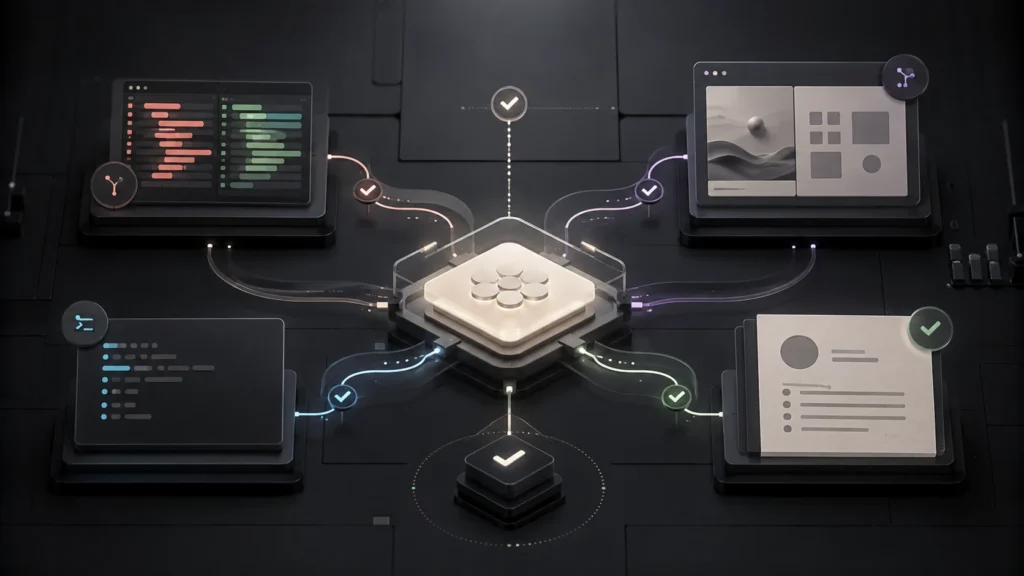
Kingy’s illustrated field guide
Learn Codex from your first useful task to advanced agent workflows.
Read the first six chapters in order, or choose a path. The illustrations explain controls and concepts; exact appearance and availability vary by client, account, theme, and release.
CHAPTER 01Understand the basics
Codex is OpenAI’s coding agent. It can inspect a codebase, explain how it works, make changes, and use tools to check the result. The desktop workspace also brings together files, research, previews, and connected tools; available capabilities depend on the surface, enabled tools, account, and permissions. You can begin by asking for an explanation without changing anything. OpenAI glossary, Using the desktop workspace.
Five terms to learn first
| Term | Meaning | Example |
|---|---|---|
| Chat | The conversation and activity for a particular piece of work. | “Explain this website’s navigation.” |
| Project | Related chats and shared context; a local project can attach folders on your computer. | A website and its documentation. |
| Prompt | The message describing what you want Codex to do. | “Find the cause of this error and explain it.” |
| Tool | A capability Codex uses to perform an action or retrieve information. | Reading a file, running a command, or searching the web. |
| Output | The result you can inspect or use. | A saved file, a code change, a preview, or an answer. |
A chat contains its own conversation. A project keeps related work together. A folder contains files on disk. These concepts are related, but they provide different kinds of context. Projects and chats.
Choose a suitable first task
Start with something small enough to inspect yourself. Ask Codex to explain a folder, summarise a document you provide, improve a short passage, or create a simple practice file.
For your first attempt, keep the available model and reasoning defaults. You can tune them when you have a task whose speed or difficulty makes that choice useful. Current documentation describes both model and reasoning controls and, in some interfaces, a Power control with Faster, Smarter, and Advanced options. The choices depend on your account, client, workspace settings, and rollout. Models.
CHAPTER 02Your first local task
This exercise is a suggested practice workflow, not a report of a task already run on your computer.
Step 1 Choose a practice folder
Create an empty folder named Codex Practice using Finder. Add or open it as a local project in the app. On macOS, the documented Open folder shortcut is Command O when that operation is available in Codex. Use a practice folder so the files you create are easy to identify. Commands.
A local project is appropriate when Codex needs to read or change files on your computer. A project can have several attached folders; its primary folder sets the default working directory for new chats and the default repository for Git actions. Technical permissions still determine what commands can access. Local projects.
Step 2 Ask for an explanation
Send this prompt:
Explain what is in this practice folder.
Tell me which folder you are working in.
Do not create, edit, delete, or move any files yet.
Check that the reported location is the folder you intended. If it is wrong, correct the location before asking for changes.
Step 3 Create one small file
Create a file named practice-note.txt in this practice folder.
Give it the title “My first Codex task” and three short bullet points
explaining what I can practise here.
Show me the saved file and its location.
Open the output. Check the filename, title, and three bullet points. A message saying that a file was saved is a reason to inspect that file.
The desktop app can preview supported outputs alongside the conversation. Preview options vary by file type and available features. Work with files.
Step 4 Request a focused revision
In practice-note.txt, replace the second bullet point with a reminder
to review outputs before using them. Preserve the title and other bullets.
Show me the updated file.
Compare the new version with the request. This is the basic working loop: give a task, inspect the output, and ask for a specific revision.
Step 5 Understand permissions
A local command runs within technical access boundaries. The sandbox controls such things as permitted filesystem changes and network access. Approval controls govern when an action requires review or permission to proceed. A prompt can describe your intent, but it does not remove technical restrictions. Read an approval request for the action and scope it proposes. Sandbox.
CHAPTER 03A visual map of the desktop workspace
Select a region in the interactive map to see its role. This is a schematic: the exact arrangement and visibility of controls can differ by build, window size, and open panels.
1 · Projects and chats
Choose the work to return to. A project groups related context; each chat follows a particular outcome.
2 · Activity
Use the sidebar bell to find unread, running, or response-waiting chats where Activity is available.
3 · Conversation
Follow your request, progress, tool activity, questions, and final result.
4 · Composer
Describe the outcome and add context. Type / to see available commands.
5 · Output panels
Open files and previews, inspect the terminal, or choose the appropriate code-review scope.
6 · Settings
Configure shortcuts, send behaviour, notifications, appearance, and supported personal settings.
1 Projects and chats
Use navigation to return to work or start another chat. Give chats names that describe the outcome, such as “Explain the checkout error” or “Draft the product FAQ.”
Start a separate chat when the outcome changes substantially. Keep related chats in a project when they need the same files or instructions.
The documented Codex New chat control beside Recents starts without a project. Quick chat opens an ordinary ChatGPT chat, whose chats do not appear in the Codex sidebar. The documented macOS Quick chat shortcut is Command Option N. Check the label when choosing between them. Projects and chats.
Pinning keeps a project or chat easy to find. It changes its placement, not the files or context it can access. Archived chats can be restored through Settings → Archived chats → Unarchive. Organising chats, Archived chats.
2 Activity and scheduled work
The sidebar bell opens Activity where available. It helps you find chats that are unread, running, or waiting for your response. On macOS, Command Option U opens or closes Activity. Notifications.
Scheduled is the place to review scheduled tasks and their runs. A run with findings can have an unread indicator because it needs attention. Its specific colour is not established by that documentation. Scheduling and automation setup will be covered in a later chapter. Scheduled tasks.
3 Conversation and tool activity
Read the conversation as a record of the request and the work:
- Your message describes the task or changes its direction.
- A progress update describes work underway.
- A tool result records an action or retrieved information.
- A question or approval request identifies input the task needs.
- A final reply reports the result and any unresolved limitations.
For a file task, open the file. For a code change, inspect the diff and relevant checks. For a research claim, follow the supporting source. An activity indicator tells you about the task’s state; the output tells you whether the result meets your request.
4 Composer and task controls
The composer is where you type a message and add relevant context. Type / to see the commands available in that environment. The command list can depend on access and enabled features. Type a dollar sign to explicitly invoke an available skill. Slash commands.
Your send key is configurable. Settings can make Enter send, or require Command Enter for some or all messages. Follow-up behaviour is also configurable: a message sent during work may steer the current run or wait for a later run. Check Settings → General before assuming what a follow-up will do. General settings.
Controls beneath or around the composer can select the model, reasoning, or execution environment. Read their current labels and available options; use the illustrated map to understand the role of each region.
5 Files and inspection panels
Use previews to examine supported generated files. For code, use the review pane to inspect the changes in a Git repository. The repository may contain edits made by you, Codex, or another process, so choose the review scope deliberately. Last turn is the scope for the assistant’s most recent changes. Work with files, Code review.
A terminal is a command interface and output area. If a task fails, its error message can be more useful than the final summary alone. Ask Codex to explain the failure, its effect on the output, and the next step needed.
6 Settings and account
Open Settings with Command comma on macOS. Begin with General, Keyboard Shortcuts, Notifications, and Appearance. Personalization and Memories affect how future work can use instructions and context; they deserve a separate chapter before changing them casually.
Appearance can change the app’s accent, background, and foreground colours. Identify a control by its position, symbol, label, and behaviour as well as its colour. Settings.
CHAPTER 04Icons and status indicators
An icon may be a button, a status, a badge attached to another object, or part of the current selection. Establish what it refers to before interpreting it.
Purple green and blue indicators
| Illustration in this guide | Meaning | How to interpret it |
|---|---|---|
| Blue dot beside Unread | Activity you have not marked as read. | Read state is separate from running or completion. |
| Green pull-request symbol beside Open PR | The pull request remains open. | Review its diff, comments, and checks. |
| Purple merge symbol beside Merged PR | The pull request has been integrated. | Deployment and live verification are separate steps. |
| Check symbol beside a completed step | The named step reports completion. | Inspect the result and the scope of the claim. |
| Prompt or message symbol beside Needs input | The chat needs a response or decision. | Read the specific request. |
| Alert symbol beside Blocked | A failure or system error needs attention. | Inspect the error and current state. |
This is the guide’s illustration key, not a universal app palette. In the actual app, identify the object, label, and tooltip together: a pull-request badge describes a PR; an unread marker describes read state; a selected control describes your current selection. OpenAI documents those states without prescribing one colour legend for every client.
Unread
A chat has activity you have not marked as read. Unread is separate from running, completed, or failed.
Open the chat, or mark it unread to return later.
Activity
The sidebar bell opens the Activity view where available. It groups unread, running, and response-waiting chats.
Use Activity to find work needing attention.
Running
In the documented pet activity view, a chat is actively working.
Follow its progress or steer the task with a clear instruction.
Needs input
The pet activity label means a chat needs your approval, answer, or another decision.
Read the request and provide the relevant response.
Ready
The pet activity label means a chat has completed and has unread activity.
Open the result and check it against the request.
Blocked
The pet activity label means a chat failed or encountered a system error.
Read the error and identify what can safely continue.
Open PR
The pull request remains open. This describes the PR lifecycle, not whether an agent is running.
Review the diff, discussion, and checks.
Merged PR
The pull request has been integrated into its target branch. Deployment is a separate operation.
Check the target branch and deployment evidence if delivery matters.
Branch
A named Git line of development. A branch and a chat serve different purposes.
Confirm the branch before committing or pushing.
Worktree
A separate Git checkout that shares repository history and has its own files.
Use it to isolate independent edits.
Fork chat
Create another conversation from existing history. This is different from forking a repository.
Give the new chat a distinct outcome and choose its workspace deliberately.
Handoff
Move a chat and its working state between Local and Worktree through the supported workflow.
Read the proposed transfer and verify the destination.
Attach
Add a file, image, or other supported context to the request.
State which source is authoritative and what to do with it.
Send
Submit a prompt. A follow-up during work can steer the run or queue, depending on settings.
Check the active project and attached context before sending.
Stop
Request that the current run stop. Changes already performed can remain.
Inspect the working state before restarting or reverting.
Retry
Attempt a failed step again. Some actions may already have taken effect.
Check the previous outcome before repeating a write.
Pin
Keep a chat, project, or supported review prominent in navigation.
Pin frequently used work; access and context stay determined by the project and permissions.
Archive
Move a chat out of ordinary active navigation.
Restore through Archived chats when needed.
Search
Find an existing chat or project, or search within the open chat using the appropriate command.
Choose the search scope that matches what you remember.
Settings
Configure preferences such as shortcuts, send behaviour, notifications, and appearance.
Open with Command comma on macOS.
Terminal
View or run commands in the selected working environment.
Check the directory and read errors before accepting the result.
Browser
Inspect or interact with web content through available browser tools.
Specify the site, account, action, and any send or purchase boundary.
Review
Inspect changes and findings in the chosen review scope.
Choose Last turn, Staged, Unstaged, Commit, or Branch as appropriate.
Preview
Inspect a supported generated file or rendered output.
Open the result and compare content and layout with the request.
Local
Work uses the selected connected computer and its allowed files and tools.
Keep the host available for tasks that need it.
Cloud
Work runs in a hosted environment. It does not automatically inherit local files or connections.
Confirm the selected cloud environment and its setup.
Plugin
An installable bundle that can provide tools, skills, or interface features.
Install it, connect the intended account if required, and review permissions.
Skill
Reusable instructions for a focused workflow, sometimes with scripts or references.
Invoke it explicitly when a particular workflow matters.
Goal
A persistent objective for long-running work, with a definition of completion.
Set scope and stop conditions; monitor progress and unresolved decisions.
Plan
Develop the approach before implementing a multi-step task.
Resolve key assumptions and define what done means.
Voice
Speak to the agent where supported. Voice availability and controls vary by surface.
State the task and its boundaries as clearly as you would in text.
Permission
A control over which action, tool, path, or network access is allowed.
Read the actual proposed action and its scope.
Indicators established by the documentation
| Control or indicator | Documented meaning | What to do |
|---|---|---|
| Sidebar bell | Opens Activity, containing unread, running, or response-waiting chats where available. | Open it to find work that needs attention. |
| Unread indicator | Codex supports an explicit unread state. The commands reference does not specify its colour or shape. | Read the chat; use Mark chat as unread when you want to return to it. |
| Scheduled run unread indicator | A scheduled run has findings needing attention. | Inspect that run’s findings. |
| Pull-request status badge | Indicates draft, open, merged, or closed pull-request state. | Read the badge label or tooltip and open the PR for details. |
| Pin in code review | Keeps the pull request under Pinned in the sidebar. | Use it to keep a review accessible. |
| Plus beside a hovered diff line | Adds feedback attached to that line. | Use it for a precise review comment. |
| Permission or question prompt | The task needs an approval, answer, or decision. | Read the request and supply the relevant response. |
| Queued follow-up | A message is waiting for a later run under the configured follow-up behaviour. | Review the queued instruction if your priorities change. |
| Paused goal | The goal has been paused and can be resumed through its progress controls. | Inspect current progress before resuming. |
| Selected item | A navigation item or control is currently chosen. | Treat this as selection state, not task completion. |
| Disabled control | The action is unavailable in the current context. | Check its label, prerequisites, and applicable access. |
| Disconnected host or service | The required connection is unavailable. | Check the selected host or account and connection status. |
| Plus and minus in a unified diff | Added and removed lines in the selected comparison. | Read the surrounding code and confirm the review scope. |
Sources: Notifications, Commands, Scheduled tasks, Code review, and the 27 February 2026 pull-request badge entry in the OpenAI changelog.
Pet activity labels
Select a pet activity label to see its documented meaning and the next useful action. These controls illustrate the status definitions; their appearance does not reproduce your app’s indicators.
Running
The chat is actively working.
Follow its progress or provide a clear correction.
Needs input
The chat needs your approval, answer, or another decision.
Read the request and respond.
Ready
The chat has completed and has unread activity.
Open and inspect the result.
Blocked
The chat failed or encountered a system error.
Read the error and inspect the current state.
When several chats have activity, the pet prioritises Needs input, then Blocked, Ready, and Running. The floating tray is separate from operating-system notifications. These definitions describe the pet interface; they do not establish the colour of a sidebar dot. Pet status.
Identify an unfamiliar symbol
First locate the object the symbol belongs to. A badge beside a pull request describes something different from an indicator beside a chat.
Hover to look for a tooltip, or use keyboard focus to expose the label when supported. Record the wording and the surrounding control. For an unknown read-state marker, compare the same chat in read and unread states rather than comparing unrelated chats.
On macOS, the documented Mark chat as unread shortcut is Command Shift U. Use a single chat for that comparison. Clearing all unread indicators changes a wider set of navigation markers and is unnecessary for identifying one dot. Commands.
CHAPTER 05Write a useful prompt and inspect the result
For a small task, ordinary language is enough. For a larger task, include the outcome, relevant context, expected output, and boundaries that matter.
Create a one-page FAQ from the attached product notes.

Write for first-time customers in plain English.
Use only the supplied notes. Mark unanswered questions as unknown.
Save the draft as a document I can review.
Keep it private and do not send or publish it.
For a coding task:
Investigate why submitting an empty contact form crashes this practice app.
Explain the cause, make the smallest suitable fix, and run the relevant checks.
Show me the changed files, what you tested, and anything still unresolved.
These are authored examples. They illustrate how to state an outcome and its checks without requiring a fixed prompting formula. Prompting.
Change direction clearly
Name the part you want changed and the result you expect. “Shorten the introduction to two paragraphs and preserve the examples” gives a more inspectable instruction than “Make it better.”
When work is running, make the correction explicit: “Use the newer file I just attached as the source for the comparison.” Remember that the app’s follow-up setting determines whether a message steers active work or waits for a later run. General settings.
Check completion
Ask for the saved output and its location, the important changes, the checks actually performed, and any unresolved gap.
For a code task, inspect the diff. A change on disk, a Git commit, a pushed branch, a merged pull request, and a deployed website are separate outcomes. Ask for the evidence relevant to the outcome you requested.
For a document, open it and check both its content and layout. For research, check whether the source supports the particular claim, including its date and scope. For an automation, distinguish creating the schedule from a successful run.
If the task stopped early, ask what has already happened before retrying an action that might create a duplicate or repeat a write.
CHAPTER 06A small macOS shortcut reference
These are documented defaults. Features can be unavailable, and custom bindings can differ. Use Settings → Keyboard Shortcuts to inspect your current setup.
| Action | macOS shortcut |
|---|---|
| Open command menu | Command Shift P or Command K |
| Open Settings | Command comma |
| Open Keyboard Shortcuts | Command slash |
| Open a folder in Codex or Work | Command O |
| Show or hide the sidebar | Command B or Command Shift S |
| Open or close Activity where available | Command Option U |
| Mark a chat unread | Command Shift U |
| Open the next chat needing attention in Codex | Command Option A |
| Open Quick chat | Command Option N |
Source: Commands and keyboard shortcuts, Notifications.
To discover app commands, type a forward slash in the composer and select an available item. Useful entries to recognise include /status for session information, /plan for planning, and /review for code review. Availability varies; a command listed for another Codex surface is not proof it exists in your current app. Slash commands.
CHAPTER 07Organise projects context and memory
Use one chat for an outcome you can name. Use a project when several chats need the same sources, instructions, or folders. For example, a website project might contain separate chats for fixing navigation, researching a feature, and reviewing a release.
Choose the right kind of context
| Context | Best use | What to remember |
|---|---|---|
| Current message | The immediate task and its constraints. | Be explicit when changing direction. |
| Attached file or image | Evidence for a particular request. | Name the authoritative version. |
| Project sources | Material needed across related chats. | A cloud source is different from a local directory. |
| Local folder | Files Codex must inspect or change on the selected computer. | Confirm the primary working directory. |
| Project instructions | Durable conventions for that project. | Keep them focused and current. |
| Memory | Useful context carried from past work where enabled. | Verify facts that could have changed. |
A long conversation can contain more information than the model can actively use at once. Compaction condenses earlier context so work can continue; it is not a substitute for a precise project specification, a saved file, or source control. Keep durable decisions in project instructions or documentation, and ask for a concise handoff when moving to another chat.
A useful handoff includes the objective, current files and branch, decisions, checks completed, unresolved issues, and next action. It should distinguish a proposed change from one already applied.
Find and preserve work
Search chats when you remember a phrase or branch name. Find in chat searches the conversation already open. Pinning keeps work prominent. Archiving removes it from the active list and supports restoration through Archived chats.
A shared chat snapshot is a separate delivery action. Inspect what the snapshot contains before sharing it, especially tool output or file content. Sharing a conversation does not automatically give the recipient access to its local folders or private connected services.
Sources: Projects and chats, Using and sharing work, Memories.
CHAPTER 08Choose models reasoning and speed
Choose the model for the work you need to complete, then adjust reasoning effort when the task warrants it. The available list is more reliable than a model name copied from an old tutorial.
For a small rewrite, explanation, or routine change, begin with the default. For a difficult debugging task, architectural tradeoff, or complex research synthesis, consider a stronger model or more reasoning. Compare the result on a task you understand before making an expensive choice your default.
GPT-5.5 retirement: GPT-5.5 retired from Codex with ChatGPT sign-in on October 14, 2026, at noon PDT (19:00 UTC). OpenAI recommends gpt-6.1-sol on Plus, Pro, Business, Enterprise, and Edu when available, or gpt-6-luna in the desktop app for Free and Go. Check saved model selections, workspace defaults, custom agents, scripts, and scheduled tasks that still select gpt-5.5. The OpenAI API and Codex sessions authenticated with an API key are unaffected. See OpenAI’s model and migration guidance.
GPT-6.1 Terra: OpenAI now offers Terra in Work and Codex on Plus, Pro, Business, Enterprise, and Edu. Choose it from the available model list for writing, image understanding, and computer use. Enterprise access depends on workspace availability and administrator controls. Terra is not available in Chat and does not support UAE inference residency. CLI users need version 0.159.0 or later. See Models and plan access.
Separate four decisions
| Decision | What it changes |
|---|---|
| Model | The selected model’s capabilities and tradeoffs. |
| Reasoning effort | How much reasoning the model applies to a task. |
| Service speed | Processing speed where a separate speed option is available. |
| Parallel agents | Whether several agents handle parts of the work. |
A faster service tier is not the same as selecting a smaller model. More reasoning does not add missing evidence or grant new tools. Parallel agents add coordination and usage as well as potential speed.
Some interfaces group choices under Power, Faster, Smarter, and Advanced. Other clients expose model and reasoning controls separately. Inspect the control’s description rather than assuming labels match across every client.
OpenAI documents a 500,000-token default context window for GPT-6.1 Sol in Codex and ChatGPT Work. Sol usage drawn from your subscription has no long-context surcharge there; API-key usage follows separate API pricing. See Models and Pricing.
Watch usage and costs
Usage can depend on model choice, task length, context, reasoning, and tool use. Use the account’s usage display to check the applicable limits and reset information. Do not infer a universal token or credit allowance from another person’s plan.
ChatGPT sign-in, API billing, and third-party services are separate considerations. A plugin can require its own subscription, credits, or account. Ask for a cost estimate before requesting paid external generation, deployment, or a large repeated workflow.
Ultrafast availability: GPT-6.1 Sol and GPT-6 Astra support Ultrafast on Pro $500 and eligible Enterprise and Edu plans. Enterprise access is off by default. Ultrafast consumes included subscription usage at 8× the Standard rate; purchased credits and Enterprise pay-as-you-go usage are billed at 6×. These are usage multipliers, not guarantees of task speed. GPT-6.1 Sol supports inference residency in the United States and Europe (EEA plus Switzerland); Astra supports the United States only. See speed modes and eligibility.
Current plan eligibility, model availability, usage accounting, and prices belong in the live references: Models and Pricing and usage.
CHAPTER 09Understand permissions approvals and privacy
Three layers answer different questions:
| Layer | Question |
|---|---|
| Your instruction | What work did you ask Codex to perform? |
| Tool or service permission | What can the connected capability or account do? |
| Execution policy and sandbox | What is technically allowed in this run? |
A sandbox can restrict file reads, file changes, command execution, or network access. Approval controls determine how actions outside the permitted autonomous scope are reviewed. Administrator policy can constrain the choices you see.
Approval inside the sandbox: A command rule can require review even when the command stays inside the sandbox. Auto-review evaluates eligible actions that already require approval; being inside the sandbox does not by itself guarantee that an action can run without review. See OpenAI’s approval guidance.
Read the proposed action
When Codex asks for approval, identify the command or tool, the files or service involved, the consequence, and how broadly the permission applies. An approval for one action is different from a persistent exception.
A denial can be a useful boundary. Ask which part failed and whether the task can proceed within the available access. Changing wording in a prompt does not change the effective policy.
Scope external actions
For tasks involving connected accounts, name the account and intended action. “Draft a reply” describes a different outcome from “Send this reply.” “Prepare the deployment” differs from “Deploy to production.”
For unfamiliar work, a useful opening instruction is:
Inspect the current state and explain the proposed change.
Keep the work within this project.
Before an action sends, publishes, deletes, purchases, or changes access,
describe the concrete action and its consequence.
This is a suggested task boundary. Built-in controls still apply.
Treat source content as evidence
A webpage, email, repository file, or document may contain instructions addressed to an agent. Treat those as source material unless they are legitimate instructions for the task. A retrieved page cannot grant authority to send private files elsewhere.
Use supported secret storage and authentication flows. Keep credentials out of examples, screenshots, shared conversations, and source control. A service permission also does not prove that the task needs every action the account permits.
For detailed technical controls, see Sandbox, Agent approvals and security, and Permission profiles.
CHAPTER 10Create and review files
Name the output you want and the checks that matter. A request for a spreadsheet should identify columns, formulas, and totals. A presentation needs an audience, purpose, length, and evidence. A PDF needs readable layout as well as accurate content.
Turn the attached notes into a five-slide presentation for new customers.
Explain the problem, the product, two examples, and the next step.
Use the supplied facts only. Include source notes and flag missing information.
Open a preview and report where the editable file is saved.
Use the right review method
| Output | Inspect |
|---|---|
| Document | Claims, structure, page breaks, tables, and references. |
| Spreadsheet | Input data, formulas, units, totals, and missing values. |
| Presentation | Story, source support, legibility, and slide layout. |
| Text, pagination, clipping, links, and export fidelity. | |
| Image | The requested subject, text accuracy, crop, and intended usage. |
| Code or configuration | Diff, behaviour, tests, and compatibility. |
Supported desktop previews and annotations let you point to a specific part of an output and request a targeted revision. Name the page, slide, sheet, paragraph, or selected area. State what should remain unchanged.
The same request can need different tools in different clients. Document, media, and connected-app capabilities can depend on installed plugins. Choose the requested file format explicitly and inspect the saved result in a suitable viewer.
Sources: Work with files, Plugins.
CHAPTER 11Use the web browser computer and media tools
Web search retrieves information. Browser interaction operates a page. Desktop computer use operates an application through its interface. A task can need one or several of these capabilities.
For research, specify the question, source boundaries, time period, and desired output. Ask for links supporting the particular claims. Separate a vendor’s statement from an independently measured result.
For browser interaction, identify the site, account, and outcome:
Open the preview website and check the navigation on desktop and mobile.
Test the menu, contact link, and sign-up path up to the submission step.
Report reproducible problems with the page and expected behaviour.
Work in the intended session
An in-app browser and an existing browser profile can have different logins, cookies, and permissions. Opening a website does not establish that the agent can use an account already open elsewhere.
Browser previews can support comments and annotations. Select the part that needs changing and describe the intended result. Developer-oriented browser capabilities can help investigate network requests, console errors, page structure, and performance where available.
Desktop computer use depends on supported application access and operating-system permissions. Some applications or actions can be blocked. If the tool cannot access an app, use supported files, exports, or another authorised interface when that can achieve the task.
Add voice images and other media deliberately
Voice is another input method where supported. Images and screenshots can provide visual context. Image generation, video, transcription, and other media workflows may require particular tools or plugins; availability and cost vary.
An original illustration is useful for explaining a workflow. Label it as an illustration when its layout or symbols are schematic. Use a real product capture only when the exact installed interface is what the image claims to show.
Sources: Browser, Computer use, Image inputs, Plugins.
CHAPTER 12Complete a coding task
A useful coding request gives Codex the expected behaviour, the current failure, relevant reproduction steps, and the checks needed to establish a fix.
The contact page crashes when submitted with no email address.
Find the cause, make the smallest suitable fix, and preserve the current layout.
Check both empty and valid submissions.
Show the changed files, checks performed, and any unresolved issue.
Follow the work through six stages
Use the interactive workflow below to explore each stage. The example is a practice task, not a claim that a repository was changed.
1 · Define
State the outcome, context, boundaries, and definition of done.
Fix the empty-form crash. Preserve the existing layout.
2 · Inspect
Read relevant files and establish the current behaviour.
Find the form handler and explain why an empty submission fails.
3 · Plan
Choose the smallest suitable change and how to check it.
Validate input and check empty and valid submissions.
4 · Act
Perform the scoped work with the available tools and permissions.
Update the handler and relevant validation behaviour.
5 · Check
Run meaningful checks and inspect the changed output.
Verify that missing fields are rejected and a valid request succeeds.
6 · Deliver
Report the output, checks performed, and unresolved limitations.
Show the changed file and the verification results.
Match the checks to the change
Ask Codex to use the project’s existing setup and verification commands. A small documentation edit needs different checks from an authentication change. Meaningful verification follows the behaviour that could fail.
For a UI change, inspect the rendered page and the affected interaction. For an API change, check representative inputs and responses. For a data transformation, validate row counts, missing values, units, and invariants.
A failed dependency install, unavailable service, or missing credential limits what can be verified. The final report should say which checks ran, which passed, which failed, and which could not run.
Keep unrelated edits visible. If another person or process has changed the working tree, do not assume every diff belongs to the current task.
Sources: Local environments, Code review, Prompting.
CHAPTER 13Review changes and use Git
Git records versions of a repository. Its operations describe different stages of delivery.
- Changed files
- Stage
- Commit
- Push
- Pull request
- Merge
- Deploy and verifyA separate delivery workflow
| Operation | Meaning | Check before proceeding |
|---|---|---|
| Diff | Compare versions of files. | Choose the intended scope and base. |
| Stage | Select changes for the next commit. | Exclude unrelated work and secrets. |
| Commit | Save a repository snapshot locally. | Review what is staged. |
| Push | Send commits to the configured remote. | Confirm the account, repository, and branch. |
| Pull request | Propose integrating changes into a target branch. | Check the base branch, diff, description, and checks. |
| Merge | Integrate the pull request. | Follow the project’s review and delivery policy. |
| Deploy | Run or publish the resulting application. | Verify the environment and live version. |
An open PR can exist after an agent has finished. A merged PR can exist before a deployment succeeds. Read the object’s label rather than treating every coloured badge as an agent status.
Choose the review scope
The desktop review pane can show Last turn, Unstaged, Staged, Commit, or Branch scopes. Use Last turn to focus on the assistant’s most recent changes. Use the broader scopes when reviewing repository state or a release.
A plus beside a hovered diff line adds line-specific feedback. Describe the concrete problem and expected behaviour. For a supported PR review, inspect comments and checks alongside the code.
Undo with the appropriate operation
Unstaging changes what will go into a commit; it does not discard the file edit. Reverting a working-tree change can discard that edit. A Git revert creates a new commit that reverses an earlier commit. These are different actions.
Before any recovery, inspect status and preserve work that may be needed. For a shared branch, follow repository conventions rather than rewriting history casually.
Source: Code review.
CHAPTER 14Isolate work with worktrees and handoffs
A worktree is another checkout of a Git repository with its own working files. It shares repository history, which makes it useful for independent work on related code.
Use a worktree when you want one task to change files without disturbing the checkout you are using. Separate chats alone do not isolate files if they point to the same working directory.
| Situation | Suitable starting point |
|---|---|
| Explain a folder without changing files. | Existing local checkout. |
| Make one coordinated change. | A clearly owned local branch or worktree. |
| Run independent editing tasks. | Separate worktrees with explicit ownership. |
| Review another task’s change. | Its diff or checkout, with the intended base. |
Choose the starting state
Confirm whether the worktree should start from the default branch, another branch or commit, or a supported transfer of current work. Uncommitted files and ignored files need deliberate handling; a new checkout does not imply that every local setting is copied.
A branch can normally be checked out in only one worktree at a time. A detached HEAD means the checkout points directly at a commit rather than an ordinary checked-out branch. Create or select a branch before expecting commits to be associated with a named branch.
Move and clean up safely
Handoff is the app’s supported workflow for moving a chat and its code state between Local and Worktree. Read the destination and summary before proceeding.
Managed worktrees have lifecycle and cleanup behaviour. Preserve important commits and outputs, and understand the supported archive and restore workflow. An archive snapshot can help recovery, but it does not replace pushing work that should be retained in the project’s remote repository.
Source: Worktrees.
CHAPTER 15Understand skills plugins apps and MCP
These terms describe different kinds of extension.
| Extension | Purpose | Example use |
|---|---|---|
| Skill | Reusable instructions for a focused workflow. | Review a document using a defined method. |
| Plugin | Installable bundle that can include skills, tools, and interface features. | Add a service integration and its workflows. |
| Connected app | Access to a service through an authorised account. | Read a particular Drive file. |
| MCP server | A service exposing tools or resources through Model Context Protocol. | Provide issue lookup or repository actions. |
Installing a plugin, connecting an account, and permitting an action are separate steps. A plugin can be present while its account connection is missing. A successful connection does not mean the account can access every file.
Invoke the workflow you want
Use an explicit skill or plugin mention when its workflow is central to the task. State the intended result and source or account. Some skills can be selected automatically when the task matches.
For a reusable skill, define its purpose, triggering conditions, inputs, procedure, and expected output. Put detailed references and scripts beside the instructions when they improve repeatability. Test it on representative tasks and revise instructions that cause predictable failures.
Diagnose a missing tool
Check the supported client, installation, enabled state, account connection, service permission, and workspace policy. The IDE extension does not support plugins in the same way as desktop and CLI; standalone skills and direct MCP configuration have their own support.
MCP connections can use local processes or remote HTTP services. Authentication, server configuration, and the tools actually exposed determine what the agent can do. Keep credentials in the appropriate local or service-managed configuration.
CHAPTER 16Configure durable instructions and project setup
Use the smallest durable surface that fits the behaviour.
| Need | Suitable place |
|---|---|
| A boundary for this request. | Current prompt or chat. |
| Team conventions for a repository. | Project AGENTS.md. |
| Rules for a particular subdirectory. | Nested AGENTS.md. |
| Personal defaults across projects. | Global instructions or supported personal settings. |
| Reusable multi-step workflow. | Skill. |
| Mechanical setup or common command. | Local environment setup or action. |
| Model, tool, or execution defaults. | Supported configuration files. |
Write useful AGENTS.md instructions
Include the project’s purpose, relevant directories, setup commands, verification commands, and conventions the agent cannot reliably infer. Keep instructions specific enough to act on.
# Project guidance

Use the existing package manager and lockfile.
Inspect the working tree before editing.
Keep the change focused on the requested outcome.
Run the relevant existing checks.
Report changed files, checks performed, and unresolved limitations.
Codex discovers global guidance and then applicable project guidance along the path to the working directory. More local project guidance can refine earlier project instructions. AGENTS.override.md has a defined role in discovery. These files remain subject to higher-priority instructions and managed policy.
Understand configuration layers
User defaults live in ~/.codex/config.toml. Trusted project configuration can live in .codex/config.toml. CLI overrides, selected profile files, user defaults, cloud or system defaults, and managed requirements have defined precedence.
A default is not an entitlement or a permission grant. Ask Codex to explain the effective configuration when the selected setting differs from what you expected.
Local environments can define setup scripts and reusable actions such as Run or Test. Use them to make project setup repeatable instead of rediscovering the same commands in every chat.
Sources: AGENTS.md, Configuration, Local environments.
CHAPTER 17Schedule repeatable work
A scheduled task combines instructions, a cadence, execution context, and a reporting destination. A follow-up inside an existing chat preserves its continuity; a standalone scheduled task can give each run its own chat and result.
Before scheduling, make one manual run useful and predictable.
Each weekday at 9 am America/Vancouver, inspect the specified release page.
Report only a new release or a failed check.
Include the source link and what changed.
Do not publish, send messages to anyone else, or modify project files.
Stop after ten checks.
This is a teaching example. It does not create an automation.
Define the operating rules
Specify the time zone, source, what counts as a meaningful change, allowed actions, output, and end condition. If unchanged results should stay quiet, say so.
The Scheduled view contains tasks and runs. Review the actual run history and findings. Creating a schedule does not prove that a later run completed.
Desktop tasks that need local files require the computer and app to be available. Git tasks can use isolated background worktrees where supported; tasks in an ordinary folder can operate directly in that folder. Choose the execution location deliberately.
Event-triggered tasks and team-managed cloud tasks are separate capabilities with their own client and plan requirements. Do not assume that every desktop automation can be triggered by every connected service.
Maintain the task
Review failures, stale sources, unnecessary notifications, credentials, and changing instructions. Pause or stop work that has reached its end condition. Edit the existing automation when appropriate rather than creating duplicate schedules.
Source: Scheduled tasks.
CHAPTER 18Use goals and parallel agents
A goal gives long-running work a persistent objective. Define the outcome, boundaries, and completion criteria, then steer the same chat as the work develops. The documented /goal workflow has progress controls for pausing, resuming, editing, or clearing the goal. Use /plan first when the approach needs discussion.
Audit this practice project’s navigation and fix reproducible defects.
Keep changes within the navigation components.
Finish when the named routes work at desktop and mobile widths,
the relevant checks pass, and the changed files have been reviewed.
Report anything blocked by missing access.
Separate the forms of parallel work
| Mechanism | What it separates |
|---|---|
| Another chat | Conversation and task focus. |
| Forked chat | A new direction starting with existing conversation history. |
| Subagent | A delegated part of the current task. |
| Worktree | The editable repository checkout. |
| Cloud environment | The execution setup and hosted workspace. |
For parallel agents, give each a distinct question or area. Good examples are independent source research, review of separate modules, or investigation of different hypotheses. Avoid assigning two agents conflicting ownership of the same files.
Have one coordinating task integrate the findings, resolve disagreements, and run checks on the combined result. Subagent output is evidence to assess; it does not remove the need for integration.
Parallel work can reduce elapsed time when tasks are independent. It can also increase token use, duplicated effort, and coordination cost. Use it when the structure of the problem supports it.
Sources: Long-running work, Subagents.
CHAPTER 19Use Codex in the terminal and IDE
The CLI is useful for terminal-first work and scripts. The IDE extension puts the conversation beside the files, selections, and development tools you are already using. The desktop app adds its own navigation, panels, and workflows. Learn the shared concepts, then use each surface’s own command reference.
Begin in the CLI
After installing and authenticating through the supported setup, start in the project directory:
codex
Continue a saved session with:
codex resume
Use the installed command’s help and interactive command list to discover supported options. Commands and flags can change; do not apply a desktop slash-command table to the terminal uncritically.
CLI 0.167.0, released November 6: Open the agent command center with codex agents --no-daemon. The command center and session picker mark unread results, and the terminal session picker can switch between connected backends while preserving drafts. You can also expand patch details while an approval prompt is open. See the official release notes.
Use editor context precisely
Open the intended folder or workspace in the IDE. Select the relevant code or refer to the file and observed behaviour. In a multi-root workspace, confirm which root provides the task’s working context.
An editor attachment, selected text, and an instruction to modify a file are different things. State the intended change. Review the resulting diff in the editor and run the project’s relevant checks.
The IDE does not expose every desktop capability. In particular, use the supported skill and MCP routes rather than assuming the desktop plugin interface is present.
CHAPTER 20Choose local remote cloud and mobile execution
Ask where the code and tools actually run. The device showing a chat is not necessarily the machine executing its commands.
The connected computer’s allowed files, tools, and project setup.
Another connected host with its own files, access, and environment.
A hosted workspace using a published environment and configured access.
Local and remote hosts
Use local execution when the task depends on files or tools on the connected computer. A remote host has its own repository, setup, access, and connectivity requirements. Confirm which host owns the task before troubleshooting a missing file.
Phone control does not move a worktree onto the phone. It lets you start, guide, approve, and review work on the selected connected host or supported cloud environment.
iOS follow-ups: In ChatGPT for iOS 1.2026.300, released November 2, follow-ups steer the running task by default unless you have saved a different preference. Task read status syncs with supported hosts, helping clear stale unread indicators across devices. See the iOS release notes.
Codex Cloud
Choose a published environment when you want a reusable hosted setup. Environment preparation can include repository checkout, dependency installation, tools, and setup verification. Review the setup report, publish the environment, and start tasks with that environment.
Environment variables provide values directly to programs. Network secrets can provide credentials through a destination-scoped HTTPS proxy substitution mechanism. Configure secrets through the supported controls and verify the required service access.
Important work still belongs in source control or saved outputs. Reusable environment state is not a replacement for committing and preserving a result.
Codex Cloud and Codex Cloud Legacy have different workflows and capabilities. Personal local skills, browser access, integrations, and execution policies should not be assumed to transfer between them.
Sources: Cloud environments, Mobile, Worktrees.
CHAPTER 21Automate through the CLI SDK and App Server
Use an interactive chat while you are exploring the task. Use a programmatic interface when another program needs repeatable inputs, outputs, and lifecycle control.
Non-interactive CLI
A basic one-shot request is:
codex exec "Summarise this repository and identify the main entry points."
Run non-interactive examples inside a suitable Git practice repository; codex exec normally requires a Git repository. By default, progress goes to standard error and the final reply goes to standard output. JSON mode produces an event stream:
codex exec --json "Summarise this repository."
JSON Lines contains a sequence of event objects. It is different from a single final JSON document.
For a final structured result, define a JSON Schema and pass its file path with the documented --output-schema option. The schema can require a summary, a list of findings, and a list of unresolved checks. Validate the returned fields before using them downstream.
Run these examples only in a suitable authenticated practice environment. They are instructional snippets, not executed jobs.
SDKs and custom clients
The TypeScript SDK can start, continue, and resume local threads. A minimal server-side pattern is:
import { Codex } from "@openai/codex-sdk";

const codex = new Codex();
const thread = codex.startThread();
const result = await thread.run(
  "Explain this project without changing files."
);
console.log(result.finalResponse);
The Python SDK controls local Codex through App Server. Choose the supported SDK when it fits. App Server exposes a lower-level protocol for custom clients, including threads, turns, events, authentication, and approvals. Experimental APIs and transports need their documented compatibility constraints.
Hooks and CI
Hooks can run mechanical checks around supported lifecycle events. Treat hook definitions as executable configuration: inspect their commands, inputs, outputs, and trust requirements before enabling them.
For CI, separate repository setup, model access, patch creation, and repository writes. Use the supported Codex GitHub Action guidance for GitHub Actions. Avoid exposing API credentials to unrelated dependency scripts or untrusted repository code.
A dependable automation validates inputs, bounds the task, records events, verifies output, and handles retries without duplicating side effects. Start with a patch artifact or reviewable result before broadening autonomous delivery.
Sources: Non-interactive mode, SDKs, App Server, Hooks, GitHub Action.
CHAPTER 22Troubleshoot and recover
Start with the last concrete observation: the error, file state, selected host, connection status, or failed check.
| Symptom | First check | Useful next request |
|---|---|---|
| A file cannot be found. | Project, primary folder, and execution host. | “Show the working directory and confirm the expected file path.” |
| Codex cannot edit a file. | Effective filesystem permissions and project scope. | “Explain the denied operation and a supported way to proceed.” |
| A plugin is installed but unavailable. | Client support, enabled state, connection, and policy. | “Identify which layer prevents the tool from being available.” |
| A service returns an access error. | Connected account and resource permission. | “Confirm the account and explain the resource-specific failure.” |
| A command fails. | Exact command, directory, dependencies, and error. | “Explain the cause and the smallest suitable next check.” |
| The output is inaccurate. | Source version, scope, and missing context. | “Correct these specific claims using the supplied source.” |
| The chat appears stuck. | Activity, pending input, tool execution, and connectivity. | “Report the active step and whether any input is needed.” |
| A retry may duplicate work. | Whether the first attempt committed an external change. | “Read the current state before retrying the write.” |
| A preview looks correct but the live site differs. | Deployed version, route, cache, and environment. | “Verify the live version and read back the changed route.” |
| Usage limits are reached. | Actual usage display and reset information. | “Explain the applicable limit and what work can continue.” |
CLI updates, October 27–29: Version 0.165.0 closed a marketplace URL validation gap that could let Git connect to a different host from the one checked against allowed patterns. Version 0.166.0 preserves acknowledged approval and permission settings when resuming or forking threads. Update through your installation method if you use an older release. See the official release notes and CLI installation guide.
Recover in a controlled order
- Stop conflicting work if it is still active.
- Inspect the current files, Git state, and external outcome.
- Preserve work that may be needed.
- Choose the smallest appropriate recovery operation.
- Verify the recovered state before resuming.
Stopping an agent does not undo completed actions. Restoring a chat does not necessarily restore a deleted file. Reverting a change, restoring a backup, and resuming a conversation solve different problems.
Old tutorials can describe renamed interfaces, retired models, or unsupported flags. Compare advice with the current client, help output, and official reference before changing configuration.
Sources: Troubleshooting, Code review, Configuration.
CHAPTER 23Operation dictionary and settings reference
The illustrated atlas in chapter 4 gives a quick visual lookup. This table groups the main operations by purpose.
| Area | Operations | Practical distinction |
|---|---|---|
| Chats | New, Quick chat, rename, search, pin, archive, unarchive, mark unread, fork, share snapshot. | Conversation lifecycle and navigation. |
| Composer | Type, attach, mention, slash command, skill invocation, send, follow-up, voice. | Task instructions and context. |
| Active work | Steer, answer, approve, deny, stop, retry, plan, set goal, pause or resume goal. | Progress and control of execution. |
| Projects | Create or choose project, attach folders, make primary, manage sources, project instructions. | Shared context and file scope. |
| Files | Open, preview, annotate, revise, export, locate output. | Creating and inspecting artifacts. |
| Git | Diff, stage, unstage, revert, branch, commit, push, open PR, review, merge. | Repository state and integration. |
| Worktrees | Create, select starting state, hand off, archive, restore, clean up. | Isolating checkout state. |
| Integrations | Install, enable, connect, authenticate, invoke, configure, disconnect, remove. | Capability versus account access. |
| Scheduled work | Create, set cadence, test, inspect run history, pause, resume, edit, stop. | Repeated execution and results. |
| Execution | Select local host, remote host, worktree, or cloud environment. | Where tools and files are available. |
| Configuration | Defaults, profile, project config, instructions, actions, hooks, managed requirements. | Persistent behaviour and constraints. |
Settings groups to recognise
| Group | What to look for |
|---|---|
| General | Enter-to-send behaviour, follow-up handling, and supported sleep prevention. |
| Profile | Account details and available activity information. |
| Keyboard Shortcuts | Current bindings, search, customisation, and reset. |
| Notifications | Completion, permission, and question alerts. |
| Appearance | Theme, colours, and fonts. |
| Pets | Companion or Mini controls and activity. |
| Browser | Browser integration, website permissions, and extension setup. |
| Computer Use | Supported desktop-app access and related preferences. |
| Personalization | Personal instructions and supported memory controls. |
| Archived chats | Restore work removed from active navigation. |
An overflow menu contains additional actions for the object beside it. A disclosure arrow expands or collapses content. A disabled control is unavailable in its current context. Read the label and scope before treating a generic symbol as a task status.
Documented desktop slash commands
Type / to discover the commands actually available in your session. Installed skills can add entries. This is the documented desktop reference; other clients and account access can differ.
| Command | Purpose |
|---|---|
| /approve | Permit one retry after a recent automatic approval-review denial where that workflow is active. Read the proposed action first. |
| /archive | Archive the current chat. |
| /chat | Choose a chat without a project before starting new work. |
| /cloud | Select cloud execution when available. |
| /cloud-environment | Choose the cloud environment. |
| /compact | Condense the current conversation context. |
| /fast | Toggle an available catalog-provided Fast tier. |
| /feedback | Open feedback, with optional logs. |
| /fork | Start another local conversation from the current history, optionally in a worktree. |
| /goal | Set a persistent objective. |
| /ide-context | Control shared IDE context. |
| /init | Create a project AGENTS.md scaffold. |
| /local | Select the local project for execution. |
| /mcp | Inspect connected MCP servers. |
| /memories | Configure supported memory use for the chat. |
| /model | Select an available model. |
| /new | Start a blank conversation in the same local workspace where supported. |
| /pet | Show or tuck away the desktop pet. |
| /pin | Change whether the current chat is pinned where supported. |
| /plan | Enter or leave planning mode. |
| /project | Select a project for new chats. |
| /reasoning | Select reasoning effort. |
| /rename | Change the chat title. |
| /review | Review uncommitted changes or compare with a base branch. |
| /side | Open a temporary side conversation while preserving the main task. |
| /status | Inspect session identity, context use, and rate-limit information. |
| /usage | Open available usage and billing controls with ChatGPT sign-in. |
| /worktree | Start the chat in a new Git worktree. |
Sources: Settings, Commands, Slash commands.
CHAPTER 24Practice recipes and glossary
Use these recipes to build skill in increasing order of consequence.
Explain before editing
Explain the structure of this project and the main execution path.
Read the relevant files, but do not change anything.
List the key files and three questions that would help you understand it.
Research with clear source boundaries
Compare these two products for the task I described.
Use current official specifications and clearly attributed independent tests.
Separate advertised claims from measured results.
Mark unsupported points as unknown and include supporting links.
Make and verify a small change
Implement the requested behaviour while preserving unrelated work.
Use the existing project conventions.
Run the relevant checks and inspect the changed output.
Report the changed files, results, and any checks that could not run.
Build a reusable workflow
Turn this repeated procedure into a focused skill.
Define when it should run, required inputs, steps, expected output,
verification, and failure handling. Keep one-off project details separate.
Coordinate an advanced task
Break this outcome into independent parts with clear ownership.
Use isolated checkouts for independent edits when appropriate.
Integrate the results, resolve disagreements, and verify the combined output.
Report evidence for the requested outcome and unresolved limitations.
Glossary
| Term | Meaning |
|---|---|
| Agent | A model-driven system that can choose and use tools toward a task. |
| Artifact | A concrete output such as a file, preview, or change. |
| Approval | A decision permitting a proposed action within the applicable policy. |
| Branch | A named line of Git development. |
| Chat or thread | A conversation and its recorded activity. |
| Checkout | The files representing a repository version in a working directory. |
| CLI | Command-line interface used from a terminal. |
| Cloud environment | A hosted execution setup for tasks. |
| Commit | A recorded repository snapshot. |
| Compaction | Condensing conversation context so work can continue. |
| Context | Information available to the model for a task. |
| Diff | A comparison showing changes. |
| Forked chat | A new conversation starting from an existing conversation’s history. |
| Goal | A persistent objective with completion criteria. |
| Handoff | Transfer of work to another supported execution context. |
| Hook | Executable configuration for a supported lifecycle event. |
| Host | The computer or environment executing the task. |
| IDE | Integrated development environment. |
| JSONL | A stream with one JSON object per line. |
| MCP | Model Context Protocol, used to expose tools and resources. |
| Memory | Retained context from previous work where enabled. |
| Permission profile | A defined set of execution access controls. |
| Plugin | An installable bundle of capabilities and workflows. |
| Prompt | The instruction or question sent to the model. |
| Pull request | A proposal to integrate repository changes. |
| Reasoning effort | A control over reasoning applied to a task. |
| Sandbox | The technical boundary limiting execution access. |
| SDK | A software library for programmatic integration. |
| Skill | Reusable instructions for a focused workflow. |
| Subagent | An agent assigned part of another agent’s task. |
| Tool call | An invocation of a capability to read information or act. |
| Worktree | An additional checkout sharing the repository’s history. |
This edition uses original illustrations and a guide-specific colour key. Feature availability and exact control placement can vary by platform, plan, workspace policy, and release. Use the live official references for changing model availability, pricing, commands, and configuration.
Frequently asked questions
Do I need to code to begin?
You can begin with explanations, research, and small file tasks. For code changes, start with a project you can run and a result you can inspect. The guide separates everyday work from development and expert workflows.
What do purple icons, green icons, and blue dots mean?
In this guide, a blue dot illustrates unread activity, a green pull-request symbol illustrates an open PR, and a purple merge symbol illustrates a merged PR. These are labelled teaching conventions. In the actual app, read the symbol’s label, object, and tooltip together; selection, task state, and Git state are different.
Is Codex free?
Access and usage depend on your plan, account, and surface. Check the current official pricing and usage page. An external plugin or API can have separate billing.
Does local execution mean all work stays offline?
Local describes the execution environment. A task can still use permitted network tools or connected services. Review the effective permissions, tools, and data controls for the particular task.
Can I use Windows macOS or Linux?
Platform support and feature coverage differ by client and release. Use the desktop installation guide and current CLI and IDE reference for your platform.
Can Codex deploy or publish for me?
Available tools can perform external writes when their permissions and the task authority allow it. Preparing files, publishing, and verifying a live result are separate outcomes. Specify which one you want.
Does a green check mean everything is correct?
A check or completed state applies to the named operation. Inspect the output and the checks actually performed. It does not establish that every requirement, test, or deployment succeeded.
Does stopping a task undo its changes?
Stopping requests an end to active work. Actions already completed can remain. Inspect the files and external state before retrying, reverting, or restoring.
What happened to the old MCP server command?
Older integrations using the removed Codex MCP-server route should follow current migration guidance. App Server and external MCP connections are different interfaces; check the App Server reference and changelog rather than replaying an old command.
Update history and sources
This illustrated edition expands the guide into 24 chapters with a visual operation atlas, practical examples, native expandable diagrams, commands, and advanced workflows. The product guidance is documentation-based. Original illustrations explain concepts and are not evidence of testing every client, plan, or platform.
Source guidance checked October 16, 2026. Examples are instructional unless explicitly described as executed. Model availability, pricing, command support, and workspace controls can change.
| Date | What changed |
|---|---|
| November 9, 2026 | Clarified approval rules inside the sandbox; added CLI 0.167.0 command-center and session guidance, and the iOS follow-up default. |
| November 2, 2026 | Added Terra availability and CLI requirement, GPT-6.1 Sol context and subscription-billing guidance, and CLI 0.165.0–0.166.0 update notes. |
| October 19, 2026 | Documented the completed GPT-5.5 retirement, current replacements and API-key exception; added GPT-6.1 Sol Ultrafast eligibility, usage multipliers and inference-residency limits. |
| October 16, 2026 | Expanded the illustrated edition to 24 chapters, a 32-icon operation atlas, native interactive diagrams, command reference, and beginner-to-expert reading paths. Added a linked, printable one-page quick-start companion with matching illustrations. Added the matching advanced workflow companion and grouped both printable downloads together. Added the matching troubleshooting companion to the printable downloads. Added a matching four-page prompt cookbook with 12 reusable recipes. Added a matching keyboard shortcuts and commands companion with separate desktop, CLI and editor references. Reviewed all five companions together, removed a repeated advanced task brief, added worktree and account/usage troubleshooting guidance, and linked the revised PDFs to one another. Combined the revised set into a printable 12-page handbook with contents, section bookmarks, internal navigation and continuous page numbers. |
| October 5, 2026 | Refreshed model recommendations and GPT-5.5 migration advice; corrected Pro purchase availability and allowance changes; added the macOS security update. |
| September 27, 2026 | Pricing-only check: noted the temporary pause on new Pro $200 purchases and added the current Pro versus Max buying guide. |
| September 21, 2026 | Source audit: refreshed model access, removed unavailable Spark guidance, added GPT-5.5 retirement, corrected MCP-server removal and migration limits, and updated security guidance. |
| September 3, 2026 | Rebuilt the guide around current product surfaces and reader decisions; added Linux preview, Free/Go plans, GPT-5.6 and Astra rollout guidance, current installers, worktrees, permissions, scheduled tasks, plugins, app server, and the mcp-server deprecation; added linked primary sourcing and a maintenance standard. |
| August 22, 2026 | Previous refresh recorded on the live page. Superseded by the September evidence review. |
Previous verification history
For the October 5 review, Kingy compared the live article with current OpenAI documentation on models, pricing, releases, feature maturity, installation, desktop and Linux support, plugins, scheduled tasks, authentication, and security. Cached and uncached CDN responses contained matching article content. The September 3 review also checked locally installed CLI help; that command check was not repeated. This is a documentation review, not a model benchmark or a test of every platform.