
Yes, local AI kept our prompts on the computer. Kingy watched every network connection made by Ollama, LM Studio and llama.cpp on a MacBook Pro while each one processed a test prompt. In all three, we saw no connection to anything outside the Mac while the work was done. We checked four times a second.
That doesn’t mean the apps never go online. LM Studio contacted its maker’s servers within about four seconds of launching, which its documentation describes as an update check. When Ollama’s app window opened, Ollama contacted ollama.com at the same moment it checked whether we were signed in. Neither connection happened while a prompt was being answered.
Plain llama.cpp made no outside connection in the roughly 35 seconds we watched it start up and answer.
Kingy tested
Kingy tested on November 24, 2026, on our own MacBook Pro with an M4 Pro chip and 24 GB of memory, running macOS 26.3. We used Ollama 0.40.17 with Qwen3-4B, LM Studio 0.4.28 with the Nomic Embed Text v1.5 model, and llama.cpp build 12359 with the same Qwen3-4B file Ollama uses.
For each app, a script recorded the network connections the app’s processes held, four times a second, using the lsof tool built into macOS. It also took readings from macOS’s nettop traffic monitor. We left each app idle, sent it one prompt from the same computer, then kept watching. The prompt asked for two sentences on why a bakery might keep its recipes private; it contained no personal information.
LM Studio had only an embedding model installed, which turns text into numbers for search rather than writing a reply. We tested with that model rather than download a chat model, so the LM Studio result shows the text being processed on the Mac, not a chat.
What each app sent, and when
| What we watched | Outside addresses contacted | Where to |
|---|---|---|
| Ollama, idle for 60 s, then answering a prompt (8.1 s), then 60 s more | 0 | Only the Mac itself |
| LM Studio, processing text (0.2 s), with 30 s before and after | 0 | Only the Mac itself |
| llama.cpp, starting up and answering a prompt (3.5 s), then 30 s more | 0 | Only the Mac itself |
| LM Studio, launched from the command line, and the 90 s after | 2 | LM Studio’s servers (lmstudio.ai), encrypted |
| Ollama, bringing its app window to the front, and the 90 s after | 1 | ollama.com, encrypted |
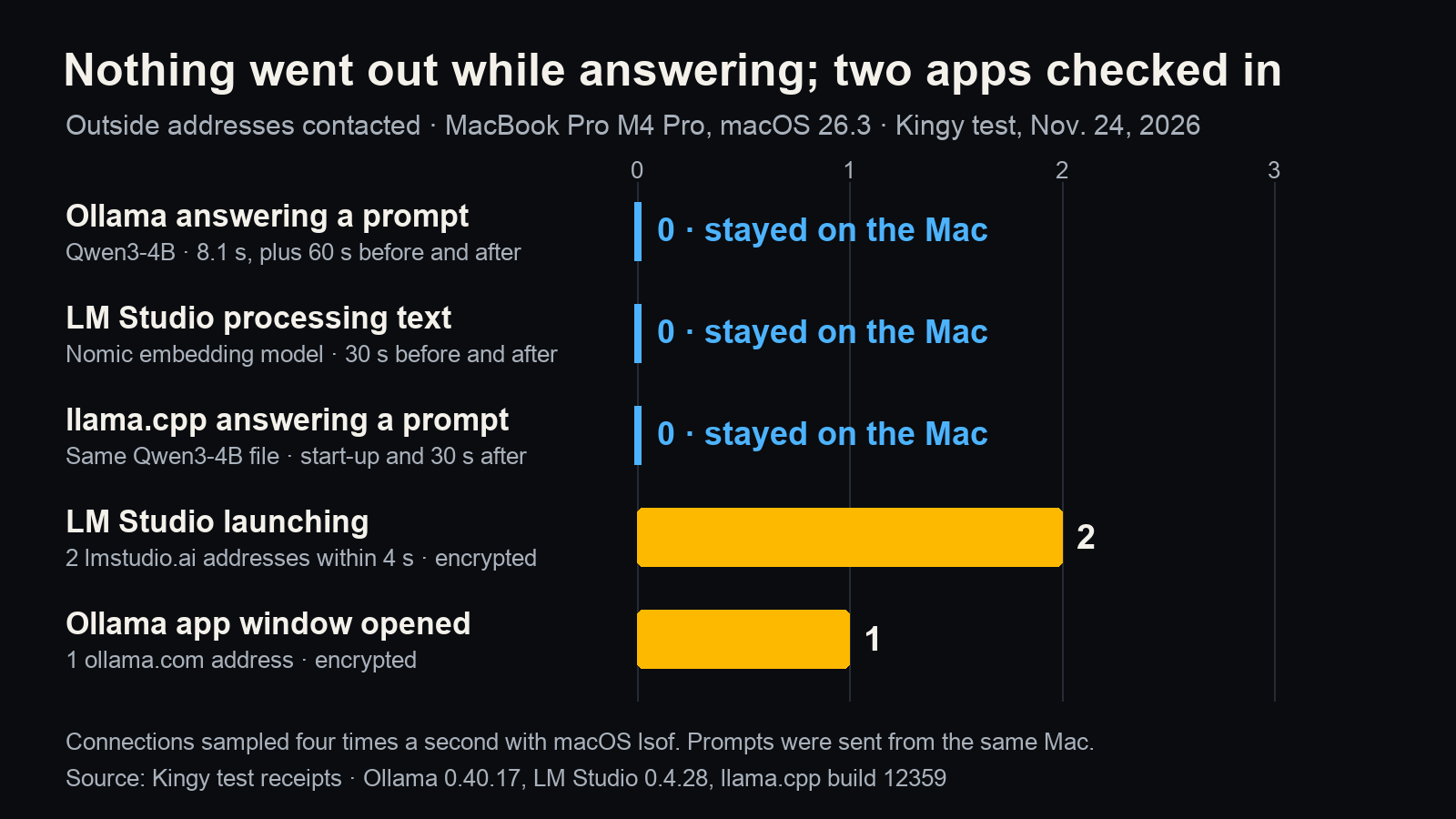
We counted each outside address once, however many times an app connected to it. The connections in the last two rows were encrypted, so we could not read what was sent. Here is what we could establish about each.
LM Studio: an update check at launch
About three and four seconds after we started it with LM Studio’s lms server start command, LM Studio connected to two Cloudflare addresses that serve lmstudio.ai and its subdomains. LM Studio’s offline documentation says the in-app updater makes a network request when the app opens. Its privacy policy says an update check sends the app version, build, operating system and your IP address, and that the app has no telemetry.
The same policy says that when you run models locally, your messages, chat histories and documents are never sent from your computer. Our test is consistent with that: nothing left the Mac while LM Studio processed our text.
Ollama: an account check when the window opened
When we brought Ollama’s app window to the front, the app asked Ollama’s background service on the Mac who was signed in. Ollama’s own log shows that request failing after 0.4 seconds with “401”, meaning not signed in. In the same seconds, the background service connected to the address that ollama.com uses. Because that connection was encrypted, linking it to the sign-in check is our inference from the timing. Every prompt request in the log lines we kept came from the Mac itself and was answered there.
In the same 90 seconds, macOS’s traffic monitor showed about 2 MB sent by the Ollama app. That figure is a total across all of the app’s open connections, and every connection we saw the app hold went to 127.0.0.1, the Mac itself. It was most likely the app talking to Ollama’s own server on the Mac, though we can’t confirm that from the monitor alone. When we watched the app idle for another 90 seconds, it made no outside connection.
What can still leave your computer
Local AI keeps the model’s work on your machine, but these features go online, and some send what you type:
- Cloud models. Ollama can run some models on its own servers. Its cloud documentation says Ollama processes your cloud prompts and responses to answer them, and says it does not use them for training. Cloud models need an Ollama account. LM Studio’s privacy policy says its optional paid cloud features send requests that are processed and not kept.
- Web search. Ollama’s FAQ lists web search alongside cloud models as the features its local-only mode turns off. A web search has to reach the internet, so expect what you search for to leave your computer.
- Downloads and updates. Downloading a model or an update contacts the internet. LM Studio says model searches are anonymized. Ollama’s FAQ says it downloads updates automatically on Mac and Windows.
- Tools and plugins. A tool you connect to a local model, such as an MCP server, can send whatever you give it to wherever that tool connects. The llama.cpp server documentation says to keep its built-in tools and MCP proxy off on untrusted machines; they are off by default.
- Other people on your network. On our Mac, Ollama and LM Studio accepted requests only from the computer itself (address 127.0.0.1). We started llama.cpp the same way, which is also its documented default, as it is for Ollama. Changing that setting lets other devices send prompts to your model.
How to keep local AI fully local
- Ollama: turn on local-only mode. Ollama’s FAQ says to add
"disable_ollama_cloud": trueto~/.ollama/server.json, or setOLLAMA_NO_CLOUD=1, then restart Ollama. That turns off cloud models and web search. On our Mac it was not turned on, which is the default. - LM Studio: download the models you need, then use it offline. Its offline documentation says chat, chat with documents and the local server all work without internet; finding and downloading models and updates do not.
- llama.cpp: its server documentation lists an
--offlineoption that prevents network access, and the server listens only on 127.0.0.1 unless you change it. - Don’t sign in unless you need a cloud feature, and leave the server address on 127.0.0.1.
- Check for yourself. A firewall app that asks before an app connects out will show you every connection these apps make.
Compared with ChatGPT, Claude and Gemini
A cloud assistant receives every prompt by design. What it keeps, and whether it trains on your chats, depends on your plan and settings: our guide ChatGPT vs. Claude vs. Gemini: What each one keeps compares the switches. For the full decision, including quality, speed and cost, see local AI vs cloud AI: which should you use?
Limits of this test
- We checked connections four times a second. A connection that opened and closed in under a quarter of a second could be missed; LM Studio processed our text in 0.2 seconds, faster than one check.
- We watched each app’s own processes. Traffic an app hands to a separate system process, such as a built-in web view, would not show up.
- The outside connections were encrypted. We saw where they went, not what they carried.
- One Mac, one day, one short prompt per app. We did not test Windows or Linux, Ollama’s cloud models or sign-in, or LM Studio with a chat model. We started LM Studio from the command line rather than by opening the app.
- We could not restart Ollama during the test, because the quit request was cancelled. So we watched Ollama’s window opening, not a fresh launch.
Frequently asked questions
Is local AI private?
The model’s work stays on your computer. In Kingy’s test, we saw no outside connection while Ollama, LM Studio and llama.cpp each processed a prompt. Some apps still go online for updates, sign-in checks, downloads, cloud models and web search.
Does Ollama send my prompts anywhere?
Not when it runs a model on your computer: Ollama says it can’t see local prompts, and our test saw no outside connection while it answered. Ollama’s cloud models do send what you type to Ollama’s servers, and web search has to send your search out.
Does LM Studio collect data?
LM Studio’s privacy policy says it has no telemetry and never sends your chats when you run models locally; we tested text processing, not a chat. It does check for updates when it opens, and we saw it contact two lmstudio.ai addresses at launch.
How do I stop Ollama going online?
Set OLLAMA_NO_CLOUD=1 or add "disable_ollama_cloud": true to ~/.ollama/server.json, then restart it. Downloads and updates still need the internet.
Is local AI more private than ChatGPT?
Yes. ChatGPT receives every prompt, and on Free, Plus and Pro it uses chats for training unless you turn that off. A local model doesn’t send your prompt anywhere unless you use a cloud feature or connect a tool that goes online.
Sources
- Kingy’s network-connection test, November 24, 2026 (this article)
- LM Studio Offline Operation and Desktop App Privacy Policy
- Ollama FAQ and Cloud documentation
- llama.cpp server README
- OpenAI Data controls FAQ
Revision log
- November 24, 2026: first version.