Kingy measured 105.3 tokens per second on a rented RTX 5090 with a 2-bit Qwen3.8 27B file. A much larger file ran at 11.2 tokens per second on the same setup with help from the host’s system memory. Those are two results from different models. They show why the exact file matters when choosing a desktop for local AI. Kingy Local AI Scoreboard
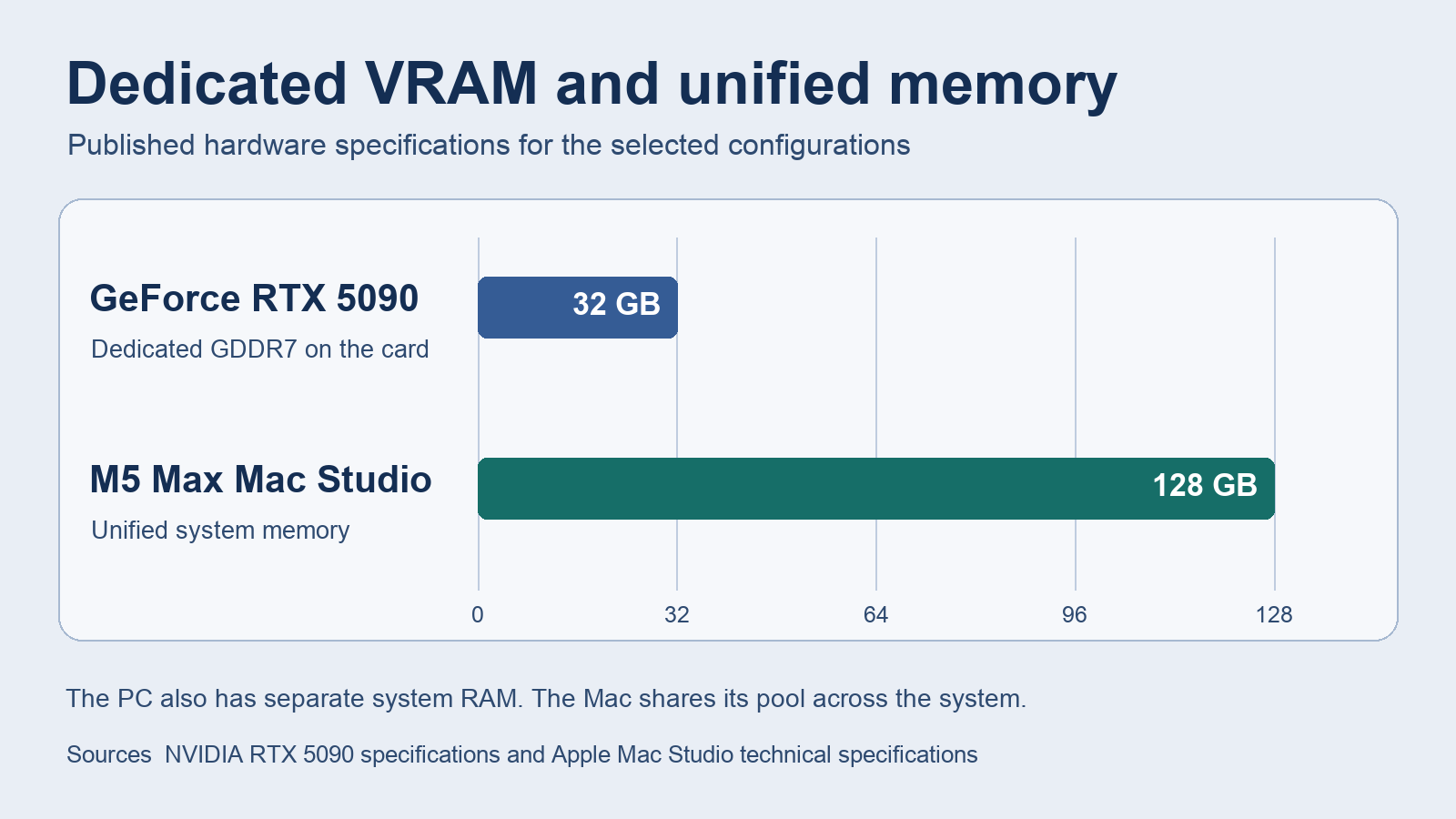
The RTX 5090 has 32 GB of dedicated graphics memory. Apple offers an M5 Max Mac Studio with 128 GB of unified memory shared by the CPU, GPU and the rest of the system. Kingy tested the RTX 5090 only for this comparison. Every M5 Max figure below comes from Apple’s published specifications. NVIDIA RTX 5090 specifications, Apple Mac Studio specifications
The specifications that matter
| Specification | RTX 5090 desktop | M5 Max Mac Studio, selected configuration |
|---|---|---|
| Graphics | GeForce RTX 5090 | M5 Max, 40-core GPU |
| Memory | 32 GB GDDR7 dedicated GPU memory, plus separate PC system RAM | 128 GB unified memory shared by the system |
| Published memory bandwidth | 1,792 GB/s | 614 GB/s |
| Software starting point | NVIDIA CUDA-compatible applications | macOS applications using Apple technologies such as Metal or MLX |
Apple offers M5 Max Mac Studio configurations with 48 GB, 64 GB or 128 GB alongside the 40-core GPU. The base M5 Max has a 32-core GPU, 36 GB of unified memory and 460 GB/s of memory bandwidth. We use the 40-core, 128 GB configuration throughout this comparison. Apple Mac Studio specifications
NVIDIA specifies 32 GB of GDDR7 on the RTX 5090. Its architecture whitepaper lists 1,792 GB/s of memory bandwidth. Bandwidth and capacity describe different things, and neither published number establishes a tokens-per-second result for a particular model. Sources: NVIDIA RTX 5090 specifications, NVIDIA Blackwell whitepaper
What Kingy tested on the RTX 5090
On a self-paid rented RunPod Linux CUDA host, Qwen3.8 27B in the 2-bit UD-IQ2_S GGUF file (SHA-256 prefix 7897d2c5a5ce) generated 105.3 tokens per second. This is an aggregate output-generation rate measured with llama.cpp build 11538 across Kingy’s practical jobs. It excludes prompt processing, networking and other overhead, so a complete task can take longer than that number suggests. Source: Kingy Local AI Scoreboard
The larger gpt-oss-120b file (gpt-oss-120b-F16.gguf, MXFP4 experts, 65.37 GB, SHA-256 prefix 2d1f0298ae4b) generated 11.2 tokens per second on the rented 5090 setup. The file exceeded the card’s 32 GB, so the model ran split between GPU and host memory. That rate describes the GPU and host working together. Source: Kingy Local AI Scoreboard
The tests ran November 15–16, 2026 UTC. For the original Scoreboard job set 0.2, eight model files each ran nine practical jobs three times, for 216 scored job runs. The harness and grading ran on Lucy AI Studio. The jobs cover work such as a web app, a bug fix and a long document. Sources: Kingy Local AI Scoreboard, published dataset
How to think about memory
The Mac’s CPU and GPU share the 128 GB pool with macOS and other applications. Budget separately for the model weights, the runtime, the context cache and everything else you intend to keep open.
The RTX 5090 has 32 GB on the card, while the rest of the desktop has separate system RAM. A file larger than the card’s memory may run partly in host memory if the application supports that arrangement, as our gpt-oss-120b run did. The result depends on the complete system and software. Conversely, a file under 32 GB still needs room for context and runtime overhead. Sources: NVIDIA RTX 5090 specifications, Kingy Local AI Scoreboard
Start with the exact model file and quantization you want to use. Add the memory needed for your intended context, runtime and other applications, then leave headroom. If you expect to run several models or services at once, include them too. Check a real run on the intended software where possible.
Check the software before buying
If your existing application, model tooling or development workflow requires CUDA, an NVIDIA desktop is the direct fit to investigate. Verify its operating-system support and the specific application requirements, as well as the GPU memory budget. Source: NVIDIA CUDA documentation
For the Mac, check that your chosen application supports Apple silicon and the model format you intend to run. Metal is Apple’s graphics and compute API, and MLX is a machine-learning framework for Apple silicon. A model’s availability in one format or runner does not establish that another will behave identically. Sources: Apple Metal, Apple MLX resources
Which should you buy?
Pick the RTX 5090 desktop if CUDA support is essential and the models, context and other GPU work you care about fit its available memory. If the model spills into system RAM, look for a benchmark of a similar full PC and workload before relying on a speed estimate.
Pick the 128 GB M5 Max Mac Studio if the larger shared pool addresses your model or multitasking needs and your software works on macOS. Before paying for that configuration, compare your actual memory budget with Apple’s 48 GB and 64 GB options. The 128 GB tier is useful headroom when the workload needs it, but the available evidence here does not establish its generation speed against the 5090. Source: Apple Mac Studio specifications
- Tested
- Eight model files in Scoreboard job set 0.2 on RTX 5090, nine jobs and three repeats per file. 216 scored job runs. The M5 Max side uses Apple specifications.
- Machine
- Rented RunPod RTX 5090 (32 GB). Jobs and checks ran on Lucy AI Studio.
- Runner
- Linux and llama.cpp build 11538 with CUDA.
- Files
- Qwen3.8 27B UD-IQ2_S, SHA-256 prefix 7897d2c5a5ce. gpt-oss-120b, 65.37 GB, prefix 2d1f0298ae4b.
- Settings
- Generation excludes prompt processing and network delay. The gpt-oss-120b run used GPU and host RAM.
- Measurement window
- November 15–16, 2026 UTC
- Dates
- run 2026-11-16 · checked 2026-11-22
Limits
Kingy’s speed results cover one rented RTX 5090 setup and its named files and runner. Apple’s specifications describe the selected M5 Max Mac Studio. We have no Mac generation measurement for this comparison. The Mac on the Scoreboard was a 24 GB M4 Pro MacBook Pro. Kingy Local AI Scoreboard, Apple Mac Studio specifications
For more on Apple’s configurations, see our Mac Studio buying guide and shared-memory comparison. Mac Studio local AI buying guide, M5 Max vs. Ryzen AI Max+ 395