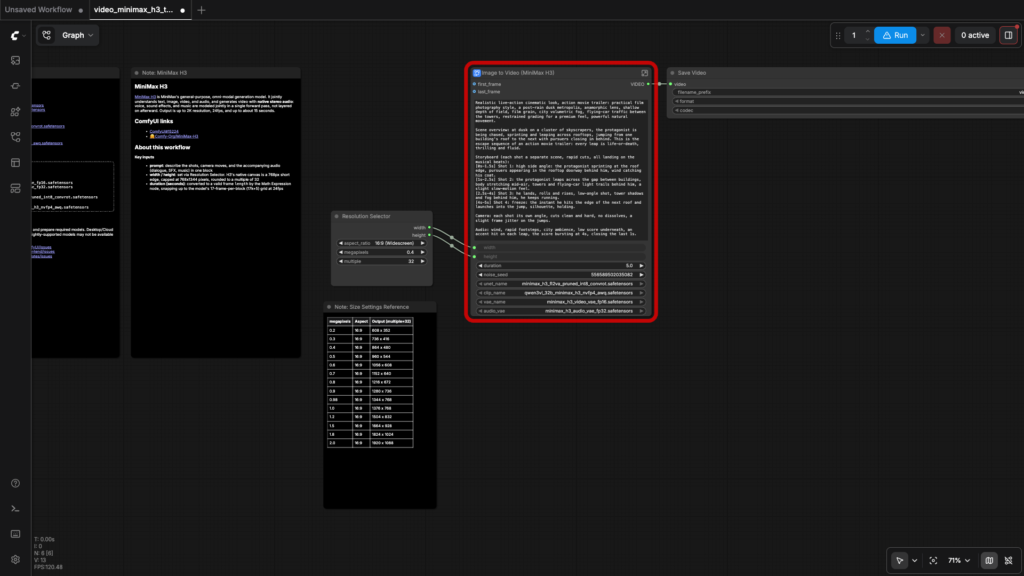
Does it still work? Not tested · Advice: under review Details
Source check (October 20, 2026). The current official I2V template selects minimax_h3_video_vae_int8_convrot.safetensors and includes optional Turbo controls. The pinned I2V workflow linked below uses minimax_h3_video_vae_fp16.safetensors. Keep each workflow with its own file list and settings. Kingy has not run H3; this source check is not a workflow test.
MiniMax H3 now runs natively in ComfyUI 0.30.0 or later. The official templates cover text-to-video, image-to-video and multimodal reference-to-video, producing video and synchronized 32 kHz stereo audio in one MP4.
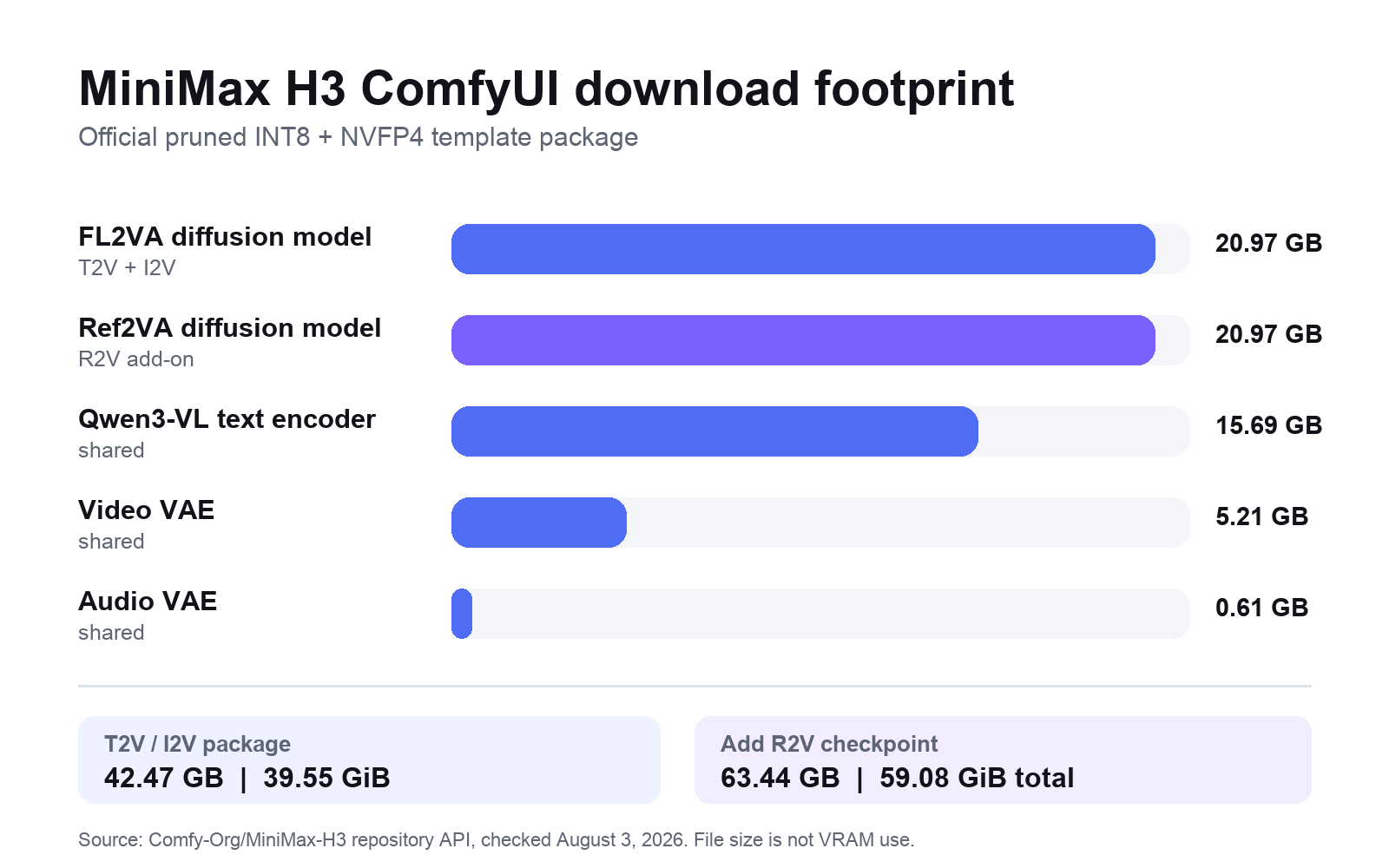
The setup is straightforward once you know which files belong together. Text-to-video and image-to-video share the FL2VA checkpoint and require 42.47 GB of official model files. Reference-to-video uses a second 20.97 GB diffusion checkpoint, taking the complete package to 63.44 GB. Start at the templates’ 0.4-megapixel preview setting; do not jump directly to the largest canvas.
Two limits matter. First, the downloadable release is H3-Base, which produces 768p-class output. MiniMax’s hosted Context-IR and Regenerate-2K stages are not part of the initial local release. Second, MiniMax and ComfyUI have not published a minimum-VRAM or system-RAM matrix. Consumer-card timings circulating at launch are useful clues, not interchangeable benchmarks.
Testing disclosure: Kingy.ai inspected the official MiniMax model card, ComfyUI 0.30.0 implementation, three official workflow JSON files and live Hugging Face repository metadata. We verified filenames, byte sizes, node defaults, frame-grid behavior and source-reported performance. We did not download the weights or run H3, so this guide does not claim a Kingy hands-on benchmark.
Make the first run a diagnostic
Start with one official H3 workflow and one small diagnostic shot before adding components.
Plan the test shot before generating
Kingy did not run H3 for this guide. A saved shot plan is not a generated or verified clip.
How to check the first run
Use one official workflow and one small test shot before adding community nodes or combining settings from different guides. The pinned filenames and examples below describe the retained guide version; compare them with the current official H3 documentation before installing a newer template.
- Record your ComfyUI version and save the workflow JSON. Confirm that each loader points to the exact file required by that template.
- Start with a single short clip at the template’s preview settings. Keep the seed, prompt, dimensions, frames, sampler and step count with the result.
- Check that the exported file opens, has the intended duration and contains the expected audio. For a failure, retain the complete error and change one cause at a time.
A saved shot plan is not a generated or verified clip. Kingy did not run H3 for this guide. For missing nodes or model selections, start with ComfyUI’s troubleshooting guide rather than adding unrelated downloads.
Next: Choose a generator
MiniMax H3 local setup at a glance
| Item | Verified detail |
|---|---|
| Minimum documented ComfyUI version | 0.30.0 |
| Official templates | T2V, I2V and R2V |
| T2V/I2V download footprint | 42,470,585,471 bytes; 42.47 GB / 39.55 GiB |
| Add R2V | 63,440,965,087 bytes total; 63.44 GB / 59.08 GiB |
| Default T2V/R2V preview | 864 x 480, 0.4 MP, 16:9 |
| Default I2V preview | 640 x 640, 0.4 MP, 1:1 |
| Native-quality 16:9 setting | 0.98 MP for exactly 1344 x 768 |
| Template sampling | res_multistep, simple, 20 steps, denoise 1.0 |
| Recommended requested duration | 5-15 seconds in ComfyUI |
| Output | 24 fps video with 32 kHz stereo audio |
| Local 2K pipeline | ComfyUI describes 2K as a hosted-service output and documents a separate unofficial upscale-and-refine route. |
License note: MiniMax H3 uses a custom territorial license. Its open-weight grant excludes the US, EU, UK and South Korea, and the terms restrict use or display outside the defined territory. MiniMax describes its separately hosted API as globally available. Check the current license before downloading, using or publishing H3 output.
What MiniMax released – and what stays hosted
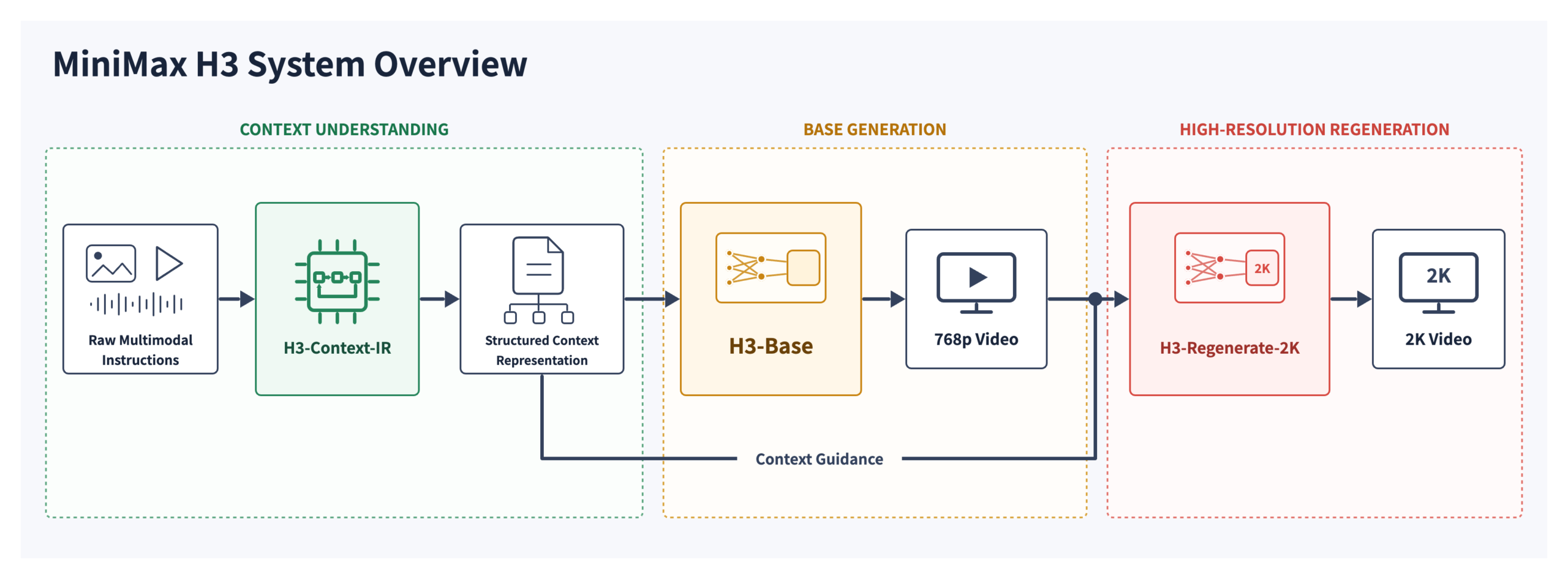
MiniMax describes H3 as an omni-modal audio-video system. It can condition on text, images, video and audio, then jointly generate video and stereo audio. The published output range is 4-15 seconds at 24 fps, with a default 768-pixel short edge.
The complete H3 system has three stages:
- H3-Context-IR interprets and restructures complex multimodal instructions. This stage remains hosted.
- H3-Base performs the audio-video generation. This is the part released for local use.
- H3-Regenerate-2K regenerates the 768p result at 2K using the original context. This stage is not included in the initial open release.
That distinction explains the apparent contradiction between “up to 2K” product language and the local ComfyUI package. You can run H3-Base locally at its 768p-class native canvas. Reproducing MiniMax’s complete 2K path still requires hosted services.
MiniMax’s initial open release provided full-attention inference only. ComfyUI now documents experimental Model Sparse Attention support for base H3 in version 0.35.0 and later, using sol-attn. It requires CUDA and sol_attn from comfy-kitchen; otherwise the layers stay dense. This is documented support, not a Kingy speed or quality test.
Step 1: Update ComfyUI
MiniMax H3 support landed in ComfyUI 0.30.0. Older builds will not contain the required native nodes or official templates.
- Back up any custom workflows and note your current custom-node versions.
- Follow ComfyUI’s official update instructions for your installation type.
- Restart ComfyUI completely.
- Confirm that the running version is 0.30.0 or newer.
- Open Template Library > Video and search for MiniMax H3.
You should see three templates:
- MiniMax H3 T2V for text-only generation;
- MiniMax H3 I2V for first-frame, last-frame or first-and-last-frame control; and
- MiniMax H3 R2V for image, video and audio references.
If the templates or MiniMaxH3ImageToVideo and MiniMaxH3ReferenceToVideo nodes are missing, the update did not reach the required core version. Fix that before downloading 42-63 GB of model files.
Step 2: Download the correct model files
The official ComfyUI templates use the pruned INT8 diffusion checkpoints and the NVFP4/AWQ Qwen3-VL encoder. The repository also offers larger BF16, full INT8 and pruned FP8 alternatives, but those are not the default path documented here.
Files required for T2V and I2V
| File | Destination | Exact size |
|---|---|---|
minimax_h3_fl2va_pruned_int8_convrot.safetensors |
ComfyUI/models/diffusion_models/ |
20.97 GB |
qwen3vl_32b_minimax_h3_nvfp4_awq.safetensors |
ComfyUI/models/text_encoders/ |
15.69 GB |
minimax_h3_video_vae_fp16.safetensors |
ComfyUI/models/vae/ |
5.21 GB |
minimax_h3_audio_vae_fp32.safetensors |
ComfyUI/models/vae/ |
0.61 GB |
Additional file required for R2V
| File | Destination | Exact size |
|---|---|---|
minimax_h3_ref2va_pruned_int8_convrot.safetensors |
ComfyUI/models/diffusion_models/ |
20.97 GB |
Your folder tree should look like this:
ComfyUI/
└── models/
    ├── diffusion_models/
    │   ├── minimax_h3_fl2va_pruned_int8_convrot.safetensors
    │   └── minimax_h3_ref2va_pruned_int8_convrot.safetensors  # R2V only
    ├── text_encoders/
    │   └── qwen3vl_32b_minimax_h3_nvfp4_awq.safetensors
    └── vae/
        ├── minimax_h3_video_vae_fp16.safetensors
        └── minimax_h3_audio_vae_fp32.safetensors
Restart ComfyUI after placing the files. If a model does not appear in its loader, check spelling and folder placement before redownloading it.
Step 3: Run the T2V workflow
The T2V template uses the FL2VA checkpoint with no image connected.
- Load MiniMax H3 T2V from the Template Library, or import the official T2V workflow JSON.
- Confirm that the workflow selects the FL2VA diffusion model, Qwen3-VL encoder and both VAEs listed above.
- Write one prompt block that covers the scene, timed shots, camera movement, dialogue, sound effects and music.
- Leave the first smoke test at 16:9, 0.4 MP, multiple 32. That resolves to 864 x 480.
- Request 5 seconds, leave the official 20 steps,
res_multistepsampler andsimplescheduler unchanged. - Queue the prompt and watch the console for model-loading, sampling and VAE-decoding errors.
- Confirm that the saved MP4 contains both video and stereo audio before increasing resolution or duration.
The template converts requested seconds to H3’s 17k+5 frame grid. A 5-second request becomes 124 frames, or about 5.17 seconds at 24 fps. This is expected, not a timing bug.
Once the preview completes reliably, raise the 16:9 setting to 0.98 MP for exactly 1344 x 768. The template’s 1.0 MP entry is 1376 x 768, so use 0.98 when you want the documented native canvas exactly.
A prompt structure that matches H3
Use this order:
Scene overview: location, subject, visual style and main action.

Shot 1 [0s-2s]: subject action, framing and camera movement.
Shot 2 [2s-4s]: cut or transition, new action and composition.
Shot 3 [4s-5s]: closing beat and final camera position.

Audio: dialogue, ambience, sound effects and music cues.
Avoid: unwanted text, logos, subtitles or specific visual failure modes.
This is a structural template, not a claim that every prompt will follow timestamps perfectly. MiniMax’s own guidance recommends describing the full scene before breaking it into shots and assigning the audio in the same prompt.
Step 4: Run I2V and first/last-frame generation
I2V uses the same FL2VA diffusion checkpoint as T2V. You do not need a second I2V model.
- Load MiniMax H3 I2V, or import the official I2V workflow.
- Add an input image to
first_frame,last_frame, or both inputs onMiniMaxH3ImageToVideo. - Match the Resolution Selector to the composition you want. The saved template defaults to 1:1 at 0.4 MP, which is 640 x 640.
- Describe what should move, what should stay consistent and how the sound should evolve.
- Start with 5 seconds and 20 steps before attempting a longer or larger render.
One image can act as the first or last frame. Two images define both endpoints, and H3 generates the transition between them. This is different from R2V: a keyframe is intended to be the actual endpoint of the clip, while an R2V image is semantic reference material that H3 may crop or recompose.
Step 5: Run R2V with image, video and audio references
R2V uses the separate Ref2VA checkpoint. Select Ref2VA in the R2V graph rather than the FL2VA checkpoint used by T2V and I2V.
- Load MiniMax H3 R2V, or import the official R2V workflow.
- Confirm that
UNETLoaderselectsminimax_h3_ref2va_pruned_int8_convrot.safetensors. - Connect the reference images, videos and audio in the order you intend to cite them.
- Refer to them with one-based tags such as
<Picture 1>,<Video 1>and<Audio 1>. - Give every reference a specific job: identity, style, motion, camera behavior or voice.
- Keep
ref_image_sizeat match for the first run. The max option preserves up to a 2048-pixel short edge and can be several times slower because the reference tokens remain active during sampling. - Use the shipped
res_multistepplussimplescheduler for the smoke test. ComfyUI’s guide saysbetaornormalcan work better for reference-heavy prompts, but treat that as a controlled second test rather than changing several variables at once.
MiniMax publishes these Ref2VA limits:
- up to nine images;
- up to three reference videos, each 2-15 seconds and no more than 15 seconds in total;
- up to three audio clips, each 2-15 seconds and no more than 15 seconds in total; and
- no more than 12 files across all modalities.
MiniMax’s model card says audio cannot be the sole reference; pair it with an image or video. Follow that stricter published contract even if the ComfyUI node exposes a standalone audio socket.
Recommended ComfyUI settings
| Goal | Resolution | Duration | Steps | Sampler / scheduler | Notes |
|---|---|---|---|---|---|
| First smoke test | 0.4 MP; 864 x 480 at 16:9 | 5s requested | 20 | res_multistep / simple |
Official T2V/R2V preview baseline |
| Square I2V preview | 0.4 MP; 640 x 640 | 5s requested | 20 | res_multistep / simple |
I2V template default |
| Native 16:9 canvas | 0.98 MP; 1344 x 768 | 5s first | 20 | Same baseline | Increase only after preview succeeds |
| Reference-heavy R2V | Start at 0.4 MP | 5s first | 20 | res_multistep; test beta or normal separately |
Keep ref_image_size: match initially |
| Longer generation | Proven resolution first | 10-15s | 20 baseline | Same | Duration sharply increases latent size and work |
ComfyUI documents a trained range of roughly 124–362 frames and a five-second template default that produces 124 frames. Start with that default for the first check. Kingy has not tested shorter requests.
SageAttention: useful, optional and not universally 2x
ComfyUI estimates that SageAttention can roughly double generation speed. That is a vendor estimate, not a Kingy measurement. Its current H3 guide also warns that INT8 attention can cause end-of-clip morphing or garbled on-screen text. For int8_convrot checkpoints, ComfyUI recommends default attention; using Comfy Kitchen attention requires a compatible BF16 checkpoint. Kingy has not reproduced the issue or tested either workaround.
To enable it for this workflow:
- Install a
sageattentionwheel that matches your exact PyTorch and CUDA versions. - Install ComfyUI-KJNodes.
- Insert Patch Sage Attention KJ between
UNETLoaderandBasicGuider. - Set
sage_attentiontoauto. - Run the same prompt and seed before and after the change.
You can alternatively launch ComfyUI with --use-sage-attention to enable it globally.
H3 uses some layers outside SageAttention’s supported FP16/BF16 dtypes. ComfyUI documents the resulting fallback-to-PyTorch console messages as expected. They do not by themselves mean the render failed.
Do not install SageAttention while diagnosing a broken baseline workflow. Make the standard graph complete once, then add the optimization.
How much VRAM and system RAM does MiniMax H3 need?
There is no official ComfyUI H3 minimum. Model download size is not VRAM use: ComfyUI can move model components between VRAM, host memory and storage, and the operating point changes with resolution, duration, references, attention backend and software versions.
The evidence available at launch looks like this:
| Hardware tier | What can responsibly be said |
|---|---|
| 8 GB | No official or maintainer-verified H3 ComfyUI result was available. Do not treat 8 GB as supported. |
| 12 GB | A ComfyUI maintainer reported a completed 864 x 480, 124-frame, 20-step run on an RTX 3060 12 GB with 32 GB RAM and a fast NVMe in under nine minutes. This demonstrates one heavily offloaded configuration; it is not a universal minimum. |
| 16 GB | An early RTX 4090 Laptop report completed 960 x 540, five seconds and 20 steps with SageAttention in 182 seconds. It used 32 GB system RAM. This is one user report, not a repeatable benchmark. |
| 24 GB | Early RTX 3090 results vary substantially with resolution, duration, references and offload settings. There is not yet a defensible expected speed for a generic 24 GB card. |
| 32 GB | A high-end card provides more room, but no controlled single-RTX-5090 ComfyUI baseline has been published by MiniMax or ComfyUI. Do not extrapolate from SGLang’s dual-card server measurements. |
Sources for the consumer examples: a ComfyUI maintainer’s 12 GB configuration and a detailed 16 GB laptop report. Both are launch-day reports and should be treated as leads for reproduction.
System RAM is just as important on low-VRAM cards because the selected files total more than the GPU can hold. Thirty-two gigabytes has been demonstrated, but other users have reported host-memory failure at that capacity. MiniMax and ComfyUI do not publish an official 32 GB or 64 GB requirement. A fast NVMe helps when offloading spills beyond RAM, but there is no official SSD-speed threshold.
Reserve more disk than the exact 42.47 or 63.44 GB model total. Hugging Face’s cache, incomplete downloads, ComfyUI output videos and temporary files also consume space.
The closest official performance reference is not ComfyUI
SGLang’s official H3 cookbook reports a 1344 x 768, 124-frame, 50-step request on two RTX 5090 cards with layerwise offload. It took 559.67 seconds and peaked at 26.3 GiB per GPU, but the host had 377 GiB of RAM. That is a different runtime, two GPUs, 50 steps and a server-class memory configuration. It proves the workload can be made to fit that topology; it does not predict single-GPU ComfyUI speed or imply that ComfyUI needs 384 GB of RAM.
OOM and troubleshooting guide
| Symptom | Most likely cause | Corrective sequence |
|---|---|---|
| H3 templates or nodes are missing | ComfyUI is older than 0.30.0 | Update core ComfyUI, restart, then reopen Template Library. |
| A model is absent from a loader | Wrong directory or filename | Verify diffusion_models, text_encoders and vae paths exactly; restart ComfyUI. |
| R2V fails while T2V works | FL2VA checkpoint loaded in the R2V graph | Select the separate minimax_h3_ref2va_pruned_int8_convrot.safetensors file. |
| CUDA OOM during model load or sampling | Canvas, duration or loaded components exceed the current memory plan | Use the official pruned INT8/NVFP4 files, close GPU-heavy apps, return to 0.4 MP, five seconds and batch one, then change one variable at a time. |
| Computer freezes or process dies with host memory exhausted | Offload and pinned-memory pressure, not merely GPU VRAM | Close other memory-heavy apps, confirm free disk for paging and retry the baseline. Some early users report --disable-pinned-memory helps, but use it only as a targeted experiment because it can reduce transfer performance. |
| R2V is dramatically slower than T2V | High-resolution or numerous references remain in the attention sequence | Use ref_image_size: match, reduce reference count and shorten reference clips. |
| SageAttention will not import | Wheel does not match PyTorch/CUDA | Remove Sage from the graph, verify the normal workflow, then install a matching wheel. |
| SageAttention prints dtype fallback warnings | Some H3 layers are not FP16/BF16 | Treat the documented fallback as expected unless the workflow actually stops. |
| Output duration is slightly longer than requested | H3 frame-grid alignment | Five requested seconds becomes 124 frames, about 5.17 seconds at 24 fps. |
| Video saves without audible sound | Audio decode or mux path is disconnected, or the player is muted | Confirm both video and audio VAE decodes feed CreateVideo; inspect the final MP4 in a known-good player. |
| Full-quality output does not look like 2K | Local package contains H3-Base, not Regenerate-2K | Use 1344 x 768 as the local native target; do not label local output as the complete 2K system. |
ComfyUI documents several general memory flags, including --lowvram, --preview-method none, --reserve-vram, --disable-smart-memory and --cache-none. Do not stack them blindly. Establish the smallest official H3 workflow first, record the error, apply one change, then rerun the same prompt and settings. ComfyUI’s troubleshooting guide explains the trade-offs.
What about GGUF, AMD and Apple Silicon?
The main install path should stay on the official Safetensors package.
- GGUF: MiniMax and Comfy-Org do not publish an official H3 GGUF workflow. Community conversions use third-party loaders and may reduce memory or disk requirements, but their quality, compatibility and speed have not been established here.
- Consumer AMD GPUs: ComfyUI supports AMD generally, but no official H3 consumer-Radeon matrix was available. SGLang has validated H3 on datacenter MI300X and MI355X hardware; that does not prove the native ComfyUI graph on a desktop Radeon card.
- Apple Silicon: ComfyUI supports macOS generally, but no official H3 ComfyUI performance or compatibility baseline for M-series Macs was available.
- Intel GPUs: General ComfyUI support is not an H3-specific validation. Treat this path as unverified.
“Unverified” does not mean impossible. It means this guide will not turn platform-wide ComfyUI support into an H3 compatibility claim without a completed H3 run.
Practical limitations to understand before downloading
- The complete 2K system is not local. H3-Base is available as downloadable weights; Context-IR and Regenerate-2K remain hosted.
- The model package is large. The official T2V/I2V files occupy 42.47 GB before cache and outputs; R2V takes the total to 63.44 GB.
- Low-VRAM support depends on offloading. A completed 12 GB run does not make 12 GB a comfortable or universal minimum.
- Sparse attention is experimental. ComfyUI documents Model Sparse Attention support in 0.35.0 and later; base H3 uses sol-attn and needs CUDA plus sol_attn from comfy-kitchen. Kingy has not tested this path.
- R2V is a separate checkpoint. It adds another 20.97 GB and can be slower with large references.
- SageAttention is optional. Its best-case speed claim should be reproduced on the exact GPU, CUDA, PyTorch and workflow combination.
- Consumer performance data is immature. Launch-day reports vary too much to support a clean 12/16/24/32 GB ranking.
- The license is not a standard permissive open-source license. Check the territorial terms before use or publication.
MiniMax H3 ComfyUI FAQ
Can MiniMax H3 run on a 12 GB GPU?
A ComfyUI maintainer reported completing the 0.4 MP, 124-frame, 20-step workflow on an RTX 3060 12 GB with 32 GB RAM and fast NVMe storage. That proves one configuration can finish with heavy offload. It is not an official minimum or a guarantee for every 12 GB card.
Can it run on 8 GB of VRAM?
No official or maintainer-verified 8 GB H3 ComfyUI result was available when this guide was prepared. Treat 8 GB as unverified, not supported.
How much disk space does the official package require?
T2V/I2V requires 42.47 GB of model files. Adding the Ref2VA diffusion checkpoint brings the total to 63.44 GB. Plan additional free space for caches, incomplete transfers, temporary data and output video.
Does MiniMax H3 generate audio locally?
Yes. H3 jointly predicts audio and video latents. The official ComfyUI graph decodes them through separate video and audio VAEs, then muxes 24 fps video and 32 kHz stereo audio into one MP4.
Is 2K output available entirely locally?
MiniMax’s official Regenerate-2K stage is not available as an open local release. H3-Base produces 768p-class output. ComfyUI documents a separate local upscale-and-refine route using an unofficial custom node and model weights. That route is distinct from MiniMax’s official Regenerate-2K pipeline, and Kingy has not tested it.
Why is a five-second video slightly longer than five seconds?
The workflow aligns the output to H3’s 17k+5 frame grid. A five-second request becomes 124 frames, which is approximately 5.17 seconds at 24 fps.
Does R2V use the same checkpoint as T2V and I2V?
No. T2V and I2V share the FL2VA checkpoint. R2V requires the separate Ref2VA diffusion model, although the text encoder and both VAEs are shared.
Should I install SageAttention?
Start with standard attention. If you then try SageAttention, use a wheel matching your PyTorch and CUDA versions and compare the same prompt, seed and settings. ComfyUI’s approximate twofold speed estimate is not a Kingy measurement, and its H3 guide warns of possible INT8 quality artifacts. Follow the attention guidance above before changing the backend.
Is MiniMax H3 GGUF officially supported?
No official MiniMax or Comfy-Org GGUF package is part of the documented workflow. Community GGUF conversions are an experimental third-party path.
Does the workflow run on AMD or Apple Silicon?
No official H3 consumer-AMD or Apple Silicon ComfyUI benchmark was available. General ComfyUI platform support is not enough to claim that this specific model works reliably or quickly on those devices.
Bottom line
MiniMax H3 is genuinely available as a native ComfyUI workflow, not merely as an API wrapper. The cleanest route is ComfyUI 0.30.0 or later, the pruned INT8 FL2VA checkpoint, NVFP4/AWQ encoder, both VAEs and the official 0.4 MP template. Add the Ref2VA checkpoint only when you need multimodal references.
The setup is more accessible than the 42-63 GB download suggests because ComfyUI can offload model components, but “it can finish” and “it runs comfortably” are different claims. A 12 GB demonstration exists; a controlled consumer-GPU matrix does not. Start small, verify video and audio together, change one variable at a time and treat every launch-day timing as configuration-specific.
For local users, 1344 x 768 is the honest native-quality target today. The full official 2K system remains partly hosted.
For a separate published Hailuo/MiniMax H3 full test—not a local-hardware or moderation benchmark—see the MiniMax H3 video receipt.
The Kingy Brief
Get the free AI price sheet.
25 AI plans and models on one page, from official pricing pages, updated every month. Free when you join The Kingy Brief: AI changes, original tests and one practical thing to try, Fridays at 09:00 Vancouver time.
Free · Double opt-in · Unsubscribe anytime
Sign up for The Kingy Brief on Beehiiv.
Signup help and newsletter schedule
Signup form provided by Beehiiv. After submitting, check your inbox for "Confirm your subscription to The Kingy Brief" and open its confirmation link. Your price sheet download is on the page that opens. Check Spam or Promotions if you cannot find it.
Fridays at 09:00 Vancouver time: source-checked AI changes, original tests and one practical thing to try. We skip a week when there is not enough verified material. Free. Unsubscribe anytime.