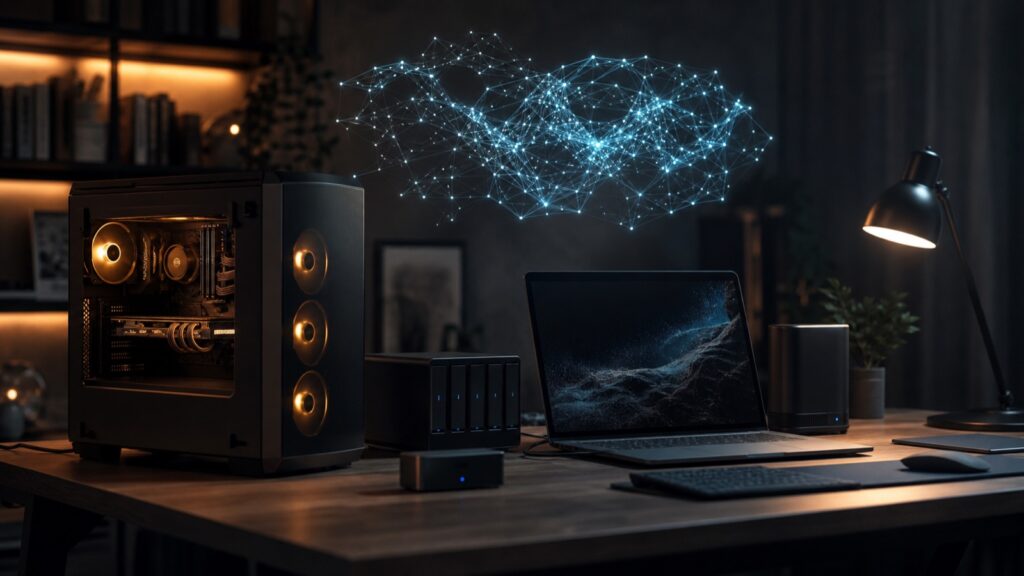
Local AI models are no longer a curiosity reserved for researchers with spare GPUs. In 2026, a normal laptop can run small local language models, a gaming PC can run very capable chat and coding models, a Mac with enough unified memory can be a surprisingly strong private AI workstation, and a serious GPU box can serve models to a whole team.
The appeal is obvious: more privacy, predictable marginal cost, offline access, lower dependency on cloud vendors, better control over data, and the ability to learn how modern AI systems actually work. Local AI can help with coding, document analysis, writing, creator workflows, transcription, agents, embeddings, and image generation.
The honest caveat matters just as much. Local AI is powerful, but it is not automatically better than frontier cloud models. The best hosted systems still win many hard reasoning, multimodal, tool-use, and long-context tasks. Local models also bring maintenance work: drivers, storage, updates, security, licensing, benchmarks, and the delightful ritual of asking why your GPU is idle while your fans sound busy.
This guide is built as a practical pillar resource for Kingy.ai readers who want to run AI locally without getting lost in hype. It explains the stack, the hardware, the model formats, the setup paths, the evaluation process, the security issues, and the buying decisions.
Image note: AI-generated editorial image: local AI models can run on personal hardware, from laptops to GPU workstations and home servers.
- Quick Answer: Should You Run AI Locally?
- What Local AI Actually Means
- The Local AI Stack Explained
- Hardware Planning: Start With the Use Case
- Hardware Components Explained
- Rough Model Size vs Memory Planning
- Hardware Tiers for Local AI
- How to Choose the Right Local AI Model
- Types of Local AI Models
- Model Formats Explained
- Quantization Explained
- Best Local AI Tools and Runtimes
- Beginner Path 1: LM Studio Setup
- Beginner Path 2: Ollama Setup
- Private ChatGPT-Style Setup: Ollama + Open WebUI
- Advanced Path: llama.cpp
- Developer/API Path: vLLM
- Apple Silicon Local AI Path
- Local Image Generation Path
- Local Transcription Path
- Testing Your Local AI Setup
- Benchmarking Without Fooling Yourself
- Real-World Local AI Workflows
- Local RAG: Chat With Your Documents
- Local AI Agents
- Fine-Tuning, LoRA, and Personalization
- Privacy, Security, and Licensing
- Troubleshooting
- Best Local AI Setups by Persona
- Local AI Buying Guide
- Model Recommendation Tables
- Maintenance Plan
- FAQ
- Sources
For the hardware side of this workflow, the AI Hardware hub connects model planning to memory guidance, platform comparisons and tested systems.
Quick Answer: Should You Run AI Locally?
Founder OS next step: Before buying hardware or moving workloads, compare the tradeoffs with the free Local vs Cloud Advisor, estimate the operating economics in the Inference Cost Calculator, and model usage assumptions in the Token Cost Calculator.
Run AI locally if you value privacy, offline availability, experimentation, predictable usage costs, or control over models and workflows. Do not start locally if your main need is the absolute strongest reasoning model with no setup, no maintenance, and no hardware decisions.
| User | Should you run local AI? | Recommended starting path |
|---|---|---|
| Beginner user | Yes, if curious and patient. | Install LM Studio or Ollama; start with a 7B-9B instruct model. |
| Creator | Usually yes. | Local transcription with Whisper or whisper.cpp, then local summarization and outlines. |
| Developer | Yes. | Ollama for quick local APIs; llama.cpp for GGUF control; vLLM for serving when throughput matters. |
| Privacy-focused business user | Yes, with policy work. | Open WebUI + Ollama on a controlled machine; audit logs, backups, and permissions. |
| Homelab user | Definitely. | Dockerized Open WebUI, model storage, reverse proxy only if secured, and scheduled backups. |
| Researcher | Yes, but evaluate carefully. | Hugging Face Transformers, vLLM, lm-evaluation-harness, repeatable prompt packs. |
| Small team | Maybe. | Start with one internal pilot and measure real workflows before buying multi-GPU hardware. |
| Power user | Yes. | Mix LM Studio, Ollama, llama.cpp, MLX on Mac, ComfyUI, and local RAG. |
What Local AI Actually Means
Cloud AI sends prompts to a provider-hosted model. Local AI runs inference on your own device, such as a laptop, desktop, workstation, or home server. Self-hosted AI usually means you run the model on infrastructure you control, which may still be a rented cloud GPU. Hybrid AI combines local models for private or routine tasks with cloud models for harder work.
Open-source means the source code is available under an open-source license. Open-weight means the model weights are available, but the license may include restrictions. Always read the model card and license before commercial use, redistribution, fine-tuning, or embedding a model into a product.
Model weights are the learned parameters. Inference is running the model to generate outputs. A runtime is the software that loads and executes the model. Quantization stores model weights at lower precision to reduce memory use. A context window is the amount of prompt plus conversation the model can consider. RAG, or retrieval-augmented generation, retrieves relevant documents and inserts them into the prompt. Fine-tuning changes model behavior by training on additional data.
The Local AI Stack Explained

Think of local AI as a stack. The model is only one layer.
1. Hardware
CPU, RAM, GPU, VRAM, unified memory, storage, thermals, networking, and power.
2. Operating system
Windows, macOS, Linux, or a containerized server environment.
3. Drivers and acceleration
CUDA, Metal, ROCm, Vulkan, CPU backends, and runtime-specific acceleration.
4. Runtime
Ollama, LM Studio, llama.cpp, vLLM, MLX, Transformers, ComfyUI, whisper.cpp, or another engine.
5. Model format
GGUF, safetensors, PyTorch checkpoints, AWQ, GPTQ, EXL2, MLX, or ONNX.
6. Interface and API
Desktop chat UI, web UI, local OpenAI-compatible server, CLI, or application API.
7. Workflows
Chat, coding, RAG, transcription, image generation, agents, batch jobs, or team serving.
8. Testing and maintenance
Benchmarks, privacy tests, update checks, driver checks, backups, and regression prompts.
Hardware Planning: Start With the Use Case

The worst way to buy local AI hardware is to begin with a model leaderboard and then reverse-engineer your life around it. Start with the work.
Chat can be useful on modest hardware with 7B-9B quantized models. Coding benefits from stronger models, better quantization, and enough context for source files. Document Q&A needs embeddings, storage, good parsing, and enough memory for your answer model. Image generation cares heavily about VRAM and workflow complexity. Transcription can run well on CPU or GPU depending on speed needs. Local agents need not just a model, but safe tool boundaries. Multi-user serving needs throughput, monitoring, and access control. Fine-tuning is a separate hardware category and should not be assumed just because inference works.
Hardware Components Explained
CPU: CPU-only local AI is realistic for small models, embeddings, transcription, and slow experimentation. It is not ideal for high-throughput chat, large context, or image generation.
System RAM: RAM matters when the model does not fit fully in VRAM, when you run CPU inference, when you use large context windows, or when your RAG pipeline processes many documents.
GPU and VRAM: VRAM is often the limiting factor for local LLMs. If the model, KV cache, and runtime overhead fit in VRAM, responses can be much faster. If they spill to system RAM or CPU, speed usually drops.
NVIDIA: NVIDIA is usually the easiest path for many AI workloads because CUDA is widely supported across PyTorch, vLLM, ComfyUI, and common research tooling. Check current CUDA and driver compatibility in the NVIDIA CUDA documentation.
AMD: AMD can make sense, especially on Linux, but support varies by GPU, operating system, ROCm version, and tool. Check the current AMD ROCm documentation and support matrix before buying hardware for a specific workload.
Apple Silicon: Macs use unified memory shared by CPU and GPU. This can be excellent for local LLMs, especially through apps that use Metal or MLX. CUDA instructions do not apply to Macs.
Storage: Model files are large. Keep fast SSD space available for model downloads, RAG indexes, checkpoints, image-generation models, and backups. A NAS is useful for storing models and documents, but network storage is not a magic substitute for fast local memory.
Cooling and power: Long inference runs, image batches, and multi-user serving can sustain load. A quiet laptop test is different from an overnight batch job.
Networking: If you expose a local AI server on your LAN or over the internet, treat it as production infrastructure. Authentication, HTTPS, firewall rules, and backups are not optional.
Rough Model Size vs Memory Planning
Use this table as a cautious planning guide, not a promise. Actual requirements depend on architecture, quantization, context length, KV cache, batch size, offloading, runtime, and settings.
| Model size | Common quantized memory range | Typical use case | Beginner-friendly? | Notes |
|---|---|---|---|---|
| 1B-3B | Roughly 1-4 GB | Fast assistants, classification, simple tools, edge devices | Yes | Good for experimentation, but can be weak on reasoning and coding. |
| 7B-9B | Roughly 4-8 GB | Beginner chat, writing, summarization, light coding | Yes | Often the best first local LLM size. |
| 12B-14B | Roughly 7-12 GB | Better chat, coding, document tasks | Usually | Needs more memory but can feel much stronger than 7B. |
| 20B-34B | Roughly 12-24+ GB | Power-user chat, coding, analysis | Maybe | Good GPU or high-memory Mac recommended. |
| 70B | Roughly 35-60+ GB | High-quality local chat and reasoning | No | Can run quantized, but context and speed require planning. |
| 100B+ | Roughly 60 GB to multi-GPU territory | Research, specialized serving, high-end local labs | No | Often better served on rented GPUs unless heavily used. |
Hardware Tiers for Local AI
| Tier | Who it is for | Does well | Struggles with | Recommended tools | Upgrade advice |
|---|---|---|---|---|---|
| Existing laptop | Beginners and travelers | Small local chat, transcription, simple embeddings | Large models, image generation, long context | LM Studio, Ollama | Start here before buying anything. |
| Budget Windows/Linux PC | Tinkerers | 7B-14B chat if RAM/GPU allow | 70B models and heavy serving | Ollama, LM Studio, llama.cpp | Prioritize RAM, SSD, and a supported GPU. |
| Apple Silicon Mac | Creators, developers, privacy users | Quiet local chat, MLX, transcription, writing | CUDA-only workflows | LM Studio, Ollama, MLX-LM | Buy enough unified memory up front. |
| NVIDIA gaming PC | Power users | Chat, coding, ComfyUI, many Python tools | Multi-user serving at scale | Ollama, llama.cpp, ComfyUI, Transformers | VRAM is the key spec. |
| Creator/developer workstation | Daily AI users | RAG, coding, image workflows, local APIs | Enterprise-scale serving | Open WebUI, vLLM, ComfyUI | Plan cooling, storage, and backups. |
| Mini PC or NAS | Homelab users | Storage, light CPU inference, RAG services | Large LLMs without GPU | Open WebUI, Ollama, Docker | Use as a support node, not always the model host. |
| Homelab server | Advanced users | Always-on services, RAG, LAN APIs | Noise, heat, maintenance | Docker, Open WebUI, vLLM | Secure it like a server. |
| Multi-GPU workstation | Researchers and teams | Large models, serving, experiments | Cost and complexity | vLLM, Transformers, eval harness | Buy only for measured workloads. |
| Cloud GPU fallback | Bursty users | Fine-tuning, huge models, occasional heavy work | Privacy and ongoing rental cost | vLLM, Transformers | Rent before buying high-end hardware. |
How to Choose the Right Local AI Model
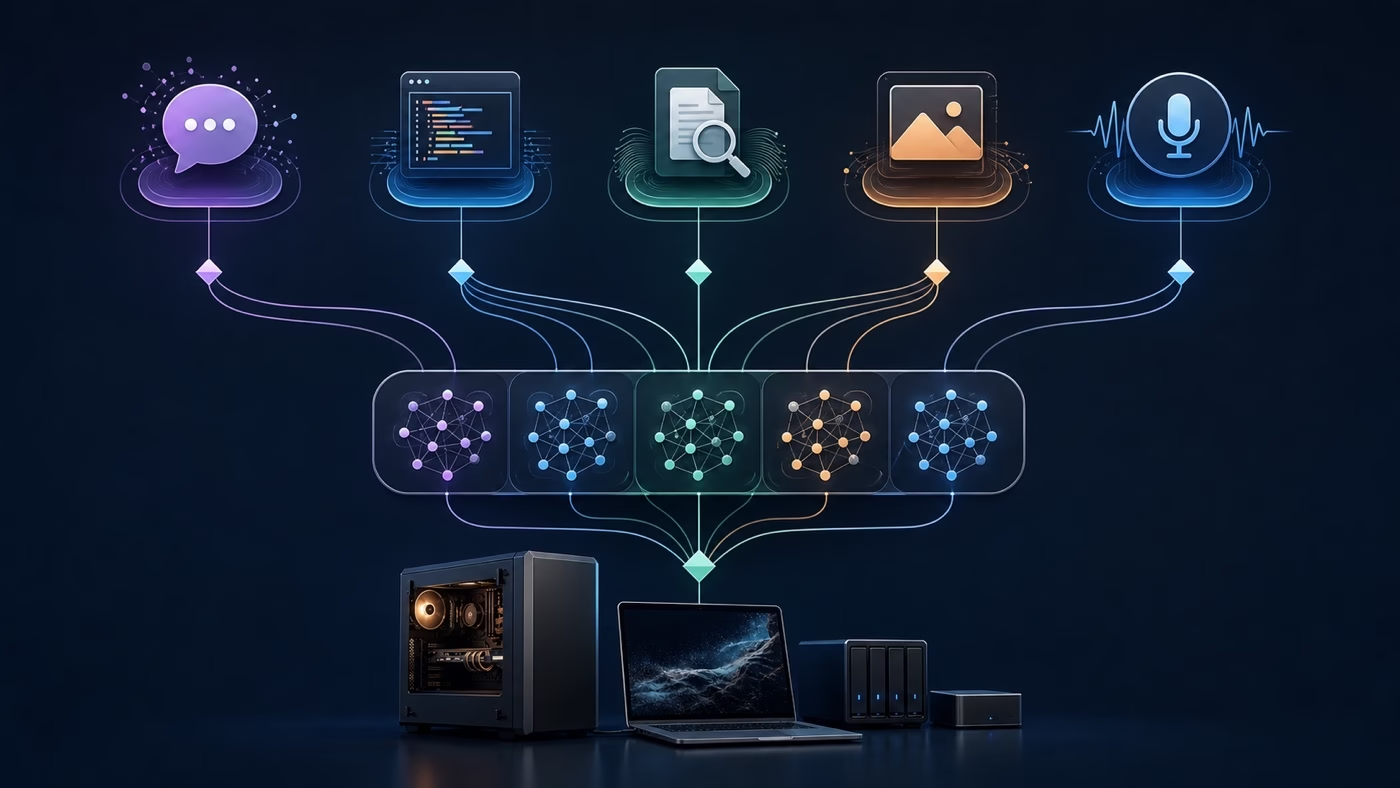
Choose a model by task first, not by vibes. Ask:
- Does the task need chat, coding, reasoning, JSON, tool use, vision, embeddings, image generation, speech, or reranking?
- Does the license allow your intended use?
- Does the model fit your hardware at the context length you need?
- Is the format compatible with your runtime?
- Is there a good model card with training, license, usage, and limitation details?
- Is there recent community usage, quantization availability, and documentation?
- Have you tested it on your real prompts?
For commercial work, make the license check explicit. Track model name, source, license, commercial use status, redistribution restrictions, fine-tuning rules, date checked, and source link.
Types of Local AI Models
Base models predict text but are not necessarily instruction-following assistants. Instruct/chat models are tuned to follow prompts and conversations. Reasoning models are tuned for harder multi-step problems and may be slower. Coding models are optimized for code generation, completion, explanation, and debugging. Embedding models convert text into vectors for search and RAG. Vision-language models can analyze images. Image generation models create images from prompts or workflows. Speech-to-text models transcribe audio. Text-to-speech models generate spoken audio. Reranking models improve search result ordering before generation.
Model Formats Explained
GGUF is common in llama.cpp-based local inference and is heavily used by LM Studio and many Ollama workflows. safetensors is a safer tensor storage format widely used on Hugging Face. PyTorch checkpoints are common in training and research. AWQ, GPTQ, and EXL2 are quantized formats used by specific serving and inference stacks. MLX is important for Apple Silicon workflows. ONNX is used for portable inference in some production stacks.
| User | Download this first | Why |
|---|---|---|
| Beginner using LM Studio | GGUF | LM Studio is built around easy local model discovery and loading. |
| Beginner using Ollama | Ollama library model or Modelfile | Ollama abstracts model management and exposes a local API. |
| Mac power user | MLX or GGUF | MLX can be excellent on Apple Silicon; GGUF remains broadly supported. |
| Python developer | safetensors / Transformers format | Best fit for Hugging Face Transformers and research tooling. |
| Production API user | Runtime-specific format | vLLM, TensorRT-LLM, SGLang, or Transformers may have different requirements. |
| llama.cpp user | GGUF | Native ecosystem format. |
| ComfyUI/image user | Checkpoint, safetensors, LoRA files | Image-generation workflows use different model artifacts than LLM chat. |
Quantization Explained

Quantization stores model weights with fewer bits. It reduces memory use and often increases speed, but it can reduce quality, especially on tasks that need exact reasoning, coding, math, or long-context consistency.
FP16/BF16 is close to full precision for many inference workflows and needs much more memory. INT8/Q8 is a high-quality quantized option when memory allows. Q6 and Q5 are middle-ground choices. Q4 is often the common starting point because it can make larger models practical on consumer hardware. Q3/Q2 can fit models into tight memory, but quality loss can become obvious.
A useful rule: start with Q4 for exploration, move to Q5 or Q6 when quality matters, use Q8 or FP16/BF16 when memory is plentiful, and be skeptical of very low quants for coding or reasoning. Also remember that context length consumes memory through the KV cache. A model that loads at short context may fail or slow down when you raise context dramatically.
Best Local AI Tools and Runtimes

| Tool | Best for | Difficulty | Operating systems | Model formats | API support | Who should use it | Official link |
|---|---|---|---|---|---|---|---|
| Ollama | Simple local model management and API | Easy | macOS, Windows, Linux | Ollama library / Modelfile workflows | Native API plus OpenAI-compatible paths | Beginners and developers | Docs |
| LM Studio | Desktop local chat and model discovery | Easy | macOS, Windows, Linux | GGUF-focused | Local server | Beginners and power users | Docs |
| llama.cpp | GGUF inference, benchmarks, low-level control | Medium | macOS, Windows, Linux | GGUF | llama-server | Advanced users | GitHub |
| Open WebUI | Private ChatGPT-style web UI | Medium | Docker, Python/uv, desktop, and platform-specific setups | Backend-dependent | Connects to Ollama/OpenAI-compatible backends and more | Homelab and teams | Docs |
| MLX / MLX-LM | Apple Silicon inference and fine-tuning experiments | Medium | macOS | MLX | Project-dependent | Mac power users | GitHub |
| vLLM | High-throughput serving | Advanced | Linux/server-oriented; supported accelerators vary by release | Transformers-compatible and runtime-specific | OpenAI-compatible serving | Developers and teams | Docs |
| Hugging Face Transformers | Research and Python workflows | Advanced | Cross-platform | safetensors/PyTorch and more | Code-level | Researchers and developers | Docs |
| ComfyUI | Node-based local image generation | Medium | Windows, macOS, Linux | Image checkpoints, safetensors, LoRA | Workflow/API options | Creators | GitHub |
| whisper.cpp | Fast local transcription | Medium | Cross-platform | Whisper-derived GGML/GGUF formats | CLI/server options vary | Creators and privacy users | GitHub |
Beginner Path 1: LM Studio Setup
- Download LM Studio from the official site and follow the current LM Studio docs.
- Open the model search/discovery interface.
- Choose an instruct/chat model with a GGUF file that fits your hardware.
- Start with a practical quant such as Q4 or Q5, then test quality.
- Download the model, load it, and run a short chat.
- Adjust context length only when needed; larger context uses more memory.
- Adjust GPU offload if the app exposes it and your GPU has enough memory.
- Start the local server if you want an OpenAI-compatible endpoint, and verify the current endpoint details in LM Studio docs.
- Save useful presets and delete unused models to recover storage.
Troubleshooting: if a model will not load, try a smaller model, a lower quant, shorter context, or fewer GPU layers. If responses are incoherent, check that you downloaded an instruct/chat model, not a base model.
Beginner Path 2: Ollama Setup
Verify current commands in the Ollama documentation and pick a currently listed model from the Ollama library. The common workflow is:
# macOS and Windows: install the desktop app from Ollama's official download page.
# Linux: use the current official installer from Ollama docs.

ollama pull qwen3
ollama run qwen3
ollama list
ollama ps
ollama rm qwen3
Ollama also exposes a local API documented in the Ollama API reference, plus OpenAI-compatible integration paths documented separately. Context behavior and memory use can change by model, runtime, and VRAM; review the context length docs before assuming a long-window setup will fit. For custom behavior, read the Modelfile documentation and keep your Modelfiles versioned.
Basic troubleshooting: confirm Ollama is running, confirm the model name exists in the installed model list, watch available disk space, and reduce model size or context if memory errors appear.
Private ChatGPT-Style Setup: Ollama + Open WebUI
- Install Ollama and confirm a model runs locally.
- Choose the install path from the current Open WebUI quick start. Docker remains common, but the docs also cover Python/uv, desktop, and other deployment paths.
- Follow the current Open WebUI docs for your operating system and runtime.
- Connect Open WebUI to your Ollama host.
- Create user accounts and set defaults.
- Add models, test chat, then test document upload/RAG if enabled.
- Back up Open WebUI data and document stores.
- Update containers carefully and keep a rollback path.
Advanced Path: llama.cpp
llama.cpp is one of the most important local AI projects because it made efficient local inference and the GGUF ecosystem widely accessible. It supports CPU inference and multiple acceleration paths depending on platform and build options.
A typical workflow is: get a compatible GGUF model, build or download llama.cpp for your platform, run a simple CLI test, then use server mode if you need a local endpoint. Because build flags and server commands change over time, use the official README and examples as the source of truth rather than copying stale commands from random posts.
Use llama.cpp when you want control over GGUF models, quantization experiments, benchmarking, or a lightweight local server. Use a higher-level app when you want a polished desktop experience.
Developer/API Path: vLLM
vLLM is a serving runtime designed for throughput and efficient model serving. It is most useful when you need an API for apps, batch jobs, or multiple users. It is usually overkill for a single beginner chatting on a laptop.
Use vLLM when you have compatible hardware confirmed in the current installation docs, a server-style environment, monitoring, authentication, and a real need for throughput. Treat it like infrastructure: log requests safely, protect the endpoint, pin model versions, monitor accelerator memory, and retest after updates.
Apple Silicon Local AI Path
Apple Silicon is attractive because unified memory can let larger quantized models run without a separate VRAM pool. LM Studio and Ollama are beginner-friendly on Mac, while MLX-LM is useful for Mac-focused developers.
| Unified memory | Realistic starting point | Notes |
|---|---|---|
| 8 GB | Small 1B-3B models, light tasks | Keep expectations modest. |
| 16 GB | 7B-9B quantized models | Good beginner tier. |
| 24-32 GB | 7B-14B and some larger quantized models | Comfortable for power users. |
| 64 GB | Large quantized models and heavier RAG | Strong local AI workstation tier. |
| 96-128 GB+ | Very large models, larger context, experiments | Still test speed and quality before assuming cloud replacement. |
Thermals matter. A MacBook can run local AI, but sustained load can reduce speed or comfort. A desktop Mac with enough memory may be better for long sessions.
Local Image Generation Path
Local image generation is not just “local ChatGPT with pictures.” It uses different models, workflows, and memory patterns. Tools like ComfyUI use node-based workflows with checkpoints, LoRAs, ControlNet, inpainting, upscaling, and custom pipelines.
VRAM matters heavily. Small workflows can run on modest GPUs, but high resolution, large models, ControlNet, video, or batch generation can quickly increase memory needs. Licensing matters too: image checkpoints and LoRAs can have different commercial-use restrictions from LLMs.
Beginner overview: install ComfyUI from the official repository, download a model from a trusted source, put files in the documented folders, launch the UI, run a basic workflow, save the workflow JSON, and keep notes about model licenses and prompts.
Local Transcription Path
Local transcription is one of the most practical local AI use cases. OpenAI Whisper and whisper.cpp are common starting points. CPU transcription can be good enough for occasional use; GPU acceleration helps when processing many files.
Kingy.ai creator workflow: transcribe a video locally, summarize the transcript locally, extract product features, generate YouTube chapters, draft an article outline, and use a stronger cloud model only if the local model fails the quality bar or the content is not sensitive.
Testing Your Local AI Setup

A local AI setup is not “working” just because the first prompt returned text. Test it.
- Basic install test: can the runtime load the model and answer a short prompt?
- GPU detection test: does the runtime actually use the intended accelerator?
- Speed test: record time to first token and tokens per second.
- Quality test: run representative writing, coding, reasoning, and summarization prompts.
- Long-context test: increase context and watch memory and accuracy.
- JSON test: require valid JSON and parse it.
- RAG/citation test: ask questions whose answers require retrieved documents and verify citations.
- Privacy/offline test: disconnect the network when appropriate and verify the workflow still works.
- Regression test: rerun the same prompt pack after model, driver, or runtime updates.
Track time to first token, prompt processing speed, generation speed, VRAM use, RAM use, CPU/GPU utilization, stability, and output quality.
Benchmarking Without Fooling Yourself
Public leaderboards are useful, but they are not your workflow. Quantized models can behave differently from published benchmark configurations. Hardware changes speed. Prompt templates affect quality. Long context can degrade reliability. RAG quality depends on extraction, chunking, embeddings, retrieval, and citations.
Use public benchmarks to shortlist models, then run your own prompt pack. The local data folder for this guide includes a reusable benchmark prompt pack covering general reasoning, coding, summarization, JSON extraction, long-context recall, RAG citations, hallucination traps, speed tests, instruction following, and privacy/offline checks.
Real-World Local AI Workflows
| Workflow | Local pieces | Why local helps |
|---|---|---|
| Personal assistant | Ollama or LM Studio, local notes | Fast private drafts and planning. |
| Research assistant | RAG, embeddings, citations | Private source analysis with repeatable checks. |
| Coding assistant | Coding model, editor integration, local repo | Code stays on your machine when policy requires it. |
| Private business document assistant | Open WebUI, RAG, access controls | Documents can remain inside the business boundary. |
| YouTube creator workflow | Whisper, summarizer, outline model | Transcripts and drafts can be processed offline. |
| Local writing assistant | Chat model and style prompts | Unlimited draft iteration without per-call anxiety. |
| Local API for apps | Ollama/vLLM/llama.cpp server | Predictable internal endpoint for prototypes. |
| Local RAG with documents | Parser, embeddings, vector DB, reranker, LLM | Answers from private documents. |
| Local agent experiments | Model, tools, sandbox folder, logs | Safer learning environment for tool use. |
Local RAG: Chat With Your Documents
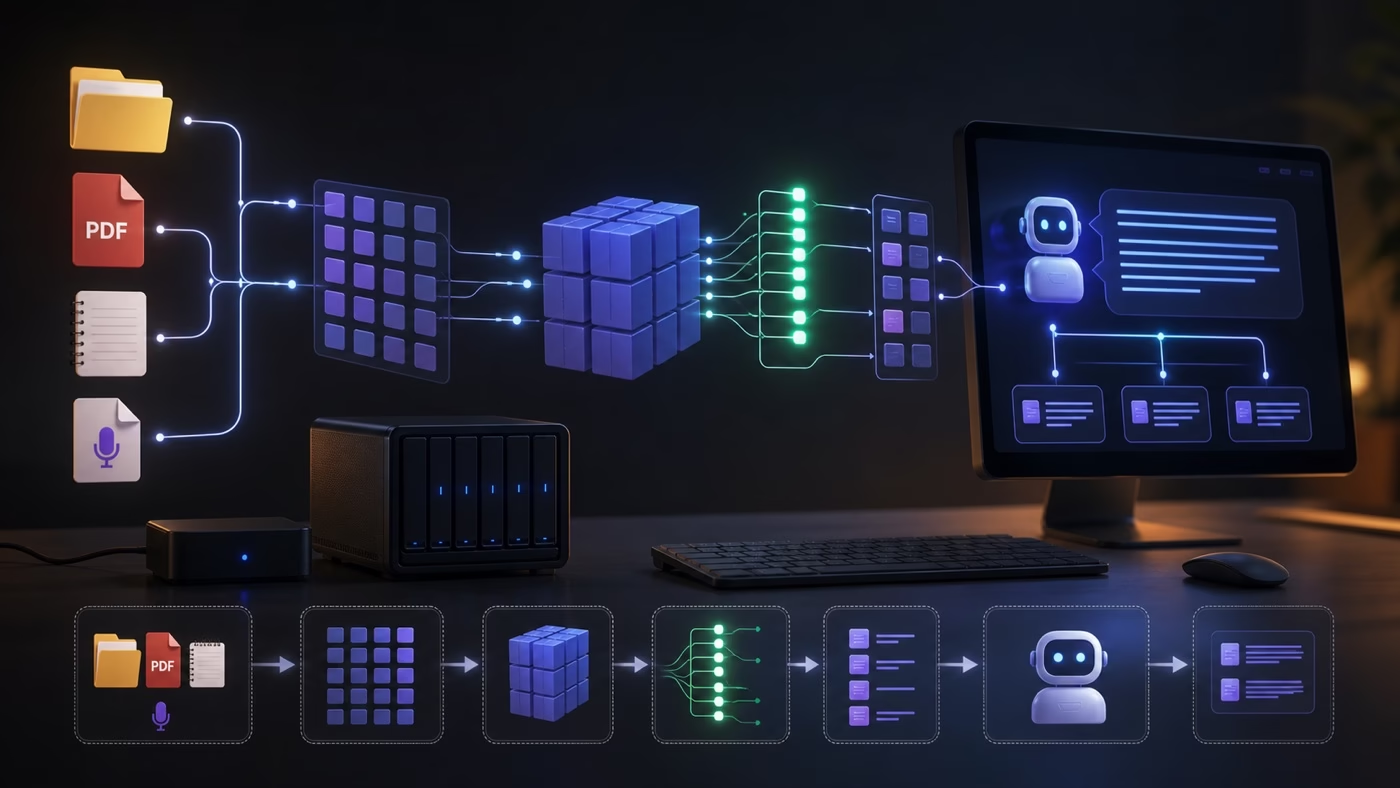
RAG retrieves relevant information before generation. It is different from fine-tuning. Fine-tuning changes model behavior; RAG supplies context at answer time.
A local RAG pipeline usually includes document ingestion, text extraction, chunking, embeddings, vector storage, retrieval, reranking, prompt assembly, answer generation, citations, and evaluation.
Common failure modes: bad PDF extraction, bad chunking, missing metadata, no citations, outdated documents, context overflow, hallucinated citations, and conflicting sources. If your RAG assistant is wrong, do not only blame the model. Inspect the retrieved chunks.
Local AI Agents
Local agents combine a model with tools: file access, browser access, shell access, APIs, or MCP-style tool interfaces. They are exciting, but small local models can struggle with long-horizon plans, error recovery, and tool reliability.
Local does not mean harmless. A local agent with filesystem access can still delete files, leak secrets, or make bad changes very quickly.
Fine-Tuning, LoRA, and Personalization
Fine-tuning can be useful when you need a model to learn a style, format, domain, or behavior that prompting and RAG cannot reliably deliver. But it is frequently overused.
Full fine-tuning updates many model weights and is expensive. LoRA trains smaller adapters. QLoRA reduces memory needs by training with quantization-aware methods. Adapters can be easier to manage than full model copies.
The practical rule: try a better prompt, better model, better quant, better RAG, and better evals before fine-tuning. If you do fine-tune, document datasets, licenses, evaluation prompts, overfitting risks, and redistribution restrictions.
Privacy, Security, and Licensing

Privacy is one reason to run AI locally, but privacy is an outcome, not a setting. Review telemetry, local logs, chat history storage, model storage, document storage, app permissions, Docker image trust, fake model uploads, model supply-chain risk, user accounts, backups, encryption, and internet exposure.
| Checklist item | What to verify |
|---|---|
| Model name | Exact model and version, not just family name. |
| Source | Official repo, verified organization, or trusted mirror. |
| License | Model card and license file. |
| Commercial use | Allowed, restricted, or unclear. |
| Redistribution | Whether you can ship weights or derivatives. |
| Fine-tuning | Whether training derivatives is allowed and under what terms. |
| Restrictions | Acceptable-use limits, attribution, geographic or scale restrictions. |
| Date checked | Record a date such as June 28, 2026. |
Troubleshooting

| Symptom | Likely cause | Fix |
|---|---|---|
| Model is too slow | Model too large, CPU fallback, context too high | Use smaller model, lower context, better quant, or GPU acceleration. |
| Out of memory | Model + KV cache exceeds memory | Lower quant, smaller model, shorter context, close other apps. |
| GPU is not detected | Driver/runtime mismatch | Check CUDA/Metal/ROCm support and runtime docs. |
| Model will not load | Wrong format or insufficient memory | Use compatible format and smaller file. |
| App crashes | Driver, memory, or unstable build | Update carefully, reduce load, check logs. |
| Bad answers | Weak model, bad prompt, base model, low quant | Use instruct model, better prompt, higher quant, or stronger model. |
| Invalid JSON | Model not constrained enough | Use schema examples, lower temperature, retry validation. |
| RAG ignores documents | Retrieval failure | Inspect chunks, embeddings, top-k, reranking, and prompt assembly. |
| Open WebUI cannot connect to Ollama | Host/container networking issue | Confirm Ollama URL, Docker network, firewall, and service status. |
| Docker cannot see GPU | Container runtime missing GPU support | Install supported NVIDIA/ROCm container stack and verify with docs. |
| Storage is full | Too many model files | Delete unused models and move archives to secondary storage. |
| Context length causes crashes | KV cache too large | Lower context or use smaller model/quant. |
| Mac gets hot | Sustained inference load | Reduce batch/context, improve airflow, or use desktop hardware. |
| Windows driver issues | GPU driver/runtime mismatch | Update drivers and confirm runtime support. |
| Linux permission issues | User/group/device access | Check Docker, GPU devices, and file permissions. |
Best Local AI Setups by Persona
| Persona | Hardware | Tools | Model size | First workflow | Avoid |
|---|---|---|---|---|---|
| Curious beginner | Existing laptop | LM Studio or Ollama | 7B-9B if memory allows | Private chat and summarization | Buying a GPU before testing. |
| Privacy professional | Laptop or workstation | Open WebUI + Ollama | 7B-14B | Document Q&A pilot | Internet exposure without security. |
| YouTube creator | Mac or GPU PC | Whisper/whisper.cpp, Ollama | 7B-14B | Transcript to chapters to article outline | Uploading sensitive raw audio unnecessarily. |
| Developer | NVIDIA PC or Mac | Ollama, llama.cpp, vLLM | 7B-34B | Local coding helper API | Assuming all code models are equal. |
| Small business team | Controlled workstation/server | Open WebUI, RAG stack | 14B-70B depending on budget | Private policy/document assistant | Skipping user permissions. |
| Homelab user | Server plus GPU if possible | Docker, Open WebUI | 7B-34B | LAN assistant | Public exposure without hardening. |
| AI power user | High-memory Mac or GPU workstation | Mixed stack | 14B-70B | Model comparison harness | Changing models without notes. |
| Budget PC user | Used desktop with RAM/SSD | Ollama, LM Studio | 7B-14B | Q4 chat and coding tests | Tiny VRAM GPU purchases with poor support. |
Local AI Buying Guide
What matters most: VRAM or unified memory, system RAM, SSD storage, driver support, thermals, and the actual workflows you will run weekly. What matters less than people think: chasing the largest parameter count, buying before measuring, or assuming one benchmark predicts your workflow.
The cheapest way to start is your existing computer plus LM Studio or Ollama. The best Mac setup is the Mac with enough unified memory for the models you will actually run. The best Windows/Linux setup for many AI workloads is a supported NVIDIA GPU with enough VRAM. The best creator setup balances transcription, image workflows, storage, and a good display. The best developer setup includes repeatable local APIs and evals. The best small-team setup includes access controls and backups. Rent cloud GPUs when you only need large hardware occasionally.
No live prices are included here because hardware pricing changes quickly. When this article is refreshed, record a last-checked date for any price claim.
Implementation Playbooks
The easiest way to make local AI useful is to pick one workflow, write down the pass/fail test, and improve that workflow before adding another tool. Local AI fails when it becomes a pile of models with no measurement. It succeeds when it becomes a dependable system for repeated work.
Playbook 1: Private Document Assistant
Start with a small document set: policies, meeting notes, contracts, research PDFs, or product documentation. Put copies in a test folder. Do not start with every file in the company. Extract text, inspect the extraction quality, chunk the documents, generate embeddings, and test retrieval before adding a chat interface.
The pass/fail test should be concrete. Ask ten questions whose answers are present in the documents. Require citations. Mark each answer correct, incomplete, unsupported, or hallucinated. If retrieval fails, fix chunking and metadata before changing the model. If retrieval succeeds but the answer is bad, test a stronger answer model or a better prompt. If citations are missing, make citation output part of the required format and reject answers that do not cite sources.
For business use, decide where chat history is stored, who can upload documents, who can delete indexes, and whether documents should be encrypted at rest. A local RAG assistant can still leak confidential information internally if every user can query every file.
Playbook 2: Local Coding Assistant
For coding, do not judge a model by one impressive function. Build a repeatable test from your own work: explain a file, write a unit test, refactor a small function, find a bug, generate a schema migration, and summarize a pull request. Run the same tasks across two or three models and record speed, correctness, and how often the model invents APIs.
Local coding models are especially sensitive to context. A model may do well on a small snippet and fail when you paste a whole repository. Prefer targeted context: the relevant file, neighboring types, error messages, tests, and the exact task. If the model needs tool access, start read-only and keep it inside a branch or disposable worktree.
Use local AI for code explanation, test scaffolding, migration drafts, and repetitive edits. Keep human review for security-sensitive changes, production database work, auth logic, billing, and anything that can destroy user data. Local does not make a mistaken code change safer; it only changes where the computation happens.
Playbook 3: Creator Research and Video Repurposing
Creators get one of the cleanest returns from local AI because audio, transcripts, notes, and rough drafts can be sensitive before publication. A strong workflow is: download or record the source, transcribe locally, clean the transcript, summarize it, extract names and claims, build chapters, draft a description, and produce an article outline.
The quality bar is not just “the transcript exists.” Check speaker names, product names, timestamps, numbers, and technical terms. Whisper-style transcription can be excellent, but it can still miss names, acronyms, and overlapping speakers. Keep the raw transcript, edited transcript, summary, and final article outline as separate artifacts so you can debug the workflow later.
For YouTube workflows, local AI pairs well with cloud AI rather than replacing it. Use local tools for private preprocessing and fast drafts. Escalate to a stronger cloud model only for high-value synthesis, final polish, or tasks where the local model repeatedly misses nuance.
Playbook 4: Local API for Internal Apps
A local API can power prototypes, automations, dashboards, and internal tools. Start with one endpoint and one model. Define expected latency, maximum prompt size, allowed users, logging policy, and fallback behavior. If the API supports an OpenAI-compatible shape, document which parts are actually compatible; not every local server implements every hosted API feature.
For reliability, pin the model version, runtime version, and quant. A silent model swap can break JSON output, tool calling, latency, or answer quality. Store prompts in version control. Add health checks that verify the server is reachable and that a tiny known prompt returns a valid response. For JSON workflows, parse the response and fail closed when the output is invalid.
When more than one user depends on the API, add basic operations discipline: request limits, logs without sensitive prompt dumps, GPU utilization monitoring, disk monitoring, and a rollback plan. If a local model becomes business-critical, it deserves the same care as any internal service.
Playbook 5: Homelab AI Server
A homelab server is perfect for learning local AI operations. It is also a place where people accidentally publish private tools to the internet. Keep the first version LAN-only. Use strong passwords, update Docker images deliberately, back up volumes, and avoid running unknown containers with broad host permissions.
Separate storage from compute where possible. A NAS can store model archives, documents, and backups, while the GPU machine handles inference. Keep notes on which models are installed, where they came from, how large they are, and whether they are still used. Model storage fills drives quietly.
If you eventually expose a service outside your home network, use HTTPS, authentication, firewall rules, and a reverse proxy you understand. Do not expose raw model APIs without a reason. A public local AI endpoint can become a data leak, a compute abuse target, or both.
Common Mistakes to Avoid
Mistake 1: buying hardware before testing. Run a small model on what you already own. You will learn which workflows matter, which tools you like, and whether local AI solves a real problem for you.
Mistake 2: treating parameter count as quality. Larger models often help, but architecture, training, quantization, prompt format, context use, and task fit matter. A smaller coding model can beat a larger general chat model on code. A better embedding model can improve RAG more than a larger answer model.
Mistake 3: ignoring context costs. Long context sounds like free intelligence, but it consumes memory and can degrade quality. Use retrieval, summaries, and targeted context instead of dumping everything into the prompt.
Mistake 4: using base models as assistants. Base models are not necessarily tuned for instruction following. If the output feels strange, confirm that you downloaded a chat or instruct variant and that your runtime is using the right prompt template.
Mistake 5: assuming local means licensed for anything. A model can be downloadable and still restrict commercial use, redistribution, or derivative works. Keep license checks in your workflow, not in your memory.
Mistake 6: skipping evaluation. If you cannot measure whether the model helped, you cannot maintain the setup. Save prompt packs, outputs, versions, and notes. This is especially important when you change quants, runtimes, context length, or hardware.
Mistake 7: exposing services too early. A local AI web UI with document upload is a sensitive application. Keep it private until access control, backups, network boundaries, and update processes are in place.
Mistake 8: confusing RAG with fine-tuning. If the model needs fresh facts from documents, use RAG. If the model needs a consistent style or format that prompts cannot achieve, consider fine-tuning. If you are not sure, start with RAG and evaluation.
Mistake 9: downloading random model files without provenance. Prefer official organizations, trusted mirrors, and model cards with clear details. Be careful with executable installers, custom code, and Docker images. Treat model supply chain as part of security.
Mistake 10: never cleaning up. Local AI experiments leave behind huge model files, duplicate quants, old indexes, logs, and stale containers. Schedule cleanup. Keep what you use and archive notes about what you tested.
How to Refresh This Guide Over Time
This article is designed to be updated. Local AI changes too quickly for a static “best models” list to stay trustworthy. The right refresh process is boring, repeatable, and evidence-driven.
For tools, check the official docs first. Confirm install commands, supported operating systems, local API behavior, model formats, and breaking changes. If a command changed, update the article and the benchmark notes together.
For models, check the official model card and license. Record the provider, family, parameter count, model type, context claims, license, commercial-use status, formats, known limitations, and last-checked date. If a model is only available through community quantization, link both the official source and the quant source where appropriate.
For hardware, prefer official specs and vendor documentation. Do not include prices unless the date checked is visible. For buying recommendations, separate facts from planning guidance. “This GPU has 16 GB of VRAM” is a spec. “This is enough for your workflow” is a recommendation that depends on model, quant, context, runtime, and expectations.
For images, keep original prompts and filenames. Do not use copyrighted logos or visuals that imply endorsement by model providers or hardware companies. Alt text should describe the visual and the article topic, not stuff keywords.
For SEO, refresh internal links as Kingy.ai publishes more local AI cluster content. Good future companion articles include a dedicated Ollama tutorial, LM Studio tutorial, ComfyUI guide, local RAG setup guide, local AI hardware buying guide, and a monthly local model recommendations update.
Local AI Glossary
Acceleration: using a GPU, neural engine, or optimized backend instead of plain CPU execution. Acceleration is why two machines with similar RAM can feel completely different.
Batch size: how many requests or tokens a runtime processes together. Higher batching can improve throughput for servers but may increase memory use.
Chat template: the format used to wrap user, assistant, system, and tool messages for a model. The wrong template can make a good model behave badly.
Checkpoint: a saved model file or set of files. In image generation, checkpoint often means the main image model. In LLM workflows, it can refer to model weights before conversion or quantization.
Embedding: a vector representation of text or images. Embeddings power semantic search, deduplication, clustering, and RAG retrieval.
Inference engine: the runtime that actually loads the model and produces outputs. Ollama, llama.cpp, vLLM, MLX, Transformers, ComfyUI, and whisper.cpp are all parts of different inference ecosystems.
KV cache: memory used to store attention keys and values while the model processes context. Longer context windows use more KV cache, which is why memory can disappear quickly.
LoRA: a lightweight adapter trained to modify behavior without copying an entire model. LoRAs are common in image generation and model personalization.
OpenAI-compatible API: a local endpoint that mimics part of the OpenAI API shape. Compatibility is useful, but always check which features your local server actually supports.
Prompt processing speed: how quickly the model reads the input context. It is separate from generation speed, which measures output tokens per second.
Reranker: a model that reorders retrieved chunks before answer generation. Reranking can materially improve RAG quality when initial vector search returns noisy results.
Temperature: a sampling setting that affects randomness. Lower temperature is usually better for extraction and JSON; higher temperature can help brainstorming.
Tool calling: a pattern where a model requests structured actions, such as searching files or calling APIs. Local tool calling needs validation because smaller models can produce malformed or unsafe calls.
VRAM: memory on a discrete GPU. For many local AI users, VRAM is the hard ceiling that determines which model and context length can run quickly.
Workflow fit: the practical match between a model, runtime, prompt, hardware, and recurring job. Workflow fit is the final test that matters. A model that scores well publicly but fails your citations, JSON schema, latency target, or license requirement is not the right local model for that job.
Model Recommendation Tables
These are recommended starting points, not universal “best” claims. Always verify the current model card, license, context length, and runtime compatibility before use. Last checked: June 28, 2026.
| Category | Starting models/families to evaluate | Why evaluate them | Common runtime | License caution |
|---|---|---|---|---|
| Beginner local chat | Qwen3/Qwen3.5, Llama 3.3/4, Gemma 3/4, Ministral/Mistral Small, Phi-4 | Broad current ecosystem coverage across small and medium local sizes | Ollama, LM Studio, llama.cpp | Check each model card and runtime package. |
| Coding | Qwen Coder, Devstral, DeepSeek Coder/R1 distills, Phi-4 reasoning/coding-adjacent variants | Coding-specific data and prompting behavior | Ollama, LM Studio, vLLM, Transformers | Commercial terms vary. |
| Reasoning | DeepSeek-R1/R1 distills, Qwen reasoning models, Phi-4 reasoning, Magistral, Llama-family reasoning tunes | Stronger multi-step behavior for some tasks | Ollama, vLLM, Transformers | Distilled models can inherit restrictions. |
| Embeddings | BGE, E5, Nomic Embed, Qwen embedding models, sentence-transformers/EmbeddingGemma-style models | RAG quality depends heavily on embeddings | Transformers, local embedding servers | Check model card. |
| Vision | Qwen-VL, Llama vision, Gemma vision variants, Pixtral | Image understanding on local workflows | Transformers, LM Studio/Ollama where supported | Check image-data and license terms. |
| Image generation | Stable Diffusion / SDXL, FLUX variants, Qwen-Image-style models, community checkpoints | Strong local creative workflows | ComfyUI, Diffusers | License differs by checkpoint and LoRA. |
| Speech/transcription | Whisper and whisper.cpp model variants | Mature local transcription path | Whisper, whisper.cpp | Check repository license and model terms. |
Maintenance Plan
Local AI changes constantly. Treat this guide as a living asset.
- Weekly: check broken links, major tool releases, and security notes.
- Monthly: refresh model tables, install commands, and hardware guidance.
- Quarterly: rerun install paths, update screenshots/images if needed, and review buying guide assumptions.
- Model refresh process: verify model card, license, formats, context, runtime, quant availability, and real prompt tests.
- Hardware refresh process: verify official specs, VRAM/unified memory, driver support, thermals, and price date if pricing is mentioned.
- Changelog: record every meaningful update.
FAQ
Can I run AI models locally?
Yes. Small local models can run on normal laptops, while larger models need more RAM, VRAM, or unified memory.
How much VRAM do I need for local AI?
For a good beginner experience, 8-12 GB of VRAM can run many quantized 7B-14B workflows. Larger models and longer context need more.
What is the easiest way to run a local LLM?
LM Studio is often easiest for desktop users. Ollama is often easiest for developers who want a local API.
Is Ollama better than LM Studio?
Neither is universally better. Ollama is excellent for CLI/API workflows; LM Studio is excellent for desktop discovery and chat.
Can local AI work offline?
Yes, if the model and runtime are already installed and the app does not require online services for the task.
Is local AI private?
It can be more private, but only if logs, storage, telemetry, app permissions, and network exposure are controlled.
Can I use local AI for coding?
Yes. Use a coding-tuned model and test it on your actual codebase before trusting it.
Can I run local AI on a Mac?
Yes. Apple Silicon Macs can be strong local AI machines when they have enough unified memory.
Can I run local AI on a NAS?
Usually only for light CPU inference or storage. A NAS is useful in the stack but often limited as the model host.
What is GGUF?
GGUF is a common model file format in the llama.cpp ecosystem and is widely used by local LLM tools.
What is quantization?
Quantization reduces model precision to save memory and often improve speed, with possible quality tradeoffs.
What is the best local AI model?
The best model depends on your task, hardware, license needs, context length, and tests. Use model tables as starting points.
Can local AI replace ChatGPT?
Sometimes for routine or private workflows. Not always for frontier reasoning, multimodal tasks, or high-reliability cloud workflows.
Can I use local models commercially?
Only if the model license allows it. Check the model card and license every time.
Do local models need the internet?
Not for inference after setup, but downloads, updates, and some app features may need internet.
What is RAG?
Retrieval-augmented generation retrieves relevant documents and adds them to the prompt before the model answers.
Should I fine-tune a local model?
Usually not first. Improve prompts, model choice, quantization, RAG, and evaluation before fine-tuning.
How do I test a local model?
Use repeatable prompts for speed, quality, JSON, coding, long context, RAG citations, and privacy/offline behavior.
Why is my local model slow?
Common causes include CPU fallback, too-large model, high context, insufficient memory, or weak acceleration support.
Sources
Official and trusted sources checked for this edition:
- Ollama docs
- Ollama API docs
- Ollama OpenAI compatibility docs
- Ollama context length docs
- Ollama Modelfile docs
- Ollama Qwen3 library page
- Ollama Llama 4 library page
- Ollama Gemma model library
- LM Studio docs
- LM Studio local server docs
- llama.cpp GitHub
- Open WebUI docs
- Open WebUI quick start
- vLLM docs
- vLLM installation docs
- Hugging Face Transformers docs
- Hugging Face GGUF docs
- Hugging Face model API
- MLX LM GitHub
- AMD ROCm docs
- NVIDIA CUDA docs
- Apple Mac technical specifications
- ComfyUI GitHub
- OpenAI Whisper GitHub
- whisper.cpp GitHub
- EleutherAI LM Evaluation Harness
- Meta Llama downloads
- Meta Llama models on Hugging Face
- Qwen models on Hugging Face
- DeepSeek AI on Hugging Face
- Mistral AI models on Hugging Face
- Google Gemma on Hugging Face
- Microsoft Phi on Hugging Face
Continue Reading
Latest News
Popular Tools
Compare
The Kingy Brief
Get the next Kingy Brief.
Source-checked AI changes, original tests and one practical thing to try.
Free · Choose your subjects · Double opt-in · Unsubscribe anytime