Kingy AI beginner course
AI Video Production Course for Beginners
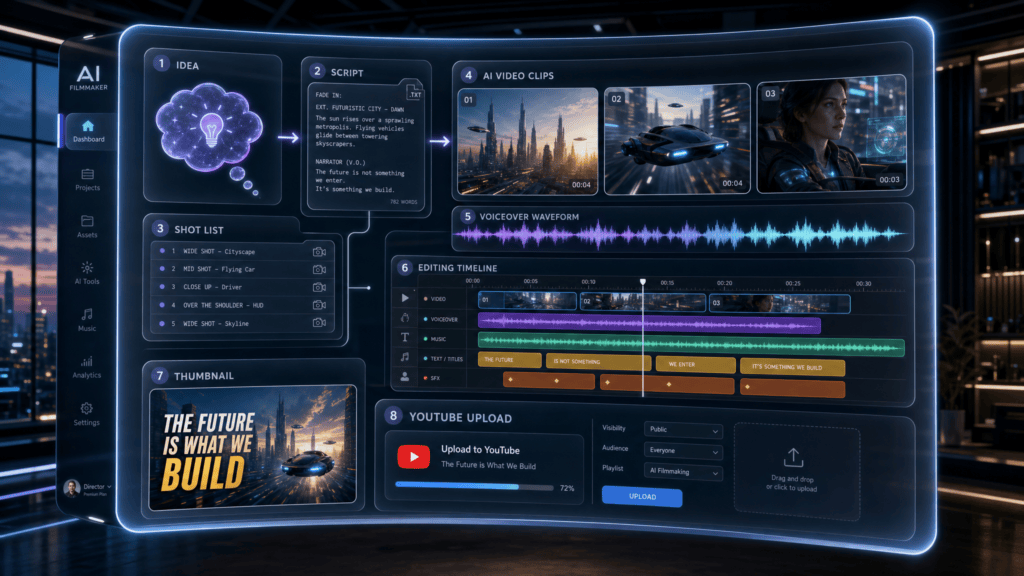
Turn one idea into a script, shot list, AI video clips, voiceover, edit, thumbnail, and YouTube upload.
A practical free course for beginners, creators, YouTubers, marketers, AI founders, startup teams, educators, agencies, product marketers, and non-technical website owners who want a complete AI-assisted video workflow without hype.
Trust and reality check
AI video tools are powerful, but they are not magic. A good video still needs a clear idea, structure, audience, story, edit, and publishing plan.
Expect iteration
AI clips may require multiple attempts. Start simple, add detail carefully, and revise clips that do not support the story.
Stay rights-safe
Avoid copyrighted characters, logos, celebrity likenesses, protected music, trademarks, and misleading or deceptive content unless you have the rights.
No promised outcomes
This course does not guarantee views, revenue, subscribers, sponsorships, YouTube ranking, AI video quality, or viral performance.
How to make videos with AI
Your final project is a complete AI-assisted video production plan that turns one idea into a practical YouTube upload package.
One clear video idea
A specific topic that fits one viewer, one problem, and one useful outcome.
Audience and outcome
A plain-English promise that says who the video helps and what they will understand or do.
Script
Hook, setup, teaching beats, example, limitation, recap, and call to action.
Shot list
Scene-by-scene visuals for screen recordings, AI clips, b-roll, product moments, and transitions.
AI video prompt set
Prompts for clips with subject, action, setting, motion, camera, style, and consistency notes.
Voiceover plan
Narration tone, pacing, emphasis, pauses, and recording notes.
Music/SFX plan
Background music mood, sound effect moments, volume rules, and license reminders.
Edit checklist
Checks for hook, story clarity, audio, captions, proof, pacing, and CTA.
Thumbnail concept
A readable visual idea with strong contrast and a clear before/after or outcome signal.
YouTube title options
Clear, honest title angles that match what the video actually delivers.
Description and chapters
A useful YouTube description, links, CTA, and chapter structure.
Upload checklist
Final checks before publishing, including disclosures and rights notes.
Start here
Not sure where to begin? Pick the path that matches what you need today.
Building this for an AI product? Use the tools to create a demo plan, then get a sponsorship fit review if you want Kingy AI to help explain it to a large AI-native audience.
I want a quick plan
Use the Video Idea Finder, then the Script Builder.
Start with Video Idea FinderI want to learn the workflow
Read the workflow map, then Lesson 0.
Start Lesson 0I want a YouTube-ready package
Use the tools in order and finish with the Upload Pack.
Build the full planAI video production workflow for beginners
The mistake most beginners make is jumping straight into AI video prompts before they know the idea, audience, story, shots, and edit plan. Use this map to build the video in the right order.
Idea
What it meansChoose one specific, visual, finishable video topic.
ProduceA clear video idea and working angle.
Common mistakeStarting with a huge topic like “AI is changing everything.”
Audience
What it meansDecide who the video helps and what they need to understand.
ProduceAn audience statement, viewer problem, and outcome.
Common mistakeTrying to make one video for everyone.
Script
What it meansTurn the idea into spoken beats: hook, context, steps, proof, takeaway, and CTA.
ProduceA script outline and voiceover draft.
Common mistakeWriting like a blog post instead of a video.
ToolScript Builder
Shot list
What it meansTranslate each script beat into visuals, motion, and editing notes.
ProduceA scene-by-scene shot list.
Common mistakeGenerating pretty clips that do not explain anything.
AI clips
What it meansWrite prompts for short clips that support the shot list.
ProduceText-to-video and image-to-video prompts.
Common mistakeChanging subject, style, camera, and setting every time.
Voiceover
What it meansPlan the narration style, pace, pronunciation, and captions.
ProduceVoice direction and recording checklist.
Common mistakeLetting narration race ahead of the visuals.
Music/SFX
What it meansChoose background music and sound effects that support the story.
ProduceMusic direction, SFX moments, and rights notes.
Common mistakeUsing loud or unlicensed audio.
Edit
What it meansCut weak moments, match visuals to words, add captions, and check audio.
ProduceA rough cut and completed edit checklist.
Common mistakeKeeping clips because they look cool, not because they help.
ToolEdit Checklist
Thumbnail/title
What it meansPackage the video so the right viewer understands why to click.
ProduceTitle ideas, thumbnail concepts, and text options.
Common mistakeUsing tiny text or a misleading claim.
Upload
What it meansPrepare the description, chapters, links, pinned comment, and disclosures.
ProduceA complete YouTube upload pack.
Common mistakeUploading with no context, no chapters, and no next step.
Review/repurpose
What it meansReview what worked, save your prompts, and turn strong moments into follow-up assets.
ProduceLessons learned, Shorts ideas, article notes, and next-video ideas.
Common mistakeJudging the whole process from one upload.
Open these when you need them. The main path is: idea → script → shot list → prompts → edit → upload.
Tool-agnostic AI video workflow
Tool-agnostic AI video workflow
AI video tools change quickly. New models, features, pricing, limits, and interface names will keep changing. The production workflow is more stable: know the video you are making, make the clips serve that video, then review and publish carefully.
| Criterion | Why it matters | Beginner question to ask |
|---|---|---|
| Text-to-video quality | Some ideas start from words only, so the tool needs to turn a prompt into a useful clip. | Can it create a clear clip from a simple prompt without heavy cleanup? |
| Image-to-video quality | Reference images can help keep products, scenes, or visual direction more stable. | Can I animate a reference image while keeping the important parts recognizable? |
| Character consistency | Repeated people or objects should not change wildly from shot to shot. | Can I keep the same character, product, or object across multiple clips? |
| Motion control | Motion affects whether a clip feels useful, distracting, or physically strange. | Can I control whether the motion is subtle, fast, smooth, or limited? |
| Camera control | Camera movement shapes the shot: push-in, static, pan, close-up, wide shot, or product view. | Can I describe the camera move and get something close to what I asked for? |
| Aspect ratios | YouTube, Shorts, ads, and social posts may need different shapes. | Can I create 16:9, 9:16, or 1:1 clips without awkward cropping? |
| Clip duration | Short clips are easier to generate and edit, while longer clips may be harder to keep consistent. | What clip lengths can I generate, and are they reliable enough for my project? |
| Prompt adherence | A useful tool should follow the subject, action, setting, and constraints reasonably well. | When I ask for one specific thing, does the output mostly follow it? |
| Editing features | Some tools include trimming, extending, upscaling, or timeline features that reduce extra work. | Can I trim, extend, revise, or combine clips without moving everything to another app? |
| Commercial rights/licensing | You need to know what you are allowed to publish, monetize, or use in client work. | What rights do I get for generated clips, and where is that explained? |
| Watermarks | Watermarks may affect client work, ads, or polished YouTube uploads. | Will exported clips have a watermark, and can I remove it under my plan? |
| Export quality | Resolution, compression, and format affect how the final video looks after editing. | Can I export at the quality and format my editing workflow needs? |
| Cost/credits | AI video often takes multiple generations, so credit systems can shape how much iteration is realistic. | How many attempts can I afford before the project gets expensive? |
| Speed | Fast generation helps experimentation, but speed alone does not make a clip useful. | Can I generate enough versions to choose the best take without waiting all day? |
| Team collaboration | Teams may need shared projects, comments, review links, or brand controls. | Can my team review, organize, and reuse clips without losing track? |
| Safety controls | Safety settings can help reduce harmful, misleading, or rights-risky outputs. | Does the tool give me clear controls and rules for sensitive or protected content? |
Beginner takeaway
Do not choose a tool because someone says it is the best. Choose based on the video you need to make, your rights needs, your budget, your editing workflow, and how much revision the tool allows.
Before and after examples
Before and after examples
The easiest way to improve an AI video is to make every part more specific. These examples show how vague ideas become usable production directions.
Example 1: Vague video idea
“Make a video about AI.”
“Make a 60-second video showing how a solo creator can turn one blog post into a YouTube Short using AI tools.”
It names the audience, task, format, and outcome.
Example 2: Weak hook
“Today we are talking about AI video.”
“I gave myself one blog post and 30 minutes to turn it into a finished AI-generated product video.”
It creates a clear challenge and reason to keep watching.
Example 3: Weak AI video prompt
“Create a futuristic AI video.”
“A cinematic 5-second shot of a creator’s desk at night, laptop open with a glowing video timeline, soft blue monitor light, slow push-in camera movement, realistic style, shallow depth of field, 16:9.”
It gives subject, environment, lighting, motion, style, duration, and aspect ratio.
Example 4: Weak shot list
“Show AI stuff.”
“Scene 1: close-up of messy notes on a desk. Scene 2: screen recording of outline becoming script. Scene 3: AI video clips generating. Scene 4: timeline edit. Scene 5: final upload screen.”
It turns the concept into visible moments.
Example 5: Weak thumbnail
“AI VIDEO”
“1 Idea – Full Video”
It communicates transformation quickly.
Example 6: Weak YouTube title
“This AI Tool Is Crazy”
“I Turned One Idea Into a Full AI Video Workflow”
It is specific and less generic.
Example 7: Weak upload plan
“Post the video.”
“Upload with title, description, chapters, pinned comment, source links, and a companion article.”
It treats publishing as part of production.
Lesson 0: What is AI video production?
- Plain-English explanation
- AI video production is not just typing a prompt. It is the workflow of planning the idea, writing the script, generating or collecting visuals, selecting clips, adding voice and sound, editing the story, packaging the video, and publishing it.
- Why it matters
- AI tools can help create visual material, but they do not automatically know your audience, proof, pacing, rights limits, or YouTube strategy. The workflow keeps the video useful instead of random.
- Beginner mistake to avoid
- Do not start by asking for a complete finished video. Start by defining the viewer, the problem, the promise, and the visual proof you can show.
- Practical example
- Instead of “make a video about my AI app,” plan: “a 3-minute demo that shows a marketer turning one blog post into three short video ideas.”
- Small action step
- Write one sentence: “This video helps [viewer] understand or do [task] so they can [outcome].”
- Check-yourself question
- If someone saw only your video idea, would they know what the finished video is supposed to help them do?
Lesson 1: Choose the right video idea
- Plain-English explanation
- The best beginner video ideas are visual, specific, useful, and finishable. You should be able to imagine the scenes before you write the script.
- Why it matters
- The idea controls everything that follows: script, shot list, AI prompts, thumbnail, title, description, and edit. A vague idea creates vague production decisions.
- Beginner mistake to avoid
- Do not choose a giant abstract topic. Bad: “AI is changing everything.” Better: “I used 3 AI tools to turn one blog post into a 60-second product video.”
- Practical example
- A finishable idea might be: “How a solo creator can turn one newsletter issue into a YouTube Short using AI script, image, and video tools.”
- Small action step
- Write three possible ideas, then circle the one that has the clearest visual before-and-after.
- Check-yourself question
- Can you finish this video with the time, tools, footage, screenshots, and rights you already have?
Lesson 2: Define the audience and outcome
- Plain-English explanation
- A good video knows who it is for, what they already understand, what problem they have, and what they should understand or do after watching.
- Why it matters
- The same video topic changes depending on the viewer. A founder may need business value, a creator may need workflow, and a beginner may need simple definitions.
- Beginner mistake to avoid
- Do not say the video is for “everyone.” If the audience is too broad, the script becomes generic and the thumbnail/title become weak.
- Practical example
- Audience: “non-technical product marketer.” Current problem: “needs a product demo but has no video process.” Outcome: “can create a script and shot list for one demo.”
- Small action step
- Fill in four lines: viewer, what they know already, problem, and outcome after watching.
- Check-yourself question
- Would this audience recognize themselves in the first 10 seconds?
Lesson 3: How to turn an idea into a script
- Plain-English explanation
- A useful script usually has a hook, context, promise, steps, proof or demo, takeaway, and CTA. The script is the spine of the video.
- Why it matters
- The script tells you what to show, what to generate, what to record, and what to cut. Without it, AI clips can look impressive but feel disconnected.
- Beginner mistake to avoid
- Do not write a script like a blog post or sales page. Write spoken sentences that match what viewers will see on screen.
- Practical example
- Script formats: 30-second short = hook, 2 steps, payoff. 60-second demo = problem, workflow, result. 3-minute explainer = context, steps, example, CTA. 8-minute tutorial = intro, setup, full walkthrough, mistakes, recap.
- Small action step
- Choose one format, then write only the section headings before drafting full narration.
- Check-yourself question
- Can every script section become a visual scene or screen moment?
Lesson 4: How to make an AI video shot list
- Plain-English explanation
- A shot list is the bridge between words and visuals. It says what the viewer sees while each line or beat is happening.
- Why it matters
- Shot lists prevent random b-roll. They help you decide when to use a screen recording, real footage, AI-generated clip, text overlay, or product screenshot.
- Beginner mistake to avoid
- Do not make every shot decorative. If the viewer needs proof or understanding, show the actual workflow, interface, result, or example.
- Practical example
- A simple row can include: scene number, visual, motion, voiceover line, AI prompt, and notes. Example: “Scene 3, messy inbox, slow zoom, ‘Here is the starting problem,’ prompt for office b-roll, show real screenshot next.”
- Small action step
- Create a six-row table: scene, visual, motion, voiceover, AI prompt, notes.
- Check-yourself question
- If the video were muted, would the shot list still show the basic story?
The AI video prompt formula
A strong prompt is not a magic spell. It is a practical production note that tells the AI video tool what shot you need and how that shot should feel.
Example prompt
“A cinematic 5-second shot of a solo creator editing an AI-generated video at a desk at night. The laptop screen shows a glowing video timeline. Slow push-in camera movement. Soft blue monitor light, warm desk lamp, realistic documentary style, shallow depth of field, focused and productive mood, 16:9.”
Subject
What it means: The person, object, product, or scene the viewer should focus on.
Why it matters: It tells the model what the shot is about.
Example: A solo creator editing a video.
Beginner mistake: Saying “AI video” without naming what appears on screen.
Action
What it means: What the subject is doing during the shot.
Why it matters: Action makes the clip useful instead of static decoration.
Example: Editing an AI-generated video timeline.
Beginner mistake: Asking for a vibe but no visible task.
Environment
What it means: Where the shot takes place.
Why it matters: The setting gives context and helps the shot feel specific.
Example: At a desk at night with a laptop open.
Beginner mistake: Leaving the background undefined, then getting random scenery.
Camera movement
What it means: How the camera moves or frames the moment.
Why it matters: Camera direction affects focus, pacing, and polish.
Example: Slow push-in camera movement.
Beginner mistake: Requesting dramatic movement when a simple steady shot would explain better.
Lighting
What it means: The visible light source, brightness, and color mood.
Why it matters: Lighting makes clips feel intentional and consistent.
Example: Soft blue monitor light with a warm desk lamp.
Beginner mistake: Ignoring lighting, then wondering why clips look mismatched.
Visual style
What it means: The look of the shot: realistic, documentary, clean product demo, cinematic, animated, or other style.
Why it matters: Style helps clips feel like they belong in the same video.
Example: Realistic documentary style with shallow depth of field.
Beginner mistake: Mixing cinematic, cartoon, photoreal, and abstract styles in one sequence.
Mood
What it means: The emotional tone of the shot.
Why it matters: Mood helps match the shot to the story: focused, urgent, calm, curious, excited, or reflective.
Example: Focused and productive mood.
Beginner mistake: Making every clip intense even when the video needs clarity.
Duration
What it means: How long the clip should be.
Why it matters: Short, specific clips are easier to review, replace, and edit.
Example: 5 seconds.
Beginner mistake: Trying to generate an entire scene or full video in one prompt.
Aspect ratio
What it means: The video shape, such as 16:9 for YouTube or 9:16 for Shorts.
Why it matters: The wrong shape can make editing and publishing harder.
Example: 16:9.
Beginner mistake: Generating wide clips for a vertical video or vertical clips for a YouTube explainer.
Constraints
What it means: Short limits or safety instructions that prevent obvious problems.
Why it matters: Constraints keep the clip usable and safer to publish.
Example: No logos, no readable fake brand names, no celebrity likenesses.
Beginner mistake: Writing a huge negative list instead of clearly describing the desired shot.
Text-to-video prompt template
[Visual style] [duration] shot of [subject] [action] in [environment]. [Camera movement]. [Lighting]. [Mood]. [Aspect ratio]. Constraints: [rights-safe limits, no logos, no misleading likenesses].
Image-to-video prompt template
Use the reference image as the main visual anchor. Animate [subject/object] by [action]. Keep [character/object/style/colors] consistent. Add [camera movement], [lighting], and [mood]. Duration: [seconds]. Aspect ratio: [ratio].
Product demo B-roll prompt template
A clean [duration] b-roll shot showing [audience] using [product/category] to [task/outcome]. Show [interface/workflow/result] clearly. [Camera movement], [lighting], [style], [aspect ratio]. Avoid exaggerated claims or fake brand elements.
Rights and safety warning
Do not use protected characters, brand logos, celebrities, copyrighted scenes, protected music, trademarks, or misleading real-person likenesses unless you have permission or the rights to use them.
Iteration checklist
Generate the clip. Review it. Identify one problem. Change one variable. Regenerate. Save the best prompt. Name the clip clearly so you can find it during the edit.
Lesson 5: How to write AI video prompts
- Plain-English explanation
- An AI video prompt tells the model what should appear. Useful components include subject, action, environment, camera movement, lighting, style, duration, mood, constraints, and what to avoid.
- Why it matters
- Clear prompts make clips easier to judge and revise. If the prompt has one job, you can tell whether the output worked.
- Beginner mistake to avoid
- Do not write a long list of what not to do. Usually, describe what should appear first, then add a short constraint only when it matters.
- Practical example
- “A product marketer reviewing a clean AI-generated storyboard on a laptop, soft studio lighting, slow push-in, modern SaaS office, calm focused mood, 5 seconds, no logos or readable fake brands.”
- Small action step
- Write one prompt for a problem clip, one for a process clip, and one for an outcome clip.
- Check-yourself question
- Does your prompt describe what the viewer should see, not just the feeling you want?
Lesson 6: How to create consistent AI video clips
- Plain-English explanation
- Consistent clips feel like they belong in the same video. Use reference images when available, keep characters simple, keep scenes short, and reuse visual language.
- Why it matters
- If every clip changes style, character, lighting, and setting, the viewer may feel the video is stitched together and less trustworthy.
- Beginner mistake to avoid
- Do not change too many variables at once. If one prompt fails, revise one thing: subject, action, camera, lighting, or setting.
- Practical example
- For a series of clips, reuse: “same founder, navy hoodie, bright desk, laptop, soft daylight, slow push-in, realistic SaaS demo mood.” Track versions like v1, v2, v3.
- Small action step
- Create a consistency note with character, setting, lighting, camera, color mood, and prompt version history.
- Check-yourself question
- Would someone believe these clips came from the same video world?
Lesson 7: How to add voiceover, music, and sound effects
- Plain-English explanation
- Voiceover should clarify the story. Music should support the emotion without overpowering the message. Sound effects should emphasize useful moments, not decorate everything.
- Why it matters
- Clear audio makes beginner videos easier to follow. Captions also help viewers understand names, steps, and key terms.
- Beginner mistake to avoid
- Do not use music or audio you do not have rights to publish. Do not make the background music louder than the narration.
- Practical example
- Use calm narration for a product walkthrough, low-volume background music, subtle click sounds for interface actions, and captions for each major step.
- Small action step
- Mark three pause points in the script where viewers need time to absorb the visual.
- Check-yourself question
- If someone listened without watching, would the core story still make sense?
Lesson 8: How to edit AI-generated video
- Plain-English explanation
- Editing is where you cut weak moments, match visuals to words, control pacing, add captions, check audio levels, and export in the right aspect ratio.
- Why it matters
- A strong edit makes the video feel clear and intentional. It helps the viewer move from problem to outcome without getting lost.
- Beginner mistake to avoid
- Do not add transitions everywhere. Use transitions only where they help the viewer understand a change in topic, scene, or time.
- Practical example
- For a YouTube tutorial, export 16:9. For Shorts, export 9:16. For a square social cut, reframe the important text and face/product area so nothing gets cropped.
- Small action step
- Make a rough cut first, then do a second pass for captions, audio levels, transitions, and aspect ratio.
- Check-yourself question
- Does every clip either explain, prove, transition, or emotionally support the story?
Lesson 9: How to create YouTube titles and thumbnails
- Plain-English explanation
- The title explains why someone should care. The thumbnail communicates the idea quickly, often through a face, object, before/after state, or short readable phrase.
- Why it matters
- People decide whether to click before they know how good the video is. Clear packaging helps the right viewer understand the promise.
- Beginner mistake to avoid
- Avoid tiny text, vague hype, and misleading claims. The title and thumbnail should match the actual video.
- Practical example
- Weak: “This AI Tool Is Insane.” Stronger: “I Turned One Blog Post into a 60-Second Product Video with 3 AI Tools.”
- Small action step
- Draft five titles and three thumbnail concepts. Read them on your phone. If the text feels tiny, simplify it.
- Check-yourself question
- Would the viewer feel the video delivered what the title and thumbnail promised?
Lesson 10: How to upload and optimize an AI video
- Plain-English explanation
- Uploading is more than choosing a file. Prepare the title, description, chapters, pinned comment, links, disclosures, and end screens or cards where appropriate. Tags are secondary.
- Why it matters
- YouTube packaging helps viewers understand the video, and Google video guidance also encourages useful text around videos on websites where they are embedded.
- Beginner mistake to avoid
- Do not publish with a blank description, missing product/source links, no chapters, and no context for what the viewer should do next.
- Practical example
- A good description includes: who the video is for, what it demonstrates, product/source links, chapter timestamps starting at 0:00, a pinned comment CTA, and disclosure notes if needed.
- Small action step
- Write your description and chapters before upload, then adjust the timestamps after the final edit.
- Check-yourself question
- Can someone skim the title, first description lines, and chapters and know whether the video is for them?
Lesson 11: Review, improve, and repurpose
- Plain-English explanation
- After publishing, review retention, comments, questions, clicks, and the production process. Then improve the next video and repurpose useful parts.
- Why it matters
- The first version teaches you what viewers actually need. You can turn one video into Shorts, an article, social clips, a newsletter section, and follow-up ideas.
- Beginner mistake to avoid
- Do not treat one upload as a final verdict. Avoid chasing views alone; look for confusion, strong moments, repeated questions, and better next topics.
- Practical example
- If viewers drop before the demo, shorten the intro. If comments ask about pricing, make a follow-up. If one workflow moment performs well, cut it into a Short.
- Small action step
- Archive the final script, shot list, prompts, generated clips, edit notes, thumbnail, title, and lessons learned in one folder.
- Check-yourself question
- What one thing will make the next video clearer, faster to produce, or more useful?
One video, three formats
A strong AI-assisted video project should not die after one upload. If the idea, script, visuals, and proof are clear, you can turn the same work into several useful assets without pretending it guarantees reach or revenue.
Long-form YouTube video
Use the full script, demo, explanation, sources, chapters, and CTA.
YouTube Short / TikTok / Instagram Reel
Pull one strong moment, visual transformation, or quick tip into a vertical clip.
Website article or blog post
Turn the script into a searchable article with screenshots, source notes, and links.
Newsletter section
Summarize the idea, lesson, example, and link to the finished video.
LinkedIn/X post
Share the lesson, workflow, checklist, or before/after as a short written post.
Thumbnail/title test ideas
Use the same promise to test clearer packaging angles without misleading viewers.
Follow-up video ideas
Turn comments, confusing steps, and strong moments into the next video.
Practical example
Original idea: “I turned one blog post into an AI-generated product video.”
Repurposed outputs: 8-minute tutorial, 60-second Short, blog article, 5-step checklist, LinkedIn post, before/after carousel, and follow-up comparison video.
Repurposing Planner
Turn one finished or planned video into practical follow-up assets.
Production safety, rights, and trust
Production safety, rights, and trust
AI video tools make production easier, but they do not remove your responsibility to publish fair, accurate, rights-safe work. This section is educational, not legal advice.
Copyright
Do not use copyrighted characters, movies, TV scenes, music, or art styles in a way you do not have rights to publish.
Trademarks and logos
Do not place brand logos in videos unless you have permission or a legitimate editorial or product context.
Celebrity and real-person likeness
Do not create misleading videos of real people, celebrities, public figures, clients, employees, or customers.
Music licensing
Only use music and sound effects you are allowed to publish. Keep license notes with the project files.
Sponsored videos
If a video is sponsored, include proper disclosure according to the platform and applicable rules.
High-stakes claims
Do not use AI video to make unsupported medical, financial, legal, or safety claims.
Misleading demos
Do not fake product capabilities. If something is a concept, prototype, simulation, or future idea, label it clearly.
AI artifacts
Review generated clips for weird hands, broken text, strange motion, object glitches, impossible physics, and continuity errors.
Human review
A human should review the full video before publishing, especially names, claims, links, disclosures, and product behavior.
Pre-publish trust checklist
Use this local checklist before exporting or uploading. Nothing here is saved or sent anywhere.
Interactive tools area
These tools run locally in your browser. They do not send your inputs anywhere and do not require an API key.
Video Idea Finder
Find video ideas that are specific, useful, visual, and realistic for your available time.
Audience and Outcome Builder
Clarify who the video is for and what it helps them do.
Script Builder
Create a simple script structure for your video.
Shot List Generator
Turn script beats into a practical shot list.
AI Video Prompt Builder
Create clear prompts for AI-generated clips.
Consistency Planner
Create a visual bible so clips feel like they belong together.
Voiceover Planner
Plan narration tone, pace, and recording notes.
Music and SFX Planner
Plan background music and sound effects without overwhelming the voice.
Edit Checklist
Track core editing checks before publishing.
Thumbnail and Title Builder
Create honest title and thumbnail ideas.
YouTube Upload Pack Generator
Draft your YouTube title, description, chapters, and upload checklist.
Final project: produce your first AI-assisted video
Project brief: Choose one simple, visual idea and create a complete production plan for it. The goal is not to make a perfect video in one pass. The goal is to remove confusion before you start generating clips.
- Turn a blog post into a 60-second video
- Create a product demo explainer
- Make a tutorial for one AI tool
- Create a before/after transformation video
- Create a comparison video
- Make a course lesson preview
- Create a YouTube Short from a longer article
- Video idea
- Audience
- Promise
- Script
- Shot list
- AI video prompts
- Consistency notes
- Voiceover plan
- Music/SFX plan
- Edit checklist
- Thumbnail/title
- YouTube upload pack
- Review checklist
Final project rubric
| Category | Points | What strong work looks like |
|---|---|---|
| Clarity of idea | 15 | One specific, visual idea with a clear beginning, middle, and outcome. |
| Audience fit | 10 | The viewer is named clearly and the video matches what they need to understand. |
| Script structure | 15 | The script has a hook, context, useful steps, example or demo, takeaway, and CTA. |
| Visual plan | 15 | The shot list turns the script into visible scenes, screenshots, clips, or screen recordings. |
| Prompt quality | 15 | Prompts include subject, action, environment, camera, lighting, style, mood, duration, aspect ratio, and constraints. |
| Edit/pacing plan | 10 | The edit plan explains what to cut, where to use captions, and how to match visuals to voiceover. |
| Thumbnail/title alignment | 10 | The title and thumbnail are clear, readable, and honest about what the video delivers. |
| Publishing completeness | 10 | The upload pack includes description, chapters, links, disclosure notes if needed, pinned comment, and review checks. |
- 0-49: too vague
- 50-69: workable draft
- 70-84: strong beginner plan
- 85-100: production-ready plan
A good plan does not guarantee a good video, but it dramatically reduces confusion before generating clips.
AI video quality-control checklist
Use this before the final export or upload. Everything stays local in your browser; nothing is saved, tracked, or sent anywhere.
Final Video Production Plan Export
Combine the generated outputs into one copyable production plan.
Copy-paste prompt pack
Copy-paste prompt pack
Copy these into ChatGPT, Codex, Claude, Gemini, or another AI assistant. Each prompt asks the AI to avoid invented facts, flag uncertainty, stay beginner-friendly, and avoid copyrighted or protected content you do not have rights to use.
Video Idea Refinement PromptWho should use it: Beginners with a vague topic or messy video idea.What it produces: A specific concept, audience, format, promise, and first production step.
Audience and Outcome PromptWho should use it: Creators who need to clarify who the video is really for.What it produces: Audience statement, viewer problem, promise, transformation, and CTA idea.
Script Writing PromptWho should use it: Beginners ready to turn one concept into narration.What it produces: A script for a 30-second, 60-second, 3-minute, or 8-minute video.
Shot List PromptWho should use it: Anyone with a script who needs visual production direction.What it produces: A scene-by-scene shot list with visuals, motion, voiceover cues, and edit notes.
AI Video Prompt PromptWho should use it: Beginners turning shot list rows into AI clip prompts.What it produces: Text-to-video prompts, image-to-video prompts, constraints, and iteration tips.
Character and Style Consistency PromptWho should use it: Creators making multiple AI clips that should feel like one video.What it produces: A consistency bible for characters, locations, objects, colors, and style.
Voiceover Direction PromptWho should use it: Creators planning narration, captions, pacing, and pronunciation.What it produces: Voice direction, pacing notes, pronunciation notes, and caption guidance.
Music and SFX PromptWho should use it: Editors choosing background music and sound effects safely.What it produces: Music direction, SFX moments, audio mix notes, and licensing reminders.
Editing Checklist PromptWho should use it: Beginners turning raw clips, voiceover, and music into a clear edit.What it produces: A rough cut plan, polish checklist, artifact review, and pre-publish checks.
YouTube Title and Thumbnail PromptWho should use it: Creators packaging a finished video honestly.What it produces: Clear title ideas, thumbnail concepts, short text options, and alignment checks.
YouTube Upload Pack PromptWho should use it: Creators preparing a video for upload or website embedding.What it produces: Description, chapters, pinned comment, tags/topics, and embed blurb.
Repurposing PromptWho should use it: Creators who want more value from one finished video.What it produces: Shorts ideas, article outline, newsletter, social posts, and follow-up video ideas.
Related Kingy AI resources
Use these pages to connect AI video production with product explanation, search visibility, sponsorship planning, and beginner AI workflows.
Want your AI product explained to a large AI-native audience?
Kingy AI helps AI companies turn complex products into clear, useful YouTube videos that drive awareness, product understanding, demos, clicks, and search visibility.
Sources and accuracy note
Sources and accuracy note
This course is educational. AI video tools change quickly, and YouTube systems, product features, rights terms, and platform rules can change over time. Verify important claims against official sources, current product documentation, rights guidance, and your own publishing results before publishing.
- Runway Academy: Prompting Guide
- Runway Help: Gen-4 Video Prompting Guide
- YouTube Help: Video Chapters
- Google Search Central: Video SEO Best Practices
- Google Search Central: SEO Starter Guide
Last updated: May 28, 2026.
No-guarantee and rights note
This course does not guarantee views, subscribers, revenue, AI video quality, rankings, sponsorships, YouTube ranking, or viral performance. Do not generate or publish protected characters, logos, celebrity likenesses, protected music, trademarks, copyrighted material, or misleading content unless you have the rights and appropriate permissions.
The Kingy Brief
Get The Kingy Brief.
AI changes, original tests and one practical thing to try. Fridays at 09:00 Vancouver time.
Free · Double opt-in · Unsubscribe anytime
Signup help and newsletter schedule
Signup form provided by Beehiiv. After submitting, check your inbox for "Confirm your subscription to The Kingy Brief" and open its confirmation link. Check Spam or Promotions if you cannot find it.
Fridays at 09:00 Vancouver time: source-checked AI changes, original tests and one practical thing to try. The weekly restart begins October 9, 2026. We skip a week when there is not enough verified material. Free. Unsubscribe anytime.