
Anthropic announced Claude Meetings beta rollout on November 12, 2026, for Team and Enterprise. Free, Pro, Max and Ultra do not include this beta. Claude joins calls to answer questions and create shared work.
The appeal is a shorter path from discussion to a useful deliverable. A generated plan still needs people to check the decisions, owners, dates and permissions. Kingy has not tested this beta; this guide evaluates vendor documentation and offers practical starting points for a pilot.
Claude Meetings at a glance
| Check | Detail |
|---|---|
| Calls | Google Meet; live Meetings does not support Zoom or Microsoft Teams. |
| Stored output | Transcript, summary and screen descriptions; audio is not saved. |
| Beta exclusions | Zero data retention, HIPAA-ready configurations and customer-managed encryption keys. |
The November 10 announcement described Meetings as coming soon. The subsequent beta announcement does not establish that every eligible account has access immediately.
What Claude Meetings does
Claude appears as a participant and posts a notice. Replies are written by default; meeting output remains in Claude. Internal invitees can access notes and artifacts, including invitees who missed the call.
Connectors inherit the user’s source permissions; custom connectors using shared credentials inherit those credentials’ access. Owners can restrict read and write tools. These controls determine what Claude can retrieve or change; people must still decide whether a retrieved fact belongs in an answer shown to the whole meeting.
Standalone Claude Whiteboards has broader paid-plan availability; that does not establish personal-plan access to Meetings. See our guide to Whiteboards, Sheets and Data.
Why Claude Meetings matters
A meeting often leaves two jobs: making a decision together and preparing the document someone must act on afterward. A useful assistant should reduce the work between those jobs while preserving what people actually agreed to. That is the standard we would use to judge this beta.
Consider this hypothetical internal product bug triage. Engineers and support staff discuss several reports, disagree about which ones have the same cause and settle on the next investigation. The facilitator asks Claude for a triage brief that separates confirmed symptoms, competing explanations and open questions. Before ending the call, the group checks whether the brief preserves the disagreement, names the person who accepted each investigation and avoids presenting a theory as a diagnosis. Someone still owns the final brief; the assistant gives the group something specific to review together.
That shared workflow is a choice. A private assistant can help one participant ask a question without interrupting the group. A shared artifact gives everyone a chance to challenge the draft, but it also puts more responsibility on the facilitator to manage the audience and keep the discussion moving. A team may want both kinds of help at different moments.
For an organization already working in Claude, keeping a meeting’s output near its subsequent documents and analysis may make the handoff easier. That potential depends on whether colleagues can find, access and trust the material they need. A polished draft that obscures uncertainty or exposes information to the wrong audience can create extra work. The review and access decisions are part of the job, even when the first draft is automatic.
To evaluate a pilot, choose a recurring meeting with a recognizable deliverable. Agree in advance what a useful result must contain, who will review it and where it should live. After the meeting, compare the draft with the discussion: identify corrections, missing decisions and unconfirmed owners; check who can see it; and ask the person responsible whether it was usable. Include the time spent fixing and sharing the result. Repeat with the same kind of meeting before deciding whether this workflow deserves broader use.
How to set up Claude Meetings
Follow the current Meetings instructions; beta labels may change.
- Check access. Team enables Meetings by default; Enterprise owners enable it in Organization settings → Products → Claude Meetings (beta).
- Connect Google Calendar. An Owner or Primary Owner must enable the Google Workspace connector before members authenticate their Google accounts.
- Agree on capture. Explain the intended use and obtain participants’ agreement to transcription. Confirm that the audience and subject are appropriate.
- Add Claude. In Claude or Claude Desktop, open Meetings, select the calendar event and choose Add Claude. The host may need to admit it.
- Make a request. On internal calls, say “Claude” or type in Meet chat. Review its meeting page.
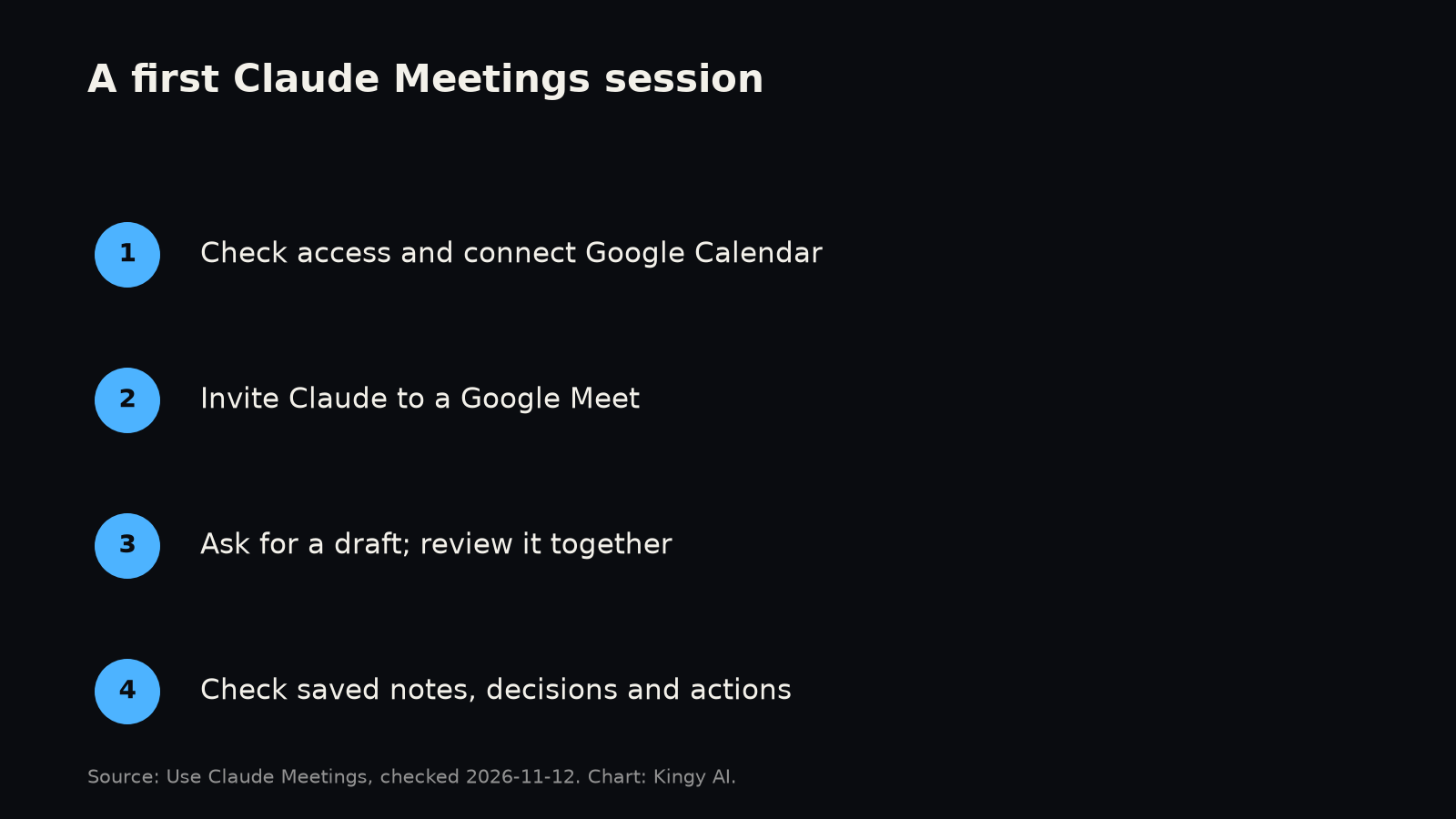
For a first pilot, use a low-risk internal meeting with a clear agenda and invite the assistant manually. Agree beforehand who will review the output, where the approved version will live, and who can share it. This is our suggested pilot design, not an additional product requirement.
Optional auto-join is under Settings → Capabilities → Meetings. The meeting page offers pause, resume and removal controls.
Prompts that make the meeting useful
A good request gives Claude a job and a boundary. These examples are editorial starting points, not tested prompts. Change them to fit the meeting, and have a person verify the output.
- Kickoff: “Claude, make a project brief from what we have agreed so far. Separate confirmed decisions from proposals. Leave owners and dates blank unless someone explicitly accepted them.”
- Retrospective: “Claude, put the recurring problems on a whiteboard. Group them by theme, preserve disagreements and suggest one follow-up question for each unresolved issue.”
- Decision: “Claude, make a decision log with the options, evidence cited, decision owner and unanswered questions. Do not treat a suggestion as an approved decision.”
- Connected budget: “Claude, compare today’s proposed budget with last year’s approved event budget in the connected files. Identify the file and period, and flag categories that are not comparable.”
- Action review: “Claude, list each action, owner and due date. Mark details as unassigned unless a person explicitly confirmed them.”
- Before sending: “Check this draft against the transcript. Flag uncertain names, amounts, dates and decisions, and show the supporting passage for review.”
Even a plausible citation or transcript passage needs a person to interpret it. A tentative “I might take that” is different from an accepted commitment. Ask the owner to confirm the action in the meeting or afterward, especially when the draft will guide spending or external communications.
Pricing: subscription, promotion and usage
Meetings is a business feature, so begin with the cost of the underlying plan. Anthropic’s published pricing lists Team for 2–150 people and shows these US dollar prices before applicable taxes:
| Plan | Annual billing | Monthly billing |
|---|---|---|
| Team Standard | $20 per person per month | $25 per person per month |
| Team Premium | $100 per person per month | $125 per person per month |
| Enterprise | US$20 per seat per month, plus usage at API rates; annual billing and 20-seat minimum | Not advertised |
For example, two Team Standard seats cost $40 per month equivalent on annual billing, or $480 for a year before tax. Two monthly seats cost $50 per month before tax. Premium offers greater plan usage; Anthropic does not say it is required for Meetings. Enterprise terms can depend on the agreement, and usage is additional to the seat fee.
Beta notes, transcripts and answers without connected tools are included. In-call artifacts are free through February 10, 2027. Connected tools consume the requester’s usage and may incur organizational charges. Post-promotion artifact pricing is unspecified.
Before a larger rollout, ask your owner how usage is tracked, which employees need paid seats, and what happens when a usage limit is reached. A trial focused on a few representative meetings is easier to evaluate than buying seats for an entire department on the strength of a product announcement.
Privacy, guests and administrator controls
Saved meeting materials can contain confidential details even without an audio file. Agree on capture, check who can open the output, and decide when to pause before a sensitive discussion. A visible assistant does not settle those decisions for the group.
The launch article describes excluding external calls by default. The operational guide instead says external guests default to allowed on Team and internal-only on Enterprise. These statements conflict. Have an owner inspect the actual workspace setting before a customer call.
Where allowed, guests’ speech enters the notes, but guests receive neither the internal meeting page nor recap email. Claude does not answer in external Meet chat.
For a customer recap, prepare a draft that excludes internal pricing, private connector results and unconfirmed commitments. Review it before sending. Access to a source document is different from agreement to distribute its contents to everyone in a meeting.
Approval for a connected tool persists; spoken requests require identity confirmation each time.
Anthropic’s commercial data policy excludes training on inputs and outputs by default, with feedback and explicit opt-in exceptions.
The reviewed documentation does not establish an exact Meetings-record retention period or deletion procedure. Ask your administrator which controls cover transcripts, screen descriptions and artifacts. The general commercial retention policy distinguishes API retention from saved conversations; it does not establish a Meetings-specific lifetime. General Enterprise retention controls also need a feature-specific coverage check.
Enterprise custom roles can restrict feature access below the organization-wide switch. If the product is missing, ask the owner to check organization and role permissions before troubleshooting your own settings.
Claude Meetings vs. Google, Microsoft, ChatGPT and meeting apps
The right comparison is the complete workflow: where the meeting happens, who can see the output, what information the assistant can use, and where the team edits the result. The following describes vendor-documented features, not a head-to-head quality test.
| Product | Approach and reason to consider it |
|---|---|
| Google Meet + Gemini | Take notes for me creates notes in Google Docs; Ask Gemini can answer private questions during a meeting and use permitted context. A fit for teams centered on Google Workspace. |
| Microsoft Teams + Copilot | Licensed participants can ask private questions during Teams meetings. Organizer and policy settings determine transcription modes, including a during-only option. Existing Microsoft governance may be decisive. |
| Zoom AI Companion / My Notes | Meeting Summary summarizes a host-enabled Zoom call. With eligible licenses, calendar sync and admin settings, Zoom AI can also join Google Meet or Teams as a participant. My Notes offers another route across online and in-person meetings. Check the capture method and sharing controls. |
| ChatGPT Meetings and Record | The newer Meetings plugin is a bot-free macOS beta for Pro and Business, with notes, connected context and follow-up actions; Enterprise is limited alpha. It is separate from older Record, which turns audio into notes and other outputs. Both document four-hour sessions; their availability rules differ. |
| Otter | Otter offers a meeting agent, bot-free desktop capture, live assistance and connected search. An existing archive or cross-app workflow may matter to a buyer. |
| Fireflies | Live Assist and AskFred provide live help; desktop system-audio capture is also an option. AskFred uses dynamic AI credits. |
| Granola | Granola offers bot-free device-audio capture and AI notes, avoiding an extra visible participant. Teams still need to address consent and data governance. |
These categories overlap. Live questions and work beyond a transcript already exist elsewhere. Compare the assistant’s audience, source access, review effort and output destination against your actual workflow. An existing meeting archive or administration system may matter more than an extra generation feature.
Troubleshooting and limits
Meetings is missing or Claude cannot join. Work through the setup above: workspace access, organization and role settings, Calendar authentication, guest policy and host admission. Then consult the current help page for rollout status or contact support. Repeating invitations will not resolve an organization restriction.
The answer or action list is wrong. Compare it with the transcript, ask participants to confirm disputed points and edit the deliverable. If the transcript itself is wrong, another generated summary of it will not repair the evidence. For a connected-file answer, check the source, date and permissions as well as the result.
Anthropic specifies an eight-hour maximum per meeting.
We found no published fixed monthly meeting-hour quota, Meetings-specific language list, country-by-country rollout list, accuracy benchmark or response-time guarantee in the reviewed materials. Treat those as unanswered questions rather than promises about universal support.
Who should try it?
Consider a pilot if the access and platform requirements above match your organization and meetings regularly leave you with documents or plans to create. Evaluate the finished work: were decisions represented accurately, did owners confirm their tasks, and was the result shared with the right people? Include the time needed to review and correct it.
A polished-looking summary is not enough evidence to justify wider deployment. Compare review and follow-up effort against the team’s usual process for the same kind of deliverable.
Wait if you cannot establish the capture, guest and retention controls your organization requires. An eligible team still needs to show that a reviewed artifact helps the next person do their job.
Sources
- Claude Meetings announcement
- Claude Meetings help
- More ways to work with Claude
- Claude pricing
- Get started with Claude Whiteboards
- Commercial data and model training
- Take notes for me
- Ask Gemini in Meet
- Copilot and transcription in Teams
- ChatGPT Record
- Otter
- Fireflies Live Assist
- Fireflies desktop recording
- Granola pricing
- Introducing Claude Meetings
- Use Google Workspace connectors
- Use connectors to extend Claude capabilities
- How long do you store organization data
- Enterprise custom retention controls
- Manage custom roles
- The Meetings plugin in ChatGPT
- Zoom: Meeting Summary
- Zoom: AI in third-party meetings
- Zoom: My Notes release notes