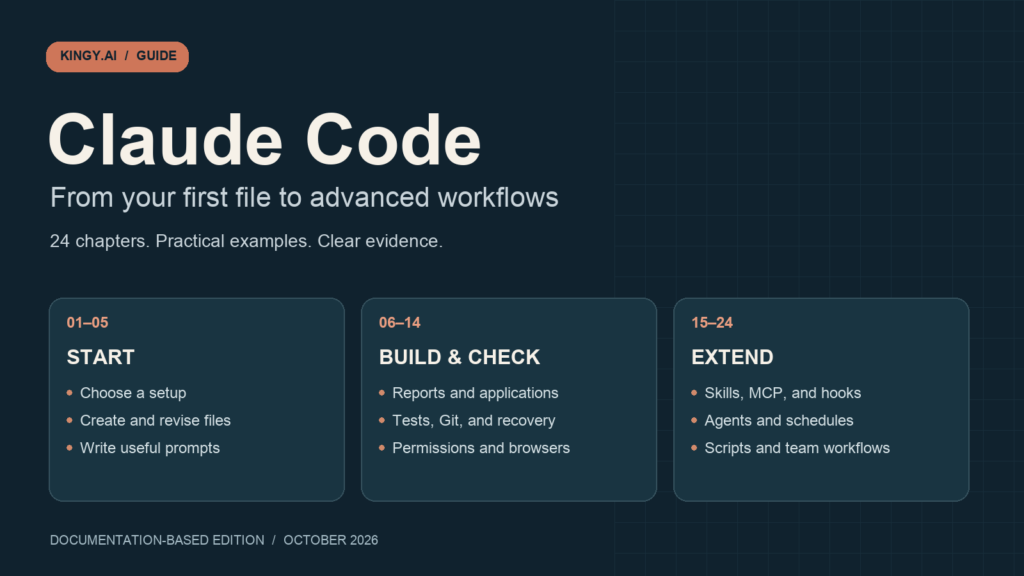
Claude Code can explain a project, edit files, run commands, investigate bugs, and check results. It also supports browser work, reusable skills, connected tools, hooks, parallel agents, and scheduled workflows. This guide takes you from your first saved text file to those more advanced uses.
Start with chapters 1–5 if you are new. Follow the report or calculator exercises next, then use the later chapters as references when a task calls for them. You do not need to install every extension or connect every service.
Choose a local folder → inspect one input → request one small output → open the saved file → check the result.
For the companion guide, see our OpenAI Codex guide.
Download the Claude Code cheat sheet (PDF, one page)
A beginner-friendly US Letter reference for prompts, commands, and key controls. Documented features and locally tested samples are labeled separately; the sample checks ran outside Claude Code.
Chapter 1Understand Claude Code
Claude Code can read project files, make changes, and run commands in response to a request. You can ask it to explain a folder, fix a bug, build a small tool, or work through a development task. Its available actions depend on the interface, tools, account, and permissions in use. Official overview.
Your first useful task can be a text file. You do not need to build an application before learning how to give instructions and inspect the result.
What makes it an agent
An agent can take steps toward an outcome using tools. For example, a request to change a heading might involve reading a file, finding the heading, editing it, and reading the result. Information from each step helps Claude choose the next step. Anthropic calls this an agentic loop. How Claude Code works.
This schematic shows the working pattern; it is not a recording of a test:
- 1. DescribeName the outcome, input, and finish.
- 2. InspectRead relevant files and current state.
- 3. ActUse permitted tools for the next step.
- 4. CheckCompare the saved result with the request.
A useful request gives the loop a clear finish. “Improve this project” leaves many decisions open. “Create a short setup note in this folder, then show me the saved file” gives you something specific to inspect.
Seven terms you will use
| Term | Meaning in this guide |
|---|---|
| Model | The AI that interprets the request and reasons about what to do. |
| Agent | The model working with tools and instructions toward an outcome. |
| Session | A conversation and its recorded activity for a piece of work. |
| Project folder | The folder containing the files you are working on. |
| Tool | An action Claude can request, such as reading a file or running a command. |
| Context | Information available for the current task, including your messages and retrieved material. |
| Output | Something you can inspect, such as an explanation, saved file, diff, or test result. |
The terms above follow the official glossary.
The model and the tools have different jobs. The model may decide a file needs changing; a tool performs the edit. A message about an intended edit is not evidence that the file changed. Models and tools.
Choose the Code workspace
The Claude desktop app separates Chat, Cowork, and Code. This guide uses the Code tab for local file exercises. Instructions written for another tab should not be assumed to apply there. Desktop introduction.
Later chapters cover cloud work, connected tools, and other interfaces. For now, work in one practice folder and keep the task small.
Check the result yourself
Imagine Claude says it saved a file called practice-note.txt. Open that file. Check its location and read its contents. If it says a test passed, look for the test command and result.
These checks answer different questions:
- A plan tells you what Claude proposes to do.
- Tool activity records an attempted action and its result.
- Inspecting the finished output helps you decide whether it meets your request.
A successful file write can still contain the wrong text. A passing test can cover only part of a requirement. Match the evidence to the claim.
Chapter 2Choose your setup and account
For the first exercise, I recommend the Desktop Code tab if you prefer buttons and visual file review. Use the terminal route if you already work in a terminal or want to learn it. You need only one route to continue.
Choose an interface
| Interface | A useful starting reason |
|---|---|
| Desktop Code tab | You want a visual workspace for a local folder. |
| Terminal CLI | You want to work through typed commands or later write scripts. |
| VS Code extension | You already use VS Code and want Claude beside your files. |
| JetBrains integration | You already use an IDE such as PyCharm or WebStorm. |
| Web | You want to start work in a cloud environment. |
| Mobile | You want to start or monitor supported tasks away from your main computer. |
The interface is where you interact with Claude; the execution environment is where commands and files live. A browser can control a local session or display a cloud session, so the presence of a browser alone does not tell you where the work runs. Platforms and execution routes.
The exercises in chapters 3–5 assume local files. A cloud session does not automatically contain the folder on your computer.
Know which account route you are using
Anthropic documents subscription sign-in, Console/API access, and supported provider or organizational arrangements. Your organization's setup may determine the route. Authentication.
A subscription and API billing are separate routes. Check the active route and its usage information before assuming a task uses an existing subscription allowance. Current prices and limits belong in the relevant account's billing information; this chapter does not promise a fixed cost per exercise. Usage and costs.
For the standard Desktop setup, Anthropic lists Pro, Max, Team, or Enterprise access. Check organizational restrictions if the Code tab is unavailable. Desktop requirements. Capabilities can also differ across provider and account routes. Feature availability.
Desktop setup
- Open the official Desktop quickstart and choose the installer for your system. It links macOS and Windows downloads and the Linux beta instructions.
- Install the app, launch Claude, and sign in.
- Open the Code tab. The app includes the Code workspace; you do not need a separate CLI installation for this route.
- Create an empty folder named ClaudeCodePractice somewhere easy to find.
- Choose Local and select that folder.
- For the practice exercise, select Manual if it is available under your organization's policy, so you can review proposed edits.
The installation and folder-selection steps follow the Desktop quickstart. Manual mode is an exercise choice, not a claim about the product's default. Permission modes.
Terminal setup
A terminal is an app in which you type commands. The shell interprets those commands. Windows PowerShell and a Linux shell use different installation syntax.
The following are documented installer commands, not commands run for this guide. They download and execute Anthropic's installer. Choose only the one matching your environment. CLI installation.
On macOS, Linux, or inside WSL:
curl -fsSL https://claude.ai/install.sh | bash
On native Windows in PowerShell:
irm https://claude.ai/install.ps1 | iex
WSL means Windows Subsystem for Linux. If you use that route, run the Linux installer inside WSL. For current system requirements and Windows-specific prerequisites, use the platform setup instructions.
After installation, open a new terminal and enter:
claude --version
Expected result: a version number. If the command is not found, use the installation troubleshooting guide rather than repeatedly installing another copy.
Create ClaudeCodePractice in your file manager. In the terminal, use cd followed by your folder's full path in double quotes. For example, on macOS:
cd "/Users/yourname/Documents/ClaudeCodePractice"
Or in Windows PowerShell:
cd "C:\Users\YourName\Documents\ClaudeCodePractice"
These are example paths. Replace the entire path with your folder's actual location, which may be different if Documents is redirected or synced. On Linux or inside WSL, use the folder's Linux path. If the terminal reports that the folder does not exist, correct the path before proceeding.
Once the terminal is in the practice folder, enter:
claude
For an introduction to opening a terminal and entering commands, see Anthropic's terminal guide. Complete the sign-in shown by your chosen account route. Start a CLI session.
Record your setup
Before chapter 3, write down your OS, interface, available version information, account route, and selected folder. In the CLI, /status can help identify the active authentication method. Never copy a credential into your notes. An approved API key already present in the CLI environment can take precedence over subscription login. Credential selection.
Updates depend on installation method: native CLI installations and package-manager installations have different update procedures. Use the matching official instructions. If you uninstall later, distinguish removing the program from deleting configuration and session history. Updates and removal.
Setup is complete for this exercise when you can open the intended local folder and identify the route you are using.
For editor setup, use the VS Code extension guide or JetBrains integration guide. JetBrains requires the CLI and its IDE plugin.
Chapter 3Complete your first useful task
You will create a short text file, change one line, and inspect the result. This is a proposed practice exercise. Its outputs below are acceptance targets, not results observed in a Claude Code test.
Use the ClaudeCodePractice folder from chapter 2. Keep this exercise separate from your website, work repository, and personal documents.
Prepare one input file
In a plain-text editor, create lesson-input.txt inside the practice folder with exactly these lines:
Project: Claude Code practice
Audience: first-time users
Purpose: learn to inspect saved files
On macOS, use plain-text mode if your editor also supports rich text. On Windows, Notepad is sufficient. Confirm the name ends in .txt rather than .txt.rtf.
Open this folder in Desktop Code with Local selected, or start the CLI inside it. Claude Code documents reading and writing files through its tools; file access remains subject to permissions. File tools.
Inspect before changing anything
Send:
Confirm the full path of the current working folder.
Read lesson-input.txt and explain its three lines.
Name the file that supports your explanation.
Do not create, edit, delete, or move any files.
Read the answer and open lesson-input.txt yourself. Check that the folder and the three lines match. If Claude reports it cannot find the file, fix the folder selection or filename before continuing.
This is the chapter 1 inspection exercise with a known input. You can check each statement against something you supplied.
Create the note
Send:
In this practice folder, create practice-note.txt.
If that filename already exists, stop and tell me before replacing it.

Use exactly this content:

My first Claude Code task
- Check the working folder.
- Read the saved output.
- Ask for a focused revision.

Preserve lesson-input.txt.
Do not create or change any other project files.
When finished, give me the full path of practice-note.txt
and describe what changed.
If you selected Manual mode, inspect the proposed edit before accepting it. Check the target filename and text. Other modes may apply edits before review, so read the active mode rather than assuming an approval will appear. Edit review.
Open the saved result
Find practice-note.txt in your file manager and open it in your text editor. The required output has one title and three bullet lines, in the order shown in the prompt.
Also reopen lesson-input.txt. Its contents should still be the original three lines.
A reply that repeats the requested text does not establish that the file exists. If no file was created, keep the task open and ask Claude to explain what prevented the save.
Make one focused revision
Send:
In practice-note.txt, replace only this line:

- Read the saved output.

with:

- Review the output before using it.

Preserve the title and the other two bullet lines.
Preserve lesson-input.txt.
Show the change and give me the saved file's full path.
Open the file again. Its second bullet should now read “Review the output before using it.” The title and other bullets should match their previous contents.
If your editor still shows the old text, reload or reopen the file before deciding the save failed.
Check the finished task
- The files are in the intended practice folder.
- practice-note.txt has the requested title and three bullets.
- Only the requested bullet changed in the revision.
- lesson-input.txt still contains its original three lines.
- No unexpected project file was added or changed.
If a check fails, describe the mismatch precisely. For example: “The title changed as well. Restore the original title and preserve the three current bullets.”
You have finished the exercise when the files match the request. Keep them for the interface and prompting exercises that follow.
Chapter 4Learn the interface and controls
You do not need to understand every icon to work effectively. Start by finding the active folder, the place you send instructions, the controls that govern actions, and the output you need to inspect.
Find the Desktop controls
In the documented Desktop Code workspace, check the environment, project folder, model, and permission mode before sending a task. The workspace also provides file, diff, terminal, and browser panes. Exact placement can change between builds. Desktop workspace.
Use this map as a conceptual reference:
| Area | What to look for |
|---|---|
| Sessions | The conversation for the task you want to continue. |
| Environment and folder | Where the work runs and which files it targets. |
| Prompt box | Your task, correction, or added context. |
| Model selector | The model chosen for this session. |
| Permission selector | How proposed actions are handled. |
| Output panes | The file, change, command output, or preview you need to inspect. |
A model choice changes which model does the work. Available options and controls vary by route. Keep the available choice for the practice task unless you have a reason to change it. Model configuration.
Read a diff
A diff compares versions of a file. Use it to answer: which file changed, what was removed, and what was added? Claude Code's documented file-editing tools make changes to files; an edit result and the final file are useful evidence to compare. Editing tools.
For chapter 3, the meaningful change is:
--- a/practice-note.txt
+++ b/practice-note.txt
@@ -1,4 +1,4 @@
 My first Claude Code task
 - Check the working folder.
-- Read the saved output.
+- Review the output before using it.
 - Ask for a focused revision.
This is an illustrative diff derived from the exercise's requested before-and-after text. It is not a captured Claude Code result.
If your actual diff changes all four lines, investigate before accepting it. The request was for a single-line revision.
Know what the permission selector means
Manual mode asks for approval for relevant actions. Accept edits allows file edits more freely, while Auto uses a separate review mechanism for many actions. Availability and details depend on configuration. Read the mode's current explanation before changing it. Permission rules.
The practice task does not require choosing the most autonomous mode. Manual gives you an opportunity to compare a proposed change with your request.
Find the equivalent controls in the terminal
Run shell commands such as claude –version before starting Claude Code. Inside a running CLI session, use /help to discover session commands. Shell commands and slash commands belong in different places. Command reference.
You will see your messages, Claude's responses, and tool activity in the terminal. Read the action and its result rather than treating activity alone as success. For documented keyboard behavior, use the interactive-mode reference.
Steer and stop work
In Desktop, a new correction can steer the next action; the stop control interrupts ongoing work. A side chat, where supported, lets you ask about the current context without adding that exchange to the main conversation. It is not the place to issue a correction you need the main session to follow. Steering and side chats.
In the CLI, Ctrl+C interrupts a running operation. When idle, it has different input and exit behavior, so read the prompt before pressing it again. Terminal interruption.
Stopping work does not itself reverse a file edit that already happened. Inspect the files before deciding what needs correcting.
Background work and session lists also serve different purposes. A session is a conversation you may return to; its saved conversation is separate from the files on disk. Session management.
Chapter 5Write useful prompts and plans
A useful prompt tells Claude what outcome you want and gives you a way to judge the result. You can write it in ordinary language.
“Make this better” can mean clearer writing, faster code, a different layout, or fewer errors. A narrower request gives Claude a more useful target.
Give the task enough shape
Include the details that affect the work:
| Detail | Example |
|---|---|
| Outcome | Make a simple calculator for a practice project. |
| Inputs | Use two numbers entered by the visitor. |
| Location | Work inside the selected practice folder. |
| Scope | Create one page and preserve the existing lesson files. |
| Constraints | Use local files without external services. |
| Completion check | Confirm that 2 plus 3 produces 5 and blank input is handled. |
You do not need a large template for a small edit. The chapter 3 revision prompt was short because it identified the exact file, old line, replacement, and content to preserve.
Anthropic's common workflows describe exploring a project, planning, making focused changes, and checking them. Use those steps when the task has enough moving parts to benefit from them. Common workflows.
Ask for a plan when the approach matters
Plan Mode is designed for investigation and proposed changes before implementation. It can read files and run exploratory commands; it is not a separate filesystem or network sandbox. Its command handling depends on the session's settings. Plan Mode behavior.
In Desktop, choose Plan using the available mode selector. In the CLI, a documented way to start a planning session is:
claude --permission-mode plan
That is a shell command to start a session, not a sentence to paste into an existing conversation. The current documentation also describes switching modes during a session. Selecting a permission mode.
Read the plan and its proposed changes. If it is too broad, narrow it before moving to implementation.
Plan a small calculator
Continue in the practice folder.
In Plan Mode, send:
Plan a small addition calculator in this practice folder.

It should:
- Have two clearly labeled number inputs and an Add button.
- Display the sum after Add is pressed.
- Show a helpful message when either input is blank or invalid.
- Be usable on desktop and on a narrow phone-sized screen.

Keep it to one local HTML file named calculator.html.
Use HTML, CSS, and JavaScript in that file.
Use no external libraries, accounts, network services, or paid APIs.
Preserve lesson-input.txt and practice-note.txt.

Do not build it yet.
List the proposed file changes and checks.
If an important requirement is unclear, ask before choosing.
HTML gives the page its structure, CSS controls its appearance, and JavaScript handles the calculation. For this example, keeping all three in one file makes the result easier to find and inspect.
A suitable plan explains the inputs, calculation, error handling, and checks. It should preserve the two lesson files. A proposal for user accounts, a database, or a deployment adds work beyond the brief.
If the plan assumes anything important, settle it. For example: “Support decimals and negative numbers. Pressing Add is enough; keyboard shortcuts can wait.”
Move from the plan to implementation
When you are ready to continue the exercise, choose the option that approves the plan with manual edit review, where available, and check the resulting mode. The product's plan-approval flow controls the transition into implementation. Approving a plan.
Then give the implementation task a clear finish:
Implement the agreed addition calculator as calculator.html.

Support decimal and negative numbers.
Preserve lesson-input.txt and practice-note.txt.
Do not install dependencies or deploy anything.

Inspect the saved code.
If an available browser tool can test the page, run the agreed checks.
Otherwise give me manual browser steps and say which checks remain unrun.

Report the saved file path, what changed, checks actually performed,
their results, and any remaining limitation.
Avoid asking for proof the environment cannot provide. If Claude has no usable browser tool, a set of manual test steps is an honest partial verification result.
Match the checks to the behavior
Open calculator.html in a browser and try:
| Input A | Input B | Expected result |
|---|---|---|
| 2 | 3 | 5 |
| -2 | 3 | 1 |
| 0.5 | 1.25 | 1.75 |
| Blank | 3 | A helpful validation message |
These are acceptance targets chosen for the exercise, not observed test results. Also check whether the labels and result remain readable in a narrow window. Reopen the lesson files to confirm they were preserved.
Saving the HTML establishes that a file was produced. Exercising it in a browser checks behavior. The file can be saved successfully and still fail one of these cases.
Chapter 6Work with files data and reports
A useful file task has a clear input and an output you can inspect. You might turn a table into a report, summarize a folder of notes, or update a document.
Claude Code documents file reading, writing, editing, shell execution, and notebook-cell editing. Its available tools depend on the session. Editing a notebook cell does not itself establish that the notebook ran successfully. Tools reference.
Choose an output the environment can produce
A plain-text report is a good starting point. Markdown is text with simple formatting markers for headings, lists, and tables.
More specialized outputs may need additional software. A Word document, an Excel workbook, a PDF, or an edited video can require libraries, local applications, skills, or connected services. Ask which dependencies are available before requesting the output. A workflow assembled with those tools should identify them.
For this exercise, use a CSV file, a Markdown report, and a local HTML chart. CSV means comma-separated values: a text table whose commas separate the columns. The HTML chart can use ordinary page elements and CSS without an external chart library.
Prepare a small dataset
In the practice folder, create purchases.csv as plain text:
item,category,quantity,unit_price
Notebook,Office,2,12.50
Pens,Supplies,3,8.00
Folder,Office,1,15.00
These are invented items and demonstration prices. Treat all amounts as example USD, with no tax or conversion.
Each row's cost is quantity multiplied by unit_price. Before using Claude, work out the targets:
| Item | Calculation | Expected cost |
|---|---|---|
| Notebook | 2 × 12.50 | 25.00 |
| Pens | 3 × 8.00 | 24.00 |
| Folder | 1 × 15.00 | 15.00 |
The expected overall cost is 64.00 for six units across three item rows. Office totals 40.00 and Supplies totals 24.00. Row count and unit count describe different things.
Ask for the report and chart
Send:
Read purchases.csv in this practice folder.
Treat the amounts as synthetic USD values with no tax.

Create purchases-report.md with:
- The input filename and calculation used.
- Each row's quantity, unit price, and calculated cost.
- Category totals, overall total, row count, and unit count.
- Any invalid or missing data you encounter.

Create purchases-chart.html showing category totals.
Use one consistent dollar scale, visible values, and a text table.
Use local HTML and CSS with no external library or network request.

Preserve purchases.csv and all existing lesson files.
If either output filename exists, ask before replacing it.
Do not install dependencies or upload, share, or publish the outputs.
Report the full saved paths and checks actually performed.
An invalid entry needs an explicit decision. If quantity is blank, Claude should identify it rather than silently treating it as zero. For this known input, the expected totals above give you a straightforward check.
Inspect the outputs
Open the report and reconcile each line with purchases.csv. Add the category totals yourself. Then open the chart in a browser and compare its labels and values with the report.
The Office bar should represent a larger amount than Supplies on the same scale. Values should remain readable in a narrow window. The text table makes the numbers available even if the graphic is hard to interpret.
A good-looking chart can still use the wrong denominator or omit a row. Check the data behind it.
Understand files artifacts and delivery
A local file stays on the execution host until it is copied or delivered. A cloud-created file may need a supported file-delivery route before you can open it on your device. File-delivery tools.
Claude Code also documents artifacts: hosted HTML or Markdown pages that can be kept private or shared. They require eligible subscription-backed authentication, supported interfaces, and applicable organization policy; they are not available through every API/provider route. Creating one transfers content to hosted infrastructure. Artifact requirements and sharing.
The practice report remains local. Saving a file, delivering it, and publishing or sharing it are separate actions.
Chapter 7Build and change software
You can use Claude Code to investigate an existing project or create a small one. Anthropic documents workflows for understanding repositories, changing features, refactoring, and testing. The result still needs checks suited to the task. Common workflows.
A repository is a project tracked by version control. A dependency is software the project relies on. An entry point is a file or command through which the application starts.
Inspect an existing project first
Before asking for changes to an unfamiliar project, send:
Explain this project's purpose and main entry points.
Identify how to run it and which checks are actually configured.
Cite the files that support your answer.
List any missing dependency or unclear setup requirement.
Do not edit files, install anything, or start services yet.
Look for evidence such as a README, a package manifest, or a test configuration. A command named in a README may be stale, so keep “documented command” separate from “command successfully run.”
For the small practice folder, Claude may correctly find no application framework or automated test runner. That is useful information.
Build a cost calculator
Keep calculator.html from chapter 5 as the addition example. Create a separate cost-calculator.html for this exercise.
The new tool calculates a demonstration cost:
total = unit price × quantity + fee
Use synthetic USD amounts. The unit price and fee may be zero or positive. Quantity must be a positive whole number. All three fields are required. This makes a blank field different from an intentional zero.
In Plan Mode, send:
Plan cost-calculator.html as a single local HTML file.

It needs labeled inputs for unit price, quantity, and fee,
a Calculate button, and an output formatted to two decimal places.

Requirements:
- Unit price and fee are finite numbers greater than or equal to zero.
- Quantity is a whole number of at least one.
- Every field is required; a blank field must not become zero silently.
- Invalid input produces a clear message.
- The page works in a wide and a narrow browser window.

Use only HTML, CSS, and JavaScript in the file.
Preserve calculator.html, the CSV/report exercise, and lesson notes.
Do not build, install, or deploy anything yet.
List the changes and proposed checks.
Review the plan before implementation. Check that it preserves the existing lessons and has a specific response to each invalid input.
When ready to practise, approve the plan through the available interface and ask Claude to implement only the agreed scope. Request saved paths, actual checks, and any unrun checks.
Check the user journey
Open the saved page and try these acceptance targets:
| Unit price | Quantity | Fee | Expected result |
|---|---|---|---|
| 12.50 | 2 | 3.00 | 28.00 |
| 0.00 | 1 | 0.00 | 0.00 |
| 8.00 | 3 | 0.00 | 24.00 |
| Blank | 2 | 3.00 | Validation message |
| 12.50 | 1.5 | 3.00 | Validation message |
| 12.50 | 2 | -1.00 | Validation message |
These are specified outcomes, not observed test results. Check keyboard access, visible labels, and whether a result from a previous valid calculation could be mistaken for the result of a new invalid one.
A Desktop browser preview can help inspect a running application when configured and available. Some projects need a local preview server; others, including this self-contained file, can be opened directly. Ask Claude to explain a proposed server command and its address before starting it. Desktop previews.
Running locally does not publish the page to a public website.
Add one feature at a time
Once the calculator passes its checks, a reasonable next change is a Reset button. Define its behavior: clear the three inputs, result, and validation message. Repeat the original calculation checks afterward.
A focused request is easier to inspect than “add everything a calculator should have.” Keep later ideas, such as tax settings or currency conversion, in a separate list.
Refactor without changing behavior
Refactoring changes the organization of code while preserving its intended behavior. For example, calculation logic could move into a named function so it is easier to inspect and test.
Ask Claude to state what behavior will stay the same, make a narrow change, and rerun the relevant checks. If no checks ran, record the refactor as reviewed code with unverified behavior.
Dependency migrations need a broader plan: current version, target version, compatibility changes, affected files, and validation. Do that work in a copy or branch with a known starting state.
Finish by requesting a short README that explains how to open the tool, its synthetic inputs, known limitations, and the checks actually completed.
Chapter 8Debug test and inspect security findings
Debugging begins with a reproducible mismatch between expected and observed behavior. Write down the input, the action, the actual result, and the result you expected.
For the cost calculator, “zero price is rejected” is more useful than “the calculator is broken.” It identifies one case to investigate.
Practise with a deliberately faulty function
The following optional fixture gives the lesson a known defect. Use a separate folder called CostBugPractice. It does not establish that your chapter 7 page contains this bug.
This route requires an installed Node.js version that supports the built-in test runner. Node runs JavaScript outside the browser. Check node –version in a terminal; if Node is missing or incompatible, leave this route unrun rather than installing software as an unstated step. Node test runner.
Create cost-math.cjs with this intentionally faulty teaching code:
function calculateCost(unitPrice, quantity, fee) {
  if (
    !Number.isFinite(unitPrice) || unitPrice <= 0 ||
    !Number.isInteger(quantity) || quantity < 1 ||
    !Number.isFinite(fee) || fee < 0
  ) {
    throw new Error("Invalid input");
  }
  return unitPrice * quantity + fee;
}

module.exports = { calculateCost };
The requirement allows a zero unit price. The condition in this fixture rejects it.
Create cost-math.test.cjs alongside it:
const test = require("node:test");
const assert = require("node:assert/strict");
const { calculateCost } = require("./cost-math.cjs");

test("zero price and zero fee give zero total", () => {
  assert.equal(calculateCost(0, 1, 0), 0);
});

test("ordinary values give the agreed total", () => {
  assert.equal(calculateCost(12.5, 2, 3), 28);
});

test("fractional quantity is rejected", () => {
  assert.throws(() => calculateCost(12.5, 1.5, 3));
});
These files are teaching samples. We ran the Node fixture locally: the faulty version failed its zero-price case and passed the other two; the one-character fix then passed all three. This was a direct Node run, not a Claude Code session. In a terminal opened in CostBugPractice, the proposed command is:
node --test cost-math.test.cjs
Expected behavior of the faulty fixture: the zero-price case fails while the other two cases pass. Keep your own output when you run it.
Fix and retest
Ask Claude:
Read cost-math.cjs and cost-math.test.cjs in this fixture folder.
Zero unit price is allowed by the requirements.

Run the existing tests if the installed Node version supports them.
Identify the cause of the zero-price failure.
Fix the implementation without weakening the existing assertions.
Repeat the tests and show the relevant diff.

Do not install packages or change global configuration.
Report actual test results separately from code inspection.
The intended narrow fix changes the unit-price comparison so zero is accepted and negative values remain rejected. Check that the assertions were preserved.
A regression test captures behavior that should continue to work after later edits. Add a negative-price rejection case if extending this fixture. That checks the boundary alongside the zero-price case.
Passing these function tests does not test HTML inputs, error-message display, or mobile layout. Those still need the browser checks from chapter 7.
Choose checks that answer different questions
| Check | What it helps establish |
|---|---|
| Code inspection | Whether a condition or calculation matches the stated logic. |
| Function test | How a function responds to specified inputs. |
| Browser interaction | Whether controls and displayed results work together. |
| Layout inspection | Whether information remains usable at the checked size. |
Record the command, input, result, and relevant environment. “Tests passed” is too broad if only one function was tested.
Treat security findings as claims to investigate
Anthropic documents separate security tools. The security-guidance plugin reviews code during development; installation and model-backed checks have environment and provider requirements. Security guidance.
The Claude Security plugin scans code in a session, has its own prerequisites, and consumes session usage. It is distinct from the managed Enterprise Claude Security product. Security scanning requirements.
Before treating a finding as confirmed, identify the affected code, necessary conditions, and a safe reproduction. Use only your own authorized fixture or project. A report with no findings does not establish that software is secure. These optional services are described here, not installed or run.
Chapter 9Use Git and review changes
Git records selected versions of project files. You can use it locally without publishing a repository. A hosting service such as GitHub adds remote collaboration features, including pull requests.
For this lesson, use a disposable GitPractice folder outside your real work repositories. The commands are instructional examples; none was executed for this guide.
Learn the words you will see
| Term | Plain-English meaning |
|---|---|
| Repository | A project whose history Git tracks. |
| Working tree | The files currently checked out for you to edit. |
| Staging area | The selected changes prepared for the next commit. |
| Commit | A recorded snapshot of staged changes with a message. |
| Branch | A named line of development. |
| Diff | A comparison showing changes. |
| Merge | Combining development histories. |
Git status reports tracked and untracked changes; Git add selects content for a commit, and Git commit records it. Status, staging, commits.
A branch is not a separate copy of every file on disk. It changes which history and files are checked out. Later chapters cover worktrees for simultaneous isolated work.
Prepare a known starting state
For the full exercise, first complete the optional Node fixture in chapter 8. Copy the corrected cost-math.cjs and its unchanged tests into GitPractice. If you have not completed that route, you can read this workflow now and return when the fixture is ready.
Add a small README.md describing the fixture. In a terminal inside GitPractice, initialize its local repository:
git init -b main
git status
This creates a repository with main as the initial branch. Repository initialization.
Stage only the three intended files, inspect the staged changes, and record a baseline:
git add cost-math.cjs cost-math.test.cjs README.md
git diff --cached
git commit -m "Add checked cost calculation fixture"
Use that message only after you actually ran and checked the fixture. If the tests remain unrun, describe the baseline accordingly. A commit message is a claim about the work.
If Git asks for an author identity, use your approved local Git configuration. Do not invent an identity or change global settings merely to make the example proceed. Git configuration.
Create a disposable review branch
Start from the clean baseline, then run:
git switch -c practice/zero-price-review
This creates and selects a branch. Branch switching.
In this disposable copy only, deliberately change the corrected unit-price comparison from less-than zero back to less-than-or-equal-to zero. Leave the tests unchanged. Also make a harmless wording change to the README title.
This creates a known regression and an unrelated documentation change. It is a teaching fixture, not a recommendation to introduce defects into real work.
Inspect the changes:
git status
git diff
An unstaged diff and a staged diff answer different questions. Once changes are staged, use git diff –cached to see them. Diff scopes.
Ask for a focused review
Send Claude:
Review the uncommitted changes in this GitPractice repository.
Do not edit, stage, commit, upload, or post anything.

The requirements allow zero unit price and zero fee,
and require a positive whole-number quantity.

Identify concrete behavior regressions.
For each finding, give the file, relevant code, triggering input,
expected result, and observed result if you reproduced it.

Do not classify harmless README wording as a functional defect.
If Node is available, use the existing tests without changing them.
Keep code inspection separate from tests actually run.
The expected finding is that a zero-price item is rejected again. That expectation comes from the deliberate change. A useful review explains the triggering case and shows actual evidence if it ran the test.
After reviewing the finding, request the narrow fix. Inspect the diff and rerun the tests. Stage only the intended final changes, review the staged diff, then commit with a message that matches what was done.
Distinguish the review options
| Review route | What the documentation describes |
|---|---|
| Local /code-review | A review initiated in a Claude Code session, with supported targets and options. |
| Ultrareview | A research-preview cloud review with separate access, upload, and cost conditions. |
| Organizational Code Review | A configured Team or Enterprise service that reviews GitHub pull requests. |
The local command's behavior is documented separately from ultrareview and organizational Code Review. Verify the selected route before using it. Local review reference.
Ultrareview can upload a local branch's repository state to a cloud environment. It is not the local-only fixture exercise above. Organizational reviews can create PR comments and incur separately tracked usage. Review costs.
For the organizational service, REVIEW.md and CLAUDE.md can customize review guidance. Their role and applicable copy must follow that service's documentation. Review customization.
Prepare a pull request without posting it
A pull request proposes changes for discussion and possible merging on a hosting service. GitHub pull requests.
Ask Claude to draft a short description with the problem, resulting behavior, actual checks, and known limits. Save it locally. Creating a local commit or drafting a description does not create a hosted PR.
Desktop also documents PR status monitoring where connected. A green check should be interpreted according to the particular check that ran. Desktop PR monitoring.
Resolve conflicts by reading the intended behavior
A merge conflict means Git could not automatically combine changes. It may show competing lines separated by conflict markers. Read both versions and decide what the combined result should do; do not choose one side without understanding what it removes. Then inspect the resolved file and repeat the relevant checks. Git's conflict walkthrough.
A review with no findings or a conflict-free merge still needs the task's behavioral checks.
Chapter 10Give Claude durable project context
Put recurring project guidance somewhere you can inspect and maintain. That can save you from explaining the same naming convention or test command at the start of every task.
Claude Code documents project instruction files and auto memory. Instruction files contain guidance you maintain; auto memory contains notes Claude records across sessions. They are context for the model, not guarantees that an action is technically blocked. Project memory.
Put each kind of information in the right place
| Information | Suitable home |
|---|---|
| Project purpose and conventions | A project CLAUDE.md. |
| Guidance for particular areas | Rules or nested instruction files, with documented loading scope. |
| Tool permissions and configured behavior | The applicable settings and controls. |
| Personal preferences across local projects | User-scoped configuration or instructions. |
| Credentials | The appropriate credential mechanism, outside ordinary instruction text. |
The project .claude directory and the user ~/.claude directory serve different scopes. On a new practice project you do not need every optional configuration folder. Directory reference. Settings also have their own precedence rules. Settings scopes.
Write a small project instruction file
Use the disposable CostBugPractice fixture from chapter 8. Create CLAUDE.md at its root only if that file does not already exist. If it does exist, read and propose a narrow addition rather than replacing its contents.
This sample applies to the Node fixture, not automatically to every project:
# Cost calculation practice

This folder is a synthetic teaching fixture.
Source file: cost-math.cjs.
Test file: cost-math.test.cjs.

Zero unit price and zero fee are valid.
Quantity must be a positive whole number.

Use lowercase hyphen-separated filenames.
Keep the existing CommonJS file format.

When compatible Node.js is available, run:
node --test cost-math.test.cjs

If the command cannot run, report it as unrun.
Preserve the test assertions when fixing the implementation.
Do not add packages, connect a remote, or deploy this fixture.
The instructions name actual lesson files and a specific proposed test command. They do not claim that Node is installed or that a previous run passed.
For the separate browser-only calculator folder, describe its actual manual browser checks instead. Do not copy a test command into a project that lacks the corresponding test file.
Check that the instructions loaded
Start a new Claude Code session in the fixture folder. This gives the exercise a clear session boundary after saving the file.
In the CLI, /context shows what has loaded into context, including instruction-related files; /memory provides memory file locations and editing controls. Inspect the listed paths. Configuration diagnostics.
Then ask:
Without changing files, identify the project instructions
available for this fixture.

Tell me the filename convention, the rule for zero price,
and the test command. Cite the file supporting each answer.
Do not claim the command ran.
Compare the answer with CLAUDE.md. A correct summary is one check of discovery and interpretation. It does not prove every future task will follow the instructions.
Next, request a harmless change such as improving an error-message explanation, and inspect whether the result follows the naming and verification guidance. Record actual behavior if you run that exercise.
Organize larger projects carefully
A large repository may contain several applications or packages. Keep shared guidance near the root and specific guidance close to the area it applies to. Claude Code documents nested instructions and path-scoped rules; their loading depends on where the session starts and which files it accesses. Large-project setup.
A schematic example:
project/
  CLAUDE.md
  .claude/
    rules/
      documentation.md
  app/
    CLAUDE.md
    ...
This is an example layout, not a captured directory. Do not assume every nested file loads immediately. Inspect what is active when debugging unexpected behavior.
Handle an existing AGENTS.md explicitly
Current documentation says direct AGENTS.md loading requires Claude Code v2.1.277 or later. By default, a CLAUDE.md or CLAUDE.local.md in the working directory or above can cause AGENTS.md to be skipped; the Project instructions setting changes that choice. An explicit @AGENTS.md import from CLAUDE.md is another documented route. Exact loading conditions.
Check the version, setting, and loaded files before assuming two instruction files are both active. Avoid maintaining contradictory copies of the same rule.
Inspect auto memory separately
Use the available memory controls to inspect saved notes and correct stale ones. Treat auto memory as maintained context, not an authoritative record of tests, credentials, or current production state. Auto memory controls.
If an old note says a command passed, a changed dependency or environment can make a fresh check necessary.
Keep instructions concrete and current
“Write good code” gives little direction. “Preserve the test assertions and report any unrun check” produces a more inspectable task.
Remove obsolete commands when the project changes. Resolve conflicting guidance rather than appending another rule that leaves the conflict intact. Keep factual status, such as a deployment result, tied to its own evidence.
For actions that must be constrained technically, use the relevant permission or sandbox controls. An instruction describing a preference is not an enforced access boundary. Permissions.
The fixture exercise is complete when you can locate the instruction file, confirm it loaded, and inspect a task that followed its guidance.
Chapter 11Choose models and manage usage
Choose settings to suit the work you need to finish and the evidence you need to check. A short wording correction and a difficult investigation do not necessarily need the same approach.
Claude Code provides model selection and, for supported models, effort and thinking controls. Availability depends on the model, account route, organization, and client version. The /model picker and current documentation identify the options for your setup. Model configuration.
Understand the controls
A model is the AI handling the task. Effort controls how much reasoning a supported model applies. Extended context changes how much material it can work with at once where that option is supported.
Aliases such as sonnet and opus are convenient names, but their resolved versions can change and can differ by provider. Record the actual model when comparing results. A model name in an old screenshot is not a current availability guarantee. Models and aliases.
For a first file revision, use an available ordinary configuration and inspect the result. If a harder task repeatedly fails, first check whether the prompt, input, dependencies, or success criteria are incomplete. A model change cannot supply a missing file.
Separate speed options from model choice
Fast mode is a documented research-preview option for supported models and routes. It has its own pricing and availability conditions. Check the current cost explanation before enabling it; it is not a general “make this task cheaper” switch. Fast mode.
The advisor tool is another distinct option. It lets the main model consult another supported model at decision points. It has provider and model-pairing requirements and adds usage when called. Enabling it can persist a setting, so inspect how to turn it off as well as on. Advisor behavior and requirements.
Compare these options on a task with a defined acceptance check before making one your default.
Keep relevant context available
The context window is the material available to the model for the current work: messages, instructions, retrieved file contents, and tool results. It has a limit. More irrelevant material can make a task harder to follow. Context window.
For a focused calculator fix, point Claude to the relevant file, the failing input, and the expected behavior. It may need to investigate further, but it does not need an unrelated folder of screenshots.
Compaction summarizes conversation material to make room. Prompt caching reuses eligible repeated input processing. These are different mechanisms: a cached input is not a backup, and a conversation summary is not a complete record of every detail. Switching models or changing the conversation's structure can affect cache reuse. Compaction and prompt caching.
Keep durable project requirements in the appropriate instruction files from chapter 10. Before continuing a long task, ask Claude to identify the current scope, supporting files, and remaining checks.
Read usage without turning an estimate into a bill
In the CLI, /usage displays session information and applicable plan usage. The documentation describes the session dollar figure as an estimate computed from token counts and pricing information. For authoritative API billing, use the relevant billing system; a subscription usage bar and an API cost estimate answer different questions. Usage reporting.
A token is a unit used to process text and other input. It is not a fixed number of words. Usage may include repeated input, output, cache activity, and additional model work.
Before interpreting a number, identify:
- The account and billing route.
- The session or time period it covers.
- Whether it is an estimate, plan-limit indicator, or posted charge.
- Which model calls or additional services it includes.
Do not apply one task's observed cost to every future task. A longer history, different tools, or extra agents can change usage.
Chapter 12Control access and protect data
- InstructionsDescribe the requested outcome and constraints.
- PermissionsAllow, deny, or review particular tool actions.
- SandboxConstrain supported process access to files and networks.
- Organization policyApply centrally managed restrictions.
A prompt describes what you want Claude to do. Permissions and isolation controls govern which actions can proceed. Learn their scope before treating a project as protected.
Understand the layers
| Layer | The question it addresses |
|---|---|
| Task instructions | What outcome and constraints did you request? |
| Permission rules and mode | Which tool actions are allowed, blocked, or reviewed? |
| Filesystem isolation | Which files can an isolated process reach or change? |
| Network isolation | Which destinations can that process contact? |
| Organization policy | Which centrally managed restrictions apply? |
The sandboxed Bash documentation distinguishes filesystem and network isolation. Enabling one control does not establish that every tool and process is isolated in the same way. Check platform support, active configuration, and any escape or exception behavior. Sandbox scope.
Choose the mode deliberately
Manual, Accept edits, Plan, and Auto have different action and review behavior. Plan Mode is designed for exploration and proposals, and can still run commands. Auto uses a classifier for many decisions rather than asking you about each one. These descriptions do not replace the current availability and configuration conditions. Permission modes.
For the practice exercise, use a mode that lets you inspect the actions. Do not assume the session started in the same mode as an earlier session.
Read rules at the correct scope
Claude Code supports allow, ask, and deny rules. A rule names a tool and may include a command or path pattern. Matching details matter: a rule for a file-reading tool should not be presented as complete operating-system isolation. Permission rules.
Project, personal, local, and managed settings have distinct scopes and precedence. Inspect the effective configuration instead of assuming the last file you edited wins. Settings precedence.
Practise with dummy files
Create a disposable PermissionPractice folder containing:
public-note.txt
dummy-private.txt
Put “Public practice note” in the first file and “DEMO ONLY 0000” in the second. These are invented strings, not secrets.
For a new fixture with no existing settings file, create .claude/settings.local.json with:
{
  "permissions": {
    "allow": ["Read(./public-note.txt)"],
    "deny": ["Read(./dummy-private.txt)"]
  }
}
If that settings file already exists, preserve it and propose only the relevant rule additions. Do not replace organization or global settings for this exercise.
The path syntax follows the documented Read rules. This sample tests the named file-reading path, not every possible route to the file. File permission patterns.
Open a fresh session in PermissionPractice, inspect its active rules with /permissions where supported, then send:
In this disposable fixture, use the Read tool to read public-note.txt.
Then attempt to read dummy-private.txt with the same tool.

Do not use a shell, another tool, or a workaround to read the
denied file. If Read is unavailable, report that limitation.

Report the tool results without claiming wider isolation.
Do not edit any files.
Expected outcome: the public read succeeds and the protected Read is blocked by the applicable rule. That is an acceptance target, not a result observed for this guide. If it behaves differently, retain the actual result and inspect configuration before continuing.
For a harmless command check, ask Claude to report its working directory using pwd in a supported Bash environment, or Get-Location through PowerShell. Record whether it ran, prompted, or was blocked. This tests command handling separately from the Read rule.
Afterwards, remove only the fixture rules you added or stop using the disposable folder. Keep an existing configuration intact.
Keep real credentials out of the exercise
Do not substitute a password or API key for the dummy string. Avoid copying credentials into prompts, screenshots, transcripts, or instruction files.
An integration or plugin can introduce additional actions and data access. Review its source, requested access, and behavior before enabling it. A familiar marketplace name is not proof that every component is trustworthy. Plugin trust.
Untrusted files and websites may contain instructions aimed at the agent. Treat that content as task input to evaluate, rather than authority to change the task or reveal data. Security guidance.
Check the policy for the route in use
Local execution means tools run on your machine; it does not establish local-only model inference or that file contents never reach a provider. Check the applicable data policy before using private material. Data usage.
Retention and organizational features have specific eligibility and scope. Zero data retention is a documented option for qualifying arrangements, with feature restrictions; it should not be inferred from using a paid plan or local folder. Zero data retention.
The lesson is complete when you can name the control tested, show its actual result, and state what remains outside that test.
Chapter 13Manage sessions and recover work
Returning to a conversation and restoring a file are different operations. Check both conversation state and disk state before continuing interrupted work.
Find the right session
Use a descriptive name such as recovery-practice. In the CLI, /rename changes the session name. The documented resume commands include:
| Where you enter it | Command | Purpose |
|---|---|---|
| Your terminal | claude –continue | Continue the most recent session for the current directory. |
| Your terminal | claude –resume | Choose a saved session. |
| Your terminal | claude –resume recovery-practice | Return to the named session. |
| Inside Claude Code | /resume | Select another session from the current interface. |
These are CLI routes. Desktop, web, and editor interfaces have their own session lists and supported continuation paths. Session management.
Before sending a new task, confirm the folder and inspect the files. A resumed conversation can describe an earlier file version while the file on disk has since changed.
Understand interruption and background work
Use the interface's stop or interruption control when necessary. In the CLI, Ctrl+C interrupts a running operation; its behavior differs when the prompt is idle. Interactive controls.
An interrupted action may already have changed a file. Check its result before retrying. Resuming a saved conversation is not a general guarantee that an interrupted command or background process will continue automatically. Resume behavior.
Distinguish checkpoints from Git and backups
Claude Code documents checkpoints for tracked direct file edits. The rewind interface can restore code, conversation, or both, and also offers summarization actions. Shell-command changes are outside the documented file-edit tracking; external side effects also need their own recovery. Checkpointing.
| What you need | What to inspect |
|---|---|
| Earlier conversation context | A saved session or conversation recovery option. |
| Earlier tracked file contents | The applicable file checkpoint. |
| A recorded project version | Git history and the files included in it. |
| An external action reversed | The relevant service or system's recovery mechanism. |
Keep a separate copy of important work. Do not test recovery for the first time on your only copy.
Practise recovering one direct edit
Use a disposable RecoveryPractice folder and a plain file, not a symlink or hard link.
- Start a Claude Code session in that folder. In the CLI, name it with /rename recovery-practice.
- Ask Claude to create recovery-note.txt containing exactly “Version A: keep this wording.” using its direct file-editing tools, not a shell command.
- Open the file and confirm the saved content.
- Send a new prompt asking it to replace the line with “Version B: revised wording.” using the same kind of direct file edit.
- Open the file again and record which version is actually on disk.
- Ask for a read-only explanation of the two requested versions. Interrupt that explanation with the appropriate control, then inspect the file again.
- Exit normally. From the same folder, use the documented resume route and confirm you have returned to the intended session.
These steps are an untested recovery exercise.
Inside a supported CLI session, run /rewind and select the point before the Version B edit. Choose the code-only restoration option if available, so you can inspect file recovery separately from conversation recovery. Rewind choices.
Expected file outcome: Version A is restored. Keep the actual result. If code restoration is unavailable, check whether edits were tracked and whether the selected point has a file change to restore. Do not substitute a successful manual edit for a successful checkpoint test.
Export a readable record
The documented /export command can copy or save a readable conversation transcript. Inspect it before sharing because prompts and tool output may contain private material. An export is not a complete project backup or a record of files that were never included. Session exports.
Record the checkpoint chosen, restoration option, actual file contents, client version, and any limitation. That makes a later recovery claim specific enough to assess.
Chapter 14Use the web browser and computer
Choose the tool according to the evidence the task needs. Reading a page's text, clicking a form, and inspecting a native application are different kinds of work.
Separate the mechanisms
| Mechanism | A suitable task | What still needs checking |
|---|---|---|
| Web search | Find relevant documentation. | Whether the result is current and supports the claim. |
| URL fetching | Read retrieved page content. | Whether the required content was retrieved. |
| Browser control | Interact with a page and inspect its state. | The actual browser, account context, actions, and result. |
| Computer use | Work with supported graphical applications. | Platform eligibility, OS access, and the visible result. |
Claude Code documents search and fetching tools, with availability and per-tool behavior. A fetched page is not evidence that a button was clicked or a form submitted. Web tools.
Choose a browser route
Desktop documents a Browser pane for app previews and supported browsing. Chrome integration is a separate connection to a supported Chrome setup and extension. Do not assume they share tabs, login state, or every capability. Desktop Browser, Chrome integration.
Before a task, identify the browser route, page address, and whether it is using an account already signed in. A click in a logged-in website may change real information even when the page looks like a simple form.
For a documentation task, a search or fetch may be enough. For a layout or form task, inspect the actual rendered page.
Practise on a local page
Use cost-calculator.html from chapter 7 if you built it. If it does not exist, return to that exercise rather than assuming a working page is available.
Open it locally or through a supported local preview route. If a preview server is needed, inspect its command and address before starting it. Keep the exercise local.
Send:
Inspect this local cost calculator in the available browser tool.
First identify the page address and the browser route you are using.

Check:
- Unit price 12.50, quantity 2, fee 3 gives 28.00.
- A blank required field produces a clear message.
- Zero price, quantity 1, and zero fee give 0.00.
- Labels, inputs, button, and result are usable in a wide view
  and a narrow phone-sized view.

Do not submit information to an external service.
Do not edit yet. Report the actual steps and observations.
If browser interaction is unavailable, say so and give manual steps.
These values are exercise requirements, not previously observed outcomes. A tool should record what it actually saw, including an unexpected result.
For a narrow view, record the actual viewport dimensions if the tool exposes them. If you only resized a desktop window by eye, describe that check accurately.
Use console output as supporting evidence
Chrome integration documents access to browser activity useful for debugging, including console information. An error can help explain a failed action, but it needs to be tied to the correct page and reproduction. Chrome debugging.
Record the error text without exposing private content. A clean console alone does not establish that the calculator meets its requirements.
Understand computer use separately
The CLI computer-use documentation describes a preview for eligible macOS interactive sessions with Pro or Max subscription-backed access. It requires macOS permissions for screen visibility and interaction. Desktop has its own platform support and controls. Check the exact route instead of transferring CLI requirements to every interface. Computer-use requirements.
A suitable first task is opening a harmless local text file and reading its visible title. Keep unrelated private windows out of view. Record whether the agent used a file tool, browser, or graphical control so the result is reproducible.
This chapter describes the routes. None was connected, granted OS permissions, or exercised for this guide.
Chapter 15Create and use skills
A skill packages instructions for a recurring task. It can help you ask for the same kind of review consistently, with the relevant checklist and output format close at hand.
Skills, project instructions, hooks, and MCP connections have different roles. A skill describes a reusable workflow; a tool connection supplies actions or information; a hook reacts to an event. Choose the component that fits the need. Extension concepts.
Start with a repeated task
Suppose you often ask for a short draft to be checked against supplied evidence. A useful skill can define what to inspect, how to cite a finding, and when to leave an uncertainty unresolved.
Start with something you can evaluate. “Make every article excellent” is too broad. “Find inconsistent totals and unsupported claims in these supplied files” gives you inspectable results.
Create one project skill
In a disposable SkillPractice folder, prepare this layout:
SkillPractice/
  draft.md
  evidence.md
  .claude/
    skills/
      draft-check/
        SKILL.md
Project skills use .claude/skills and a SKILL.md file. Personal and plugin-provided skills have other scopes. Claude Code also includes bundled skills and supports custom commands; inspect the actual command and skill lists instead of assuming every slash command is a project file. Skill locations.
The following is proposed file content, not an installed or tested skill. Save it as SKILL.md, with the opening — on the first line:
---
name: draft-check
description: Check a local Markdown draft against supplied local evidence.
disable-model-invocation: true
---

Review the local draft path supplied in $ARGUMENTS.
Use evidence.md in this practice folder as the evidence source.
If the draft path is missing or unclear, ask for it.

Check:
- Whether quantities and totals agree with the supplied evidence.
- Whether claims of testing have supporting records.
- Whether important uncertainties are stated accurately.

Return findings with the draft passage, source passage,
and a concrete suggested correction.
If evidence does not settle a claim, say what remains unknown.
Do not invent a test, source, quotation, or firsthand experience.
Do not edit files, browse, send messages, or publish anything.
The frontmatter configures the skill. Here, disable-model-invocation makes it a workflow you invoke directly; $ARGUMENTS receives the text after the skill name. The body supplies the review instructions. Those instructions do not replace tool permissions. Invocation and arguments.
This sample deliberately omits extra tool grants. It still relies on the session's available tools and applicable rules.
Supply a case with known discrepancies
Create evidence.md with:
Synthetic evidence for the lesson:
There are 3 item rows and 6 units.
Office costs 40.00 and Supplies costs 24.00.
The overall cost is 64.00.
No browser test record is supplied.
Create draft.md with:
Our six item rows total 64.00.
Office costs 40.00 and Supplies costs 24.00.
We tested the chart on every phone.
The first sentence confuses rows with units. The final sentence lacks supporting evidence. The category values and overall total agree with the source and should not be changed merely to produce more findings.
Invoke and inspect the review
From the fixture session, inspect /skills where available. If a newly created skills directory is not picked up, use the documented /reload-skills route or start a new session. Check names and scope if an unexpected skill appears. Discovery and updates.
Invoke at the start of your message:
/draft-check draft.md
Expected result: findings about the row-count wording and unsupported testing claim, supported by the supplied passages. This is an acceptance target, not an actual skill result.
“No browser test record is supplied” does not establish that no browser test ever happened. A careful correction could say “Browser testing is not documented in the supplied evidence” while requesting a real record before making a positive testing claim.
Then send an unrelated request such as “Define a CSV file in one sentence.” The manual-only skill should not load automatically for that request. Inspect the tool activity rather than inferring invocation from a similarly worded answer.
Evaluate and improve the skill
Add a second draft that accurately says “three item rows,” preserves the category totals, and makes no testing claim. A useful review should accept those points rather than inventing a correction.
Keep both examples when changing the instructions. Check whether the change improves the known failure without breaking the already-correct case. Anthropic's skill-authoring guidance recommends evaluation with representative tasks rather than relying on an appealing description. Authoring and evaluation.
If you later want automatic selection, treat that as a separate change: revise the invocation setting and description, then test requests that should and should not trigger it. One successful selection is not proof it will always trigger correctly.
Keep supporting material manageable
A longer checklist can live in a supporting file referenced by the skill. Keep the main instructions clear about when to read it. Check the path after moving or packaging the skill.
Avoid identical names at several scopes while learning. If you update or remove a skill, confirm what the next session discovers and remember that content already loaded into a conversation may remain part of its history. Start a fresh evaluation session when you need a clean comparison.
Installing a skill does not create missing credentials, a browser connection, or software dependencies. The workflow can use only what the environment and permissions actually provide.
Chapter 16Connect tools and extend Claude Code
- SkillA reusable set of workflow instructions.
- MCPA connection exposing tools or information.
- HookA check or action tied to an event.
- Plugin or modA package of extensions or executable interface behavior.
Choose an extension according to the job it needs to do. A reusable instruction, a connection to a tool, and a change to the interface solve different problems.
Understand the building blocks
| Component | Its role |
|---|---|
| Skill | Instructions for a recurring workflow, as in chapter 15. |
| MCP server | A connection that exposes tools or other supported capabilities. |
| Plugin | A package of Claude Code extensions. |
| Marketplace | A catalog through which plugins can be distributed. |
| Code-intelligence plugin | Language tooling for supported code navigation and diagnostics. |
| Mod | Code that can extend Claude Code's interface or event behavior. |
MCP means Model Context Protocol. Servers may run locally or at a hosted endpoint. Connecting one makes its supported capabilities available subject to access and configuration. MCP introduction.
Plugins can package components such as skills, hooks, and MCP connections. A marketplace supplies a distribution route; it does not by itself establish that a package is trustworthy. Plugin concepts, plugin trust.
Practise with one synthetic record
Use a new MCPPractice folder. The goal is a local server named demo-records exposing one tool, get_demo_record, which accepts the ID demo-1 and returns:
{
  "id": "demo-1",
  "title": "Practice record",
  "status": "ready"
}
These fields are a proposed fixture response, not a retrieved record.
The server needs an implementation before you connect it. Ask Claude to inspect the existing runtime and SDK without installing anything:
In this disposable MCPPractice folder, plan a local stdio MCP server.
First identify an installed runtime and compatible MCP SDK.

The server should expose only get_demo_record.
It accepts id "demo-1" and returns the exact synthetic record supplied.
Unknown IDs must produce a clear error.
It must not access other files, credentials, or network services.

If a compatible SDK is absent, report the missing prerequisite
and stop before installing or downloading anything.
Show the proposed tool schema and launch command before implementation.
A stdio server exchanges protocol messages through a local process's input and output. Use the installed SDK's documented API. Ordinary debug messages must not corrupt the protocol stream. Official server-building guide.
Connect only after the fixture exists
For a compatible Python implementation saved as demo-server.py, the documented CLI command shape can be adapted as follows:
claude mcp add --transport stdio --scope local demo-records -- python3 "/absolute/path/to/MCPPractice/demo-server.py"
Replace the example path and executable with the verified fixture's actual launch details. The command after — starts the server. Local scope registers it for you in this project; it does not mean the server's operating-system access is automatically restricted. MCP command and scope reference.
Inspect the connection with claude mcp list and /mcp in a session. Then ask:
Use only the demo-records server to retrieve demo-1.
Report the tool invoked, its arguments, and the returned fields.
Do not answer from the example text or substitute another tool.
If the connection is unavailable, report the actual error.
Compare the returned data with the fixture. A connected status is useful, but a successful tool invocation checks more than connection alone.
Diagnose and remove the connection
Check the executable, absolute path, SDK environment, tool schema, and configuration scope when a local connection fails. Hosted services may also require authentication and account permissions.
For this local exercise, remove the registration afterwards:
claude mcp remove demo-records --scope local
Confirm the scope and remaining server list. Do not delete other configurations to remove one entry. Connection checks and removal.
Manage plugins as installed software
Use the installation route for your actual interface. Inspect the source, components, requested scope, dependencies, and update behavior. Record what changed, then test one intended capability and how to disable or remove it. Plugin installation and management.
Code-intelligence tools can provide definitions, references, and diagnostics when their language tooling is available. Their presence does not establish that the application ran or its behavior was tested. Code-intelligence tools.
For advanced work, Anthropic documents creating plugins and marketplaces. Start with a local package, validate its components, and test it before considering distribution. Creating a package and publishing it are separate actions. Create a plugin, create a marketplace.
Understand mods before installing one
A mod runs event-handling code inside Claude Code and can add interface elements, commands, or tool-call behavior. Supported surfaces and behavior vary. Mods run with substantial access, so review them as executable software. If a skill or ordinary hook already meets the need, begin there. Mods overview.
The exercise is complete when you can identify the connection, demonstrate its actual tool response, and confirm its removal. A drafted server specification alone is preparation.
Chapter 17Automate actions with hooks
A hook reacts to a particular event. It can run a check before an action, format a file after an edit, or notify you that something needs attention.
Anthropic documents command, HTTP, prompt, and agent hook types, with asynchronous options for supported cases. Their input, output, and blocking behavior depend on the event and configuration. Hook concepts.
Choose the event before the script
| Purpose | Event relationship |
|---|---|
| Reject a proposed write | Check before the tool action. |
| Format a changed file | Act after the edit, then inspect the result. |
| Report an event | Notify without implying the underlying action was prevented. |
A PreToolUse hook can block a tool call. PostToolUse runs after the tool has acted; a reported problem there does not undo the action. Exit codes and structured decisions have event-specific meanings. Hook decision rules.
Create a narrow validation example
Use a disposable HookPractice folder. This example targets a compatible Bash-based environment on macOS, Linux, or WSL with python3 already available. Other shells need their own validated command syntax.
The rule is simple: a Write call targeting lesson-note.md must not contain SAMPLE_MARKER. It is a teaching marker, not a credential or a general security policy.
Create .claude/hooks/check_note.py with:
import json
import sys
from pathlib import Path

try:
    event = json.load(sys.stdin)
    request = event["tool_input"]
    path = Path(request["file_path"])
    content = request["content"]
    if not isinstance(content, str):
        raise ValueError("Expected text content")
except (ValueError, KeyError, TypeError):
    print("Could not validate hook input.", file=sys.stderr)
    sys.exit(2)

if path.name == "lesson-note.md" and "SAMPLE_MARKER" in content:
    print("Remove the draft placeholder before writing this note.", file=sys.stderr)
    sys.exit(2)

sys.exit(0)
We ran this Python validator locally with four synthetic inputs. The marker in the target file and malformed JSON returned exit code 2; clean target content and the marker in another filename returned 0. Its registration and tool-blocking behavior inside Claude Code remain untested. It inspects proposed Write content. It does not validate edits made through every other tool.
Register the hook in the fixture
For a fixture without existing settings, the proposed .claude/settings.local.json is:
{
  "hooks": {
    "PreToolUse": [
      {
        "matcher": "Write",
        "hooks": [
          {
            "type": "command",
            "command": "python3 \"$CLAUDE_PROJECT_DIR/.claude/hooks/check_note.py\"",
            "timeout": 10,
            "onFailure": "block"
          }
        ]
      }
    ]
  }
}
The command uses the project-root variable to find the script. onFailure specifies blocking behavior if the hook cannot complete successfully. This field requires Claude Code v2.1.295 or later. Check the installed version and shell before relying on it. Hook configuration reference.
If a settings file already exists, preserve it and add only the fixture entry. Inspect /hooks and the applicable diagnostics to confirm what loaded. Configuration diagnostics.
Check both permitted and rejected paths
First ask Claude to attempt exactly one Write of lesson-note.md containing SAMPLE_MARKER. Tell it to report the result and stop, without switching tools or repairing the content.
Expected result: the hook blocks the Write. Inspect whether the file was created or changed and retain the actual hook result.
Then request a Write of the same file containing “Ready for review.” Expected result: this validation passes, while ordinary permissions still govern the tool action.
Finally, try the marker in another fixture filename. This particular validator should leave that different file alone. That checks the intended scope as well as the rejection.
A final clean file is not proof the invalid write was blocked. Claude might have corrected the content after a failed attempt, so retain the event and result.
Handle failures visibly
Test a missing script or incompatible interpreter only in the disposable fixture. Record whether the configured failure policy blocked the action. Do not infer that behavior merely because the JSON contains the intended field.
Keep logs focused on the event, target, result, and error. Hook inputs can contain file contents or commands, so review logs before sharing them.
A formatter hook needs a different check: confirm the intended file was formatted, unrelated files were preserved, and the application still works. Avoid repeatedly rewriting a file in a way that triggers an endless cycle.
When finished, remove the fixture hook entry, inspect the active list, and stop using the test folder. Do not replace unrelated project hooks while learning.
Chapter 18Coordinate parallel agents
Parallel work helps when tasks can be separated and their results can be checked independently. It also adds coordination, integration, and usage. Start with two bounded assignments before attempting a large group.
Choose the arrangement
| Approach | What the documentation describes |
|---|---|
| Subagent | A delegated worker with its own context that returns a result to the parent session. |
| Agent view | A screen for dispatching and monitoring independent background sessions. |
| Agent team | Coordinated sessions with a lead, shared tasks, and messaging. |
| Dynamic workflow | A script that orchestrates multiple subagents and their results. |
| Project | An ongoing coordination context for related work and sessions. |
These are separate mechanisms, with different availability and preview status. Agent teams are documented as experimental and disabled by default; agent view is a research preview. Parallel-work map, teams, agent view.
A custom subagent can have specific instructions, tools, and model configuration. Give it the material and constraints it needs rather than assuming it sees everything in your main conversation. Subagent configuration.
Split work by responsibility
Use a copy of the practice cost calculator in ParallelPractice. Assign:
- Reviewer A: inspect labels, validation messages, and layout.
- Reviewer B: inspect calculation requirements and propose test cases.
- Main session: compare findings, choose any justified change, and verify the combined result.
The reviewers should not both rewrite the source file. They can return findings in conversation or write separate named reports.
When you choose to practise in a supported Claude Code setup, send:
Use two bounded reviewers for this local calculator fixture.

Reviewer A may inspect the page and write only layout-review.md.
Reviewer B may inspect calculation logic and write only calculation-review.md.
Both must preserve the calculator and all other files.

Each report needs the relevant file or passage, a concrete problem
if one is supported, checks actually performed, and checks left unrun.
Do not invent a defect to fill the report.

As the lead, compare the findings and propose one justified next step.
Do not edit the calculator, upload files, or publish anything yet.
If parallel reviewers are unavailable, report that limitation.
This is a proposed delegation prompt. No agent was launched for the draft.
Isolate editing when it becomes necessary
A Git worktree provides a separate checkout for file work. Claude Code documents worktree support for parallel sessions and selected agent arrangements. It helps separate changes; it is not a complete security or credential boundary. Worktree behavior.
If workers will edit source, record each working path, branch, allowed files, and integration owner before they begin. Confirm the paths rather than relying on similarly named session titles.
Read-only analysis may not need several checkouts, but overlapping edits need an explicit strategy.
Review results before integrating
Read the reports. Reproduce a claimed defect when practical. Reject a finding that contradicts the requirements or supplied evidence.
If a layout change is justified, let one responsible session make it. Recheck both the affected view and the calculation cases. Two individually plausible patches can conflict when combined.
Record which findings were accepted, changed, or rejected and why. A worker's completion message is a reason to inspect its evidence.
Understand messaging and larger workflows
Cross-session messaging can connect reachable Claude Code sessions, subject to current versions, configuration, and access. Identify the destination and purpose before sending task context. A session name alone does not establish which files or credentials it can use. Cross-session messaging.
Dynamic workflows are an advanced way to coordinate many subagents with reusable script logic. Use them when the workload and verification justify the extra machinery, rather than turning a two-file task into a large orchestration system. Dynamic workflows.
Projects add another coordination route described in the parallel-work map. Check their current access and execution options separately from an ordinary local project folder. Project coordination overview.
Chapter 19Schedule and trigger work
Choose what should start the next action: a time, an event, or progress toward a condition. Then identify the execution host, output, stopping behavior, and usage.
Compare the scheduling routes
| Route | Where it runs | What must remain available |
|---|---|---|
| Session task or /loop | The current session's environment. | The host and running session needed to execute it. |
| Desktop scheduled task | Your computer. | The Desktop app and an awake computer at execution time. |
| Cloud routine | The configured cloud environment. | The service, access, usage allowance, and task dependencies. |
Session tasks are scoped to a session, with documented resume and expiry rules. A bare /loop can run a maintenance prompt, so specify the exact intended work rather than treating it as an empty timer. Session scheduling.
Desktop schedules can persist independently of a manual session, but local execution still requires the app and machine. Current documentation describes catch-up behavior after missed runs; that is different from running at the original scheduled time. Desktop tasks.
Cloud routines can run without your laptop and support documented schedule, API, and GitHub trigger routes. They have their own minimum cadence, environment, and usage conditions. A cloud routine does not automatically see a local file. Routines.
Define the work before creating a schedule
Write a small task specification:
| Field | Practice value |
|---|---|
| Input | status-demo.txt in a disposable local folder. |
| Trigger | One run about five minutes after creation. |
| Action | Read the file and report its exact status. |
| Output | A result in the current session. |
| Limits | No edits, external messages, uploads, or follow-up schedules. |
| End | One completed run, or a reported error with no retry. |
Also record timezone, confirmation time, task ID, execution host, and what should happen if the host is asleep or unavailable. An intended cadence and a confirmed scheduled time are different records.
For recurring work, define overlap handling, retry limits, expiry, and cancellation. Do not assume these are identical across routes.
Practise a one-shot check
Create SchedulePractice/status-demo.txt containing:
status: waiting
First perform one immediate read to verify that the active session can access the intended file. Only when you choose to run the scheduling exercise, send:
Create one session-scoped check for about five minutes from now.
Use status-demo.txt in this current SchedulePractice folder.

At the check, read the file and report its exact status here.
Do not edit files, send external messages, upload, or publish.
Run once only. If reading fails, report the error without retrying.
Do not create a recurring loop or another follow-up.

Confirm the actual scheduled time, timezone, task ID,
and host/session requirements.
Before it fires, change the fixture text yourself to “status: ready”. Keep the host and session available. Expected result: one report showing the status actually read at execution time.
This is a proposed exercise, not an active task or recorded run. Do not mistake the prompt text for a scheduling receipt.
Verify completion and cancellation
Retain the task confirmation and observed result. Ask Claude to list current scheduled tasks and confirm whether the one-shot entry remains. Cancel any remaining test entry by its actual ID and verify the list again.
To practise cancellation separately, create a new one-shot fixture check and cancel it before execution. Record that it did not run and that the entry is no longer active. A natural-language promise to stop is not the same evidence as a confirmed canceled task.
A closed viewing window, stopped process, and deleted schedule have different effects. Use the actual route's cancellation controls. Task management.
Separate goals from timers
A goal continues work toward a completion condition rather than waiting for a scheduled interval. Claude Code's /goal has its own evaluator and stopping behavior. The evaluator assesses evidence surfaced in the conversation; it does not independently rerun every check. A natural-language turn or time limit is not automatically a hard spending cap. Goals.
A useful goal names a measurable result, how to demonstrate it, and important constraints. “Keep improving this forever” provides no useful finish line.
Understand event input and delivery
Channels can push events into a running session and can support replies. They have preview, authentication, platform, and organization conditions. Treat enabling a two-way channel as connecting an input and an output, with explicit sender access and delivery scope. Channels.
Monitor tools and notifications are separate capabilities. Confirm what process watches the source and where an alert is actually delivered; a tool result saying “sent” should be checked against the destination when delivery matters. Monitoring and notification tools.
No schedule, goal, channel, or notification is activated by this chapter.
Chapter 20Work across devices and environments
- LocalComputer → local project files and tools.
- Remote ControlPhone or browser → the existing local host.
- SSHDesktop interface → a remote machine.
- CloudSupported client → a configured cloud environment.
The device displaying a session may not be the machine running its commands. Find the execution host before assuming which files, tools, or credentials are available.
Map the routes
| Route | Where work runs | Where to inspect files |
|---|---|---|
| Local session | Your selected local environment. | Its working folder. |
| Remote Control | The host of the local session being controlled. | That host's project folder. |
| Desktop SSH session | The connected remote machine. | The remote working folder. |
| Cloud session | The configured cloud infrastructure. | Its checkout and delivered outputs. |
| Self-hosted environment | Infrastructure your organization operates. | The configured runner environment. |
These routes have different setup and access requirements. Check the current platform and account matrix before treating them as interchangeable. Platforms, feature availability.
Keep Remote Control distinct from cloud execution
Remote Control lets a browser or phone interact with a local session. Files and tools remain on that host, which needs to stay available and keep the required process running. Reconnection after an interruption does not mean work continued while the machine was asleep. Remote Control.
Mobile can also start or monitor supported cloud tasks, and documented Dispatch routes can send work to Desktop. Identify which route the phone is using before deciding what must remain online. Mobile workflows.
Closing a phone app can be very different from shutting down the execution host.
Inspect a remote machine explicitly
Desktop documents SSH sessions for work on another machine, with remote runtime, path, authentication, and continuity requirements. Some work can continue after the viewing app disconnects, but credentials and process lifetime still matter. Desktop SSH environments.
Before editing, ask for the working directory, repository revision if applicable, and location of any generated output. Confirm those details through the environment rather than relying only on the conversation's earlier description.
Prepare cloud dependencies deliberately
A cloud session needs an appropriate repository checkout, dependencies, setup, and network configuration. Local uncommitted changes, ignored files, shell variables, and credentials should not be assumed to appear there. Cloud sessions.
Setup scripts and environment caching can reduce repeated preparation. Verify what is cached, what remains fresh, how failures are reported, and which revision the run actually used. A successful setup does not establish that the task itself passed. Cloud environment configuration.
Use approved secret mechanisms for the intended environment. Do not paste a real credential into a practice prompt or assume that copying a project folder is an appropriate way to transfer secrets.
Self-hosted environments give an organization control over the execution infrastructure. They do not, by that label alone, establish offline model inference or remove every external service dependency. Self-hosted environments.
For a first continuity check, use a disposable folder and one harmless text file. Record the control device, execution host, working folder, and saved output path. Disconnect only the viewing device, reconnect, and inspect the file on the execution host. Record what continued and what needed intervention; one reconnection result does not establish behavior during every outage.
Chapter 21Use Claude Code in scripts and applications
The CLI can return an answer without opening an interactive conversation. The Agent SDK lets a Python or TypeScript application manage an agent loop. Use the CLI for a small script; consider the SDK when your application needs structured events, custom tools, approval callbacks, or session management. Noninteractive CLI, Agent SDK.
Start with one noninteractive request
The -p flag runs a prompt in print mode. Authentication, usage charges or plan limits, project configuration, and available tools still apply. A script does not make the model call free or turn it into an offline operation.
For a disposable ScriptPractice folder, create record.json yourself:
{"id":"demo-1","status":"ready"}
Here is an unexecuted Bash-compatible example for macOS, Linux, or WSL. Run it from that folder only after checking your installed CLI's options and billing route:
claude -p "Read record.json. Return its id and status. Do not modify files." \
  --tools "Read" \
  --disallowedTools "mcp__*" \
  --permission-mode dontAsk \
  --max-turns 3 \
  --output-format json \
  --json-schema '{"type":"object","properties":{"id":{"type":"string"},"status":{"type":"string"}},"required":["id","status"],"additionalProperties":false}'
--tools restricts built-in tools; it does not remove MCP tools, which is why this example also denies mcp__*. dontAsk denies actions that would require an unanswered permission prompt. This is a narrow tool configuration, not a claim that every startup hook or installed extension is isolated. Use a clean practice configuration. CLI flags.
The expected structured values are demo-1 and ready. In JSON output, a schema-conforming answer appears in structured_output; the surrounding response also carries run metadata. Inspect the exit status, error information, permission denials, and returned fields. A response containing JSON can still describe a failed run. Output formats.
For a fixed JSON file, an ordinary JSON parser is faster and more predictable than an agent. This exercise teaches integration mechanics. Use an agent when interpretation or several tool steps are needed.
Bound the run and handle failures
An application should define its working folder, allowed actions, timeout, output contract, retry limit, and error destination. Keep stderr separate from data you intend to parse. Save the final result before treating a streamed answer as complete.
--max-turns limits agentic turns in print mode. The documented --max-budget-usd flag uses a client-side estimate, can overshoot, and can differ from the bill. Leave headroom and use provider-side controls where a financial limit must be enforced. Neither flag is a substitute for a host timeout or a usage receipt. Limit behavior.
Streaming uses --output-format stream-json; the documented token-streaming example also uses --verbose and --include-partial-messages. A consumer needs to distinguish intermediate events from the final result and handle cancellation and incomplete output. Streaming events.
Move to the SDK when the application needs it
The Python and TypeScript SDKs expose Claude Code's agent loop and tools. They support sessions, streaming, custom tools, permissions, hooks, and subagents through their documented interfaces. Pin a compatible SDK version and follow that language's reference rather than copying an API from an old tutorial. SDK overview and references.
For a first application, give the agent one synthetic input and one permitted output. Test an ordinary result, invalid input, denied action, timeout, and cancellation. Record which tools ran and what the application did with the result. Add deployment and telemetry only after that small flow works. The SDK's hosting guidance and observability guidance cover those later steps.
Chapter 22Use Claude Code with a team
A team setup needs shared conventions, enforced access policy, a known billing route, and a review process for changes. Copying one person's local configuration is a poor substitute for deciding those things explicitly.
Share guidance at the right scope
Commit project conventions and appropriate shared settings with the repository. Keep personal overrides and credentials in their intended local or credential stores. Organization-managed settings can enforce policy above ordinary project and user settings; inspect effective configuration when a local edit appears to have no effect. Settings scopes and precedence.
Start with one small repository. Identify the owner, approved tools, test commands, expected review, and who can publish or merge. Check the result with another team member before copying the setup across projects.
Choose the integration deliberately
| Integration | What it adds | First check |
|---|---|---|
| GitHub Actions | Claude work inside an automated repository workflow. | Trigger, repository permissions, credentials, and allowed outputs. |
| GitLab CI/CD | Claude work through a GitLab pipeline. | Runner environment, authentication, merge-request behavior, and cost. |
| Slack | Starting or discussing supported work from a conversation. | Whether the workspace uses the earlier personal-account integration or Claude Tag. |
| Managed review | Review of connected pull requests. | Eligible plan, repositories, commenting behavior, and separate usage. |
Use the current GitHub Actions or GitLab CI/CD instructions for the actual provider and runner. An automation can consume usage, change code, or post comments, so first prepare its workflow in a disposable repository without enabling the trigger.
The current Slack documentation distinguishes the earlier personal-account route for eligible Pro and Max users from Claude Tag's organization-managed identity. Team and Enterprise setup follows the Claude Tag route described there. Existing app names and an @Claude handle do not establish which identity is acting. Slack account and migration rules.
Separate inference providers from execution hosts
Organizations can use Anthropic access or supported cloud-provider arrangements, including Amazon Bedrock, Claude Platform on AWS, Google Cloud's Agent Platform, and Microsoft Foundry. Gateways add their own routing and authentication. Feature availability and model mappings differ by route. These choices describe the model-access path; the machine running project tools is a separate choice. Enterprise deployment, availability matrix.
Development containers can provide a repeatable tool environment. Inspect mounted files, credentials, network access, and recovery before treating a container as suitable isolation. Development containers.
For monitoring, Anthropic documents OpenTelemetry metrics and events. Decide what data may be collected, where it goes, who can read it, and how long it stays. Token or activity metrics do not measure whether the team's output was correct. Pair usage reporting with reviewed changes and completed checks. Monitoring.
This guide does not activate a CI job, connect Slack, or validate an enterprise deployment.
Chapter 23Troubleshoot the smallest failing part
Write down the interface, OS, CLI or app version, account route, working folder, exact action, and error. Redact credentials and private content before sharing a log. Change one relevant setting at a time so you can tell whether it helped.
| Symptom | First useful check | Next step |
|---|---|---|
claude is not found |
Did installation finish, and is this a new terminal? | Follow the installation-specific PATH diagnosis; avoid installing several copies. |
| Sign-in works but the wrong route is billed | Inspect /status and configured authentication. |
Resolve credential selection using the authentication guide. |
| A feature or command is absent | Check interface, version, plan, provider, and organization policy. | Compare the availability matrix before changing settings. |
| Instructions or a setting seem ignored | Inspect loaded paths and effective configuration. | Check scope and precedence with /context, /memory, and configuration diagnostics. |
| An MCP tool is missing | Inspect /mcp, server launch details, and authentication. |
Fix that connection; preserve unrelated registrations. |
| A hook blocks an action | Inspect the matching event, script path, exit status, and failure policy. | Correct the fixture or configuration; do not assume retrying through another tool is a fix. |
| A session becomes slow or context repeatedly fills | Inspect /context and recent large outputs. |
Narrow file reads, request a focused compaction, or start a fresh scoped task after preserving requirements. |
| A command hangs | Try the normal interrupt control, then inspect the process and files. | Resume the intended session after resolving the cause; check for partial effects before rerunning. |
Use installation and login troubleshooting, configuration diagnostics, and runtime troubleshooting for the specific symptom. The CLI's claude doctor provides a setup check. Account and billing disputes belong with the provider's support route.
If the calculator returns an incorrect total, inspect its inputs and calculation first. If the browser cannot open the page, inspect the file or preview address first. Reinstalling Claude Code will not correct a multiplication error in your HTML file.
Keep a working configuration and important session records before any reset. Deleting an entire configuration directory can remove useful history and settings while leaving the original fault unresolved.
When reporting a problem, include a small synthetic reproduction, expected result, actual result, environment, and relevant redacted output. State whether the failure was reproduced or inferred from code. That gives someone else a specific starting point.
Chapter 24Keep a small reference beside your work
You do not need to memorize the command catalog. Know how to find the controls for your current task, and consult the installed version's help when a command is unavailable.
Shell commands and session commands
Enter these in your terminal, outside a running conversation:
| Command | Purpose |
|---|---|
claude --version |
Identify the installed CLI version. |
claude |
Start an interactive session in the current folder. |
claude -p "your task" |
Make a noninteractive request; usage still applies. |
claude --continue |
Continue the latest session for the current directory. |
claude --resume |
Select a saved session. |
claude --permission-mode plan |
Start in Plan Mode. |
claude doctor |
Inspect setup health. |
claude mcp list |
Inspect registered MCP servers. |
Inside a CLI conversation, use these documented controls where available:
| Command | Purpose |
|---|---|
/help |
Find help for the current interface. |
/status |
Inspect session and account configuration. |
/model |
Inspect or change the model configuration. |
/usage |
Inspect applicable usage information and estimates. |
/context |
Inspect what occupies the context window. |
/memory |
Inspect memory and instruction-file controls. |
/permissions |
Inspect tool permission rules. |
/mcp, /hooks, /skills |
Inspect the corresponding extension mechanisms. |
/rename, /resume, /export |
Name, return to, or export a session. |
/compact |
Summarize conversation context. |
/rewind |
Open checkpoint and conversation recovery choices. |
/copy |
Copy supported response content through Claude Code. |
Availability varies by platform, account, and version. The slash menu can include built-ins, skills, and extension commands, so a visible command name does not identify its source. Commands, CLI flags, interactive controls.
Make the workspace comfortable
The terminal supports keyboard controls and configurable interaction. Voice dictation has its own platform, authentication, microphone, and network requirements; follow the current setup before using its hold or tap controls. Voice dictation, terminal configuration.
Output styles change how Claude responds. A status line displays selected information while you work. Neither is a substitute for checking the saved output or the billing system. Custom status-line commands also need to be reviewed as executable configuration. Output styles, status line.
For accessibility, begin with readable text, keyboard navigation, explicit labels, and file-based outputs you can open in your preferred tools. Record which interface and assistive setup you checked rather than assuming identical behavior across clients.
Choose a useful practice route
| Your goal | Chapters to use |
|---|---|
| Make your first saved output | 1–5: setup, a text revision, and an addition calculator. |
| Turn a file into a checked result | 6: synthetic purchases report and chart. |
| Learn development and review | 7–10: cost calculator, deliberate bug, Git, and project instructions. |
| Understand controls and recovery | 11–14: model choices, permissions, sessions, and browser evidence. |
| Customize recurring work | 15–17: a skill, a tool connection, and a hook. |
| Coordinate longer workflows | 18–22: parallel work, scheduling, hosts, scripting, and teams. |
Keep a short work record: request, input, actual environment, output path, changes, checks run, failures, and remaining unknowns. If a check did not run, write “unrun.” If an action changed an external service, keep that service's confirmation as well.
The product descriptions in this edition were checked against the linked official documentation on October 16, 2026. New availability or syntax should be checked against the official documentation and changelog. A documentation refresh alone is not a new hands-on test.
The Kingy Brief
Get The Kingy Brief.
AI changes, original tests and one practical thing to try. Fridays at 09:00 Vancouver time.
Free · Double opt-in · Unsubscribe anytime
Sign up for The Kingy Brief on Beehiiv.
Signup help and newsletter schedule
Signup form provided by Beehiiv. After submitting, check your inbox for "Confirm your subscription to The Kingy Brief" and open its confirmation link. Check Spam or Promotions if you cannot find it.
Fridays at 09:00 Vancouver time: source-checked AI changes, original tests and one practical thing to try. We skip a week when there is not enough verified material. Free. Unsubscribe anytime.