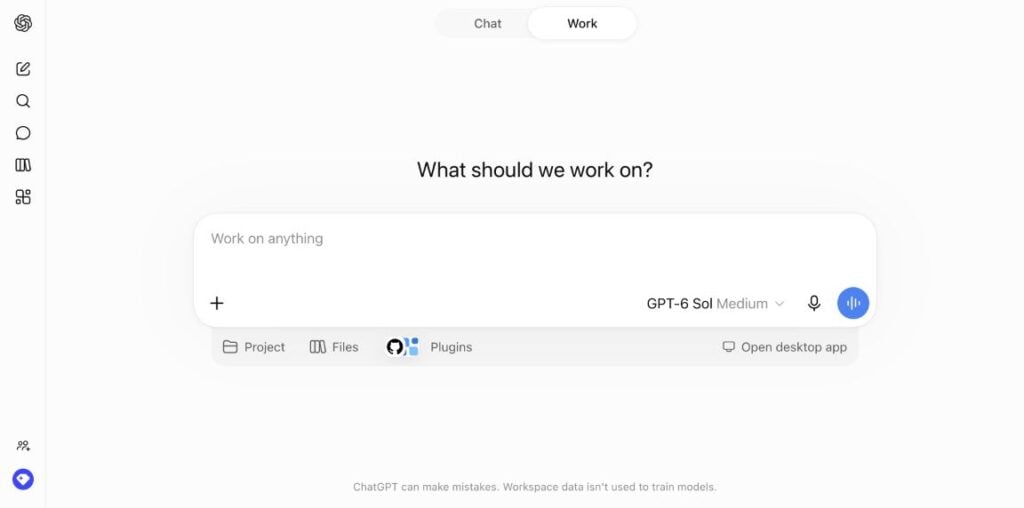
ChatGPT Voice can now turn a spoken request into work that uses your tools: finding information in connected services, preparing documents, building spreadsheets, and handling tasks in the browser. On September 23, OpenAI announced plugin support, GPT-6 Astra, Sol and Luna support, and Voice in ChatGPT Work on web and mobile. The rollout started globally that day. Read OpenAI’s announcement and watch its demo.
To try the new workflows, open ChatGPT, select Work, and choose Start Voice. Connect the service or attach the file you want it to use, then describe the result you need. For an ordinary spoken conversation, you can start Voice from Chat.
Rollout note: A launch announcement does not mean every account receives every control at once. Plan, app version, workspace policy, plugin availability, and rollout status can affect what appears. The screenshots here show the live web interface on one account. The mobile walkthrough is based on the announced rollout; mobile screens were not captured for this edition.
Start your first useful Voice session
Begin with a small request that has an obvious result. A short, sourced briefing is a better first test than handing over your entire working day.
- Open ChatGPT in a desktop browser, or update the ChatGPT app and sign in.
- Select Work for a task that needs tools or a finished file. Choose a model available to your account; the default is a reasonable starting point.
- Add the relevant file or connect a plugin if the task needs private information. Public web research does not require connecting your inbox.
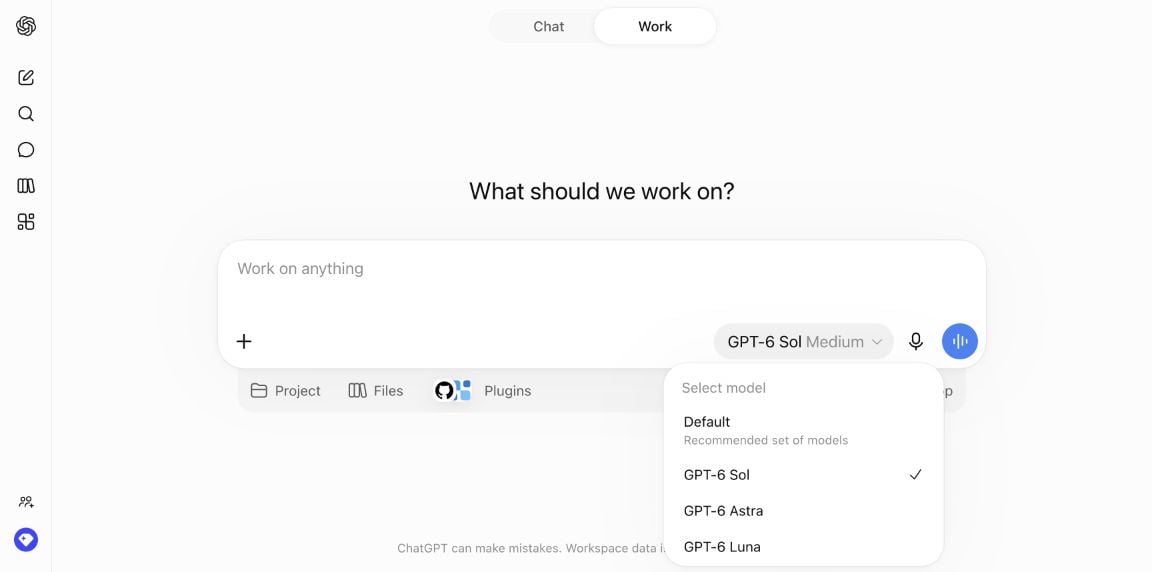
- Choose the Voice control. In the web screenshots, this is the blue button with vertical sound bars on the right of the composer. The adjacent microphone is dictation.
- Allow microphone access when prompted and complete any voice setup shown. Start speaking.
- Review the written result, sources and tool activity. Use the stop or end-call control when you finish.
Try this first:
“Search OpenAI’s official sources for the latest ChatGPT Voice changes. Explain the three most useful changes in under a minute, then leave a short written summary with links. Tell me which features are still rolling out.”
If it produces an answer without sources, follow up: “Please search now and show me the pages you used.” The evidence of a search is the search activity and linked results, not a confident spoken answer. OpenAI documents how search activity and citations appear in chat.
Voice, dictation, Chat and Work: choose the right control
| What you want | Choose | What to expect |
|---|---|---|
| Speak a prompt, edit it, then submit it | Dictation | Your speech becomes text in the composer. |
| Have a back-and-forth spoken conversation | Voice in Chat | Ask follow-ups, interrupt, and talk through an idea. |
| Use sources and tools to produce a result | Voice in Work | Describe the job, steer it while it runs, and inspect the output. |
| Discuss a software task and its progress | Voice in a supported Codex task | Use the task’s context and available tools; access depends on the client and rollout. |
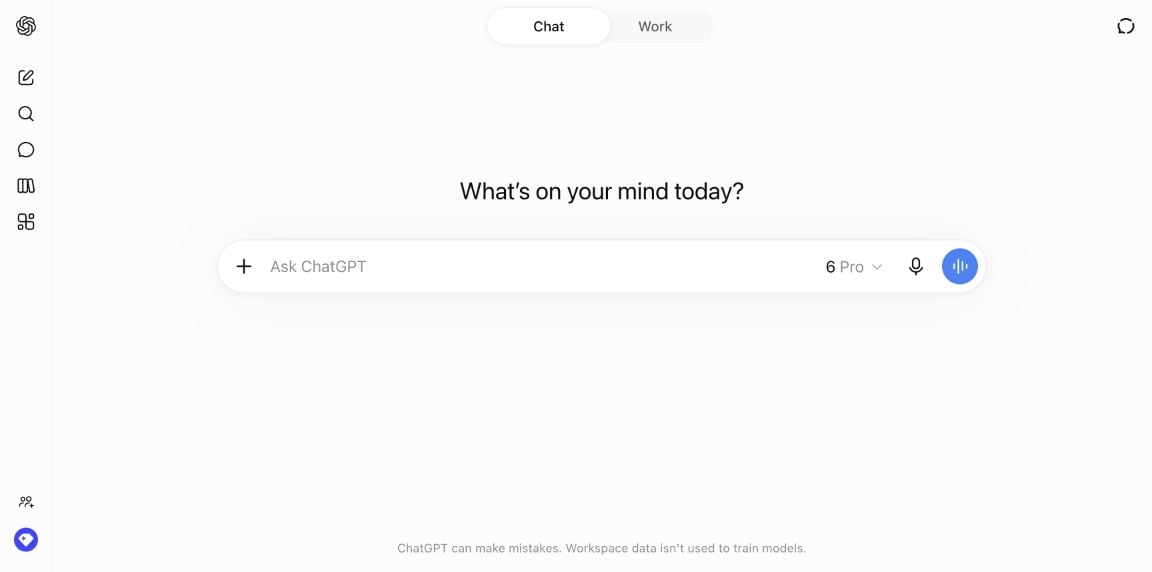
OpenAI’s Work guide recommends Work for assignments with multiple steps, sources or tools and an output you will review. That makes it the useful starting point for this tutorial. Installing a plugin and switching to Work are separate steps; neither grants access to an external account by itself.
How to use ChatGPT Voice on each device
On the web
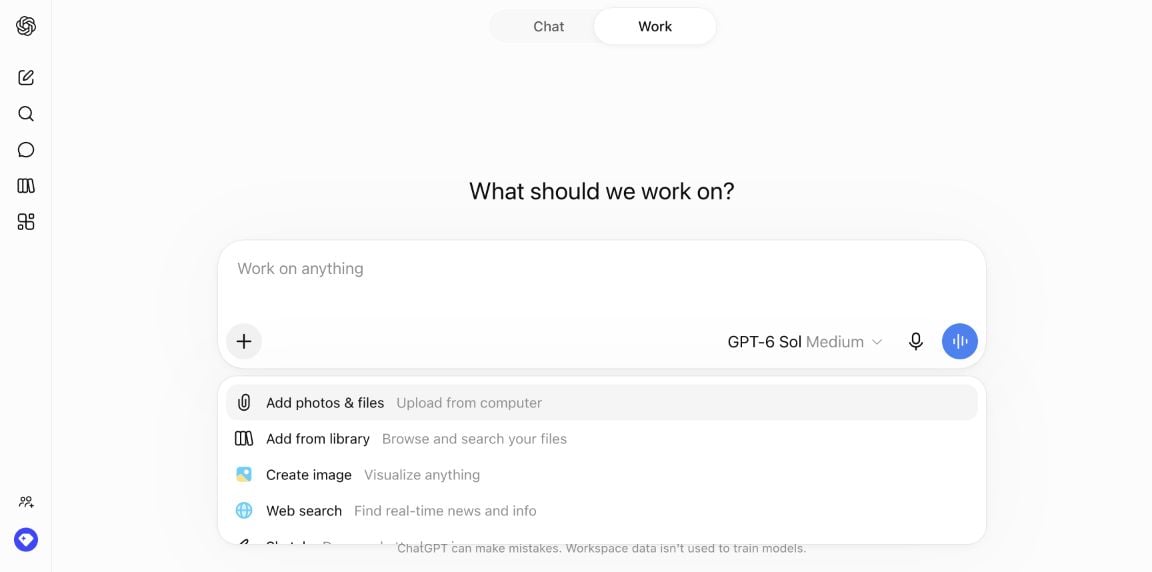
In ChatGPT, select Chat or Work at the top of a new conversation. In the Work interface we inspected, the composer includes the model selector, dictation microphone and Start Voice button. Project, Files and Plugins controls sit below it. Use the plus menu to add material before you start.
You can prepare context with your keyboard and then continue by voice. For example, attach a report, select the relevant plugin, and say: “Use the report I attached and explain the unresolved questions.” Voice is especially useful for clarifying the assignment and discussing the result.
On iPhone or Android
Install the latest version of the official ChatGPT app, open a conversation, and look for Work if you want the new task workflows. Start Voice using the voice control in that conversation and follow the microphone prompt. OpenAI’s September 23 announcement explicitly includes web and mobile Work.
Button placement can change during a rollout. If Work is present but Voice is missing, check for an app update and account or workspace restrictions before assuming you have configured it incorrectly. If a plugin says Desktop only, choose another supported workflow; OpenAI says those plugins are unavailable on mobile. See the plugin availability guide.
Keep names, dates and destinations visible when an action matters. It is easier to catch the wrong recipient in a written draft than in a spoken recap.
In the desktop app
Open a supported chat or task and choose Start voice chat, or Start new voice chat when starting fresh. The first run can ask for a microphone, a voice choice and, on macOS, a screen-context review. You can interrupt a response, ask about progress, or change direction. A custom shortcut is available under Settings → Voice → Voice chat hotkey. OpenAI’s desktop Voice instructions cover these controls.
For work that needs a local file or desktop app, check where the task is running. Desktop Work can offer local and cloud execution. A cloud task does not automatically inherit the files or apps on your computer. OpenAI explains the local/cloud choice here.
How Voice uses tools and plugins
A tool lets ChatGPT retrieve information or perform a supported action. A plugin supplies access to a particular service or workflow. For example, a calendar plugin can make calendar information available; a file tool can help create a spreadsheet. Each capability still needs the right account access and permissions.
The September 23 change means those capabilities can be part of a spoken workflow. OpenAI names email, calendar and Slack plugins, plus document, presentation, website and spreadsheet creation and browser tasks. That is a useful starting list, not a promise that every plugin offers every action on every device.
| Job | Useful access | Result to inspect |
|---|---|---|
| Find current public information | Web search | Source links and dates |
| Summarize messages or meetings | Connected email, Slack or calendar plugin | Correct account, time range and source items |
| Analyze your material | Uploaded files or a connected file service | Correct document version and supported conclusions |
| Create a deliverable | Available document, spreadsheet, presentation or site tools | A usable file or preview, with working content |
| Work through a website | Supported browser tools and any required sign-in | The destination, proposed changes and final page state |
Connect a plugin once, then name it in your request
- Open Plugins. On the web interface shown here, the composer’s Plugins menu also offers Connect plugins and Browse all plugins.
- Find the service you need and open its details. Check the developer, supported capabilities and any platform restrictions.
- Select Install plugin or the plus/install control shown by your interface.
- Complete the service’s connection flow if required. Confirm the account or workspace and review the requested access.
- Start a new chat after installation so its tools are available. Select Work for the workflows below, then start Voice.
- Name the service and scope aloud: “Use Slack to summarize the last seven days in the launch channel.” In a typed prompt, you can use @ to select a plugin explicitly.
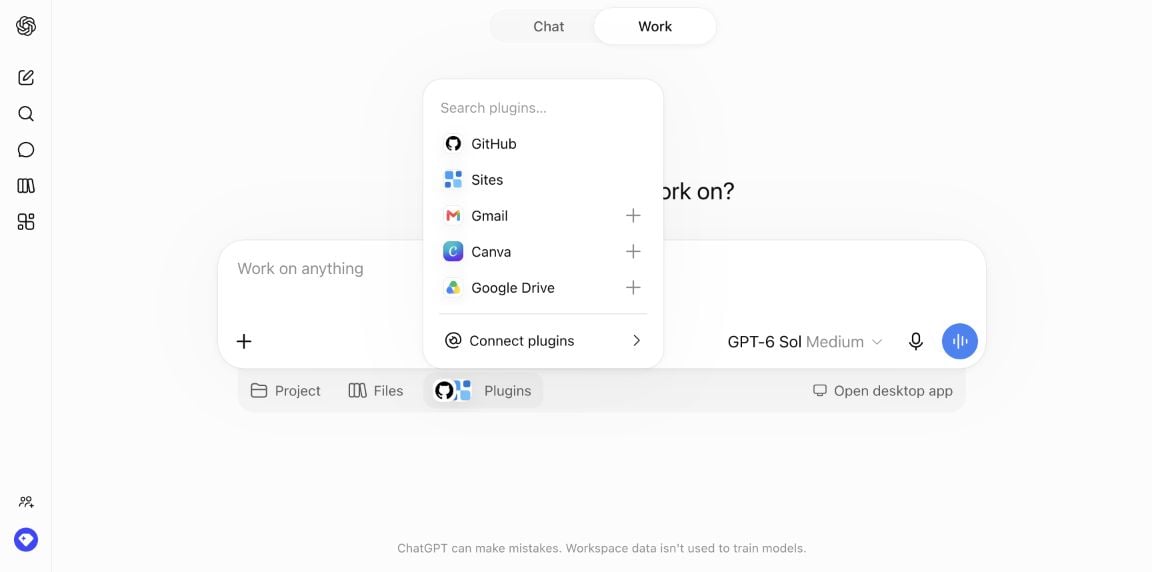
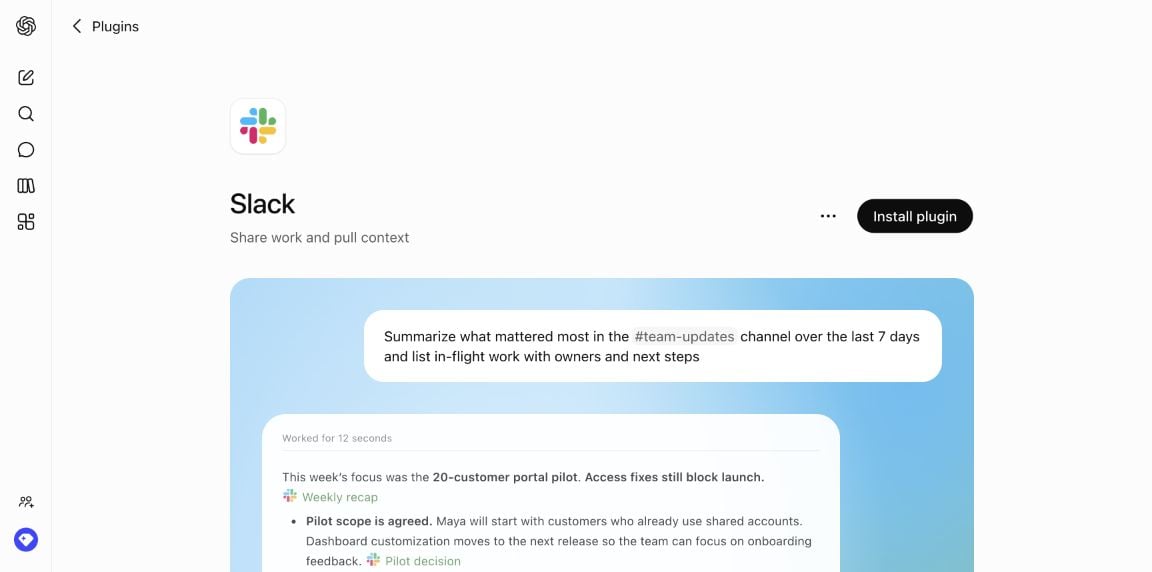
For connection errors, test one small request first. “Can you find the event named Product Review on my work calendar tomorrow?” is easier to diagnose than “Organize my week.” If nothing appears, verify the connected account and access before broadening the request. OpenAI’s installation instructions explain when a new chat or additional authentication is needed.
A complete example: prepare for tomorrow’s meetings
Once your calendar and email plugins are connected, try the sequence below. These are suggested prompts and review steps; this guide does not claim to have run them against a private inbox.
1. Define the sources, time window and output.
“Use my work calendar to find tomorrow’s meetings in Pacific Time. For each meeting, search my connected work email for the relevant recent thread. Make a one-page briefing with the purpose, open questions and anything I promised to deliver. Include links to the sources. Read me the three things I should prepare first. Do not send messages or change events.”
2. Correct the scope while it works.
“Focus on the customer review at 2 p.m. Use only material from the last two weeks. Separate confirmed commitments from your suggestions.”
3. Check whether the evidence supports the briefing.
“Which items came directly from the calendar or email, and which are your interpretation? Show me the source for the proposed deadline.”
4. Review a draft before using a write action.
“Draft a reply asking for the missing agenda. Show me the recipient, subject and full message before sending.”
The workflow is complete when you have the briefing, can open its supporting sources, and have resolved anything marked uncertain. If you decide to send the reply, approve the exact recipient and wording. A spoken description of a draft is not a substitute for checking the draft itself.
Six practical Voice prompts to try
Use the same pattern each time: source + task + constraints + output + review point. Replace the bracketed details before speaking. The examples depend on the tools and permissions available in your conversation.
1. Get a useful Slack catch-up
“Use Slack to review [channel] since Monday morning. Tell me the decisions, unresolved blockers and requests addressed to me. Link to each relevant message. Keep the spoken briefing under two minutes and put the full list in the chat.”
Ask it to distinguish a proposal from an agreed decision. A conversation about doing something does not establish that it happened.
2. Build a comparison spreadsheet
“Use these three supplier quotes. Create a spreadsheet with price, currency, delivery time, included services and renewal terms. Leave missing details blank and flag them. Explain the two biggest differences out loud. Show the formulas behind any totals.”
Check currency, tax treatment, units and formulas before relying on the result. Specify sheet names and cell references when requesting revisions.
3. Turn notes into a presentation
“Turn the attached notes into six slides for a ten-minute team briefing. Use one main point per slide, add speaker notes and cite the source for factual claims. Talk me through the proposed outline before building the deck.”
Review the exported slides as well as the outline. A good spoken structure can still produce crowded slides or unsupported claims.
4. Research and prepare a short document
“Research [topic] using current primary sources. Create a two-page briefing with the main options, evidence, uncertainties and source links. Give me a sixty-second spoken overview, then ask which option I want to explore.”
Set a date range when recency matters. Ask for explicit gaps instead of inviting it to fill missing information with guesses.
5. Work through a website
“Use the browser to compare the public plans on these three websites. Record the monthly price, usage limits and cancellation terms with links. Stop before signing up, starting a trial or entering payment details.”
Provide the websites and the exact information you need. Check the browser’s result and the source pages before taking the next step.
6. Build a draft site from a spoken brief
“Create a draft one-page website for [project]. Use the attached copy and logo. Include the offer, three features, a short FAQ and a contact section. Ask me about missing details, then show me the preview before publishing.”
Review the page on a phone-sized screen, test its links, and check the contact destination. Creating a preview and publishing it are separate outcomes; say which one you want.
Which Voice model should you choose?
OpenAI announced support for GPT-6 Astra, Sol and Luna in Voice. In the Work interface captured for this guide, the model and effort control appears inside the composer. Opening it reveals effort controls and a model selection menu.
| Model | A sensible starting use | Practical advice |
|---|---|---|
| GPT-6 Luna | A clear summary, extraction or repeatable task | Keep the scope specific and check the result. |
| GPT-6 Sol | Everyday work involving several steps or tools | A reasonable starting choice for briefings and document workflows. |
| GPT-6 Astra | A demanding assignment requiring deeper reasoning and judgment | Use it when the task’s difficulty warrants more computation. |
These are task-selection recommendations based on OpenAI’s model guidance, not results from a Voice benchmark. Start with the default effort and increase it when the work needs more analysis. The current model documentation places Sol and Luna in Work and Codex, not ordinary Chat; check which surface you are using if they seem to be missing.
Work and Codex share usage limits. The work performed, model, reasoning and tools all affect consumption, so a spoken instruction does not make a lengthy task free or unlimited. Check your usage display and OpenAI’s current plan information. Developer API prices are a separate billing context and should not be treated as the price of a ChatGPT Voice conversation.
Give Voice the right context and permissions
Start with the smallest source set that can answer the question. One document, a named channel and a date range usually give you a result that is easier to verify than unrestricted instructions to search everything.
On macOS, the desktop app’s Settings → Voice → Screen context can let ChatGPT inspect the frontmost window when you ask it to take a look. OpenAI warns that the resulting appshot can include accessible text outside the visible scroll area. Close sensitive windows or supply a specific file instead when that is more appropriate. Organizations can disable this capability. See the screen-context instructions.
Screen context and permission to operate an app are different. Showing a window provides context; actions still depend on available tools and permissions.
For connected services, read the access requested during setup. A read-capable integration and a write-capable integration have different consequences. OpenAI says the external service’s terms and privacy policy apply when data is sent through its connection. Uninstalling a plugin may also leave a separately connected integration in place, so review those connections if you want to revoke access. Read the plugin permissions guidance.
For any send, edit or publication, give an explicit destination and review point. “Draft a reply for review” and “Send this exact reply to this person” are different instructions. Voice should make those instructions easier to give, not less precise.
Troubleshooting: what to check first
| Problem | First check | Next step |
|---|---|---|
| You speak, but only text appears | You may have chosen dictation. | Select Start Voice, the separate sound-bars control. |
| Voice is missing in Work | App version, selected surface and rollout access. | Update the app or reload the web page. Check your plan and workspace restrictions. |
| Voice cannot hear you | Microphone permission and selected input device. | Check browser/app and operating-system microphone settings; test the microphone in another app. |
| A plugin appears but cannot read your data | Installation, authentication and the connected account. | Complete the connection, start a new chat, then test one named item. |
| A plugin works on desktop but not mobile | Its platform requirements. | Check for a Desktop only label and use the supported surface. |
| Astra, Sol or Luna is missing | Whether you are in Work or Codex, plus plan and workspace access. | Use an available model while the rollout reaches your account. |
| The answer sounds current but has no evidence | Whether a search or retrieval tool ran. | Ask it to search explicitly and supply the source links. |
| It gives you the wrong event or person | Ambiguous name, date, time zone or account. | Spell the name, specify the full date and time zone, and inspect the written result. |
| Desktop Voice will not start in another window | An existing voice conversation may already be active. | End that session first. OpenAI documents one active desktop voice chat at a time. |
| The task is slow or hits a limit | Scope, model, effort and available usage. | Ask for a smaller output, reduce unnecessary context, or try a lighter model. |
OpenAI’s Voice troubleshooting page and usage guide are the references for account and limit questions. Avoid assuming that a missing feature can be fixed by changing your prompt.
Frequently asked questions
Can ChatGPT Voice use tools now?
Yes. OpenAI’s September 23 announcement adds plugins such as email, calendar and Slack, GPT-6 support, and Voice in Work on web and mobile. A particular action still requires the relevant tool, connection and permissions.
Do I need a paid plan?
For the desktop Voice and Work capabilities covered by the current documentation, OpenAI lists Plus, Pro, Business, Edu and Enterprise. The launch post does not provide a complete plan-by-device table for the new rollout. Check what your account offers and the current availability matrix; do not infer Work Voice access from access to another voice feature.
Do I need an API key or to write code?
The ChatGPT interface workflow in this guide uses your ChatGPT account and normal plugin connections. It does not require you to build a voice application or supply a developer API key.
Can I interrupt it or change the assignment?
Yes. OpenAI documents natural turn-taking and interruption. Give a concrete correction: “Use the revised file,” “Limit this to the last seven days,” or “Pause before sending anything.” Check that the revised instruction appears in the task and affects the result.
Can I use files and projects while talking?
OpenAI’s August 3–7 update added uploaded-file and ChatGPT Project support to Voice. Add the correct material and name it in your request. Confirm the file version before asking it to compare or revise anything.
Does stopping Voice stop the work it started?
Do not assume that ending the audio conversation cancels a separate task. Voice can start and coordinate longer work. If you want that work to stop, say so explicitly and check the task’s status. If you only want to stop talking, use the end-call control and inspect the written result later.
Sources, verification and updates
This guide combines OpenAI’s launch announcement, current product documentation and six screenshots captured from ChatGPT’s web interface on September 23, 2026. We verified the displayed Voice entry points, model menu, file controls and plugin setup screens. Spoken tool execution, microphone quality, latency and mobile behavior were not independently tested for this edition. The sample prompts are suggested workflows, not test results.
The announcement is newer than parts of the dedicated Voice documentation, which still concentrates on desktop and describes GPT-Live. This guide uses the dated announcement for the new plugin, GPT-6 and web/mobile rollout claims, and the relevant documentation for setup and existing controls. It does not infer an undocumented audio-model architecture from the model names.
- OpenAI’s September 23 Voice announcement and demo
- ChatGPT Voice: setup, conversation, screen context and troubleshooting
- Get started with ChatGPT Work
- Plugins: installation, platform support and permissions
- Models: Astra, Sol, Luna and selection controls
- Pricing, shared usage and feature availability
- Web search and source visibility
- Voice file and Project support
Related Kingy guides: GPT-6 Sol and Luna specs and pricing, ChatGPT Work and editable files, and choosing the right ChatGPT workflow.
| Date | Editorial update |
|---|---|
| September 23, 2026 | Published the rollout guide with six web screenshots, tool setup, practical prompts, model selection, permissions and troubleshooting. Daily rollout checks are scheduled for September 24, 25 and 26; verified changes will be added here. |
For your first session, pick one source and one output: summarize one document, explain one calendar event, or prepare one sourced briefing. Inspect that result before expanding the job.