
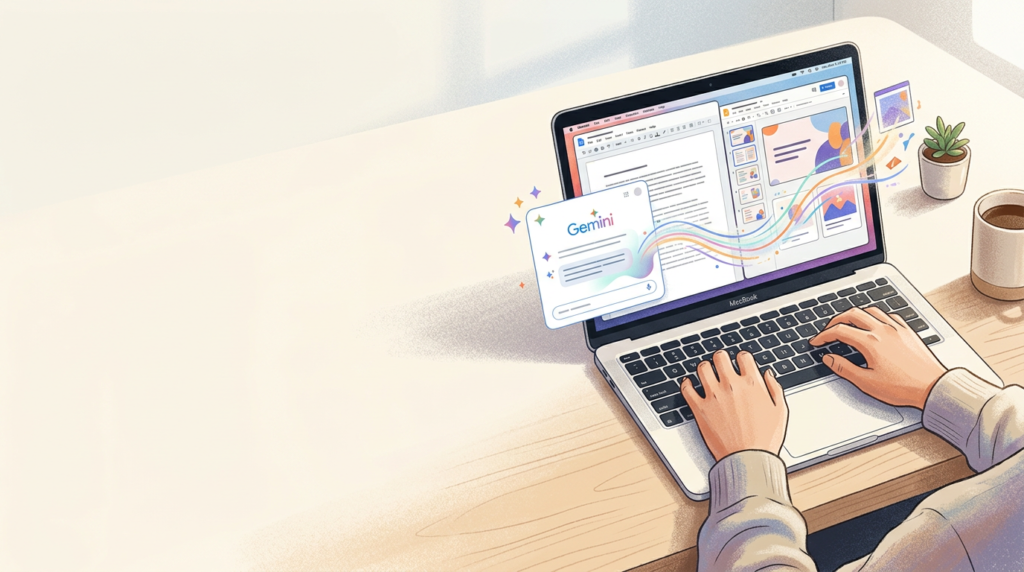
Gemini can do the clicking
Google has added Computer Use to its Gemini app for Mac, giving the assistant permission to click, type, scroll, and navigate menus in apps a user approves. It can carry a task across local files, native Mac software, and websites. Gemini does the work on a separate virtual screen, and the chat shows a live preview while the user keeps their own cursor.
Google announced the feature on November 19. TechCrunch reported the rollout by 2:09 a.m. Philippine time on November 20. The initial release is in English for eligible paid subscribers in the United States. The change is easy to picture. Ask how to build a slideshow and you can get instructions. With Computer Use, Gemini can start assembling the slides.
The chores Google has in mind
Google’s examples have one thing in common. The information is already somewhere on your computer or in a site you use. Getting it into the right place takes a small parade of clicks. Google suggests pulling dimensions from local PDFs for a shipping quote, gathering dashboard data for a presentation, and preparing resale listings from photos.
Consider the shipping example. Open the PDF. Find the measurements. Switch to the form. Pick the unit from a menu that somehow puts centimeters three scrolls away. Do it again for the next box. Each step is easy on its own. The appeal of the feature is that you can describe the whole job in one request and leave the repetitive parts to Gemini.
A second screen you can watch
When Gemini takes on a task in a desktop app, Google says it moves that work to a virtual screen. A live preview appears in the Gemini chat, and you can enlarge it for a better view. On your main screen, you can keep working in other apps while the task runs.
That’s a welcome design choice for anyone who has ever handed over a trackpad during a presentation and immediately needed it back. Imagine reviewing a script while Gemini gathers figures for the slides. You can decide when to glance at the work in progress. The preview also offers something a finished file alone can’t tell you. It shows which app Gemini is in and what it’s doing right now.
Who gets it first
At launch, Computer Use is rolling out to adults in the United States who use Gemini in English, sign in with a personal Google account, and subscribe to Google AI Plus, Pro, or Ultra. Google lists it under Tasks for personal accounts. Work and school accounts are outside this first rollout.
Google’s Mac installation guide lists Apple silicon, macOS Sequoia 15 or later, and at least 8 GB of memory for the desktop app. It also calls for a stable internet connection. Those are app requirements. The account, language, and location rules apply specifically to Computer Use. If you’re reading from the Philippines, Google’s launch announcement gives no local availability date. Access to the feature depends on the rollout and your account.
How a request becomes a task
Google puts Computer Use inside the desktop app’s Task mode. With the feature enabled, a user selects Task, mentions Computer Use, and describes the work. The setup also calls for macOS Accessibility and Screen & System Audio Recording permissions. Gemini uses its own settings to track which apps it can access.
A useful request gives the assistant a finish line. Imagine asking it to turn three specified PDFs into a draft comparison table and save the result in a named folder. Gemini has a list of inputs, an output format, and somewhere to put the file. The clearer those details are, the easier it is for the person reviewing the result to see whether the task is actually done.
App permission is a choice
The first time Gemini asks to use an app, the user can deny access, allow it once, or give it standing permission. An app you always allow goes onto a list in Gemini settings, where you can remove it later. You can also add apps to a block list. A one-time decision applies within the task or chat.
That gives two people with identical Macs room to use the feature differently. A photographer might give Gemini recurring access to an editing app for exports. Someone testing a spreadsheet workflow might allow the app for a single job and decide again next time. The choices matter most when a task spans several programs, because each additional app can bring more information into reach.
When Gemini hands control back
Google says Gemini pauses for logins or payments and may request confirmation before sensitive actions. The live preview and the option to stop a task give users another way to intervene if the assistant gets stuck or heads toward the wrong result.
Think of the difference between filling a quote form and sending it. Finding dimensions and copying them into the right boxes can be repetitive. Checking that the destination and package count are correct takes judgment. A good handoff gives the person a chance to review those details while the form is still a draft. That same pattern fits a listing or an email. The assistant can prepare the work, and the person can make the decision that commits it.
The background window has a specific job
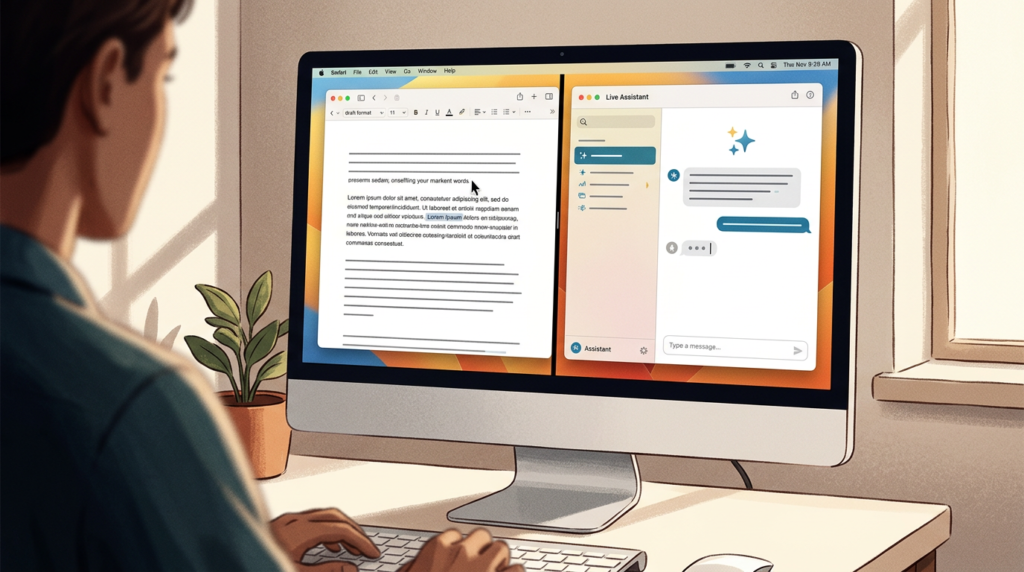
Google describes Gemini’s workspace as an isolated background window. The practical point is that Gemini can work without taking over your active screen or mouse. Its help documentation also says the assistant can interact with existing signed-in sessions inside desktop apps it has permission to use.
Those details matter together. Suppose you grant access to an app that holds both personal and project information. That app is still signed in when Gemini opens it. The job may only call for one folder or document, but the session belongs to you. In a desktop assistant, the permission you grant and the task you describe both shape what happens during the run. The separate screen lets you follow along while the work is underway.
Receipts make a good first example
Google’s help guide suggests finding receipts in Downloads, extracting the details, and filling out an expense report in tracking software. It makes sense as a demonstration because it crosses two places people already use and involves a short list of facts they can check against the originals.
It’s also easy to imagine where the job gets tricky. A folder may hold duplicate receipts, refunds, and a payment confirmation that looks like another purchase. A scanned receipt might show a subtotal and total on adjacent lines. A useful draft would leave those ambiguities visible for review. If the assistant saves an afternoon of copying numbers but gives you a half hour of detective work, that has to count when you measure the time saved.
A photo batch is easy to inspect
Google also illustrates the feature with photo editing, including applying a treatment across a set of images and exporting the results. Creative software tends to have more menus than anyone remembers, which makes a routine export a natural candidate. The finished files give the user something concrete to inspect.
Imagine a folder with forty product shots that need web-ready copies. A task could specify an output folder, a size, and an example image that shows the intended look. The user can then compare several exports with the originals and see whether Gemini followed the instructions. Repeating the same action is the part that lends itself to delegation. Choosing whether the treatment makes the product look right remains a creative decision.
Making slides from live dashboards
In Google’s presentation example, Gemini collects figures and screenshots from dashboards and assembles them in Google Slides. The example gets at a familiar problem. The chart is current, the deck is due, and the source and destination live in different places. A tool that can work across both can cut out some copying and arranging.
The quality of the result will still depend on the details. If one dashboard defaults to the current month and another shows the last thirty days, the slides could look perfectly polished while comparing different periods. The person reviewing the deck would want to check the date filters and figures against the sources. The screenshots can be part of the record a reviewer uses to retrace which view produced each number. When those checks are easy, the automation has a better chance of saving time.
A resale draft can stop before publishing
Google’s resale example brings together local photos, web research, and a listing form. Gemini can examine the pictures, pull together item details, research prices, and stage listings. That could be handy if a closet clear-out has left you with a stack of items and the sudden realization that every marketplace wants twelve fields filled in.
The seller still has details only they can verify. A photo can show a jacket’s color, while a person can confirm whether the zipper sticks. A list price from a similar item may reflect what another seller hopes to get. The draft is useful because it puts those details in one place, ready for the seller to review before deciding what to publish.
Backups have a short shelf life
Google offers an optional setting for on-demand file backups. If it’s enabled, Gemini attempts to make temporary copies during a task. Google says backups last for 24 hours or until the next prompt. It also says some content may be ineligible, depending on the app and its permissions.
That design makes the backup a practical aid for reviewing recent work. Picture Gemini saving a revised set of slides. A backup, when available, might let you compare the old and new files after the task. Changing something inside a signed-in service can be different. The service determines whether an action can be reversed, and Google notes that some actions are irreversible. Stopping the assistant prevents further work, while recovery depends on what already happened.
What Google says about onscreen content
Google’s help page acknowledges that untrusted material displayed inside an app can influence Gemini’s behavior. An agent may encounter content that looks like an instruction while carrying out the user’s actual request. Google says this could affect how it behaves across apps the user has already allowed.
That’s a challenge for software expected to make sense of whatever appears on a screen. A document can contain a mix of useful directions, quoted examples, and ordinary text. A person knows to read those things in context. The assistant has to distinguish what it sees from what the user asked it to do. The ability to limit app access and stop a run matters because the work happens in real applications with real data.
The real time savings include review
A good measure of Computer Use is the time between giving Gemini a task and having a result you can use. That includes setting up permissions, checking the work, and fixing errors. The model might finish a batch quickly, but the payoff gets smaller if you have to reopen every file to see whether it chose the right settings.
For some jobs, a quick sample tells you plenty. A folder of exported images has a visible file count, and you can check dimensions in a few seconds. A deck with figures pulled from several dashboards asks for more attention. The best results will be the ones people can verify about as easily as they can describe what they want. That can matter on a busy day, when you might otherwise put off the job until the end of the shift.
The desktop assistant gets a new job

Google has given Gemini on the Mac a job that used to fall to the person holding the mouse. It can move information between tools that may have little reason to talk to one another. The initial rollout is narrow, but it gives eligible Mac users a chance to see how that idea holds up outside a demo. Google’s examples show the kinds of tasks it designed for. They give users a starting point for judging how the feature fits their routines.
The test will be ordinary work. Can Gemini gather the right attachments, make the right copies, and leave the result where you expected to find it? Can you see what it did without spending the time you hoped to save? A well-executed run might end with nothing more dramatic than a finished folder and a cursor that stayed yours the whole time.
Sources
- Google — Gemini Computer Use announcement and example workflows
- Gemini Apps Release Notes — U.S. rollout, subscription tiers, and user controls
- Gemini Apps Help — Computer Use setup, app permissions, and file backups
- Gemini Apps Help — Mac installation and hardware requirements
- TechCrunch — Gemini’s background control of native Mac apps and websites
- The Verge — macOS rollout, live preview, and app access controls
The Kingy Brief
Get the free AI price sheet.
25 AI plans and models on one page, from official pricing pages, updated every month. Free when you join The Kingy Brief: AI changes, original tests and one practical thing to try, Fridays at 09:00 Vancouver time.
Free · Unsubscribe anytime
Signup help and newsletter schedule
After submitting, look out for the welcome email from The Kingy Brief. If the form asks you to confirm, open the confirmation email too. Check Spam or Promotions if you cannot find it.
Fridays at 09:00 Vancouver time: source-checked AI changes, original tests and one practical thing to try. We skip a week when there is not enough verified material. Free. Unsubscribe anytime.