Reviewed July 28, 2026. This refresh checks Freepik’s current Spaces material, pricing destination and Kingy’s recorded walkthrough. It does not claim a fresh production test of every model, node or credit cost.
This review explains the node-based workflow, Lists, collaboration, pricing and the cases where a simpler single-prompt tool may be enough.
What Is Freepik Spaces?
Let’s start with the basics, because “infinite canvas for AI workflows” is the kind of phrase that sounds impressive and means nothing until you see it in action.
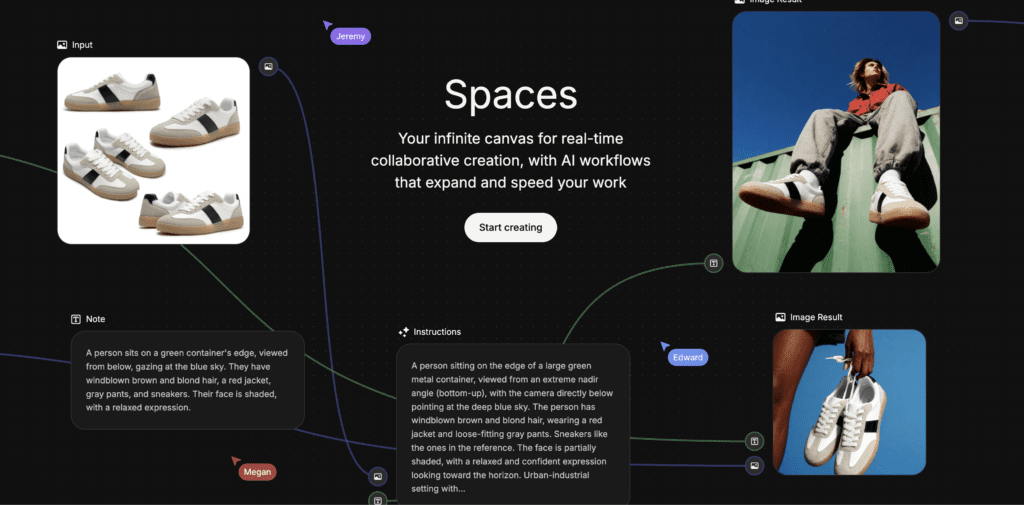
Freepik Spaces is a browser-based workspace where you build creative workflows using a system of nodes and connectors. Each node is a discrete step in your process — an uploaded image, a text prompt, an AI image generator, a video generator, an AI assistant, an upscaler. Connectors are the lines that link those nodes together, showing how information flows from one step to the next. The result is a visual map of your creative process, laid out on a canvas you can zoom, pan, and navigate freely.
As Freepik describes it on the Spaces landing page: “Spaces lets you create workflows, automate creative steps, and collaborate with your team. All in one workspace.”
That description is accurate, but it undersells the practical shift in how you work. Most AI tools — image generators, video tools, assistants — operate in a linear, single-prompt mode. You type something, you get something back, you iterate. Spaces replaces that with a spatial, structured approach where every step in your process is visible, editable, and reusable. You’re not just generating content; you’re building a pipeline.
The walkthrough video makes this concrete from the first minute. When the presenter opens Spaces and creates a new Space from scratch, the canvas presents a set of starting options: Find Inspiration, Media, Image Generator, Video Generator, Assistant. Each of these is a node type. You pick the ones relevant to your task, drop them onto the canvas, connect them in the order that makes sense, and you have a workflow. Run it once, and you have outputs. Run it again with different inputs, and you have a new set of outputs — without rebuilding anything.
Finding Spaces Inside Freepik
One practical note worth flagging early: Spaces isn’t buried. According to the Freepik Spaces FAQ, you find it in the AI Suite’s left-hand menu under the “All tools” tab. The walkthrough video confirms this — the presenter navigates to the left sidebar, clicks “All tools,” and Spaces is listed there alongside Image Generator, Video Generator, Voice Generator, and Assistant. It’s integrated into the suite rather than treated as a separate product, which matters for workflow continuity.
The Node System: Building Blocks of a Workflow
The walkthrough spends meaningful time on the “Welcome to Spaces” template, which functions as an interactive tutorial. It’s worth understanding what it covers, because it maps out the full vocabulary of the system.
According to what’s shown in the video, the key building blocks are:
- Space — the canvas itself, the container for your entire workflow
- Node — a single step or tool within the workflow
- Connector — the line linking one node to another, defining the flow of information
- Panel — the sidebar interface for interacting with a selected node
The Freepik Spaces page lists the available node types:
- Upload Node — import images or videos from your desktop
- Text Node — write prompts, notes, or team comments
- Assistant Node — use AI to expand ideas, generate text, or transform prompts
- Image Generator — turn text or reference images into visuals using AI models
- Video Generator — create videos from prompts or images
- Image Upscaler — enhance resolution using Magnific technology in Creative and Precision modes
The walkthrough adds one more that’s central to this review: the List Node, which is the engine behind Freepik Lists. More on that shortly.
What the video makes clear — and what the Freepik page confirms — is that Spaces is model-agnostic. Inside each Image Generator node, you can select from a dropdown of AI models. The Spaces landing page lists the image models available: Classic, Flux, Google Imagen, Google Nano Banana, ChatGPT, Ideogram, Mystic, Runway, and Seedream. For video, the options include Google Veo, Kling AI, Sora, Omni Human, LTX Studio, Minimax, Wan, Seedance, and PixVerse. You’re not locked into one model’s aesthetic or capability ceiling — you can pick the right tool for each specific node in your workflow.
The Templates: A Faster On-Ramp
Before getting into Lists, it’s worth pausing on the template library, because it’s one of the more thoughtful parts of the Spaces experience.
The walkthrough shows the presenter browsing the template gallery, which includes options like Social Content Studio, Storyboard Sketch to Visuals, Static to Motion Ads, Multi-Platform Covers, Character Design, and — the one the video focuses on — Marketing Campaign. The Freepik Spaces page lists the currently available templates:
- Adapt and animate ads
- Create product variations in context
- Create social media post
- Generate 360° product view
- Generate product scenes
- Localize UGC-style video
- Replace product in existing design
- Restore your memories
- Storyboard to motion
- Transform product photo into studio-quality image
Each template is a pre-built workflow — a complete set of nodes, already connected, already configured for a specific use case. You open it, swap in your own assets and prompts, and run it. The “Welcome to Spaces” template goes further: it’s essentially a guided tour of the entire system, walking through key concepts, node types, and workflow logic in a hands-on format.
The presenter’s point in the video is that templates dramatically lower the barrier to entry. You don’t need to understand node-based workflows to use one. You just need to understand what you want to make.
The Problem Spaces Is Solving
The walkthrough is explicit about the problem it’s addressing, and it’s worth stating it clearly because it’s the entire reason Spaces exists.
If you want 20 ad variations using traditional methods, the process looks like this: duplicate the workflow manually, change the headline, export, duplicate again, change the CTA, export again. Repeat. The video illustrates this with animated text that makes the tedium visceral — each step appearing one by one, the repetition building until the point is made. It’s slow, it’s error-prone, and it doesn’t scale.
The List node is the answer to that problem.
Freepik Lists: The Feature That Changes Everything
The List node is, in practical terms, the most important feature in Freepik Spaces for anyone doing high-volume creative production. Here’s how it works.
Instead of running a workflow once with a single input, the List node lets you define a structured set of variables — prompts, instructions, visual assets, or any combination — and run the entire workflow against all of them simultaneously. One workflow run. Multiple outputs. No manual duplication.
The walkthrough demonstrates this through three distinct use cases, each building on the last.
Use Case 1: Language Localisation
The first demo uses the Marketing Campaign template. The workflow starts with a single input ad — the mint-green fluffy outfit image — and connects it to a “Languages Required” node. That node uses an AI assistant to generate a list of ten languages: English, Mandarin Chinese, Spanish, French, German, Japanese, Arabic, Portuguese, Hindi, Russian.
That list feeds into a “Localised Ad Copy Generator” node, which takes the original ad copy and translates it into each language. The output is a grid of ten ad variations, each with the correct localised text, all generated from a single workflow run.
The presenter’s emphasis here is on what didn’t happen: no manual duplication, no copy-pasting into ten separate files, no running the workflow ten times. The list defined the variables; the workflow handled the rest.
Use Case 2: Creative Variation with Custom Text Overlays
The second demo is where the presenter starts customising, and it’s more revealing about the system’s flexibility.
First, he edits the input image directly within the workflow. He opens the image editor node, uploads a reference image of a pirate hat, and types a prompt: “Swap out her green hat for this Pirate Hat.” The image updates. He then types another prompt: “Change the pink font to a ‘pirate style of font’. Change the text ‘Wulno’ to a simple pirate logo.” The font shifts to something appropriately swashbuckling, and the brand name is replaced with a skull and crossbones.
Then he modifies the List node. Instead of generating language variations, he changes the AI assistant prompt to: “Give me 10 different text overlay variations, in the style of ‘pirate fashion week’ — keep the font concise — 2 to 3 words max.”
The assistant generates: Pirate Runway, Corsair Couture, Buccaneer Chic, Rogue Regalia, Seadog Style, Galleon Glam, Plunder Vogue, Deck Dapper, Sailor Swagger, Cutlass Catwalk.
Those ten phrases feed into the workflow. The output is a grid of ten images — the same pirate-hat model, the same skull-and-crossbones logo, but each with a different text overlay from the list. Ten variations. One workflow run.
This is the demo that makes the List node’s potential click. The variables aren’t just languages or headlines — they’re anything you can define in a list. Slogans, CTAs, product names, seasonal themes, campaign concepts. The workflow doesn’t care what the list contains; it just processes each item and generates a corresponding output.
Use Case 3: Demographic Variation
The third demo extends the same workflow one step further. After generating the ten pirate fashion week variations, the workflow includes an additional node: “Localise Visual Representation.” This node takes each of the ten outputs and changes the demographic of the model — different skin tones, different genders — while keeping everything else consistent: the pirate hat, the fluffy coat, the skull-and-crossbones logo, the text overlay.
The result is a grid of ten images where the creative concept is identical but the visual representation of the model varies across the set. For global campaigns where visual representation matters — and it increasingly does — this is a genuinely useful capability.
The presenter then makes the mathematical point explicit with a text overlay: “Let’s say we have: 1 Character… 5 Headlines… 4 CTAs… That’s: 1 x 5 x 4 = 20 ads generated automatically.” The combinatorial logic of the List node means that as you add variables, the output scales multiplicatively rather than linearly.
The Video Subject Replacement Demo
The walkthrough’s second major demo shifts from image generation to video, and it demonstrates a different kind of List-adjacent capability: subject replacement in UGC-style video.
The presenter searches the template library for “replace” and opens the “Replace Subject in UGC Ads” template. The workflow starts with a video input — a woman in a car, holding a drink, speaking to camera. Below it is a placeholder node for a “Character” — a new person to replace the original subject.
The presenter uploads a new character image: a female model with dark curly hair and a choker. The workflow node to the right of the character upload contains the prompt: “Change the subject in the @video reference, with the one in the @Character, keeping it unchanged in appearance, outfit, and identity.”
He runs the node. The output video shows the new character in the car, holding the same drink, mimicking the same movements as the original. The background, the product, the motion — all preserved. Only the person has changed.
This isn’t a List demo in the strict sense — it’s a single replacement rather than a batch operation — but it illustrates the broader logic of Spaces: define what you want to change, keep everything else constant, let the workflow handle the execution. The same template could, in principle, be connected to a List node containing multiple character images, generating a set of UGC-style videos each featuring a different person.
Collaboration: The Team Dimension
The walkthrough touches on collaboration, and the Freepik Spaces page is explicit about it: “Invite your teammates with one click to create, leave instant feedback and iterate together.” The FAQ confirms that multiple people can edit a workflow simultaneously, with coloured cursors showing each collaborator’s activity in real time.
This is a meaningful feature for agencies and marketing teams. The workflow-as-document model means that a senior creative can build a pipeline, share it with the team, and have junior team members run it with different inputs — without needing to understand how the nodes are wired together. The person who builds the workflow and the person who runs it don’t need to be the same person.
Freepik positions Spaces explicitly for three types of organisations on the Spaces landing page:
- Advertising agencies — brainstorm with your team and generate production-ready visuals
- Marketing teams — create replicable workflows that your teammates can follow
- Global companies — streamline and scale up your content creation processes
The platform claims to be trusted by over 600,000 creative teams, marketers, and leading global brands — a figure cited on the Spaces page itself.
Pricing: What It Actually Costs
The walkthrough mentions credits in passing — individual nodes show credit costs when you hover over them, and the video briefly shows prompts like “-1 credit” and “-520 credits” for different operations. But for the full picture, the Freepik pricing page is where you need to go.
Freepik displayed the following individual annual-billing structure when this article was reviewed. Prices, credit allowances, model access and unlimited-generation rules can change by date and region; verify the live checkout before purchase.
| Plan | Monthly Cost (Annual) | Credits/Year | Key Inclusions |
|---|---|---|---|
| Essential | $7.50/month | 96,000 | All AI models, Spaces, commercial AI license, Magnific upscalers |
| Premium | $14.50/month | 240,000 | Everything in Essential + 200M+ premium stock assets |
| Premium+ | $33.75/month | 600,000 | Everything in Premium + unlimited generations on selected models, music rights |
| Pro | $210/month | 4,000,000 | Everything in Premium+ + 20% cheaper credits, Topaz upscalers, merchandise license |
A few things worth understanding about how credits work, per the pricing FAQ:
Credits function like currency — they’re used for AI tools and features, not for downloading stock content. Each tool consumes a different amount. On annual plans, you receive all your credits upfront, and they reset every year. Unused credits don’t roll over month to month, but they do carry over if you upgrade your plan.
The credit costs vary significantly by tool. Looking at the pricing table, a Kling 3.0 Motion Control Pro video clip costs 450 credits per 3 seconds. A Google Veo 3.1 4K video with audio costs 2,080 credits per 4 seconds. Image generation is cheaper — Google Nano Banana 2 costs 75 credits per image, GPT Image 1.5 costs 150 credits per image. The implication for Spaces users is that a workflow running a List of ten items through a video generator will consume significantly more credits than the same workflow running through an image generator.
The “Unlimited Generations” feature on Premium+ and Pro plans is worth understanding carefully. Per the pricing FAQ, unlimited applies to specific models — for images, this includes Nano Banana 2, Nano Banana Pro, Seedream 4.5, GPT Image 1.5, Flux.2 Max 1K, and others. For video, unlimited applies to Wan 2.2 at 480p, MiniMax Hailuo 2.3 Fast at 768p, and Kling 2.5 at 720p. On Premium+, you get full-speed generation for up to 1,000 images within any rolling 30-day period; on Pro, that’s 5,000. After that threshold, generation continues but moves to a relaxed queue.
For free users, the Spaces FAQ confirms you can create up to 3 Spaces and use the AI tools included in the free plan — but generators consume credits, and the free plan’s credit allocation is limited. The walkthrough video shows an “Upgrade: More credits & All tools” prompt appearing when certain features are accessed, which is an honest signal that meaningful use of Spaces requires a paid plan.
What Works Well
The List node is genuinely useful. Not “useful for a demo” — useful in the way that changes how you think about creative production. The shift from “generate one thing” to “define variables and generate everything” is a real workflow change, and the demos in the walkthrough make it tangible rather than abstract. The pirate fashion week example is silly by design, but the underlying mechanic — AI-generated list feeds into bulk image generation — is directly applicable to real campaign work.
The template library lowers the barrier to entry significantly. You don’t need to understand node-based workflows to use a pre-built one. The Marketing Campaign template and the Replace Subject in UGC Ads template both demonstrate complete, functional pipelines that a non-technical user could open, customise with their own assets, and run. The “Welcome to Spaces” template as an interactive tutorial is a smart onboarding choice.
The model selection is broad. Being able to choose from Flux, Google Imagen, Nano Banana, ChatGPT, Ideogram, Mystic, Runway, Seedream, and others within a single workflow — and switch between them per node — means you’re not locked into one model’s strengths and weaknesses. For a team producing diverse content types, that flexibility matters.
The image editing within the workflow is practical. The demo shows the presenter editing the input image directly inside the workflow — uploading a reference image to swap a hat, then using a text prompt to change the font and logo — without leaving Spaces or opening a separate tool. That kind of in-workflow editing reduces the friction of iteration.
The video subject replacement is impressive. Swapping a person in a UGC-style video while preserving the background, product, motion, and context is technically complex. The demo output shown in the walkthrough holds up well — the new character is composited convincingly into the original scene.
What to Watch Out For
Credits add up fast with video. The pricing table makes this clear. If your List node is driving video generation across ten items, and each video clip costs 450–2,080 credits per few seconds, you can burn through a significant portion of your monthly allocation in a single workflow run. For image-heavy workflows, the math is more forgiving. For video-heavy ones, you’ll want to be on Premium+ or Pro — and even then, you’ll want to understand which video models fall under unlimited versus credit-based generation.
The free plan is limited for real use. The walkthrough shows upgrade prompts appearing during the demo, and the Spaces FAQ is honest about it: free users get up to 3 Spaces and the AI tools included in the free plan, but generators consume credits. If you want to actually run the kinds of workflows demonstrated in the video, you’ll need a paid subscription.
There’s a learning curve for building from scratch. The templates make Spaces accessible, but building a custom workflow from a blank canvas requires understanding how nodes connect, how information flows between them, and how to configure each node’s settings. The “Welcome to Spaces” tutorial template helps, but it’s not instant. Users who are new to node-based tools should expect to spend time with the templates before building their own pipelines.
The combinatorial math cuts both ways. The presenter’s point — 1 character × 5 headlines × 4 CTAs = 20 ads — is compelling. But it also means that if any element in the chain produces a poor output, that error propagates across all the downstream variations. Quality control on bulk-generated content requires reviewing outputs systematically, not just spot-checking.
Who Is This For?
The walkthrough’s closing message is: “Start thinking in systems, not single outputs.” That’s the right frame for understanding who Freepik Spaces and Lists are actually built for.
It’s for marketing teams and agencies producing high volumes of ad creative, campaign variations, and localised content. The language localisation demo and the demographic variation demo are both directly applicable to real campaign workflows. If your team regularly produces 10, 20, or 50 variations of a creative concept, the List node is a meaningful time-saver.
It’s for content creators who produce structured, repeatable content. If you’re generating product shots across multiple colourways, social posts across multiple formats, or thumbnails across multiple topics, the workflow-and-list approach is more efficient than running individual generations.
It’s for teams, not just solo creators. The collaboration features — real-time multi-user editing, shared canvases, coloured cursors — are designed for groups. A solo creator can use Spaces productively, but the platform’s design philosophy is oriented toward teams where one person builds the workflow and others run it.
It’s less suited to users who prioritise single-image quality above all else. If your primary need is the highest-quality individual image output and you’re willing to iterate manually, a dedicated image generator might serve you better. Spaces is optimised for volume and repeatability, not for the kind of careful, iterative single-image refinement that some creative workflows require.
The Bigger Picture
The walkthrough opens with Freepik.com’s headline: “Creative work, reimagined.” That’s marketing language, but Spaces and Lists represent a genuine attempt to back it up.
What Freepik is building with Spaces isn’t just another AI image tool. It’s a production layer — a place where creative workflows are structured, documented, shared, and scaled. The node-based canvas makes the creative process visible and reproducible. The List node makes it scalable. The template library makes it accessible. The collaboration features make it a team tool rather than a solo one.
The Freepik Spaces page describes it as being for those who “draft, create, and execute” — and that three-part framing is accurate. Spaces handles all three phases in a single environment, which is a meaningful consolidation for teams currently juggling multiple tools across those phases.
The platform is trusted by over 600,000 creative teams according to Freepik’s own figures, and the pricing structure — from $7.50/month for Essential to $210/month for Pro — covers a range from individual creators to agencies with serious production volume needs.
Verdict
Freepik Spaces makes the strongest case when the job is a system rather than a single asset: repeatable campaign variations, localization, shared workflows and controlled handoffs. The List node is the practical differentiator because it turns variables into a visible production process.
The trade-offs are equally concrete. Every branch can multiply credit use, video is expensive, and bulk output still needs human review for brand, language and visual errors. Teams should test one representative workflow, calculate its real credit cost and define approval checks before scaling it.
Bottom line: use Spaces when reuse and coordination justify the setup. For occasional one-off generation, a simpler tool may be faster and cheaper.
Related Guides
Popular Tools
Recent Launches
Latest News
Continue Reading
The Kingy Brief
Get the next Kingy Brief.
Source-checked AI changes, original tests and one practical thing to try.
Free · Choose your subjects · Double opt-in · Unsubscribe anytime