
The Complete Guide to ChatGPT: How to Use ChatGPT for Work, Research, Coding, Images, Data, Agents, and Everyday Life
Updated: June 8, 2026
ChatGPT is no longer just a chatbot.
That is the first thing to understand.
When ChatGPT launched in 2022, the big breakthrough was simple: you could talk to an AI system in plain English, ask follow-up questions, correct it, challenge it, and use the conversation itself as the interface. OpenAI described ChatGPT as a model that could answer follow-up questions, admit mistakes, challenge incorrect premises, and reject inappropriate requests. That conversational format is still the foundation of the product. But ChatGPT has grown far beyond “ask a question, get an answer.”
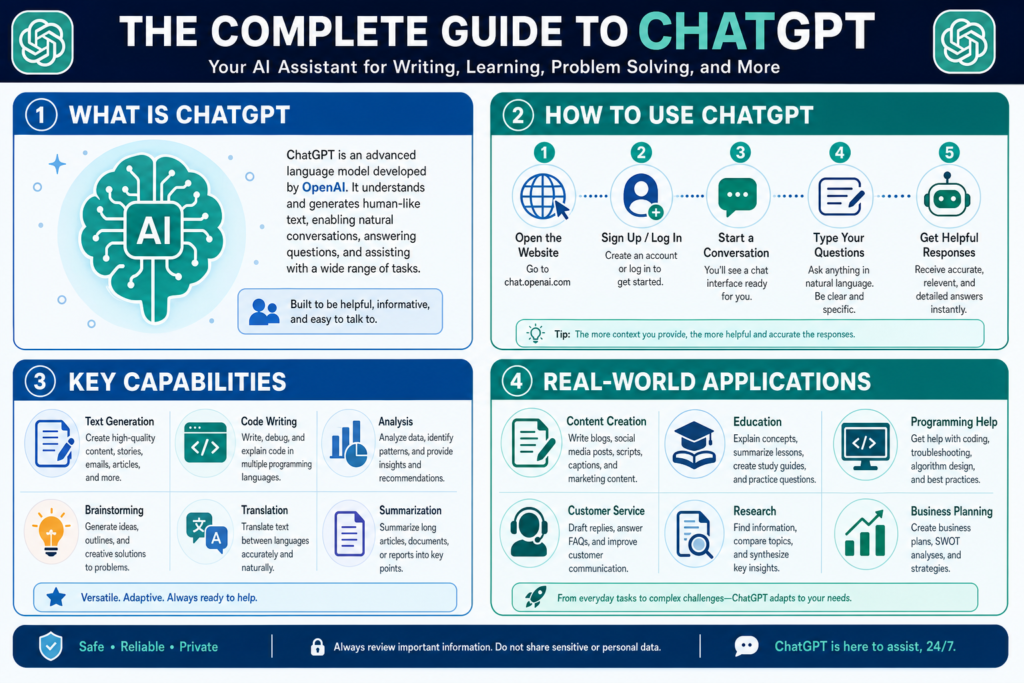
Today, ChatGPT can help you write, edit, summarize, brainstorm, learn, code, analyze files, work with spreadsheets, generate images, understand screenshots, browse the web, research deeply, talk by voice, organize long-running projects, build custom assistants, connect to apps, schedule tasks, use agents, and work with Codex to build software. OpenAI’s own capability overview now describes ChatGPT as including tools for search, deep research, data analysis, file uploads, voice, image creation, projects, canvas, custom GPTs, and more, depending on your plan and settings.
That is why most people are dramatically underusing it.
They open ChatGPT, type one vague question, accept the first answer, and leave. That is like buying a full creative studio, research department, coding assistant, tutor, spreadsheet analyst, and operations assistant — then only using it as a slightly smarter search box.
This guide is designed to fix that.
By the end, you will understand how to use ChatGPT from the basics all the way through advanced workflows involving research, files, data, images, voice, projects, GPTs, apps, agents, and Codex. More importantly, you will understand which ChatGPT feature to use for which job.
TL;DR: What can ChatGPT do?
ChatGPT can help you:
| Goal | Best ChatGPT feature |
|---|---|
| Ask questions or explain concepts | Regular chat |
| Get current information | ChatGPT Search |
| Produce a serious sourced report | Deep Research |
| Rewrite or draft text | Chat or Canvas |
| Work on a long article, script, or code file | Canvas |
| Summarize PDFs or documents | File uploads |
| Analyze spreadsheets or CSV files | Data Analysis |
| Work directly inside Excel or Google Sheets | ChatGPT for Excel and Google Sheets |
| Generate or edit images | ChatGPT Images |
| Ask questions about screenshots or photos | Image input |
| Talk hands-free | Voice Mode |
| Record and summarize meetings | Record Mode |
| Organize a long-running project | Projects |
| Personalize responses | Custom Instructions and Memory |
| Build a reusable assistant | GPTs |
| Connect outside tools and company data | Apps |
| Create repeatable team workflows | Skills |
| Schedule reminders or recurring prompts | Tasks |
| Get proactive daily research | Pulse |
| Delegate multi-step web tasks | ChatGPT Agent |
| Build, debug, and ship code | Codex |
| Browse with ChatGPT built into the web | ChatGPT Atlas |
The key is not memorizing every feature. The key is learning how to combine them.
What is ChatGPT?
ChatGPT is a conversational AI assistant from OpenAI. You give it natural language instructions, and it responds with text, code, structured outputs, explanations, ideas, summaries, plans, and, when tools are available, images, research, charts, files, and more.
The simplest way to think about it:
ChatGPT is a thinking and execution partner that works through conversation.
It can answer a question. But it can also ask you follow-up questions, improve an answer, revise its work, turn rough ideas into structured plans, explain difficult topics, critique your thinking, and help you move from idea to output.
A weak way to use ChatGPT:
Write me a blog post about AI.
A better way:
You are an expert AI educator and long-form editor. Write a beginner-friendly guide explaining how small business owners can use ChatGPT for marketing, customer support, admin work, research, and productivity. Use clear examples, practical prompts, warnings about privacy, and a checklist at the end.
The second prompt works better because it gives ChatGPT a role, a goal, an audience, a structure, and a quality bar.
That is the entire game.
What ChatGPT is good at
ChatGPT is strong at tasks where language, reasoning, structure, iteration, and pattern recognition matter.
It can help with:
- Explaining complicated ideas in simple language
- Writing and editing
- Brainstorming
- Summarizing long documents
- Creating checklists and SOPs
- Comparing options
- Planning projects
- Learning new skills
- Drafting emails, scripts, articles, and reports
- Turning messy notes into polished outputs
- Analyzing files and spreadsheets
- Creating charts and tables
- Generating and editing images
- Debugging code
- Writing code
- Conducting research
- Building custom workflows
- Delegating some multi-step tasks to agents
OpenAI’s current capability overview describes ChatGPT as useful for answering questions, explaining concepts, drafting, rewriting, summarizing, creative suggestions, logical reasoning, translation, file work, image work, data analysis, voice, projects, GPTs, and more.
That said, ChatGPT is not magic.
It is not automatically correct. It can misunderstand you. It can make confident mistakes. It can omit important context. It can produce outdated information if it is not using search. OpenAI’s own help article on factual accuracy says ChatGPT can produce incorrect or misleading outputs and may sound confident even when wrong.
The correct mindset is:
Use ChatGPT as a powerful collaborator, not an unquestionable authority.
What ChatGPT is not good at
ChatGPT should not be treated as the final authority for:
- Medical diagnosis
- Legal advice
- Tax advice
- Investment advice
- Safety-critical instructions
- Exact quotes without source checking
- Current news without search
- Product pricing without verification
- Complex calculations without review
- Anything where a wrong answer could create serious harm
That does not mean ChatGPT is useless for those areas. It means you should use it differently.
For a medical issue, use ChatGPT to prepare better questions for your doctor.
For a legal issue, use it to organize facts before speaking with a lawyer.
For financial or tax questions, use it to understand concepts and prepare for a professional conversation.
For current events, use ChatGPT Search or Deep Research and check the source links.
OpenAI says tools such as Search, Data Analysis, and Deep Research can improve factual accuracy by allowing ChatGPT to look up current information, run code-backed calculations, and provide multi-source answers.
That is the difference between casual use and serious use.
How to start using ChatGPT
At the beginner level, ChatGPT works like this:
- Open ChatGPT.
- Type what you want.
- Read the answer.
- Ask a follow-up.
- Correct anything it misunderstood.
- Ask for a different format, tone, length, or level of detail.
- Repeat until the output is useful.
You can use ChatGPT on the web, mobile apps, and desktop apps. OpenAI’s download page highlights mobile use cases such as chatting on the go, having voice conversations, asking about photos, and managing Codex from your phone.
For a beginner, the most important habit is not “write the perfect prompt.”
The most important habit is keep talking to it.
Your first prompt does not need to be perfect. In fact, it usually will not be. Treat the first answer as a draft. Then improve it.
Example:
Make this more practical.
Give me examples.
Make it shorter.
Explain this like I’m new.
Turn this into a checklist.
Ask me questions before you answer.
What are the risks?
What am I missing?
Give me a better version.
That is how you move from average results to excellent results.
ChatGPT plans: Free, Go, Plus, Pro, Business, and Enterprise
ChatGPT features vary by plan, region, workspace settings, and availability. That changes often, so always check OpenAI’s current pricing page before making buying decisions. As of the current OpenAI pricing page, ChatGPT plans include Free, Go, Plus, Pro, Business, and Enterprise options, with different levels of access to messages, uploads, image generation, deep research, memory, context, Codex, and other features.
A practical way to think about the plans:
| Plan type | Best for |
|---|---|
| Free | Trying ChatGPT, light use, basic questions |
| Go | More access at a lower price point where available |
| Plus | Everyday power users |
| Pro | Heavy users, advanced work, research, coding, high-stakes productivity |
| Business | Teams that need a shared workspace, admin controls, billing, and collaboration |
| Enterprise / Edu | Large organizations, universities, managed security, governance, and higher-usage workflows |
Do not choose a plan only because of the model name. Choose based on the work you want done.
A casual user may only need Free or Go. A creator, marketer, student, founder, analyst, or developer may benefit from Plus or Pro. A company should usually look at Business or Enterprise because workspace controls, data settings, user management, apps, and admin controls matter.
OpenAI describes ChatGPT Business as a self-serve plan for organizations that need a shared workspace, admin controls, centralized billing, usage visibility, spend controls, and access to ChatGPT and Codex depending on seat type.
Enterprise is positioned differently. OpenAI describes ChatGPT Enterprise as a managed plan that combines enterprise-grade privacy and security, centralized administration, advanced tools, higher-usage workflows, SSO, SCIM, domain verification, and usage insights.
For personal use, most people should start simple. For business use, plan choice matters much more.
The most important ChatGPT skill: prompting
A prompt is just your instruction.
That is it.
A prompt can be one sentence:
Explain compound interest.
Or it can be a detailed brief:
You are a patient finance teacher. Explain compound interest to a beginner who is trying to understand long-term investing. Use a simple example with $100, then $1,000. Include a table. Avoid jargon. End with three questions to test my understanding.
The second prompt is better because it gives context.
A good prompt usually includes six parts:
The Kingy AI prompt formula
Role + Goal + Context + Constraints + Output Format + Quality Bar
Here is what that means:
| Prompt piece | What it does |
|---|---|
| Role | Tells ChatGPT what perspective to use |
| Goal | Tells ChatGPT what you want accomplished |
| Context | Gives background so the answer fits your situation |
| Constraints | Sets limits, tone, audience, length, or rules |
| Output format | Tells ChatGPT whether you want a table, article, checklist, script, JSON, etc. |
| Quality bar | Tells ChatGPT what “good” looks like |
Example:
You are an expert YouTube strategist. Help me create a video outline for a beginner-friendly tutorial on ChatGPT. The audience is small business owners who are curious but overwhelmed. Keep the language simple. Include a hook, title ideas, demo flow, examples, and a final checklist. Make it practical enough that someone could follow it today.
That is a strong prompt.
But here is the secret: prompting is not about fancy words. It is about clear direction.
Beginner prompting mistakes
Most bad ChatGPT outputs come from one of these mistakes:
| Mistake | Better approach |
|---|---|
| “Write something about AI” | Give the audience, goal, format, and angle |
| Asking for too much at once | Break the job into steps |
| Accepting the first answer | Ask for revisions |
| Not giving examples | Paste a sample style or format |
| Not defining quality | Tell ChatGPT what a great output should include |
| Not checking facts | Use Search, Deep Research, or original sources |
| Not using files | Upload source material when available |
| Not using Projects | Keep long-running work organized |
| Treating it like Google only | Use it as a collaborator, editor, analyst, and builder |
A good rule:
The more important the output, the more context you should provide.
How to use ChatGPT for everyday life
ChatGPT can help with ordinary tasks:
- Meal ideas
- Travel planning
- Gift ideas
- Fitness routines
- Pet care questions
- Home troubleshooting
- Explaining bills or documents
- Drafting polite messages
- Planning a schedule
- Making decisions
- Breaking big goals into smaller steps
Example prompt:
I have a busy week and feel overwhelmed. Ask me five questions about my schedule, then help me create a realistic plan for the next seven days. Prioritize health, work, and family obligations. Do not overpack the schedule.
Another:
I’m deciding between two options. Help me compare them using a decision matrix. Include cost, risk, upside, time commitment, hidden downsides, and what I should verify before deciding.
ChatGPT is especially useful when you feel stuck. It can turn a vague problem into a set of next steps.
How to use ChatGPT for writing
Writing is still one of ChatGPT’s strongest everyday uses.
You can use it to:
- Brainstorm ideas
- Create outlines
- Draft articles
- Rewrite rough notes
- Improve clarity
- Shorten long text
- Expand thin ideas
- Change tone
- Create headlines
- Write introductions
- Build FAQs
- Turn transcripts into articles
- Turn articles into scripts
- Turn scripts into social posts
The biggest mistake is asking ChatGPT to “write an article” with no source material or direction.
Better:
I’m writing an article for small business owners about how to use ChatGPT for customer support. Create a detailed outline first. The article should be practical, beginner-friendly, and honest about limitations. Include examples, prompts, privacy warnings, and a final checklist.
Even better:
Here are my rough notes. Turn them into a clear article, but preserve my point of view. Do not invent statistics. If a claim needs a source, mark it as “needs source.” Use short paragraphs and practical examples.
That last line matters: do not invent statistics.
ChatGPT can help you write faster. But the best content still needs real judgment, real examples, real sources, and a clear point of view.
How to use ChatGPT for editing
ChatGPT is often more useful as an editor than as a first-draft writer.
Use it to ask:
- Is this clear?
- Is this too long?
- Where does the argument get weak?
- What should I cut?
- What should I expand?
- Does the tone fit the audience?
- What questions would a reader still have?
- Where does this sound generic?
- How could the intro be stronger?
Example prompt:
Edit this for clarity, flow, and usefulness. Keep my meaning. Do not make it sound corporate. Remove repetition. Make the writing sharper and easier to read. Then list the biggest changes you made.
Another:
Act as a skeptical editor. Tell me what is weak, vague, unsupported, boring, or confusing in this draft. Do not rewrite yet. First give me the critique.
That is how you use ChatGPT like a real collaborator.
How to use ChatGPT for SEO content
For SEO, ChatGPT should not be used as a thin content machine.
That is the lazy path.
The better approach is to use ChatGPT as a research, structure, quality, and workflow assistant.
ChatGPT can help you:
- Analyze search intent
- Create article outlines
- Build topic clusters
- Compare competing pages
- Draft meta titles and descriptions
- Create FAQ sections
- Suggest internal links
- Refresh old articles
- Create comparison pages
- Create alternatives pages
- Build content briefs
- Turn official sources into readable summaries
- Identify missing sections in competitor content
- Create tables, checklists, and decision frameworks
Example prompt:
I want to write the best article on the internet for the keyword “ChatGPT for small business.” First, analyze the likely search intent. Then create a content brief with reader pain points, sections to include, common mistakes, internal link opportunities, examples, FAQs, and a quality checklist. Do not draft the article yet.
For Kingy AI specifically, this is where ChatGPT becomes extremely powerful. You can use it to build serious AI guides, launch trackers, comparison pages, tool databases, prompt packs, tutorials, and evergreen educational resources.
But the winning formula is not:
AI writes article. Publish.
The winning formula is:
Research + sources + original analysis + real examples + human judgment + ChatGPT for speed and structure.
That is how you avoid generic AI sludge.
How to use ChatGPT for YouTube
ChatGPT is extremely useful for YouTube creators.
You can use it for:
- Video ideas
- Hooks
- Titles
- Scripts
- Chapters
- Descriptions
- Thumbnail concepts
- Sponsor integrations
- Product review structures
- Comparison scripts
- Shorts scripts
- Community posts
- Repurposing videos into articles
Example prompt:
Create a YouTube video outline for a beginner-friendly review of ChatGPT. The audience is AI-curious business owners. Include a strong opening hook, demo sequence, common mistakes, advanced features, privacy warnings, and a final verdict. Give me 10 clickable title ideas and 5 thumbnail concepts.
Another:
Turn this article into a YouTube script. Keep it conversational. Add places where I should show screen recordings. Include a hook in the first 10 seconds and a clear reason viewers should keep watching.
For AI tool reviews, ChatGPT can also help create a repeatable review framework:
| Section | Purpose |
|---|---|
| Hook | Why this tool matters now |
| What it is | Simple explanation |
| Demo | Show real use |
| Best use cases | Who should care |
| Pricing | What it costs |
| Pros | Where it shines |
| Cons | What feels unproven |
| Alternatives | What else to compare |
| Verdict | Who should try it |
That structure works especially well for Kingy AI-style content.

How to use ChatGPT for learning
ChatGPT can be a tutor.
It can explain topics at your level, quiz you, create study plans, give practice tasks, correct your answers, and adapt explanations until something clicks.
Example prompt:
Teach me prompt engineering from beginner to advanced. Start with a diagnostic quiz. Then teach one concept at a time. After each concept, give me a practical task. Grade my answer before moving on. If I ask a question, answer it and then return to the lesson flow.
That is a powerful learning pattern.
You can use it for:
- Coding
- AI tools
- Writing
- Marketing
- History
- Science
- Languages
- Business
- Math
- Finance concepts
- Software tools
- Interview prep
OpenAI also has Study Mode, a ChatGPT learning experience designed to help users work through topics interactively. OpenAI recommends telling ChatGPT your level, topic, deadline, and relevant materials, and says Study Mode can use class notes, syllabi, photos of problems, voice dictation, and memory when enabled.
A good learning prompt:
I want to learn [topic]. My current level is [level]. My goal is [goal]. I can study [time] per week. Create a 30-day plan. Each lesson should include an explanation, example, practice task, quiz, and feedback step.
ChatGPT is not a replacement for effort. It is a way to make effort more directed.
ChatGPT Search: when you need current information
Regular ChatGPT is not always enough.
If you need current facts, use ChatGPT Search.
OpenAI describes ChatGPT Search as a way to get fast, timely answers with links to relevant web sources. ChatGPT can choose to search based on your question, or you can manually choose search using the web search icon.
Use search for:
- News
- Current AI launches
- Product pricing
- Recent software updates
- Laws and regulations
- Travel details
- Sports scores
- Stock prices
- Product specs
- Recent company information
- Current availability
- Anything that may have changed recently
Example prompt:
Search the web and summarize the latest official information about ChatGPT pricing. Use OpenAI sources first. Tell me what changed recently and what plan is best for a heavy individual user.
Another:
Search for the latest AI video tools launched this week. Prioritize official launch pages, Product Hunt, GitHub, and company blogs. Create a table with product name, what launched, target audience, pricing, and whether it is good YouTube content.
The rule is simple:
If the answer could have changed recently, use Search.
Deep Research: when you need a serious report
Search is for quick facts.
Deep Research is for depth.
OpenAI describes Deep Research as a mode that can reason, research, and synthesize complex questions into a documented report. It can work with uploaded files, search the public web or specific sites, and use enabled ChatGPT apps while keeping the user in control.
Use Deep Research for:
- Market research
- Competitive analysis
- Startup research
- AI product landscapes
- Scientific literature summaries
- Vendor comparisons
- Policy research
- Investment preparation
- SEO research
- Company background research
- Serious buying decisions
- Long-form reports
Example prompt:
Use Deep Research to create a market map of AI coding tools in 2026. Prioritize official company sources, documentation, pricing pages, funding announcements, GitHub activity, and credible media coverage. Include categories, major players, pricing models, target users, strengths, weaknesses, and open questions.
Another:
Use Deep Research to compare ChatGPT, Claude, Gemini, and open-weight models for small business users. Focus on real workflows, not benchmark hype. Include sources, limitations, plan differences, and a practical decision table.
Deep Research is one of the biggest jumps from casual ChatGPT use to professional ChatGPT use.
OpenAI’s own Deep Research help page says search is better for quick facts, while Deep Research is better for depth and thoroughness.
A good rule:
| Need | Use |
|---|---|
| Quick fact | Search |
| Current news | Search |
| “What is this?” | Regular chat or Search |
| Multi-source report | Deep Research |
| Market map | Deep Research |
| Serious comparison | Deep Research |
| Source-backed article | Deep Research plus human editing |
File uploads: how to use ChatGPT with PDFs, docs, slides, and spreadsheets
File uploads are one of the most underrated ChatGPT features.
Instead of asking generic questions, you can upload the actual material you want ChatGPT to use.
OpenAI says file uploads can support tasks such as combining or analyzing information from files, comparing documents, analyzing sentiment or tone, analyzing spreadsheets, applying a rubric from one document to another, summarizing research papers, giving feedback on presentations, rewriting documents, and turning presentations into documents.
You can use file uploads for:
- PDFs
- Word documents
- Presentations
- CSV files
- Spreadsheets
- Text files
- Notes
- Reports
- Contracts
- Course materials
- Research papers
Example prompts:
Summarize this PDF for a beginner. Give me the main argument, supporting evidence, important terms, strongest objections, and five questions I should ask after reading it.
Compare these two documents. What changed? What is missing? What conflicts? What should I review carefully before signing?
Turn this presentation into a blog post outline. Preserve the main ideas, but make the structure more readable.
Read this spreadsheet and tell me the biggest trends, outliers, risks, and questions I should investigate next.
One important caution: ChatGPT can miss things in complex documents. If a PDF has scanned images, dense tables, unusual formatting, or embedded visuals, verify the original file.
Use ChatGPT to accelerate understanding, not to avoid reading important documents.
Data Analysis: using ChatGPT as a spreadsheet and chart assistant
ChatGPT’s Data Analysis tool can inspect uploaded data, create tables and charts, and review code-backed analysis.
This is a major upgrade from asking ChatGPT to “estimate” something in plain text.
Data Analysis can help with:
- Cleaning messy data
- Summarizing trends
- Finding outliers
- Creating charts
- Calculating totals
- Comparing categories
- Transforming CSV files
- Creating new columns
- Explaining formulas
- Building projections
- Spotting data quality issues
Example prompt:
Analyze this CSV. First summarize what columns it contains. Then check for missing values, duplicates, obvious data quality issues, trends, and outliers. Create charts where helpful. Explain your assumptions.
Another:
Clean this spreadsheet and create a new version with standardized column names, removed duplicates, formatted dates, and a summary tab.
For business users, this is one of the most practical ChatGPT features. Many people spend hours fighting with spreadsheets. ChatGPT can help you move faster — but you should still verify the numbers.
OpenAI’s ChatGPT for Excel and Google Sheets feature brings the assistant directly into spreadsheet apps. OpenAI describes it as a sidebar experience inside Excel and Google Sheets that can help build, update, and explain spreadsheets, including large multi-tab files with formulas, references, and assumptions.
That matters because spreadsheet work often lives where the spreadsheet already is. Instead of copying everything into ChatGPT, you can work inside the file.
Use it for:
- Formula help
- Financial models
- Cleaning messy sheets
- Explaining formulas
- Updating tables
- Asking questions about data
- Standardizing formatting
- Building models from scratch
OpenAI also warns that ChatGPT is not a financial, legal, or tax advisor and that users should verify outputs. That warning is especially important for spreadsheet work because a confident-looking formula can still be wrong.
Image input: asking ChatGPT about pictures, screenshots, and visuals
ChatGPT can also work with images.
You can upload a screenshot, photo, chart, diagram, or visual and ask questions about it. OpenAI’s image input FAQ says users can add images by using the prompt area’s attachment option, dragging an image into the text area, or pasting an image from the clipboard. It currently supports static image formats such as PNG, JPEG, and non-animated GIF.
Use image input for:
- Screenshot troubleshooting
- UI feedback
- Chart explanation
- Diagram explanation
- Design critique
- Visual brainstorming
- Reading menus or signs
- Turning whiteboards into notes
- Asking what is in an image
- Getting feedback on thumbnails or graphics
Example prompts:
Analyze this YouTube thumbnail. What is the first thing a viewer notices? What is confusing? How could I improve click-through rate?
Explain this chart in plain English. What does it show, what might be misleading, and what questions should I ask about the data?
Look at this screenshot of my website. Give me a UX critique focused on clarity, trust, and conversion.
Important limitation: image understanding is useful, but not perfect. Do not rely on it for medical image diagnosis, legal document verification, safety-critical visual inspection, or precise measurements unless a human expert verifies the result.
ChatGPT Images: generating and editing visuals
ChatGPT can generate and edit images.
OpenAI says you can create an image by describing what you want, and you can edit an image generated by ChatGPT Images or upload an existing image and describe the change. You can use a selection tool for a specific area or describe the edit directly, and you can generate images in different aspect ratios.
Use ChatGPT Images for:
- YouTube thumbnails
- Blog images
- Social media visuals
- Ad concepts
- Product mockups
- Icons
- Diagrams
- Educational visuals
- Website hero images
- Storyboards
- Concept art
- Slide visuals
A strong image prompt includes:
Subject + style + composition + lighting + background + details + aspect ratio + constraints
Example:
Create a 16:9 cinematic YouTube thumbnail showing a person looking at a glowing ChatGPT interface, with a clean futuristic workspace, dramatic lighting, high contrast, and space on the left for large text. Do not include any logos.
Another:
Create a clean educational diagram explaining the difference between regular ChatGPT, Search, Deep Research, and Agent Mode. Use a simple modern layout, minimal text, and a 16:9 aspect ratio.
For editing:
Keep the image the same, but change the background to a clean modern office. Keep the person’s pose and lighting natural.
One practical warning: image edits may not always stay perfectly inside the selected area. OpenAI notes that highlights are not always precise and edits may extend beyond the selected region.
So treat image generation as iterative. Generate, critique, revise, and repeat.
Voice Mode: talking to ChatGPT naturally
Voice is one of the most natural ways to use ChatGPT.
OpenAI’s Voice Mode FAQ describes voice chats with ChatGPT, including setup, capabilities, and limitations.
Use Voice Mode for:
- Brainstorming while walking
- Practicing interviews
- Language learning
- Coaching conversations
- Talking through decisions
- Hands-free planning
- Explaining ideas out loud
- Role-playing sales calls
- Practicing presentations
- Working through confusion
Voice is powerful because it lowers friction. You do not need to write a perfect prompt. You can just start talking.
Example:
I want to talk through a business idea. Ask me one question at a time. Push back when I’m being vague. Help me clarify the customer, problem, offer, pricing, and next step.
Another:
Act as a patient coding tutor. I’m going to explain what I think this code does. Correct me when I’m wrong, but do it in a supportive way.
Voice works especially well for people who think better out loud.
Record Mode: turning meetings and voice notes into outputs
Record Mode is different from Voice Mode.
Voice Mode is for conversation.
Record Mode is for capturing and summarizing audio.
OpenAI says Record Mode can transcribe and summarize meetings, brainstorms, or voice notes. The summaries are saved as canvases in chat history and can be turned into outputs such as project plans, emails, or code. At the time of the current help article, Record Mode is available for Plus, Enterprise, Edu, Business, and Pro workspaces, and only in the macOS desktop app.
Use Record Mode for:
- Meetings
- Brainstorms
- Sales calls
- Coaching calls
- Interviews
- Voice memos
- Planning sessions
- Content ideas
- Project debriefs
Example workflow:
- Record a meeting.
- Ask ChatGPT for a summary.
- Ask for action items.
- Turn action items into a project plan.
- Draft follow-up emails.
- Create a checklist.
- Create a task owner table.
- Ask what was unclear or unresolved.
Important: get consent before recording others and follow local laws. OpenAI also warns that ChatGPT may make mistakes in transcriptions, so check important information.
Canvas: the workspace for writing and coding
Chat is great for conversation.
Canvas is better for working on a longer piece of content or code.
OpenAI describes Canvas as an interactive workspace for co-writing, editing, or debugging alongside ChatGPT. You can mark up text, get inline suggestions, and work in a shared space.
Use Canvas for:
- Articles
- Scripts
- Reports
- Emails
- Landing pages
- Code files
- Documentation
- Essays
- Courses
- Long prompts
- Editing drafts
- Debugging code
Canvas is useful when you do not want your work buried inside a long chat thread. It gives the work its own space.
Example prompt:
Open this draft in Canvas. Help me improve the structure, strengthen the introduction, remove repetition, and add a practical checklist. Do not rewrite everything at once. Suggest section-by-section improvements.
For code:
Put this file in Canvas. Explain what it does, identify bugs, suggest improvements, and then make the smallest safe fix.
Canvas can also preview web content, but OpenAI warns that web previews can communicate with third parties, so users should be careful with sensitive information.
That is a good reminder: the more powerful the tool, the more careful you should be with data.
Custom Instructions: making ChatGPT respond the way you want
Custom Instructions let you tell ChatGPT how you want it to respond across chats.
OpenAI says custom instructions allow you to share anything you want ChatGPT to consider in its responses, and they are available on all plans across web, desktop, iOS, and Android.
Good Custom Instructions might include:
- Who you are
- What you do
- Your writing style
- Your preferred tone
- Your business context
- Your audience
- Your formatting preferences
- Things you dislike
- Things you always want included
- Things you never want included
Example:
I run an AI education and review website. My audience includes creators, founders, marketers, and business owners. Write clearly and practically. Avoid hype. Use examples. Do not hallucinate. When discussing current products, recommend checking official sources. Use headings, tables, and checklists when helpful.
Custom Instructions are best for stable preferences.
Use them for things that are usually true.
Do not put temporary project details there. That is what Projects are for.
Memory: personalization over time
Memory lets ChatGPT personalize responses based on details it remembers.
OpenAI’s release notes say ChatGPT memory has been upgraded to better keep context up to date, reduce stale or contradictory saved memories, and help ChatGPT understand preferences, goals, and ongoing work.
Memory is useful for:
- Writing preferences
- Long-term goals
- Repeated projects
- Your business context
- Your learning goals
- Your preferred structure
- Personal preferences
- Things you do not want to repeat every time
Memory is different from Custom Instructions. OpenAI explains that Custom Instructions are explicit guidance you add, while Memory can remember relevant details shared in conversations.
Use Memory for recurring context.
Use Custom Instructions for fixed instructions.
Use Projects for specific workspaces.
Use temporary chats or memory off when you do not want personalization.
A good practice:
Ask ChatGPT: “What do you remember about me that could affect your answers?” Then review it.
Another:
Remember that I prefer WordPress-ready articles with clear headings, practical examples, and no made-up claims.
And when needed:
Forget that.
Memory is powerful, but you should manage it intentionally.
Projects: organizing long-running work
Projects are one of the best ChatGPT features for serious users.
Instead of having dozens of disconnected chats, you can group related conversations, files, and instructions into one workspace.
OpenAI describes Projects as a way to work faster with built-in tools such as Canvas, image generation, Study Mode, Voice Mode, and web search inside project contexts.
Use Projects for:
- Building a website
- Creating a course
- Writing a book
- Running a content calendar
- Managing client work
- Researching a market
- Learning a skill
- Building an app
- Planning a launch
- Creating SOPs
- Running a YouTube channel
- Tracking a business idea
Example project setup:
Project name: Kingy AI ChatGPT Guide
Project instructions: Write in a clear, practical Kingy AI style. Use official sources. Do not hallucinate. Keep sections WordPress-friendly. Use examples, tables, and checklists.
Files: Brand guidelines, previous article examples, keyword research, source documents, notes.
Chats: Outline, source research, draft sections, SEO metadata, FAQ, image prompts, social posts.
That is a serious workflow.
Instead of restarting context every time, the project becomes the workspace.
OpenAI’s Projects help page also notes that uploaded project files can be previewed, downloaded, or deleted, and that shared project files are removed for everyone if deleted from the shared project.
For advanced users, Projects are the difference between random prompting and building a real AI operating system.
GPTs: building custom versions of ChatGPT
GPTs are custom versions of ChatGPT built for specific jobs.
OpenAI says users can create, configure, test, and manage GPTs with instructions, knowledge, capabilities, apps, actions, and version history.
Use GPTs for repeatable assistants such as:
- SEO brief generator
- YouTube script assistant
- Customer support assistant
- Brand voice editor
- Sales email assistant
- Course tutor
- Research assistant
- Code review assistant
- Legal document explainer
- Internal SOP assistant
- Product review assistant
A normal chat is best for flexible one-off work.
A GPT is best when you want the same type of work done repeatedly.
Example:
Build a GPT that helps me create AI tool review articles for Kingy AI. It should ask for the tool name, official website, pricing, target audience, demo notes, strengths, weaknesses, YouTube angle, SEO angle, and final verdict. It must not invent facts and should mark unknowns clearly.
That is the kind of assistant a creator or business owner can reuse.
Apps in ChatGPT: connecting outside tools
Apps let ChatGPT work with connected services and information.
OpenAI says “connectors” have been renamed to “apps” to create one unified experience of connected applications in ChatGPT. The functionality includes apps with file search, apps with deep research, and apps with sync.
Depending on your plan, permissions, and workspace settings, apps can help ChatGPT work with tools such as:
- Google Drive
- Gmail
- Outlook
- Microsoft Teams
- Slack
- GitHub
- Notion
- Dropbox
- Box
- HubSpot
- SharePoint
- OneDrive
- Other workspace systems
Use apps when ChatGPT needs your real work context.
Example prompts:
Search my connected documents for our latest pricing deck and summarize the key changes.
Find the most recent client notes about this project and create a follow-up email.
Review the GitHub issue and draft a proposed implementation plan.
Admin controls matter here. OpenAI’s app security documentation says Enterprise and Edu apps are disabled by default, while Business workspace admins can control enabled apps and role-scoped app permissions.
That is important for companies. Connecting apps can make ChatGPT far more useful, but it also increases the importance of permissions, data governance, and user training.
Skills: reusable workflows for teams
Skills are newer and more advanced than ordinary prompts.
OpenAI describes Skills as reusable, shareable workflows that tell ChatGPT how to do a specific task more consistently. A Skill can include instructions, examples, supporting resources, and code.
The easiest way to understand Skills:
A prompt is something you type. A Skill is a reusable workflow ChatGPT can apply when useful.
Use Skills for work that has a repeatable process:
- Writing an article in a brand format
- Auditing a spreadsheet
- Reviewing a sales call
- Formatting financial models
- Creating client reports
- Producing YouTube scripts
- Summarizing customer feedback
- Creating SEO briefs
- Applying a legal or compliance checklist
- Running a data-cleaning workflow
Example Skill idea for Kingy AI:
AI Tool Review Skill
The Skill could include:
- Review structure
- Required source hierarchy
- Pricing verification steps
- Founder/company fields
- Sponsor-friendliness score
- YouTube potential score
- SEO potential score
- “Feels promising” section
- “Feels unproven” section
- Final verdict format
That turns a repeatable editorial process into a system.
OpenAI’s Skills page says Skills are available in beta for Business, Enterprise, Edu, Teachers, and Healthcare plans, and are also supported in Codex and the API, though Skills do not sync across products yet.
Tasks: reminders and recurring ChatGPT work
Tasks let ChatGPT do scheduled things.
OpenAI says you can create a task by asking ChatGPT directly, such as asking it to remind you about a birthday. The current help page also says ChatGPT has a limit of 10 active tasks at a time, and that voice chats, file uploads, and GPTs are not supported with Tasks.
Use Tasks for:
- Reminders
- Recurring learning prompts
- Weekly planning
- Daily writing practice
- Review check-ins
- Simple recurring research
- Habit support
- Follow-up reminders
Example prompts:
Every Monday at 8 AM, remind me to review my top business priorities for the week.
Every weekday morning, ask me what my most important task is and help me create a focused plan.
Every Friday afternoon, remind me to summarize what I learned this week.
Tasks are not full automation. They are scheduled ChatGPT interactions.
That distinction matters.
Pulse: proactive daily research
Pulse is more proactive than Tasks.
OpenAI describes ChatGPT Pulse as an experience where ChatGPT can do asynchronous research on your behalf once a day based on past chats, memory, and feedback, then deliver visual summaries the next day.
Use Pulse for:
- Daily briefings
- Learning nudges
- Project reminders
- Research follow-ups
- Personal updates
- AI news tracking
- Content ideas
- “What should I pay attention to?” summaries
Pulse depends on memory. OpenAI says Pulse uses past chats and requires both saved memories and reference chat history to be enabled.
That makes Pulse powerful, but also personal. It works best when ChatGPT knows your goals.
Example:
I run an AI education website. Use Pulse to surface useful AI product launches, model updates, creator tools, coding tools, and startup news that could become articles or YouTube videos.
For a creator or researcher, that kind of proactive workflow can be extremely valuable.
ChatGPT Agent: delegating multi-step work
ChatGPT Agent is one of the most advanced ChatGPT features.
OpenAI says ChatGPT Agent can help accomplish complex online tasks by reasoning, researching, and taking actions on your behalf. It can navigate websites, work with uploaded files, connect to third-party data sources, fill out forms, and edit spreadsheets while keeping the user in control.
Use Agent Mode for:
- Multi-step research
- Vendor comparisons
- Spreadsheet updates
- Web form workflows
- Travel planning
- Shopping research
- Competitive research
- Gathering information from websites
- Working across files and apps
- Turning research into a structured output
Example:
Use Agent Mode to research five AI video tools. Visit their official websites, find pricing, summarize core features, identify target users, and create a comparison table. Ask for confirmation before taking any external action or submitting any form.
Another:
Research local dog rescue intake software options. Compare features, pricing, privacy, forms, voice support, and integration options. Create a shortlist and a questions-to-ask-vendors checklist.
Agent Mode is powerful because it can take action across interfaces. But that also makes it riskier.
OpenAI’s Agent safety guidance says users should avoid typing passwords or private information directly into messages, enable only needed apps, consider the sensitivity of sites they log into, avoid vague prompts like “check my email and handle everything,” stop tasks if something seems suspicious, and clear remote browser data after sensitive sessions.
A good agent prompt should be specific:
Bad:
Handle my inbox.
Better:
Review only the unread emails from the last 24 hours. Do not reply or archive anything. Create a summary table with sender, topic, urgency, suggested action, and draft reply. Ask me before taking any action.
That is how to use agents safely.
Codex: using ChatGPT to build and modify software
Codex is OpenAI’s coding agent.
OpenAI says Codex is included in eligible ChatGPT plans, including Free, with usage limits varying by plan.
Use Codex for:
- Building apps
- Creating websites
- Debugging code
- Reviewing code
- Writing tests
- Explaining errors
- Editing files
- Working with GitHub
- Creating project scaffolds
- Refactoring
- Deploying small apps
- Creating documentation
Normal ChatGPT is useful for explaining code.
Codex is better when you want to work inside an actual codebase.
A beginner-friendly Codex workflow:
- Describe the goal.
- Ask Codex to inspect the project.
- Ask for a plan before it edits.
- Let it make small changes.
- Test the result.
- Paste errors back.
- Iterate.
- Ask for documentation.
Example prompt:
/goal Build a simple web app from scratch that lets users compare ChatGPT plans. Use a clean responsive design. Include a homepage, comparison table, FAQ, and disclaimer that plan details change and should be checked against OpenAI’s official pricing page. Keep the code simple and explain each step to a non-technical user. After each major change, tell me how to test it.
Codex is one of the best ways for non-technical but persistent people to start building real things.
The key is to think like a product manager:
- Give a clear goal
- Define the user
- Define success
- Start small
- Test often
- Ask for explanations
- Avoid giant changes all at once
ChatGPT Atlas: ChatGPT inside the browser
ChatGPT Atlas is OpenAI’s browser with ChatGPT built in.
OpenAI introduced Atlas as a web browser built with ChatGPT at its core, designed to bring ChatGPT closer to the place where work, tools, and context come together.
Use Atlas for:
- Summarizing pages
- Comparing products
- Researching across tabs
- Asking questions about webpages
- Writing inside web forms
- Understanding documentation
- Shopping research
- Travel planning
- Working with ChatGPT while browsing
- Using agent mode in browser contexts where available
OpenAI’s Atlas page describes the browser as a way to bring ChatGPT across the web for instant answers, suggestions, and help with tasks, with privacy settings users can control.
Atlas matters because ChatGPT stops being a separate destination. It becomes part of the browsing workflow.
That could be especially useful for:
- Researchers
- Students
- Shoppers
- Developers reading docs
- Marketers reviewing competitor pages
- Creators researching tools
- Business owners comparing vendors
But as with all browser-based AI tools, privacy matters. OpenAI says Atlas browser memories are separate from ChatGPT memories and can be disabled or managed in settings.
Shopping and product research with ChatGPT
ChatGPT can help with shopping and product comparisons.
OpenAI says that when a question suggests shopping intent, ChatGPT can show product options with imagery, product details, and links to sites where users can learn more or purchase. OpenAI also says product results are selected independently by ChatGPT and are not ads, while ads are separate.
Use ChatGPT for shopping when you need:
- Product comparisons
- Tradeoff analysis
- Budget filtering
- Feature explanations
- Shortlists
- Questions to ask before buying
- Alternatives
- “Best for my situation” reasoning
Example prompt:
I’m looking for a laptop for AI coding, video editing, and running local models. My budget is $2,500 CAD. Compare options based on performance, RAM, battery, thermals, portability, and long-term value. Tell me what specs matter most and what to verify before buying.
For complex buying decisions, OpenAI also describes shopping research as an interactive discovery experience for comparing products with tradeoffs, constraints, preferences, and budgets.
The best shopping prompt includes:
- Budget
- Location
- Use case
- Must-have features
- Dealbreakers
- Preferred brands
- Things you do not care about
- Time sensitivity
Do not let ChatGPT be the only step before buying. Check retailer pages, return policies, warranty terms, shipping, and current prices.
Business use cases for ChatGPT
For business owners, ChatGPT is useful because it can turn messy thinking into usable outputs.
Use it for:
- Website copy
- Local SEO pages
- Customer support FAQs
- Email templates
- Sales scripts
- Proposal drafts
- Meeting notes
- SOPs
- Hiring documents
- Training materials
- Review responses
- Product descriptions
- Market research
- Competitive analysis
- Lead qualification
- Content calendars
Example:
I run a residential renovation company. Help me create a local SEO homepage structure for homeowners searching for general contractor services. Include trust signals, service sections, location sections, FAQ, call-to-action copy, and schema ideas. Do not make legal or licensing claims unless I provide them.
Another:
Create a customer intake questionnaire for a dog rescue adoption screening process. It should be friendly, clear, and designed to identify fit, safety concerns, housing situation, experience with dogs, and follow-up questions for a human reviewer.
ChatGPT is especially useful for small businesses that do not have a full marketing, operations, HR, and customer support team.
It can help create the first draft of systems.
Then a human can review, customize, and improve them.
ChatGPT for marketers
For marketers, ChatGPT can help with both strategy and execution.
Use it for:
- Audience research
- Positioning
- Messaging
- Campaign ideas
- Landing page copy
- Ad concepts
- Email sequences
- SEO briefs
- Content calendars
- Competitor analysis
- Offer development
- Customer interviews
- Survey analysis
- Repurposing content
- Brand voice guides
Example prompt:
Act as a senior SaaS marketer. Help me position an AI video tool for YouTubers, agencies, and startup founders. Create three positioning angles, landing page headlines, pain points, proof points, objections, and campaign ideas. Make it practical, not hype-driven.
Another:
Analyze these customer reviews. Group complaints, praise, feature requests, objections, and language we can reuse in marketing copy. Create a messaging table.
The best marketers will not use ChatGPT to replace strategy. They will use it to speed up research, generate options, and sharpen execution.
ChatGPT for creators
For creators, ChatGPT can become a production partner.
Use it for:
- Video ideas
- Script outlines
- Research briefs
- Article drafts
- Social posts
- Newsletter issues
- Course lessons
- Community posts
- Thumbnail text
- Sponsorship pitches
- Brand deal packages
- Repurposing long-form content
- Turning transcripts into articles
Example creator workflow:
- Use Search to find current facts.
- Use Deep Research for a source-backed brief.
- Create a YouTube outline.
- Draft the script.
- Generate title ideas.
- Create thumbnail concepts.
- Turn the script into a blog post.
- Turn the blog post into LinkedIn and X posts.
- Create an email newsletter.
- Save the process as a GPT or Skill.
That is how one idea becomes an entire content engine.
ChatGPT for developers and AI builders
For developers, ChatGPT can help at every stage:
- Explaining unfamiliar code
- Debugging
- Writing functions
- Reviewing architecture
- Creating tests
- Writing documentation
- Designing APIs
- Building prototypes
- Creating database schemas
- Understanding error messages
- Refactoring code
- Writing deployment checklists
Example:
Explain this error message like I’m new to web development. Then give me the three most likely causes, how to test each one, and the smallest safe fix.
Another:
Review this code for security, maintainability, and performance. Do not rewrite it yet. First explain the problems and rank them by severity.
For non-technical builders, the combination of ChatGPT + Codex is more important than generic “learn to code” advice. You can use ChatGPT to understand, plan, and ask better questions. Then use Codex to modify the project.
That does not remove the need to test. It makes testing more important.
The advanced ChatGPT workflow stack
The real power of ChatGPT is combining features.
Here is the stack:
- Chat for thinking
- Search for current facts
- Deep Research for serious reports
- Files for private context
- Data Analysis for spreadsheets and calculations
- Canvas for long writing and coding
- Projects for persistent workspaces
- Custom Instructions for preferences
- Memory for personalization
- GPTs for reusable assistants
- Apps for connected tools
- Skills for repeatable workflows
- Tasks for scheduled prompts
- Pulse for proactive updates
- Agent Mode for multi-step execution
- Codex for building software
- Atlas for browsing with ChatGPT built in
A beginner uses ChatGPT as a chatbot.
A power user uses ChatGPT as a workspace.
An advanced operator uses ChatGPT as an AI operating system.
Example workflow: create a high-quality SEO article with ChatGPT
Here is a serious workflow for creating an article like this one.
Step 1: Define the article
Prompt:
I want to write the best guide on the internet about [topic]. The audience is [audience]. The article should be practical, source-backed, clear, and useful. First, create a detailed content brief with search intent, audience pain points, key sections, examples, FAQs, and source needs.
Step 2: Research current facts
Use Search or Deep Research.
Prompt:
Search for current official sources about [topic]. Prioritize official documentation, company blogs, help pages, pricing pages, and release notes. Create a source table with claim, source, date, and how it should be used in the article.
Step 3: Build the outline
Prompt:
Based on the research, create a detailed article outline. Organize it from beginner to advanced. Include examples, tables, warnings, prompts, and a final checklist.
Step 4: Draft section by section
Prompt:
Write Section 1 in full. Use clear language, short paragraphs, practical examples, and contextual links. Do not invent claims. If a fact is uncertain, say so.
Step 5: Edit in Canvas
Prompt:
Open this in Canvas. Improve flow, remove repetition, add missing examples, and make the structure stronger.
Step 6: Add SEO elements
Prompt:
Create an SEO title, slug, meta description, FAQ, internal link suggestions, and schema-friendly summary.
Step 7: Fact-check
Prompt:
Review this article for factual claims. Identify every claim that needs a source. Mark anything that may be outdated or unsupported.
Step 8: Publish
Human review matters. ChatGPT can help build the article, but the publisher owns the final quality.
Example workflow: build a simple app with ChatGPT and Codex
ChatGPT can help you move from idea to app.
Step 1: Describe the app
Prompt:
I want to build a simple web app that helps users compare AI model pricing. The audience is non-technical creators and small business owners. Help me define the MVP.
Step 2: Create a product spec
Prompt:
Create a product requirements document with user stories, core features, non-goals, data needs, UI sections, edge cases, and testing checklist.
Step 3: Ask for architecture
Prompt:
Recommend the simplest tech stack for a beginner using Vercel. Explain the tradeoffs. Keep costs low and avoid unnecessary complexity.
Step 4: Use Codex
Prompt:
/goal Build this MVP from scratch. Create a clean responsive web app with a homepage, comparison table, calculator, FAQ, and disclaimer. Explain each step to a non-technical user. Test after each major change.
Step 5: Test and iterate
Prompt:
Here is the error I got. Explain what it means, fix the smallest likely cause, and tell me how to test again.
This is how a non-technical user can start building with AI.
Not by pretending the AI will do everything perfectly.
By creating a tight loop: describe, build, test, fix, improve.
Example workflow: analyze a company or AI tool
This is especially useful for creators, marketers, investors, and founders.
Prompt:
Research [company/tool]. Use official sources first. Find what launched, what problem it solves, target users, pricing, funding if available, founder/company background, traction signals, competitors, strengths, weaknesses, and what remains unproven. Then create three outputs: a YouTube video outline, an SEO article outline, and a sponsor-friendliness assessment.
For Kingy AI, this can power:
- AI launch articles
- Tool reviews
- Comparison posts
- YouTube videos
- Sponsor prospecting
- Founder outreach
- Market maps
- Weekly trend reports
That is a real content and business workflow.
Privacy and data controls
ChatGPT becomes more useful as you give it more context.
But context can include sensitive information.
OpenAI says Data Controls let users decide how ChatGPT uses conversations and interactions, including whether conversations help improve models.
You should understand your settings before uploading sensitive material.
Be careful with:
- Passwords
- API keys
- Private financial records
- Confidential contracts
- Medical records
- Sensitive legal documents
- Customer data
- Employee data
- Personal data about other people
- Trade secrets
- Private business plans
For business users, use Business or Enterprise plans where appropriate, configure workspace settings, and train the team on what should and should not be shared.
For personal users, review:
- Data controls
- Memory settings
- Chat history
- File storage
- Connected apps
- Shared links
- Browser memories in Atlas
- Whether model improvement is enabled
A simple rule:
Do not paste anything into ChatGPT that you would not be comfortable storing in the product under your current account settings.
How to fact-check ChatGPT
Use this checklist:
- Ask for sources.
- Prefer official sources.
- Check source dates.
- Click the original source.
- Compare multiple sources.
- Ask ChatGPT to separate facts from assumptions.
- Ask what it is uncertain about.
- Use Search for current facts.
- Use Deep Research for serious claims.
- Verify numbers, quotes, prices, and legal/medical/financial claims manually.
Useful prompt:
Review your answer. Separate confirmed facts, assumptions, uncertain claims, and recommendations. Tell me what sources I should check before relying on this.
Another:
Find anything in this article that may be outdated, unsupported, exaggerated, or too confident. Create a table with claim, issue, source needed, and suggested fix.
This is how you make ChatGPT safer and more useful.
The ChatGPT prompt library
Use these prompts as starting points.
Beginner prompts
Explain [topic] like I’m a beginner. Use simple language, examples, and a short quiz at the end.
Summarize this in plain English. Then give me the key takeaways and action items.
Turn these messy notes into a clear checklist.
Help me make a decision between [Option A] and [Option B]. Ask me questions first.
Create a step-by-step plan for [goal]. Make it realistic and beginner-friendly.
Writing prompts
Improve this writing for clarity and flow. Keep my meaning and voice.
Rewrite this in a more conversational style without making it sound casual or sloppy.
Create an outline for a detailed article about [topic]. Include examples, FAQs, tables, and a final checklist.
Act as a skeptical editor. Tell me what is weak, vague, boring, unsupported, or confusing.
Turn this transcript into a polished blog post.
Research prompts
Search for current official sources about [topic]. Prioritize primary sources and summarize what is confirmed.
Use Deep Research to create a source-backed report on [topic]. Include citations, open questions, and practical implications.
Compare [A] vs [B] for [audience]. Focus on real-world use cases, tradeoffs, pricing, and limitations.
Create a market map for [category]. Include major players, use cases, pricing models, strengths, weaknesses, and trends.
Business prompts
Create an SOP for [process]. Make it clear enough for a new employee to follow.
Draft a customer support FAQ for [business]. Use friendly, clear language.
Create a sales email sequence for [offer]. Keep it helpful, not spammy.
Analyze this customer feedback and group it into complaints, praise, feature requests, objections, and marketing language.
Create a local SEO homepage outline for [business type] in [location].
YouTube prompts
Create a YouTube script for [topic]. Include a strong hook, demo flow, examples, objections, and final verdict.
Give me 20 clickable YouTube titles for this video idea. Avoid clickbait that misrepresents the content.
Create thumbnail concepts for this video. Include visual idea, text, emotion, and why it may work.
Turn this article into a YouTube script with screen recording notes.
Create chapters and a description for this video transcript.
Coding prompts
Explain this code like I’m new to programming.
Debug this error. Give me the likely causes, how to test each one, and the smallest safe fix.
Review this code for security, performance, readability, and maintainability.
Create a beginner-friendly project plan for building [app idea].
Write tests for this function and explain what each test checks.
Agent prompts
Use Agent Mode to research [topic]. Do not submit forms, make purchases, or send messages without asking me first.
Visit the official websites for these tools and create a comparison table with pricing, features, target users, and limitations.
Review this spreadsheet and update it with missing information from official sources only.
Research vendors for [need]. Create a shortlist, comparison table, risks, and questions to ask before buying.
Common ChatGPT mistakes
The biggest mistakes are:
- Using ChatGPT only as a search box
- Writing vague prompts
- Not giving context
- Not asking follow-up questions
- Not using files
- Not using Search for current facts
- Not using Deep Research for serious research
- Not using Projects for long-running work
- Not setting Custom Instructions
- Not reviewing Memory
- Not verifying important claims
- Not testing code
- Not checking spreadsheet outputs
- Letting agents act with vague instructions
- Uploading sensitive data without understanding settings
The fix is simple:
Give better context, use the right tool, verify important outputs, and build repeatable workflows.
Beginner-to-advanced ChatGPT roadmap
Level 1: Beginner
Learn to:
- Ask clear questions
- Rewrite text
- Summarize
- Make lists
- Create simple plans
- Ask follow-up questions
Level 2: Everyday power user
Learn to:
- Use the prompt formula
- Give better context
- Ask for formats
- Upload files
- Use Search
- Use Custom Instructions
Level 3: Knowledge worker
Learn to:
- Use Projects
- Use Canvas
- Analyze files
- Analyze spreadsheets
- Use Deep Research
- Build reusable workflows
Level 4: Creator or business user
Learn to:
- Create content systems
- Build GPTs
- Connect apps
- Use memory intentionally
- Create prompt libraries
- Repurpose content at scale
Level 5: Advanced operator
Learn to:
- Use Agent Mode
- Use Codex
- Use Tasks and Pulse
- Build Skills
- Work inside Atlas
- Combine ChatGPT with external tools
- Build internal AI workflows
FAQ
What is ChatGPT best used for?
ChatGPT is best used for tasks involving language, reasoning, planning, writing, summarizing, learning, coding, research, file analysis, data analysis, visual work, and workflow assistance.
Is ChatGPT free?
Yes, ChatGPT has a free plan, but usage limits and feature access vary. OpenAI’s pricing page lists current plan options and differences.
Can ChatGPT browse the internet?
Yes, ChatGPT Search can provide timely answers with links to relevant web sources, and ChatGPT can choose to search automatically or users can manually select search.
What is Deep Research?
Deep Research is a ChatGPT mode for more complex research. It can reason, research, and synthesize information into a documented report using public web sources, specific sites, uploaded files, and enabled apps.
Can ChatGPT analyze PDFs?
Yes, you can upload PDFs and ask ChatGPT to summarize, explain, compare, extract key points, or transform the content. Complex formatting, scans, and embedded visuals may require human checking.
Can ChatGPT analyze spreadsheets?
Yes. ChatGPT can inspect uploaded data, create tables and charts, and perform code-backed analysis.
Can ChatGPT work inside Excel and Google Sheets?
Yes. OpenAI describes ChatGPT for Excel and Google Sheets as a sidebar experience that can help build, update, and explain spreadsheets directly inside Excel and Google Sheets.
Can ChatGPT generate images?
Yes. ChatGPT can create images from prompts and edit generated or uploaded images, including changes to selected areas or broader conversational edits.
Can ChatGPT understand screenshots and photos?
Yes, ChatGPT can accept static image inputs such as PNG, JPEG, and non-animated GIF files.
Can ChatGPT talk by voice?
Yes. Voice Mode lets users have voice conversations with ChatGPT, depending on app, platform, and availability.
Can ChatGPT record meetings?
Yes, Record Mode can transcribe and summarize audio recordings such as meetings, brainstorms, or voice notes, subject to plan and platform availability.
What are Projects?
Projects are workspaces for organizing related chats, files, and instructions around a specific goal or topic. They are useful for long-running work such as writing, research, learning, client work, and software projects.
What are GPTs?
GPTs are custom versions of ChatGPT configured for specific tasks. OpenAI says GPTs can include instructions, knowledge, capabilities, apps, actions, and version history.
What are Skills?
Skills are reusable workflows that help ChatGPT perform specific tasks more consistently. A Skill can include instructions, examples, resources, and code.
What is ChatGPT Agent?
ChatGPT Agent is a mode for complex online tasks. It can navigate websites, work with files, connect to third-party data sources, fill forms, and edit spreadsheets while keeping the user in control.
What is Codex?
Codex is OpenAI’s coding agent. It is included in eligible ChatGPT plans, including Free, with usage limits that vary by plan.
What is ChatGPT Atlas?
ChatGPT Atlas is OpenAI’s browser with ChatGPT built in. OpenAI introduced it as a browser designed around ChatGPT as a core part of web use.
Does ChatGPT always tell the truth?
No. ChatGPT can be useful, but it can also produce incorrect or misleading outputs. Important claims should be verified using sources, Search, Deep Research, Data Analysis, or human experts.
Does ChatGPT use my data?
OpenAI’s Data Controls let users decide how conversations and interactions are used, including whether they help improve models. Settings and defaults can vary by account type and product.
Final ChatGPT power user checklist
Use this checklist to become dramatically better with ChatGPT:
- Set Custom Instructions.
- Review Memory.
- Use Projects for serious work.
- Use Search for current facts.
- Use Deep Research for complex reports.
- Upload files instead of relying on vague context.
- Use Data Analysis for spreadsheets and calculations.
- Use ChatGPT for Excel or Google Sheets when working inside spreadsheets.
- Use Canvas for long writing and coding.
- Use image input for screenshots and visuals.
- Use ChatGPT Images for thumbnails, mockups, diagrams, and concepts.
- Use Voice Mode to brainstorm naturally.
- Use Record Mode for meetings and voice notes.
- Build GPTs for repeatable assistants.
- Connect Apps when ChatGPT needs real work context.
- Use Skills for repeatable workflows.
- Use Tasks for reminders and recurring prompts.
- Use Pulse for proactive updates where available.
- Use Agent Mode for multi-step web tasks.
- Use Codex for coding and software projects.
- Use Atlas when you want ChatGPT inside the browser.
- Verify important facts.
- Never upload sensitive information without understanding your settings.
- Treat ChatGPT as a collaborator, not an authority.
Final verdict
ChatGPT is not just a chatbot anymore.
It is a writing partner, research assistant, tutor, spreadsheet analyst, image studio, meeting assistant, coding partner, browser companion, workflow builder, and agent system.
The people who get the most out of it will not be the people who memorize the most prompts.
They will be the people who learn how to think with it, give it context, use the right tool for the job, verify important outputs, and build repeatable workflows.
That is the real skill.
ChatGPT is powerful because it lets you move from idea to draft, from draft to system, from question to research, from file to insight, from data to chart, from concept to app, and from scattered work to organized execution.
Most people will keep using it like a search box.
The opportunity is to use it like an AI operating system.
Related Guides
Recent Launches
Continue Reading
The Kingy Brief
Get The Kingy Brief.
AI changes, original tests and one practical thing to try. Fridays at 09:00 Vancouver time.
Free · Double opt-in · Unsubscribe anytime
Sign up for The Kingy Brief on Beehiiv.
Signup help and newsletter schedule
Signup form provided by Beehiiv. After submitting, check your inbox for "Confirm your subscription to The Kingy Brief" and open its confirmation link. Check Spam or Promotions if you cannot find it.
Fridays at 09:00 Vancouver time: source-checked AI changes, original tests and one practical thing to try. We skip a week when there is not enough verified material. Free. Unsubscribe anytime.