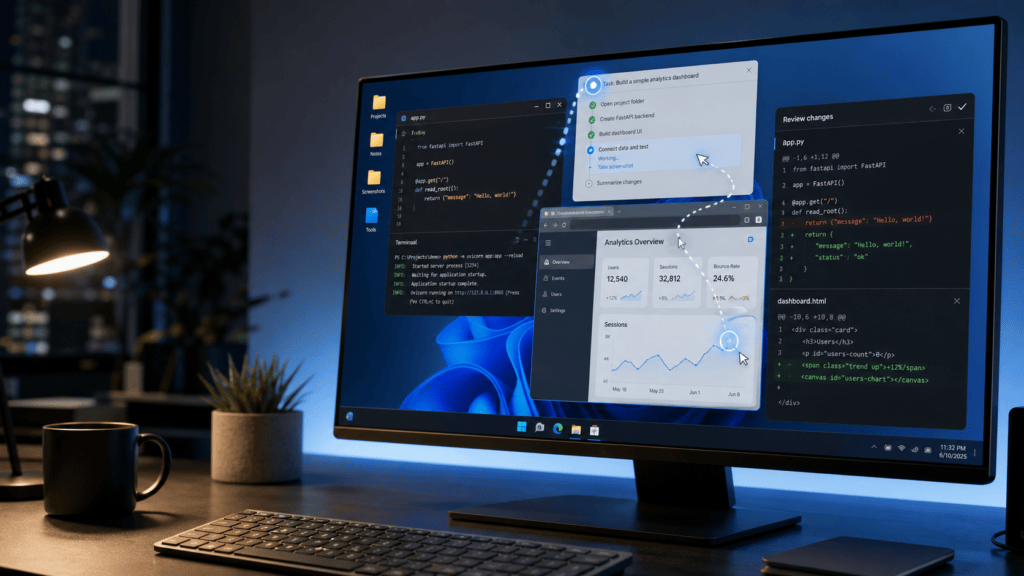
OpenAI has quietly crossed an important line for AI agents on the PC. In the May 29, 2026 Codex changelog, OpenAI lists a new Codex app release, version 26.527, under the headline “Computer use and mobile access on Windows.” The headline is plain. The implication is not: Codex can now operate Windows desktop apps by seeing the screen, clicking, and typing in the foreground while it works.
That update, also surfaced through OpenAI’s X post, brings a previously Mac-first Codex capability into the Windows world. In practical terms, the OpenAI coding agent is no longer limited to code files, terminal commands, plugins, browser previews, and structured integrations on PC. It can now interact with graphical Windows applications directly, inside the official Codex desktop workflow.
This does not mean Codex has become a free-roaming Windows autopilot. The official Computer Use docs are careful about scope, permissions, and safety. On Windows, Codex computer use runs on the active desktop. It cannot run in the background while you keep using the same Windows session. It will move the pointer, type, and take over foreground input while the task runs. That distinction matters.

Still, for Windows developers, this is a major update. The PC is where a huge amount of software is built, tested, configured, debugged, packaged, and shipped. Bringing visual desktop control to Codex on Windows gives the agent a way to verify things that are hard to prove from source code alone: a broken onboarding screen, a native app setting, a flaky checkout flow, a data export dialog, a UI bug that only appears after clicking through a real app.
Key Takeaways
OpenAI’s May 29, 2026 Codex changelog says Computer Use now works on Windows.
Codex can operate Windows desktop apps by seeing, clicking, and typing in the foreground.
Remote control now supports Windows devices, so users can start or steer Codex work on a Windows machine from ChatGPT on iOS or Android, or from a Mac running Codex.
The Codex Computer Use documentation says the feature is available on macOS and Windows, except in the European Economic Area, the United Kingdom, and Switzerland at launch.
Windows computer use is foreground-only. Codex cannot quietly operate Windows apps in the background while you keep using the same session.
The Windows Codex app is distributed through the Microsoft Store and supports PowerShell, Windows sandboxing, WSL2, the in-app browser, plugins, skills, worktrees, automations, Git functionality, and artifact previews.
What Actually Launched
The new release has two headline features. First, Computer Use now works on Windows. Second, remote control now supports Windows devices.
The computer use part is the eye-catcher. OpenAI describes Codex as being able to operate desktop apps visually, which means the agent can inspect a graphical interface and interact with it through clicks and keyboard input. This is especially useful when the task depends on what the application actually does on screen rather than what the code appears to do in a repository.
The remote control piece is just as important for day-to-day work. OpenAI’s remote connections documentation says users can use Codex in the ChatGPT mobile app to work with Codex on a connected Mac or Windows device. The connected host provides the projects, files, credentials, permissions, plugins, Computer Use setup, browser setup, and local tools. Your phone sends prompts, approvals, and follow-up instructions.
In other words, the Windows PC becomes the working machine, and your phone becomes the control surface.
OpenAI had already introduced Codex mobile access in its May 14 product post, “Work with Codex from anywhere”. At that time, OpenAI said Codex was coming to the ChatGPT mobile app in preview, and that more than 4 million people used Codex every week. That same post said support for connecting a phone to the Codex app on Windows was “coming soon.” The May 29 changelog is the moment that support arrived.
Why This Matters for Windows Developers
Until now, the most natural Codex workflow on Windows was still largely code-and-terminal shaped. That is already useful. A coding agent can read a project, edit files, run tests, inspect diffs, execute commands, and work inside a sandbox. The Windows app docs say the Codex app for Windows supports one interface for projects, parallel agent threads, and review, with core workflows such as worktrees, automations, Git functionality, the in-app browser, artifact previews, plugins, and skills.
Computer Use adds a missing layer: the graphical surface.
A lot of real software work lives there. A developer may need to open a Windows desktop application, reproduce a layout bug, check whether a button is disabled, confirm that a settings dialog persists a value, or walk through a browser flow where the important failure is visual rather than textual. Before computer use, the agent could often infer, run tests, or inspect screenshots if the user provided them. Now Codex can participate more directly in the loop.
This is particularly meaningful for native Windows apps, Electron apps, internal enterprise tools, installers, admin panels, old software with no API, and browser sessions where authentication or local state matters. The official docs list good use cases such as testing a Windows app, performing a task that requires a browser, reproducing a graphical-interface-only bug, changing settings through a UI, inspecting information in an app that does not have a plugin, and executing a workflow across more than one app.
That does not make Computer Use the best tool for everything. OpenAI’s docs explicitly say that for local web apps, users should try the in-app browser first. Structured integrations, plugins, and MCP servers are still better for repeatable data access when they exist. Computer Use is for the messy edge where the screen itself is the source of truth.
The Big Windows Caveat: Foreground Control
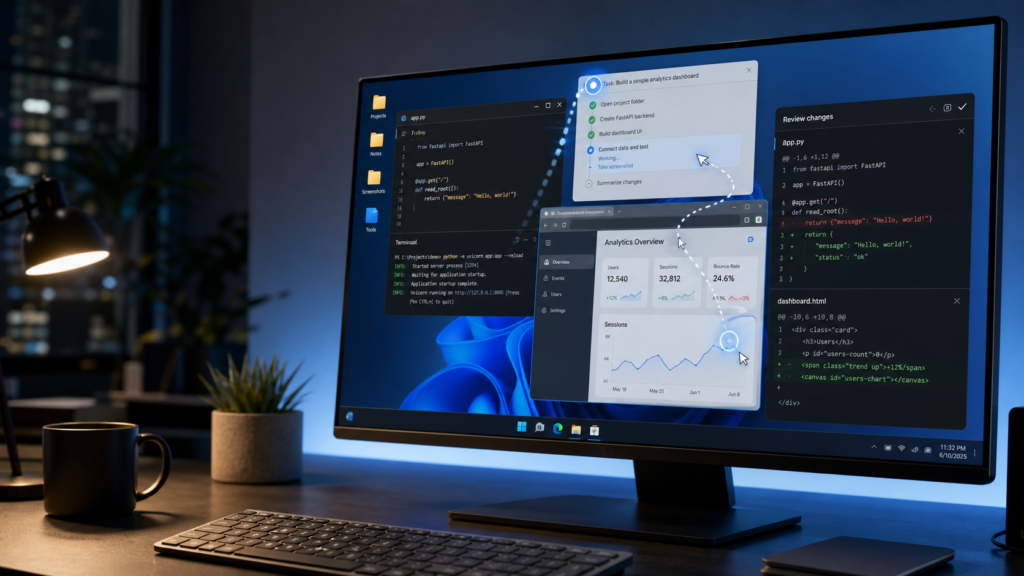
The most important limitation is simple: on Windows, Codex takes over the foreground.
OpenAI’s Computer Use docs say Windows computer use runs on the active desktop and cannot operate in the background while you continue using the same Windows session. If you start a task, expect Codex to move the pointer, type, and operate the visible app while it works.
That makes the Windows version different from the Mac framing OpenAI used in April. In “Codex for (almost) everything”, OpenAI described background computer use on Mac, where multiple agents could work in parallel without interfering with the user’s own work in other apps. The Windows release is useful, but not identical.
For Windows users, this points to a practical operating model. If you want Codex to visually test a desktop app, give it the machine for a while. Keep the app visible. Keep the device unlocked. Do not try to use that same session for other work at the same time. If the task is long-running, OpenAI suggests using remote control from a phone to check progress or send follow-up instructions. Another practical option in the docs is to run the Codex app inside a Windows virtual machine so Codex takes over the VM rather than your main desktop.
That may sound like a limitation, but it is also a sane safety boundary. Letting an agent click around a live Windows session while the human user is also working would invite confusion. Foreground ownership makes the handoff clear: either Codex is driving, or you are.
Remote Control Turns the PC Into a Host
The Windows remote-control update makes the release feel less like “Codex can click Windows now” and more like “your Windows workstation can become an agent host.”
According to OpenAI’s remote connections guide, remote connections let users start new threads, continue existing work, send follow-up instructions, answer questions, approve actions, review outputs, inspect diffs, see test results, view terminal output and screenshots, receive notifications, and switch between connected hosts and threads.
The Windows-specific detail is important. The docs say mobile setup supports Codex App hosts on macOS and Windows. You can control a Windows host from ChatGPT on iOS or Android, or from a Mac running Codex. However, Windows cannot currently control another computer from the Codex App.
So the release is asymmetric. A Windows PC can be controlled remotely. It is not yet a remote controller for another machine from the Windows Codex app. That is a small but important distinction for teams planning workflows around multiple workstations or devboxes.
For solo developers, the appeal is obvious. Start a Windows task from your desk, walk away, approve a command from your phone, check a screenshot, redirect the agent, and come back to a diff. For teams, the bigger idea is using a dedicated Windows machine as a reachable environment with the right tools, credentials, SDKs, and UI applications installed.
Setup and Availability
The official Windows Codex app page says the app is available through the Microsoft Store. OpenAI also documents a command-line install path:
winget install Codex -s msstore
The same Windows page says the app runs natively on Windows using PowerShell and the Windows sandbox, or it can be configured to run in Windows Subsystem for Linux 2. It also supports common terminal choices such as PowerShell, Command Prompt, Git Bash, and WSL.
For Computer Use itself, users need to install the Computer Use plugin from Codex settings. On Windows, OpenAI says the target app should remain visible on the active desktop while the task runs. On macOS, users also need Screen Recording and Accessibility permissions, but those macOS-specific permissions are not the Windows setup path.
Availability has one key regional caveat. The Computer Use documentation says computer use is available on macOS and Windows except in the European Economic Area, the United Kingdom, and Switzerland at launch. That is not a minor footnote; it determines who can actually try the feature today.
Safety, Permissions, and What Codex Cannot Do
Computer Use is powerful because it can interact with real apps. It is sensitive for the same reason.
OpenAI’s docs say Codex can view screen content, take screenshots, interact with windows and menus, use keyboard input, and interact with clipboard state in the target app. The same docs recommend keeping tasks narrow, closing sensitive apps unless needed, reviewing app permission prompts, and staying present for account, security, privacy, network, payment, or credential-related settings.
Codex asks for permission before it can use an app. Users can choose to always allow a trusted app, and they can remove apps from the allow list later. Codex may also ask before taking sensitive or disruptive actions.
There are hard limits too. OpenAI says the feature cannot automate terminal apps or Codex itself, because that could bypass Codex security policies. It also cannot authenticate as an administrator or approve security and privacy permission prompts on your computer. File edits and shell commands still follow Codex approval and sandbox settings where applicable.
Browser use deserves special care. If Codex uses your browser, it may interact with pages where you are already signed in. OpenAI advises reviewing website actions as if you were taking them yourself. That is the right mental model: if a click submits a form from your account, it is your account doing the action.
Where This Fits in OpenAI’s Codex Roadmap
This Windows release is not an isolated feature drop. It is part of a broader push to turn Codex from a coding assistant into an agentic software workbench.
In April, OpenAI’s “Codex for (almost) everything” announced a major Codex expansion: computer use, an in-app browser, image generation through gpt-image-1.5, memory preview, automations, remote devbox support, and more than 90 additional plugins. OpenAI said then that more than 3 million developers used Codex every week.
By May 14, in “Work with Codex from anywhere”, OpenAI said more than 4 million people used Codex every week and introduced Codex in the ChatGPT mobile app in preview. That post framed mobile access as a way to keep longer-running agent work moving by reviewing outputs, approving actions, and sending guidance from anywhere.
The May 29 Windows update closes a practical gap in that story. If Codex is supposed to work across the software development lifecycle, Windows cannot be a second-class host. Many developers build on Windows. Many companies ship Windows software. Many internal tools and test flows exist only on PC environments. Bringing Computer Use and mobile remote control to Windows makes the Codex “agent host” concept more platform-complete.
The Bottom Line
OpenAI’s Computer Use release for Windows is not magic, and the official docs are refreshingly clear about that. Codex on Windows operates in the foreground. It needs visible apps. It requires permissions. It should be used for scoped tasks. It is not available in every region at launch. It cannot approve administrator prompts or automate terminals. It can make mistakes, and users still need to supervise sensitive actions.
But this is still a meaningful step for PC-based agent work.
The Windows desktop is full of workflows that were previously awkward for a code-first agent: visual QA, app setup, bug reproduction, browser sessions, desktop software testing, UI inspection, and multi-app tasks with no clean API. With the May 29 Codex 26.527 update, OpenAI has given Codex a way to participate in that layer on Windows.
For developers, the short version is this: if your work can be verified in files and command output, keep using Codex’s normal code, terminal, plugin, and review workflows. If the truth lives on screen, Computer Use on Windows is now part of the toolbox.
The Kingy Brief
Get The Kingy Brief.
AI changes, original tests and one practical thing to try. Fridays at 09:00 Vancouver time.
Free · Double opt-in · Unsubscribe anytime
Signup help and newsletter schedule
Signup form provided by Beehiiv. After submitting, check your inbox for "Confirm your subscription to The Kingy Brief" and open its confirmation link. Check Spam or Promotions if you cannot find it.
Fridays at 09:00 Vancouver time: source-checked AI changes, original tests and one practical thing to try. The weekly restart begins October 9, 2026. We skip a week when there is not enough verified material. Free. Unsubscribe anytime.