Everything you need to go from blank page to complete course — backed by educators at NYU, Stanford, and verified by Google’s own documentation.
Why NotebookLM Changes Everything for Curriculum Design
Most AI tools answer from the entire internet — a smoothie of facts, opinions, and training data you can’t fully verify or control. NotebookLM is architecturally different. It answers only from the sources you upload. When it doesn’t know something, it says so. It doesn’t guess.
That single design decision — what Google calls “source grounding” — is what makes it uniquely powerful for curriculum design. As product growth expert and AI commentator Aakash Gupta notes, NotebookLM reaches 48 million monthly visits and grew 120% quarter-over-quarter in Q4 2024 — and most educators still haven’t unlocked its full potential. His complete guide describes it as a “research-to-product pipeline,” not a PDF summarizer — and that’s exactly what it is for curriculum builders.
According to Google for Education, NotebookLM is “a free generative AI tool that is grounded only in the information you provide. Upload your course materials and generate summaries, lesson plans, study guides and quizzes — all with in-line citations to ensure accuracy.”
This guide walks you through the entire process, step by step, from setting up your first notebook to deploying a finished curriculum inside your LMS.
Who This Guide Is For
This guide is designed for:
K-12 teachers building standards-aligned units and lesson sequences
University faculty designing semester-long syllabi and course modules
Corporate trainers developing certification or onboarding programs
Instructional designers building scalable, differentiated curriculum frameworks
Anyone who has ever stared at a blank syllabus template and wished for a thinking partner
For educators: NotebookLM is included free of charge in all Google Workspace for Education editions — including the no-cost Education Fundamentals tier. As of August 4, 2025, NotebookLM is available to all education users of all ages. It complies with FERPA and COPPA, and your data is never human-reviewed or used to train AI models.
For individual educators without institutional Workspace: A personal Google account gives you access to NotebookLM on the free public tier.
Free tier limits (Education):
Up to 100 notebooks
Up to 50 sources per notebook
50 chat queries per day
3 Audio Overviews, 3 Video Overviews, 3 infographics, 3 slide decks per user per day
10 flashcard/quiz sets per day
Google AI Pro for Education ($15/user/month) expands these to 500 notebooks, 300 sources per notebook, 500 daily queries, and 20 Audio/Video Overviews per day — worth it for power users or large departments.
Step 2: Understand the Interface
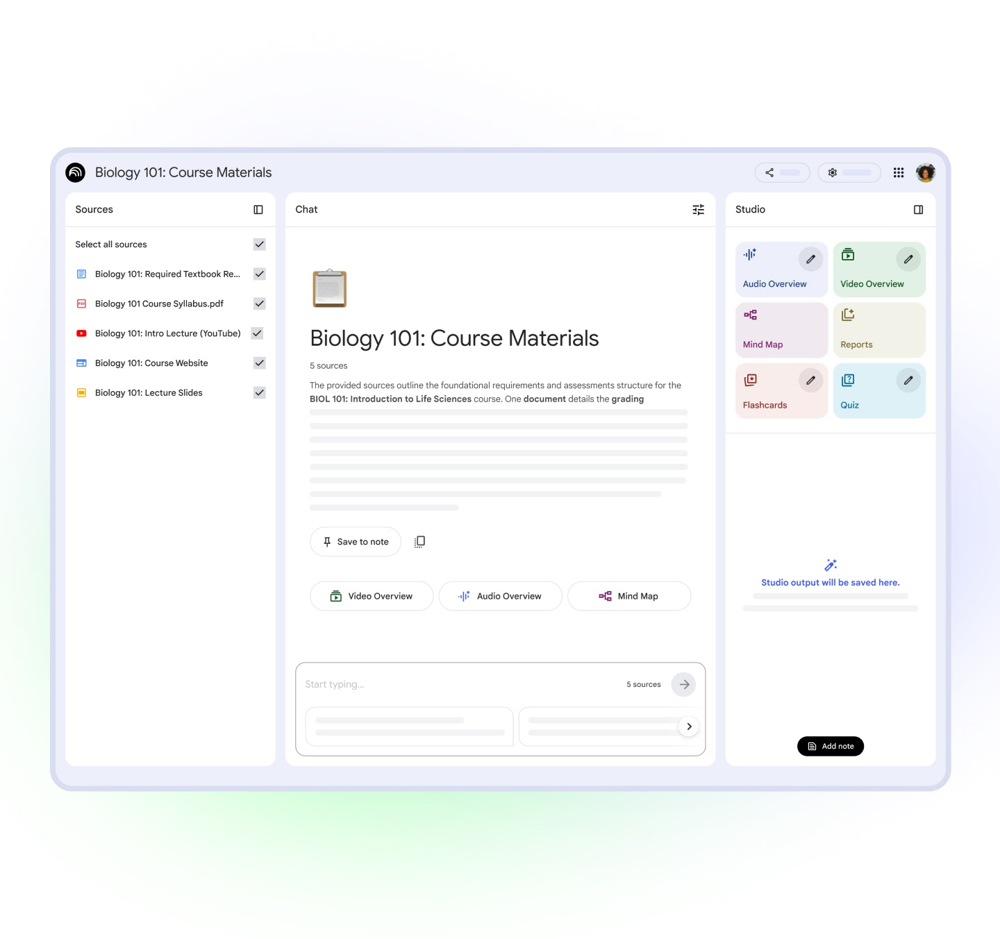
NotebookLM has three core areas:
1. Sources Panel (left) This is your knowledge base. Everything NotebookLM knows about your course lives here. You can upload:
Google Docs and Slides
PDFs
Websites (paste a URL)
YouTube videos (paste a link)
Audio files
Images
Copied/pasted text
Each notebook supports up to 50 sources. Sources can be up to 500,000 words each.
2. Chat Panel (center) This is where you interact with the AI. Every answer is grounded in your uploaded sources and includes clickable inline citations that jump directly to the source passage. If something isn’t in your sources, NotebookLM will tell you — it won’t fabricate an answer.
3. Studio Panel (right) This is the most underused feature. The Studio panel generates all content outputs — Audio Overviews, Video Overviews, flashcards, quizzes, slide decks, infographics, study guides, mind maps, and more — with a single click.
Part 2: Building Your Curriculum From Scratch
Step 3: Define Your Course Scope Before You Open NotebookLM
Before uploading a single file, spend 20–30 minutes on paper answering these questions. This clarity makes every prompt you write dramatically more effective.
Core questions to answer:
Who are your learners? (Grade level, background knowledge, learning context)
What should learners be able to do by the end of the course? (Not just know — do)
How long is the course? (Weeks, hours, sessions)
What constraints exist? (Standards, accreditation requirements, institutional frameworks)
What materials do you already have?
On learning objectives: Write them in measurable terms using action verbs from Bloom’s Taxonomy — analyze, evaluate, create, compare, design — not vague terms like “understand” or “know.” Instead of “students will understand photosynthesis,” write: “Students will explain the steps of the Calvin cycle and predict how changes in CO₂ concentration affect glucose production.”
This matters because NotebookLM will use your stated objectives as anchors for everything it generates.
Step 4: Choose and Upload Your Source Materials
This is the most important decision in the entire process. NotebookLM is only as good as what you give it. Garbage in, garbage out — but high-quality sources in, remarkable curriculum out.
Common Core, NGSS, state frameworks, accreditation rubrics
Ensures alignment
Previous syllabi
Your own or colleagues’ course outlines
Provides structural anchors
Sample assessments
Past quizzes, rubrics, exam banks
Teaches the AI your assessment style
Student context
Learner profiles, prerequisite skill documents
Helps differentiate content
Supplementary materials
Case studies, articles, YouTube transcripts
Enriches activities
Pro tip from Google for Education: You can upload education standards documents directly. NotebookLM will then cross-reference every piece of generated content against those standards automatically.
What not to upload:
Student records or personally identifiable information
Copyrighted materials you don’t have rights to use
Confidential institutional or corporate documents
Content irrelevant to the course (every source shapes every answer)
On copyright: Only upload materials you have rights to use. Prefer Open Educational Resources (OER) or Creative Commons-licensed materials. For short educational excerpts, consult your institution’s fair use guidelines. NotebookLM’s citation system actually helps with attribution — every output cites its source.
With your sources uploaded, it’s time to generate the backbone of your curriculum.
Start with the Notebook Guide. When you upload sources, NotebookLM automatically generates a Notebook Guide on the right side — a summary of your materials with suggested questions. Review this first. It tells you exactly what NotebookLM “knows” and surfaces gaps you may need to fill with additional sources.
Then prompt for your course outline:
“Based on all uploaded materials, create a 10-module course outline for [Course Name] designed for [audience]. For each module, include: a module title, 2–3 measurable learning objectives using Bloom’s Taxonomy action verbs, a list of key topics, and 1–2 recommended readings or resources from the uploaded sources.”
Review the output carefully. NotebookLM will include inline citations for every claim, making it easy to trace where each suggestion came from. If a topic appears that doesn’t fit your scope, note which source triggered it — you may want to remove or reframe that source.
Refining the outline:
If the initial output is too broad or too narrow, try:
“The outline for Module 4 feels too advanced for my learners. Can you revise it to introduce [topic] at an introductory level, with simpler prerequisites?”
Or to add a topic you know is missing:
“Please add a module on [topic X] between Module 3 and Module 4. It should build on [concept] from Module 2 and prepare students for [concept] in Module 5.”
The backward design principle. According to Backward Design theory developed by Wiggins & McTighe, effective curriculum design starts with desired outcomes, then works backward to evidence (assessments) and then activities. Your course outline is Stage 1 (desired results). Don’t move to lessons until the outcomes are solid.
Step 6: Build Detailed Lesson Plans Module by Module
Once your outline is approved, dive into individual lessons. The key is to work one module at a time so NotebookLM has focused context.
The core lesson plan prompt:
“Create a detailed lesson plan for Module 2: [Title]. This lesson is 75 minutes long for [audience]. Include: (1) a warm-up activity (10 min), (2) direct instruction component (20 min), (3) a guided practice activity (25 min), (4) a collaborative or discussion exercise (15 min), and (5) a closing reflection (5 min). Each section should cite specific content from the uploaded readings.”
Adding differentiation:
“Revise the Module 2 lesson plan to include one extension activity for advanced learners and one scaffolding option for students who need additional support.”
Generating discussion questions:
“Generate 5 discussion prompts for Module 2 that push students beyond recall toward analysis and evaluation. At least 2 should require students to connect content across multiple sources.”
Real-world example from NYU: At the NYU October 2025 Teaching and Learning with Generative AI Virtual Symposium, Clinical Associate Professor Juanita Woods shared how she uses NotebookLM to develop lecture materials and class activities from course resources — textbooks, online sources, and teaching notes — and creates a shared class NotebookLM that students use to study the same materials. The result: a seamless feedback loop between teaching and learning.
Step 7: Build Your Assessments
Assessments are where NotebookLM genuinely shines, because every question it generates is traceable back to a specific passage in your source documents. This means no fabricated quiz questions, no ambiguous answers — every item is defensible and verifiable.
Generating a quiz:
“Write a 10-question formative quiz for Module 3. Include: 6 multiple-choice questions (with answer key), 2 short-answer questions, and 2 true/false questions. Each question must be directly answerable from the uploaded readings and include a citation.”
Using the built-in flashcard and quiz feature: As of September 2025, Google’s blog post confirms that NotebookLM now automatically generates interactive flashcard sets and practice quizzes from uploaded documents. You can customize the topic, set the difficulty, and share the sets with students via a simple link. Students who get a question wrong can click “explain” and NotebookLM generates a detailed breakdown — with citations — of why their answer was incorrect.
To access it: Click “Flashcards” or “Quiz” in the Studio Panel (right side). Select your sources, set a topic focus if desired, and generate.
Generating a rubric:
“Create a detailed rubric for a 1,500-word analytical essay on [topic] for [course]. Include 5 criteria: thesis/argument, use of evidence, analysis depth, structure, and writing quality. Each criterion should have 4 performance levels (Excellent, Proficient, Developing, Beginning) with specific descriptors.”
Generating a summative project prompt:
“Design a capstone project for this course that requires students to demonstrate mastery of at least 3 of the course’s learning objectives. Include: a clear project description, deliverables list, timeline, assessment rubric, and guiding questions.”
Assessment variety: A robust curriculum uses multiple evidence types. Prompt NotebookLM for alternatives:
“Suggest 3 alternative assessment formats for Module 5’s learning objectives that go beyond a traditional quiz — including one collaborative option and one that allows for creative expression.”
Step 8: Create Multimedia Learning Materials
This is where NotebookLM separates itself from every other curriculum tool. The Studio Panel can transform your text-based sources into rich, multi-format learning experiences — all grounded in your content.
Audio Overviews
Audio Overviews generate podcast-style discussions of your source materials. They’re ideal for commuting learners, auditory learners, and accessibility use cases.
Available formats (as of September 2025):
Deep Dive: Two AI hosts have an in-depth conversation covering the main ideas of your sources
Brief: A single host delivers a short, focused summary of core concepts
Debate: Two hosts argue different positions on a topic — excellent for pre-discussion priming
Critique: Two hosts critically review a piece of writing or design — useful for modelling feedback
How to generate: Click “Audio Overview” in the Studio Panel, choose your format, and optionally specify a focus prompt like: “Create a debate-format Audio Overview focused on the pros and cons of [approach], drawing from all uploaded sources.”
NYU student use case: Hanwen Zhang, a Computer Science student at NYU Arts & Science, described at the 2025 NYU Symposium how she uploads class notes, prompts NotebookLM to create a personalized study guide, and generates a study podcast that covers major exam topics — so she can review while working out or commuting. This is a model for how to teach students to use the tool.
Video Overviews
Video Overviews turn your sources into narrated explainer videos that pull images, diagrams, and quotes directly from your documents. As of March 2026, NotebookLM supports Cinematic Video Overviews — a more polished, customizable format.
Best use: Complex concepts that benefit from visual scaffolding. Upload a dense reading, generate a Video Overview, and share it as a pre-class “flipped” resource.
Slide Decks
Click “Slide Deck” in the Studio Panel. NotebookLM reads your sources, identifies the narrative arc, selects key data points, and generates a 12–15 slide deck with speaker notes. As Aakash Gupta documented in his Complete Guide to NotebookLM, the visual quality is strong thanks to Google’s Imagen model.
The newest feature: prompt-based slide revision. After generating a deck, use the “Revise” button to iterate conversationally: “Make slide 4 more visual.” “Add a comparison table to slide 7.” “Rewrite the speaker notes for a more technical audience.”
Power user tip: Before generating, create a note in your notebook called “slide deck specification” that lists your audience, slide count, desired structure, and visual style. Reference it in your prompt. This becomes a reusable template across all your modules.
Infographics
NotebookLM generates visual infographics in multiple orientations (portrait/landscape) and styles (hand-drawing, whiteboard marker, grid layout). Upload a brand character or visual element as a source to have it incorporated into the design — useful for corporate training contexts where brand consistency matters.
Mind Maps
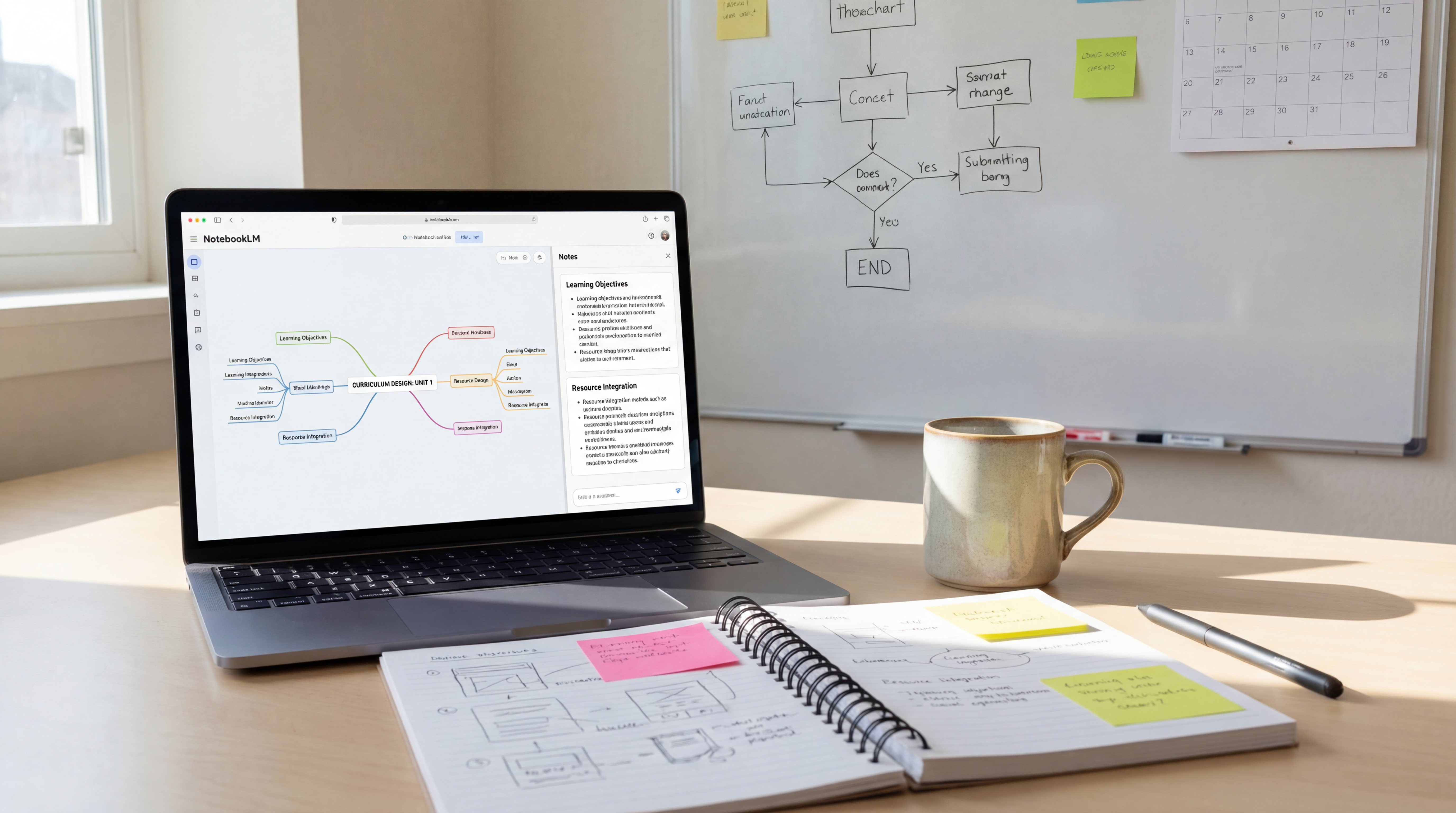
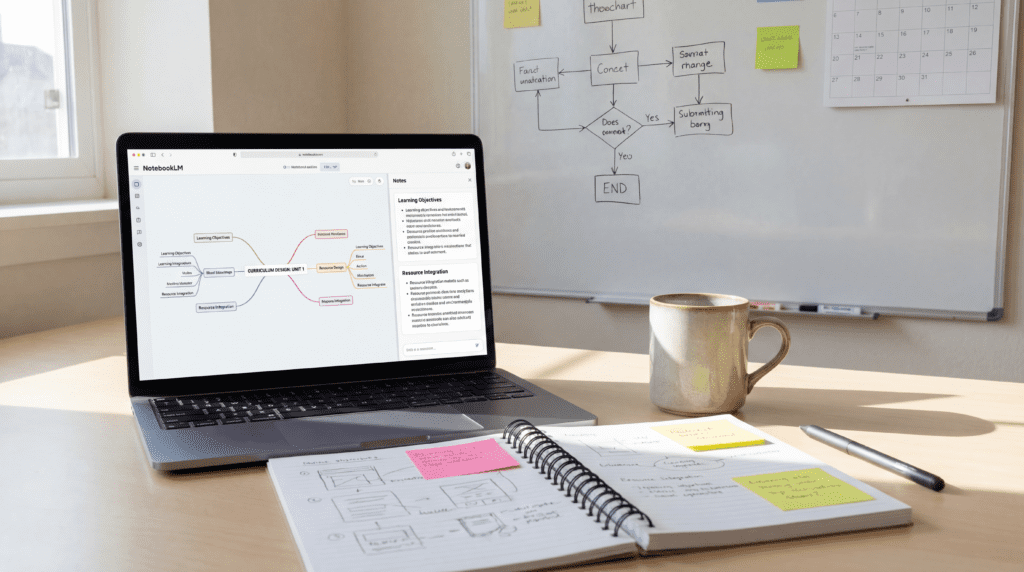
Click “Mind Map” in the Studio Panel to generate a branching visual diagram that shows the relationships between all major concepts in your uploaded sources. This is particularly useful at the course design stage to spot gaps or unexpected connections between modules.
Step 9: Generate Student-Facing Study Resources
Once your teaching materials are built, use the same notebook (or create a student-facing version) to generate the resources your learners will actually use.
Study Guide:
“Create a comprehensive study guide for Weeks 1–4 of the course. Include: a summary of key concepts per week, a glossary of 20 essential terms with definitions (cited), 5 likely exam questions per week with model answers, and 3 further reading suggestions.”
Week-by-week reading schedule:
“Create a pacing guide that spreads the uploaded readings across a 15-week semester, with no more than 45 minutes of reading per session and a brief annotation for each assignment explaining its relevance to the week’s topic.”
Simplified explainer for struggling learners:
“Explain [concept from Module 3] as if to a student who is encountering this material for the first time. Use plain language, a real-world analogy, and step-by-step breakdown.”
Advanced extension:
“Provide 3 challenge questions related to Module 5 that require students to synthesize across at least 2 uploaded sources and formulate an original argument.”
Step 10: Integrate With Your LMS
Your curriculum is built — now get it into students’ hands.
Google Classroom Integration
As of September 2025, educators can create Notebooks from class materials and assign them directly in Google Classroom via Gemini LTI. Students access the shared notebook as a class resource — they can query it, generate their own study materials, and interact with content without being able to edit the source materials you’ve uploaded.
Canvas and Schoology Integration
The Gemini LTI integration allows NotebookLM notebooks to be embedded directly in Canvas courses and PowerSchool Schoology Learning. Once attached to a course, all enrolled students automatically gain access. As Instructure announced at InstructureCon 2025, educators can now attach notebooks directly in Canvas to empower self-paced learning.
Setup checklist for Canvas:
Ensure your institution’s Google Workspace Admin has enabled Gemini LTI in Google Admin
In Canvas, go to Settings → Apps and install the Gemini LTI tool
In your Canvas course module, click “+ Add Item” → select External Tool → select Gemini LTI
Connect your NotebookLM notebook
The notebook becomes accessible to all enrolled students
Best practices for LMS integration:
Clearly label all NotebookLM content: “AI-Generated Study Guide — verify citations before citing in your work”
Create a “Chat Only” shared link (available in pro tiers) so students can query the notebook without seeing or editing your sources
Export critical content as PDFs or Google Docs as a backup
Step 11: Iterate and Improve
Building curriculum is not a one-time event. NotebookLM is particularly powerful for rapid iteration — you can revise a module in minutes that would have taken hours manually.
Collect feedback and feed it back in:
After piloting a unit, upload anonymized student feedback or survey responses as a new source, then ask:
“Summarize the most common themes in this feedback and suggest 3 specific changes to the Module 2 lesson plan to address them.”
Analyze assessment results:
Upload aggregated (anonymized) performance data and ask:
“Based on these quiz results, which learning objectives appear to have the lowest mastery? Suggest an alternative teaching approach for each underperforming objective.”
Versioning: Name each major iteration clearly — “CourseOutline_v2_Spring2026” — and export snapshots to Google Drive before making large changes. This gives you a revision history.
Part 3: Power User Techniques
The Note-to-Source Loop (Aakash Gupta’s Best Tip)
This is the workflow most educators never discover. As documented in Aakash Gupta’s Complete Guide to NotebookLM:
Ask a question → get a well-structured answer
Save that answer as a Note (click the pushpin icon)
Convert the note into a source (right-click → “Use as source”)
Now generate outputs from that curated answer
This loop lets you build content in layers — from raw research material → structured notes → polished curriculum output — without losing context or starting over.
Selective Source Toggling
Before asking a question, toggle individual sources on and off in the Sources Panel to control which materials NotebookLM draws from. This turns a flat pile of documents into an interrogatable knowledge base. For example:
Toggle on only the academic research papers → ask for theoretical foundations
Toggle on only the standards document and your syllabus → check alignment
Toggle everything on → synthesize a unified perspective
The Gap Analysis Technique
Ask: “What are the five most important questions a [learner at this level] should be asking about [topic] that are NOT fully addressed by the uploaded sources?”
This surfaces blind spots in your curriculum and shows you exactly where to find more source material.
Connecting NotebookLM to Gemini
Once a curriculum notebook is built, connect it to Gemini for additional capability:
Open Gemini → click “+” → select “NotebookLM” → pick your notebook
Gemini now has full read-access to your notebook AND can search the live web
Ask Gemini: “What are the latest developments in [topic] that I should add to my curriculum?” — it will search the web AND compare against your existing sources
History/Social Science: Adjunct Instructor Autumn Rain assigns students in “(Un)Burying the Past: Lost Geographies of the Lower East Side” to engage with NotebookLM for organizing and assessing information sources, while tracking the tool’s limitations. The reflection exercise becomes meta-learning about AI itself.
Large Lecture Courses: Craig Kapp (Clinical Professor, Computer Science, NYU Courant) uses student feedback from his 100+ person “Introduction to Computer Programming” course, uploads it to NotebookLM, and uses it to craft formative assessment activities in Brightspace and Poll Everywhere — closing the feedback loop even at scale.
Graduate Seminars: Associate Professor Panos Mavromatis created weekly notebooks for his graduate music theory seminar. Students used the notebooks alongside full texts — accessing briefings, study guides, timelines, and FAQ overviews — and each student was asked to pose at least one question in the chat that focused their own reading.
Policy Research: Professor Thom Blaylock (NYU Wagner) uses NotebookLM in the core course Introduction to Public Policy as a research tool. Students begin by running deep research in Gemini to find 15 solid sources, import them to NotebookLM, then build policy timelines and literature reviews to anchor a semester-long project — adding sources and cross-checking drafts against them throughout the term.
Corporate/Professional Training: As FGCU’s Digital Learning team documents, instructors can use NotebookLM to draft course descriptions, syllabi summaries, and policy explanations from uploaded documents — making it immediately valuable in non-academic training contexts.
Part 5: A Complete Prompt Library
Save these prompts and adapt them to any course or subject.
Outline & Structure Prompts
"Based on all uploaded materials, create a [X]-module course outline for [Course Name] for [audience]. Each module should include a title, 2–3 Bloom's-aligned learning objectives, and key topics."
"Generate a week-by-week reading schedule across [X] weeks with no more than [Y] minutes of reading per session. Annotate each reading."
"Identify any gaps in the uploaded sources that would prevent full coverage of [topic area]."
Lesson Plan Prompts
"Create a [X]-minute lesson plan for [Module/Topic] for [audience]. Include warm-up, direct instruction, guided practice, collaborative activity, and closing reflection."
"Add a scaffolding option and an extension activity to this lesson plan for differentiated learners."
"Generate 5 higher-order discussion questions for [topic] that require students to synthesize across at least 2 sources."
Assessment Prompts
"Write a [X]-question formative quiz for [Module] with answer key. Include multiple-choice, short answer, and true/false. Cite each answer's source."
"Create a rubric for a [type] assignment with [X] criteria and 4 performance levels each."
"Design a summative capstone project that assesses [specific objectives]. Include deliverables, timeline, rubric, and guiding questions."
"Suggest 3 alternative assessment types for [objective] that include at least one collaborative and one performance-based option."
Student Resource Prompts
"Create a study guide for Weeks [X-Y] including: key concepts, glossary of [X] terms, likely exam questions with model answers."
"Explain [concept] at a [grade level] reading level using a real-world analogy."
"Translate these learning objectives into Spanish." (Works for 35+ languages)
Multimedia Prompts
"Create a Debate-format Audio Overview on [topic], with both sides drawing from the uploaded research."
"Generate a slide deck specification note: audience is [X], 12 slides, narrative arc moves from problem → evidence → solution, tone is [formal/conversational]."
"Generate a mind map of the major conceptual relationships across all uploaded sources."
Evaluation & Iteration Prompts
"I've uploaded student feedback from [Unit]. Summarize the top 5 themes and suggest 3 curriculum adjustments."
"Which uploaded topics are covered least thoroughly? What additional sources should I find?"
Part 6: Limitations You Need to Know
NotebookLM is powerful, but it has real constraints. Understanding them prevents frustration.
Source limits: Free education tier allows 50 sources per notebook, up to 100 notebooks. If your course is very large, create separate notebooks per unit or semester half. Pro tier allows 300 sources per notebook.
It only knows what you upload. This is a feature AND a limitation. If your sources don’t cover a topic, NotebookLM will tell you it can’t answer. This is a signal to find better sources — not a bug.
Long PDFs: Very long documents may not be parsed completely. For textbooks over 300 pages, split them into chapter-level PDFs before uploading. Name files clearly (e.g., Ch01_Intro.pdf, Ch02_Theory.pdf) so citations are easy to trace.
Output length: Very long outputs may be truncated. Break complex requests into smaller chunks: generate Module 1’s lesson plan, then Module 2’s, rather than asking for all 10 at once.
AI outputs require human review. NotebookLM’s citations are accurate to your sources, but the pedagogical judgment — is this the right activity for this audience? — is yours. Always review AI-generated assessments before deploying them.
Formatting cleanup: Generated tables or bulleted lists may need light formatting work before pasting into a Word document or LMS. Budget a few minutes for polish.
Part 7: Ethics, Privacy & Academic Integrity
Your Data Is Protected
According to Google’s official NotebookLM documentation, your data is “not human-reviewed or used to train AI models.” For institutional accounts, NotebookLM is covered under Google Workspace for Education Terms of Service, which include enterprise-grade data protections and compliance with FERPA and COPPA.
Still: follow your institution’s data governance policies. Do not upload student records, personally identifiable information, or confidential materials.
Academic Integrity
Using NotebookLM for curriculum design is fundamentally different from using AI for student work. The former augments instructor expertise; the latter raises academic integrity concerns. Be clear with students about the distinction:
AI-assisted lesson design is the instructor’s professional tool
If you share a NotebookLM notebook with students, communicate clearly: the AI generates content based on your sources, and students should verify, cite, and think critically about every output. NYU faculty emphasize this in their documented workflows — the goal is to augment student critical thinking, not bypass it.
Bias Awareness
Since NotebookLM draws only from your sources, any bias in the curriculum comes from your selection of materials. Ensure your source library includes diverse perspectives, authors, and viewpoints — particularly for social science, history, and humanities courses.
Transparency
When sharing AI-generated materials with students or colleagues, label them clearly. Many educators add a brief note: “This study guide was AI-generated from course readings using NotebookLM. Verify key claims using the cited sources.” This models responsible AI use and builds student AI literacy — itself an increasingly essential skill.
Part 8: Project Timeline Template
Here’s a realistic timeline for building a complete course curriculum using NotebookLM:
Colleagues/instructional designers review AI outputs
Week 7
8. LMS Integration
Upload to Canvas/Classroom, test student access
Week 8
9. Pilot & Collect Data
Run the course, collect feedback
Ongoing
10. Iteration
Update sources, regenerate weak modules
Post-pilot
Putting It All Together
NotebookLM is not a replacement for your expertise as an educator. It is a thinking partner — one that never loses context, works from your materials, and can generate in seconds what used to take hours.
The most powerful use of NotebookLM for curriculum design comes from combining three things:
Clear pedagogical intent — You bring the learning objectives, the audience understanding, and the educational judgment
High-quality sources — The better your uploads, the better every single output
Iterative prompting — Don’t accept the first output. Refine, adjust, push deeper
When those three things align, what educators at NYU, FGCU, and countless other institutions are discovering is that full course curricula — syllabi, lesson plans, assessments, study guides, multimedia resources — can be built in days instead of weeks, and refined in minutes instead of hours.
Start here: Go to notebooklm.google.com, create a notebook, upload the 3–5 most important sources for a course you’re working on, and ask: “Based on these materials, what would a 6-module course outline look like?”
A.I. enthusiast with multiple certificates and accreditations from Deep Learning AI, Coursera, and more. I am interested in machine learning, LLM's, and all things AI.
This website stores cookies on your computer. These cookies are used to provide a more personalized experience and to track your whereabouts around our website in compliance with the European General Data Protection Regulation. If you decide to to opt-out of any future tracking, a cookie will be setup in your browser to remember this choice for one year.